Ir para o conteúdo principal
Participe da comunidade de reparos - Criar conta

Nintendo Switch Lite LCD Replacement

O que você precisa

  1. Nintendo Switch Lite LCD Replacement, Remove the back panel screws: passo 1, imagem 1 %32
    Ferramenta utilizada neste passo:
    Magnetic Project Mat
    $16.96
    • Before beginning this repair, make sure that the device is completely turned off.

    • Use a Y00 screwdriver to remove the four 6.3 mm-long screws securing the back panel.

    • Throughout this repair, keep track of each screw and make sure it goes back exactly where it came from.

    Pergunte ao FixBot

    Comentar

  2. Nintendo Switch Lite LCD Replacement, Remove the top and bottom back panel screws: passo 2, imagem 1 %32 Nintendo Switch Lite LCD Replacement, Remove the top and bottom back panel screws: passo 2, imagem 2 %32
    • Use a JIS 000 driver or an iFixit PH 000 driver to remove the following screws securing the back panel:

    • Two 3.6 mm-long screws on the top of the device

    • Two 3.6 mm-long screws on the bottom of the device

    • To prevent these tight screws from stripping, apply firm downward force, work slowly and try a different screwdriver if the screws won't come out.

    Pergunte ao FixBot

    Comentar

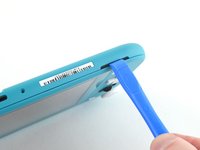
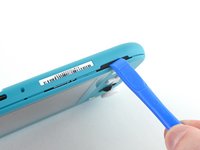
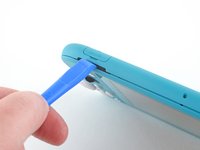
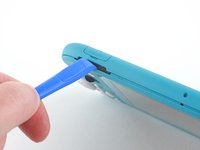
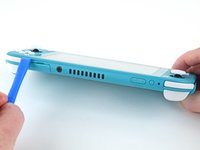
  3. Nintendo Switch Lite LCD Replacement, Release the clips securing the back panel: passo 3, imagem 1 %32 Nintendo Switch Lite LCD Replacement, Release the clips securing the back panel: passo 3, imagem 2 %32
    • Insert an opening tool into the left speaker grille on the bottom of the device.

    • Twist the opening tool to release the clips securing the back panel.

    • Avoid inserting the opening tool further than required to prevent damage to the speaker module.

    Pergunte ao FixBot

    Comentar

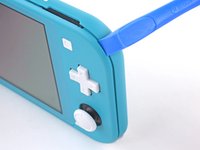
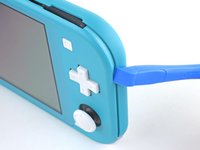
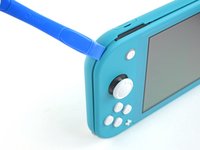
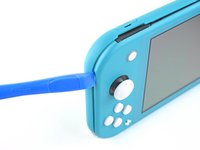
  4. Nintendo Switch Lite LCD Replacement, Continue releasing the clips around the device: passo 4, imagem 1 %32 Nintendo Switch Lite LCD Replacement, Continue releasing the clips around the device: passo 4, imagem 2 %32
    • Slide the opening tool around the bottom-left corner to release the clips on the left side of the device.

    Pergunte ao FixBot

    Comentar

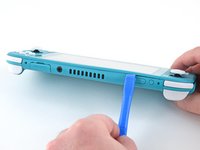
  5. Nintendo Switch Lite LCD Replacement, Twist to release the clips: passo 5, imagem 1 %32 Nintendo Switch Lite LCD Replacement, Twist to release the clips: passo 5, imagem 2 %32
    • Insert an opening tool into the right speaker grille on the bottom of the device.

    • Twist the opening tool to release the clips.

    • Avoid inserting the opening tool further than required to prevent damage to the speaker module.

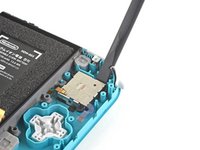
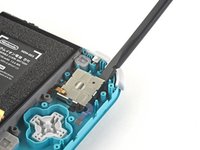
    Pergunte ao FixBot

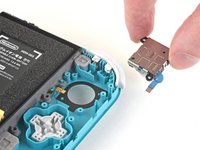
    Comentar

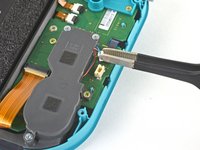
  6. Nintendo Switch Lite LCD Replacement, Slide and pry around the corners: passo 6, imagem 1 %32 Nintendo Switch Lite LCD Replacement, Slide and pry around the corners: passo 6, imagem 2 %32
    • Slide and pry the opening tool around the bottom-right corner to release the clips on the right side of the device.

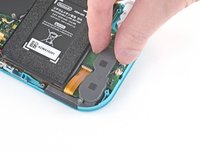
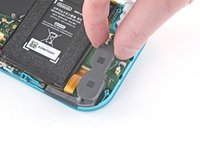
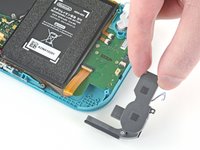
    Pergunte ao FixBot

    Comentar

  7. Nintendo Switch Lite LCD Replacement: passo 7, imagem 1 %32 Nintendo Switch Lite LCD Replacement: passo 7, imagem 2 %32
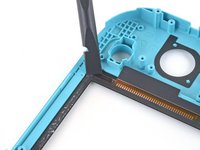
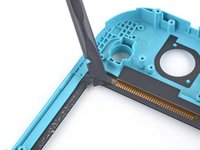
    • Continue sliding and prying the opening tool along the gap on the top of the device to release the clips.

    Pergunte ao FixBot

    Comentar

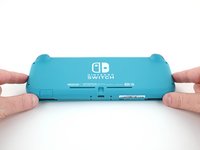
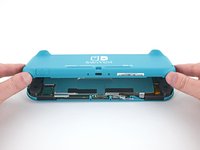
  8. Nintendo Switch Lite LCD Replacement, Remove the back panel: passo 8, imagem 1 %32 Nintendo Switch Lite LCD Replacement, Remove the back panel: passo 8, imagem 2 %32 Nintendo Switch Lite LCD Replacement, Remove the back panel: passo 8, imagem 3 %32
    • Lift the bottom edge of the back panel, opening it like a book.

    • Remove the back panel.

    Pergunte ao FixBot

    Comentar

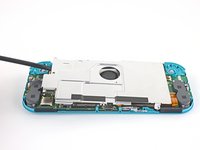
  9. Nintendo Switch Lite LCD Replacement, Remove the shield plate: passo 9, imagem 1 %32
    • Use a JIS 000 driver or an iFixit PH 000 driver to remove the four screws securing the shield plate:

    • Three 3.1 mm screws

    • One 4.5 mm screw

    Pergunte ao FixBot

    Comentar

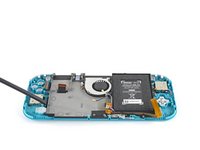
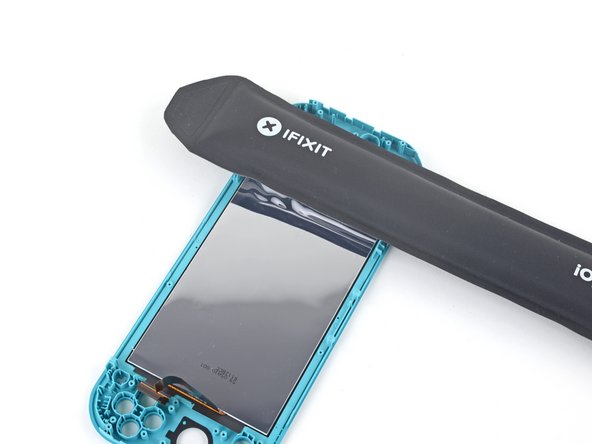
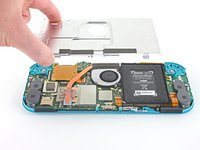
  10. Nintendo Switch Lite LCD Replacement: passo 10, imagem 1 %32 Nintendo Switch Lite LCD Replacement: passo 10, imagem 2 %32 Nintendo Switch Lite LCD Replacement: passo 10, imagem 3 %32
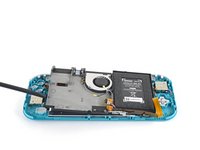
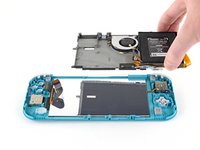
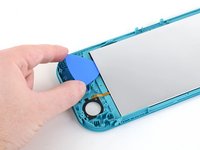
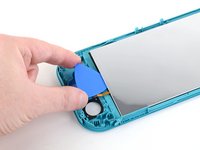
    • Use a spudger or your fingers to lift the shield plate up and out of the device.

    • You may feel a bit of resistance. This is normal, since the shield plate is slightly bonded to the heat sink with thermal paste.

    • Remove the shield plate.

    • Clean off the old thermal paste from the shield plate and heat sink using isopropyl alcohol and a microfiber cloth. Apply new thermal paste to the heat sink before reassembly.

    Pergunte ao FixBot

    Comentar

  11. Nintendo Switch Lite LCD Replacement, Disconnect the interconnect cable: passo 11, imagem 1 %32 Nintendo Switch Lite LCD Replacement, Disconnect the interconnect cable: passo 11, imagem 2 %32
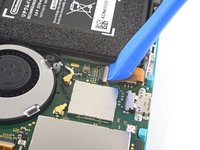
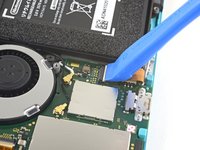
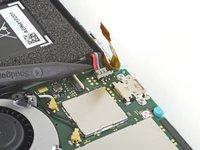
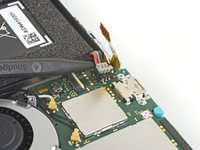
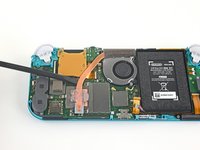
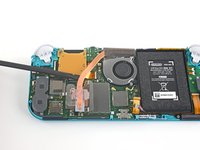
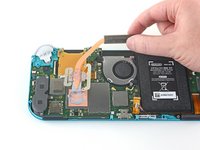
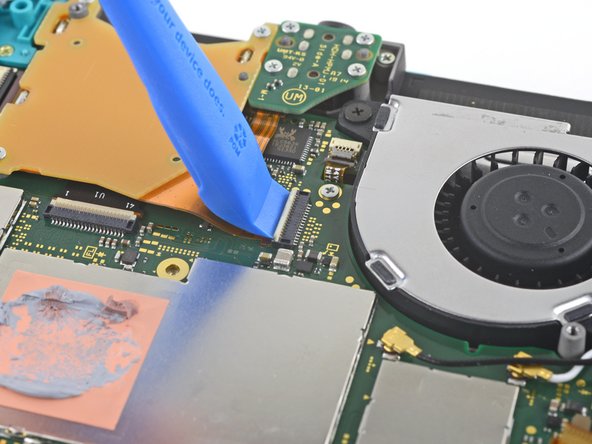
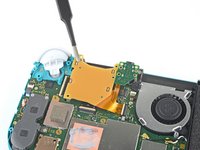
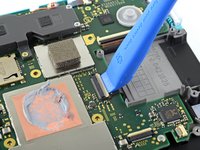
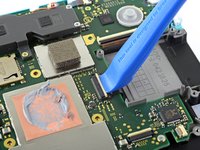
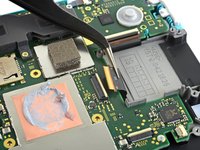
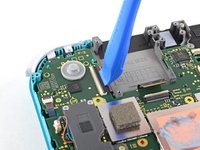
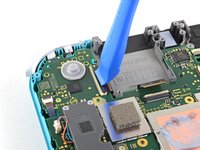
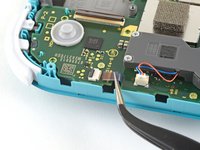
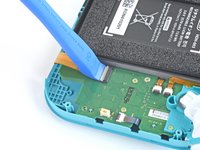
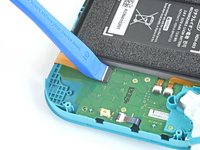
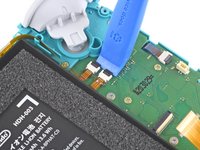
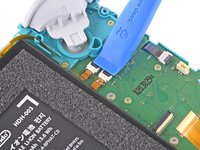
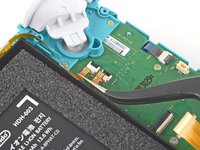
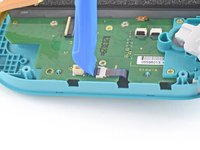
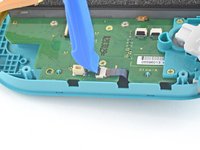
    • Use an opening tool or your fingernail to flip up the small, hinged locking flap on the motherboard interconnect cable's ZIF connector.

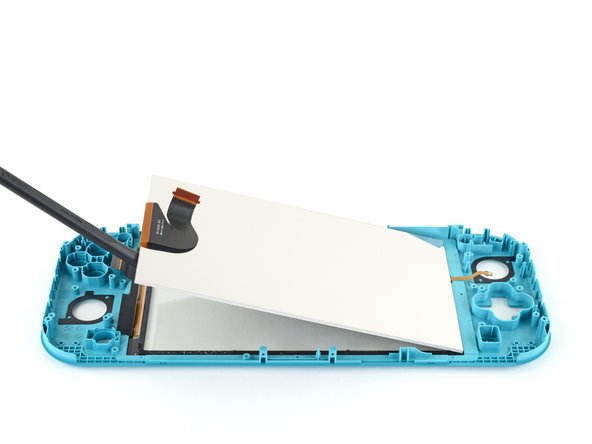
    Pergunte ao FixBot

    Comentar

  12. Nintendo Switch Lite LCD Replacement: passo 12, imagem 1 %32 Nintendo Switch Lite LCD Replacement: passo 12, imagem 2 %32
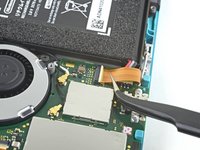
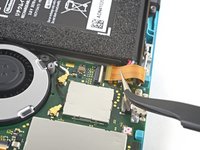
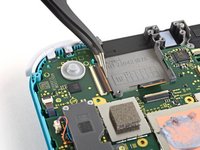
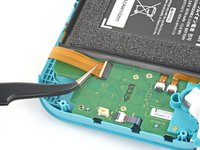
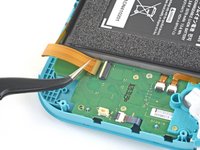
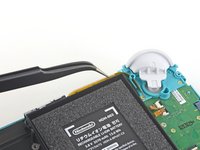
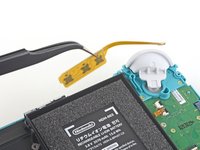
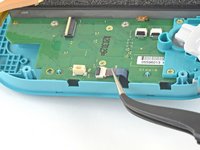
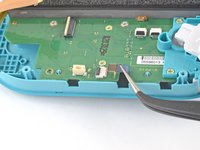
    • Do Not Use Metal Tweezers! Some fixers state that metallic tweezers can short circuit the ribbon cable/connector. It might be safer to just use nylon-tipped or ceramic-tipped tweezers.

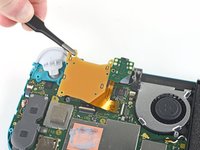
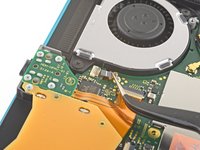
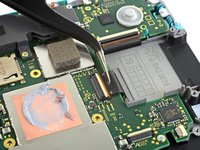
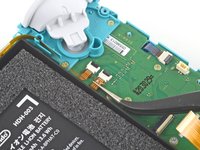
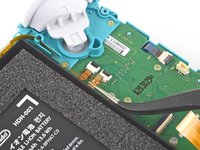
    • Use a pair of tweezers to slide the interconnect cable out of its connector on the motherboard.

    Pergunte ao FixBot

    Comentar

  13. Nintendo Switch Lite LCD Replacement, Disconnect the battery: passo 13, imagem 1 %32 Nintendo Switch Lite LCD Replacement, Disconnect the battery: passo 13, imagem 2 %32
    • Use the point of a spudger to pry the battery connector straight up and out of its socket on the motherboard.

    • During reassembly, wait until after you connect the interconnect cable (above) before connecting the battery.

    Pergunte ao FixBot

    Comentar

  14. Nintendo Switch Lite LCD Replacement, Remove the heat sink: passo 14, imagem 1 %32
    • Use the flat end of a spudger or your fingers to carefully peel up the foam that's lightly adhered to the fan.

    • The foam only needs to be peeled back enough to clear the fan.

    Pergunte ao FixBot

    Comentar

  15. Nintendo Switch Lite LCD Replacement: passo 15, imagem 1 %32
    • Use a JIS 000 driver or an iFixit PH 000 driver to remove the three 3 mm screws securing the heat sink to the motherboard.

    Pergunte ao FixBot

    Comentar

  16. Nintendo Switch Lite LCD Replacement: passo 16, imagem 1 %32 Nintendo Switch Lite LCD Replacement: passo 16, imagem 2 %32 Nintendo Switch Lite LCD Replacement: passo 16, imagem 3 %32
    • Use a spudger or your fingers to lift the heatsink up and off of the motherboard to remove it.

    • You may feel a bit of resistance. This is normal, since the heat sink is slightly bonded to the CPU with thermal paste.

    • Clean off the old thermal paste from the heat sink and CPU using isopropyl alcohol and a microfiber cloth. Apply new thermal paste to the CPU before reassembly.

    Pergunte ao FixBot

    Comentar

  17. Nintendo Switch Lite LCD Replacement, Remove the game card reader and headphone jack: passo 17, imagem 1 %32 Nintendo Switch Lite LCD Replacement, Remove the game card reader and headphone jack: passo 17, imagem 2 %32
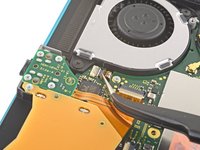
    • Use an opening tool or your fingernail to flip up the small, hinged locking flap on the game card reader cable's ZIF connector.

    Pergunte ao FixBot

    Comentar

  18. Nintendo Switch Lite LCD Replacement: passo 18, imagem 1 %32
    • Use a JIS 000 driver or an iFixit PH 000 driver to remove the seven 3.1 mm screws securing the game card reader and headphone jack.

    Pergunte ao FixBot

    Comentar

  19. Nintendo Switch Lite LCD Replacement: passo 19, imagem 1 %32 Nintendo Switch Lite LCD Replacement: passo 19, imagem 2 %32 Nintendo Switch Lite LCD Replacement: passo 19, imagem 3 %32
    Ferramenta utilizada neste passo:
    Tweezers
    $4.99
    • Use a pair of tweezers or your fingers to carefully lift the game card reader and maneuver it to the left to slide the cable out of its connector.

    • Remove the game card reader and headphone jack.

    Pergunte ao FixBot

    Comentar

  20. Nintendo Switch Lite LCD Replacement, Remove the right trigger button assembly: passo 20, imagem 1 %32
    • Use a JIS 000 driver or an iFixit PH 000 driver to remove the two 4.5 mm screws securing the right trigger button assembly to the motherboard.

    Pergunte ao FixBot

    Comentar

  21. Nintendo Switch Lite LCD Replacement: passo 21, imagem 1 %32 Nintendo Switch Lite LCD Replacement: passo 21, imagem 2 %32
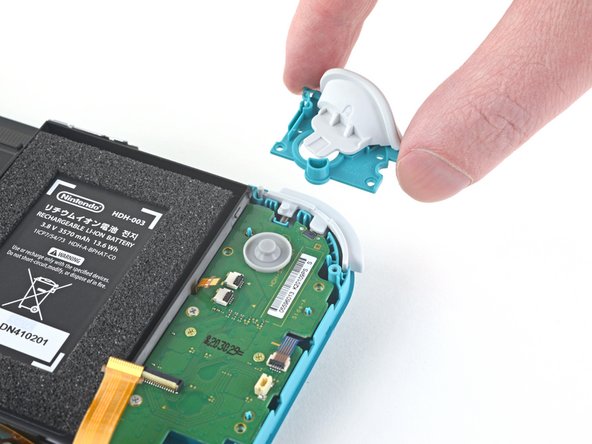
    • Remove the right trigger button assembly.

    Pergunte ao FixBot

    Comentar

  22. Nintendo Switch Lite LCD Replacement: passo 22, imagem 1 %32 Nintendo Switch Lite LCD Replacement: passo 22, imagem 2 %32
    Ferramenta utilizada neste passo:
    Tweezers
    $4.99
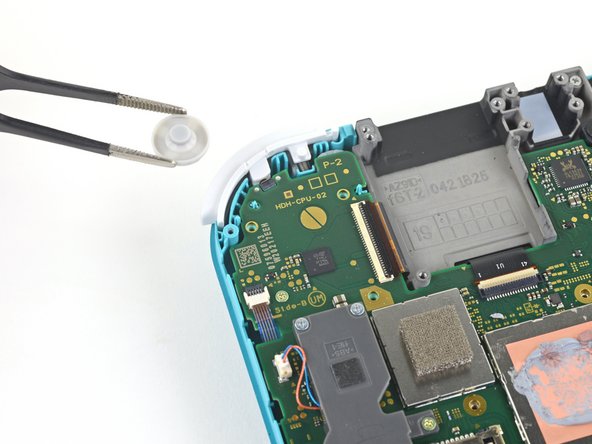
    • Use a pair of tweezers or your fingers to remove the right trigger button assembly's rubber pad if it didn't stay attached to the button assembly.

    Pergunte ao FixBot

    Comentar

  23. Nintendo Switch Lite LCD Replacement, Disconnect the antenna cables: passo 23, imagem 1 %32 Nintendo Switch Lite LCD Replacement, Disconnect the antenna cables: passo 23, imagem 2 %32 Nintendo Switch Lite LCD Replacement, Disconnect the antenna cables: passo 23, imagem 3 %32
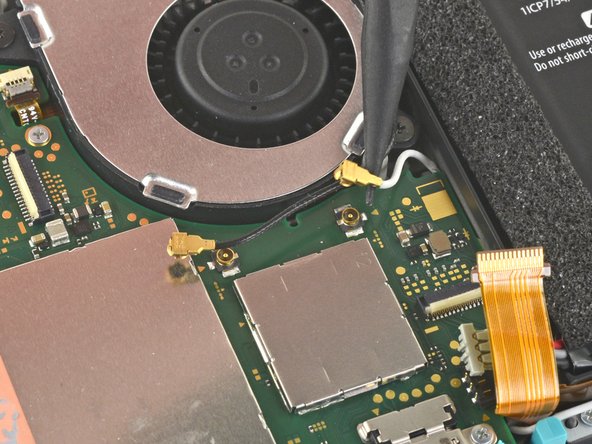
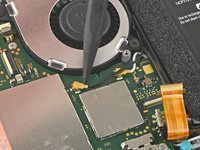
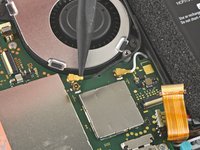
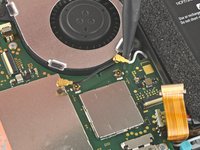
    • Use the point of a spudger to pry the black antenna cable coaxial connector straight up off its socket on the motherboard.

    • Repeat the same process for the white antenna cable.

    Pergunte ao FixBot

    Comentar

  24. Nintendo Switch Lite LCD Replacement, Disconnect the fan cable: passo 24, imagem 1 %32
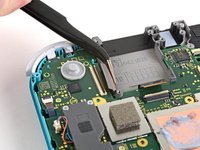
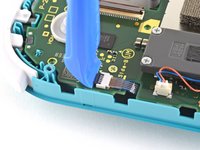
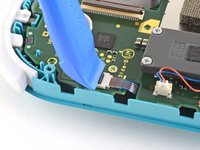
    • Use an opening tool or your fingernail to flip up the small, hinged locking flap on the fan cable's ZIF connector.

    Pergunte ao FixBot

    Comentar

  25. Nintendo Switch Lite LCD Replacement: passo 25, imagem 1 %32 Nintendo Switch Lite LCD Replacement: passo 25, imagem 2 %32
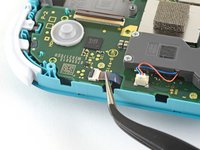
    • Use a pair of tweezers to slide out the fan cable from its connector on the motherboard.

    Pergunte ao FixBot

    Comentar

  26. Nintendo Switch Lite LCD Replacement, Disconnect the screen cable: passo 26, imagem 1 %32 Nintendo Switch Lite LCD Replacement, Disconnect the screen cable: passo 26, imagem 2 %32
    • Use an opening tool or your fingernail to flip up the small, hinged locking flap on the screen cable's ZIF connector.

    Pergunte ao FixBot

    Comentar

  27. Nintendo Switch Lite LCD Replacement: passo 27, imagem 1 %32 Nintendo Switch Lite LCD Replacement: passo 27, imagem 2 %32
    • Use a pair of tweezers to slide the screen cable out of its connector on the motherboard.

    Pergunte ao FixBot

    Comentar

  28. Nintendo Switch Lite LCD Replacement, Disconnect the digitizer cable: passo 28, imagem 1 %32 Nintendo Switch Lite LCD Replacement, Disconnect the digitizer cable: passo 28, imagem 2 %32
    • Use an opening tool or your fingernail to flip up the small, hinged locking flap on the digitizer cable's ZIF connector.

    Pergunte ao FixBot

    Comentar

  29. Nintendo Switch Lite LCD Replacement: passo 29, imagem 1 %32 Nintendo Switch Lite LCD Replacement: passo 29, imagem 2 %32
    • Use a pair of tweezers to slide the digitizer cable out of its connector on the motherboard.

    Pergunte ao FixBot

    Comentar

  30. Nintendo Switch Lite LCD Replacement, Disconnect the right joystick cable: passo 30, imagem 1 %32 Nintendo Switch Lite LCD Replacement, Disconnect the right joystick cable: passo 30, imagem 2 %32
    • Use an opening tool or your fingernail to flip up the small, hinged locking flap on the right joystick cable's ZIF connector.

    Pergunte ao FixBot

    Comentar

  31. Nintendo Switch Lite LCD Replacement: passo 31, imagem 1 %32 Nintendo Switch Lite LCD Replacement: passo 31, imagem 2 %32
    • Use a pair of tweezers to slide the right joystick cable out of its connector on the motherboard.

    Pergunte ao FixBot

    Comentar

  32. Nintendo Switch Lite LCD Replacement, Remove the motherboard assembly: passo 32, imagem 1 %32
    • Use a JIS 000 driver or an iFixit PH 000 driver to remove the following six screws securing the motherboard:

    • Three 3.1 mm screws

    • Three 4.5 mm screws

    Pergunte ao FixBot

    Comentar

  33. Nintendo Switch Lite LCD Replacement: passo 33, imagem 1 %32 Nintendo Switch Lite LCD Replacement: passo 33, imagem 2 %32 Nintendo Switch Lite LCD Replacement: passo 33, imagem 3 %32
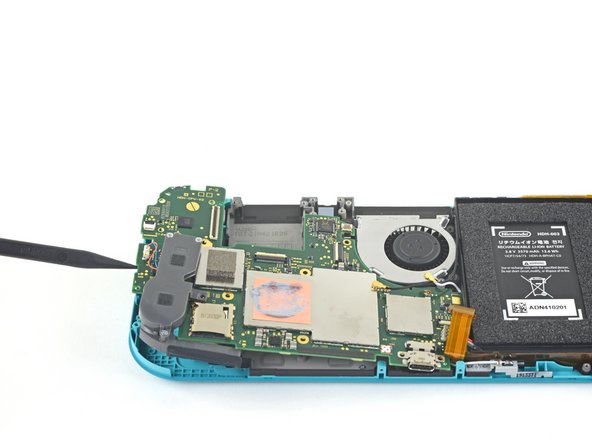
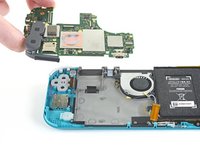
    • Insert a spudger in the gap between the frame and the motherboard and lift the motherboard up and out of its recess.

    • Remove the motherboard assembly.

    Pergunte ao FixBot

    Comentar

  34. Nintendo Switch Lite LCD Replacement, Remove the right joystick: passo 34, imagem 1 %32
    • Use a JIS 000 driver or an iFixit PH 000 driver to remove the two 3.5 mm screws securing the joystick.

    Pergunte ao FixBot

    Comentar

  35. Nintendo Switch Lite LCD Replacement: passo 35, imagem 1 %32 Nintendo Switch Lite LCD Replacement: passo 35, imagem 2 %32
    • Use your fingers to remove the joystick.

    • There is a thin black gasket around the hole where the joystick pokes through the frame. Try not to disturb this gasket as you remove the joystick.

    Pergunte ao FixBot

    Comentar

  36. Nintendo Switch Lite LCD Replacement, Remove the left speaker module: passo 36, imagem 1 %32 Nintendo Switch Lite LCD Replacement, Remove the left speaker module: passo 36, imagem 2 %32
    Ferramenta utilizada neste passo:
    Tweezers
    $4.99
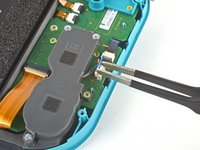
    • Use a pair of tweezers or your fingers to pull the left speaker cable straight up and out of its socket on the daughterboard.

    • Do not pull from the wires, or else you risk ripping the wires off the connector.

    Pergunte ao FixBot

    Comentar

  37. Nintendo Switch Lite LCD Replacement: passo 37, imagem 1 %32
    • Use a JIS 000 driver or an iFixit PH 000 driver to remove the 4.5 mm screw securing the left speaker module.

    Pergunte ao FixBot

    Comentar

  38. Nintendo Switch Lite LCD Replacement: passo 38, imagem 1 %32 Nintendo Switch Lite LCD Replacement: passo 38, imagem 2 %32 Nintendo Switch Lite LCD Replacement: passo 38, imagem 3 %32
    • Use your fingers to lift the speaker module up and out of its recess to remove it.

    • Part of the speaker module sits underneath a delicate ribbon cable. Take care not to snag the speaker module on the cable as you remove it.

    Pergunte ao FixBot

    Comentar

  39. Nintendo Switch Lite LCD Replacement, Disconnect the motherboard interconnect cable: passo 39, imagem 1 %32 Nintendo Switch Lite LCD Replacement, Disconnect the motherboard interconnect cable: passo 39, imagem 2 %32
    • Use an opening tool or your fingernail to flip up the small, hinged locking flap on the motherboard interconnect cable's ZIF connector.

    Pergunte ao FixBot

    Comentar

  40. Nintendo Switch Lite LCD Replacement: passo 40, imagem 1 %32 Nintendo Switch Lite LCD Replacement: passo 40, imagem 2 %32
    • Use a pair of tweezers to slide the motherboard interconnect cable out of its connector on the daughterboard.

    Pergunte ao FixBot

    Comentar

  41. Nintendo Switch Lite LCD Replacement, Disconnect the screen and volume button cables: passo 41, imagem 1 %32 Nintendo Switch Lite LCD Replacement, Disconnect the screen and volume button cables: passo 41, imagem 2 %32
    • Use an opening tool or your fingernail to flip up the small, hinged locking flaps on the two ribbon cable ZIF connectors.

    Pergunte ao FixBot

    Comentar

  42. Nintendo Switch Lite LCD Replacement: passo 42, imagem 1 %32 Nintendo Switch Lite LCD Replacement: passo 42, imagem 2 %32 Nintendo Switch Lite LCD Replacement: passo 42, imagem 3 %32
    • Use a pair of tweezers to slide the daughterboard screen cable out of its connector on the motherboard.

    • Repeat this procedure for the volume buttons cable.

    Pergunte ao FixBot

    Comentar

  43. Nintendo Switch Lite LCD Replacement, Remove the volume buttons: passo 43, imagem 1 %32 Nintendo Switch Lite LCD Replacement, Remove the volume buttons: passo 43, imagem 2 %32
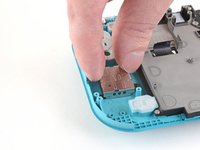
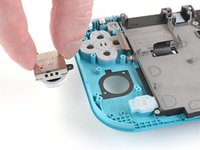
    • Use a pair of tweezers or your fingers to remove the volume buttons.

    Pergunte ao FixBot

    Comentar

  44. Nintendo Switch Lite LCD Replacement, Disconnect the joystick cable: passo 44, imagem 1 %32 Nintendo Switch Lite LCD Replacement, Disconnect the joystick cable: passo 44, imagem 2 %32
    • Use an opening tool or your fingernail to flip up the small, hinged locking flap on the left joystick cable's ZIF connector.

    Pergunte ao FixBot

    Comentar

  45. Nintendo Switch Lite LCD Replacement: passo 45, imagem 1 %32 Nintendo Switch Lite LCD Replacement: passo 45, imagem 2 %32
    • Use a pair of tweezers to slide the left joystick cable out of its connector on the daughterboard.

    Pergunte ao FixBot

    Comentar

  46. Nintendo Switch Lite LCD Replacement, Remove the left trigger button assembly: passo 46, imagem 1 %32
    • Use a JIS 000 driver or an iFixit PH 000 driver to remove the two 4.5 mm screws securing the left trigger button assembly.

    Pergunte ao FixBot

    Comentar

  47. Nintendo Switch Lite LCD Replacement: passo 47, imagem 1 %32 Nintendo Switch Lite LCD Replacement: passo 47, imagem 2 %32
    • Remove the left trigger button assembly.

    Pergunte ao FixBot

    Comentar

  48. Nintendo Switch Lite LCD Replacement, Remove the daughterboard: passo 48, imagem 1 %32
    • Use a JIS 000 driver or an iFixit PH 000 driver to remove the following four screws:

    • Two 4.5 mm screws

    • Two 6 mm screws

    Pergunte ao FixBot

    Comentar

  49. Nintendo Switch Lite LCD Replacement: passo 49, imagem 1 %32 Nintendo Switch Lite LCD Replacement: passo 49, imagem 2 %32
    • Use your fingers to lift the daughterboard up and out of its recess to remove it.

    Pergunte ao FixBot

    Comentar

  50. Nintendo Switch Lite LCD Replacement, Remove the left joystick: passo 50, imagem 1 %32
    • Use a JIS 000 driver or an iFixit PH 000 driver to remove the two 3.5 mm screws securing the left joystick.

    Pergunte ao FixBot

    Comentar

  51. Nintendo Switch Lite LCD Replacement: passo 51, imagem 1 %32 Nintendo Switch Lite LCD Replacement: passo 51, imagem 2 %32 Nintendo Switch Lite LCD Replacement: passo 51, imagem 3 %32
    • Use the flat end of a spudger to lift the joystick up and out of its recess.

    • Use your fingers to remove the joystick.

    • There is a thin black gasket around the hole where the joystick pokes through the frame. Try not to disturb this gasket as you remove the joystick.

    Pergunte ao FixBot

    Comentar

  52. Nintendo Switch Lite LCD Replacement, Remove the midframe assembly: passo 52, imagem 1 %32
    • Use a JIS 000 driver or an official iFixit PH 000 driver to remove the following four screws:

    • Three 2.5 mm screws

    • One 6 mm screw

    Pergunte ao FixBot

    Comentar

  53. Nintendo Switch Lite LCD Replacement: passo 53, imagem 1 %32 Nintendo Switch Lite LCD Replacement: passo 53, imagem 2 %32 Nintendo Switch Lite LCD Replacement: passo 53, imagem 3 %32
    • Use a spudger or your fingers to lift the midframe assembly up and out of its recess.

    • Remove the midframe assembly.

    Pergunte ao FixBot

    Comentar

  54. Nintendo Switch Lite LCD Replacement, Remove the buttons: passo 54, imagem 1 %32 Nintendo Switch Lite LCD Replacement, Remove the buttons: passo 54, imagem 2 %32
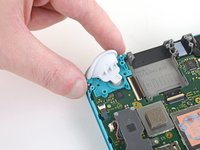
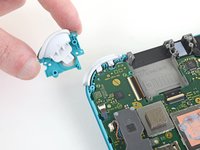
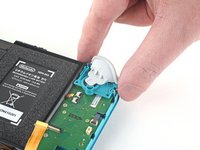
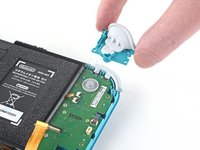
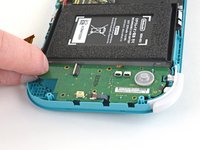
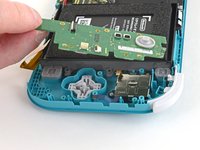
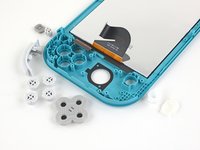
    • At this point in the repair, remove all of the buttons if you haven't done so already, to prevent them from falling out and getting lost.

    • Use these two photos for reference.

    Pergunte ao FixBot

    Comentar

  55. Nintendo Switch Lite LCD Replacement, Remove the LCD: passo 55, imagem 1 %32
    • Heat an iOpener and apply it to the back side of the LCD along the top edge for 2 minutes.

    • A hair dryer or heat gun may also be used, but be careful not to overheat the LCD if you plan on reusing it, as it's susceptible to heat damage.

    Pergunte ao FixBot

    Comentar

  56. Nintendo Switch Lite LCD Replacement: passo 56, imagem 1 %32 Nintendo Switch Lite LCD Replacement: passo 56, imagem 2 %32
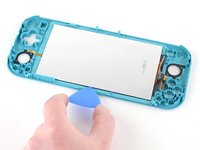
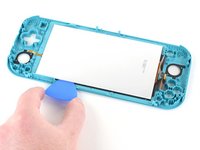
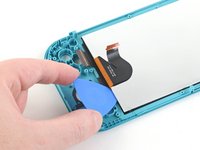
    • Insert an opening pick between the frame and the top edge of the LCD to begin separating the two components.

    • Make sure to insert the pick completely under the LCD panel so you don't split and damage it.

    • You'll know you're splitting the panel if the silver backing bubbles and separates from the white lining.

    Pergunte ao FixBot

    Comentar

  57. Nintendo Switch Lite LCD Replacement: passo 57, imagem 1 %32 Nintendo Switch Lite LCD Replacement: passo 57, imagem 2 %32 Nintendo Switch Lite LCD Replacement: passo 57, imagem 3 %32
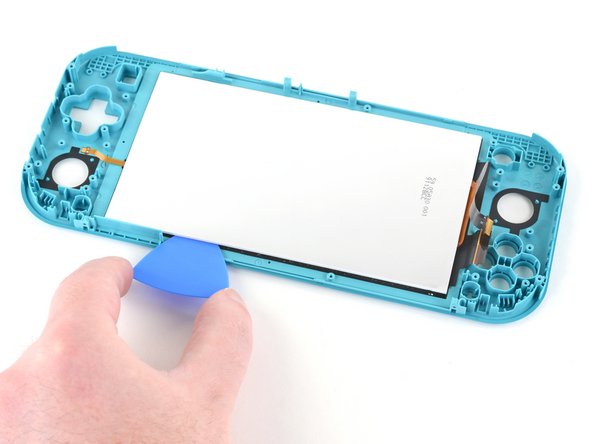
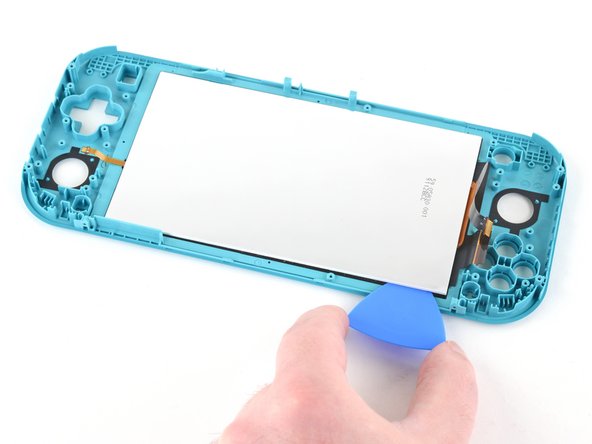
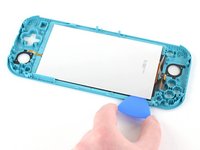
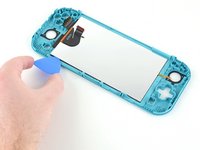
    • Slide the opening pick along the top edge of the LCD to slice the adhesive.

    Pergunte ao FixBot

    Comentar

  58. Nintendo Switch Lite LCD Replacement: passo 58, imagem 1 %32
    • Apply a heated iOpener to the back side of the LCD along the right edge for 2 minutes.

    Pergunte ao FixBot

    Comentar

  59. Nintendo Switch Lite LCD Replacement: passo 59, imagem 1 %32 Nintendo Switch Lite LCD Replacement: passo 59, imagem 2 %32 Nintendo Switch Lite LCD Replacement: passo 59, imagem 3 %32
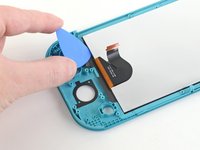
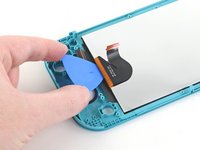
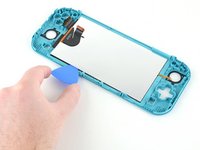
    • Continue sliding the opening pick around the right edge of the LCD, slicing the adhesive.

    • The LCD and digitizer cables are placed in a way to prevent them from easily snagging on the opening pick, but still use caution when sliding the opening pick along the gap.

    Pergunte ao FixBot

    Comentar

  60. Nintendo Switch Lite LCD Replacement: passo 60, imagem 1 %32
    • Apply a heated iOpener to the back side of the LCD along the bottom edge for 2 minutes.

    Pergunte ao FixBot

    Comentar

  61. Nintendo Switch Lite LCD Replacement: passo 61, imagem 1 %32 Nintendo Switch Lite LCD Replacement: passo 61, imagem 2 %32 Nintendo Switch Lite LCD Replacement: passo 61, imagem 3 %32
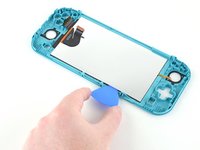
    • Continue sliding the opening pick along the bottom edge of the LCD to slice the adhesive.

    • You'll need to remove and reinsert the opening pick at various points along the LCD's edge to work around the frame.

    Pergunte ao FixBot

    Comentar

  62. Nintendo Switch Lite LCD Replacement: passo 62, imagem 1 %32
    • Apply a heated iOpener to the back side of the LCD along the left edge for 2 minutes.

    Pergunte ao FixBot

    Comentar

  63. Nintendo Switch Lite LCD Replacement: passo 63, imagem 1 %32 Nintendo Switch Lite LCD Replacement: passo 63, imagem 2 %32
    • Continue sliding the opening pick along the left edge of the LCD to slice the adhesive.

    • Take care not to snag the LCD's daughterboard cable on the opening pick.

    Pergunte ao FixBot

    Comentar

  64. Nintendo Switch Lite LCD Replacement: passo 64, imagem 1 %32 Nintendo Switch Lite LCD Replacement: passo 64, imagem 2 %32 Nintendo Switch Lite LCD Replacement: passo 64, imagem 3 %32
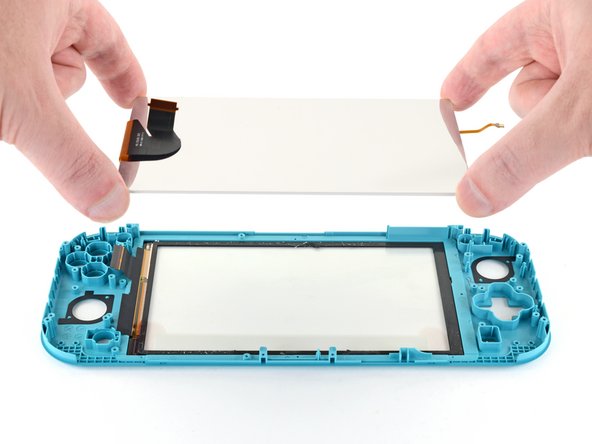
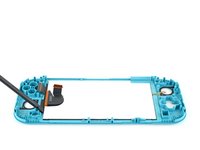
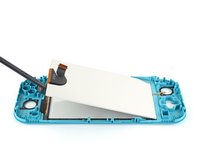
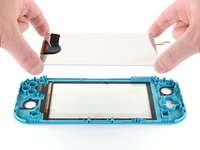
    • Use the flat end of a spudger or your fingers to lift the LCD up and out of the frame to remove it.

    • If you're reusing the LCD (or your new LCD does not come with pre‑installed adhesive), follow this guide to install pre-cut adhesive around the perimeter before reassembly.

    Pergunte ao FixBot

    Comentar

  65. Nintendo Switch Lite LCD Replacement: passo 65, imagem 1 %32 Nintendo Switch Lite LCD Replacement: passo 65, imagem 2 %32 Nintendo Switch Lite LCD Replacement: passo 65, imagem 3 %32
    Ferramenta utilizada neste passo:
    Microfiber Cleaning Cloths
    $3.99
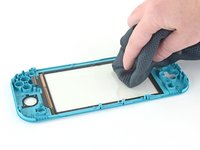
    • If you're also replacing the digitizer, you can skip this step.

    • Use the flat end of a spudger to scrape off the remaining adhesive around the perimeter of the digitizer.

    • Prior to installing a new LCD, use isopropyl alcohol and a microfiber cloth to clean and remove any residual adhesive from the back side of the digitizer. Wait several minutes for any remaining alcohol to evaporate before installing the LCD.

    Pergunte ao FixBot

    Comentar

Conclusão

To reassemble your device, follow these instructions in reverse order.

Take your e-waste to an R2 or e-Stewards certified recycler.

Repair didn’t go as planned? Try some basic troubleshooting, or ask our Nintendo Switch Lite Answers community for help.

Cancelar: não concluí este guia.

61 outras pessoas executaram este guia.

Craig Lloyd

Membro desde: 02/10/16

42.824 Reputação

Autoria de 82 guias

24Comentários do guia

Followed the guide to replaced a cracked screen on a Switch Lite, all good, guide was easy to follow and refitting wasn't too hard either, just a reversal of the disassembly

Luke Randall - Responder Compartilhar

Fantastic guide, exactly what I was looking for! Unfortunately I managed to make the tape unusable and I need tape to connect the lcd to the digitizer and the digitizer to the case. I will likely use 2-3mm tape for the lcd to digitizer but I'm unsure what to use to connect the digitizer to the case. Any suggestions?

Sam Red - Responder Compartilhar

Thanks for taking the time to type this up. Really appreciate the effort that went in to this guide.

Matthew D. H. - Responder Compartilhar
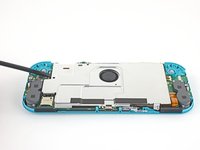
Great guide, I wish it would mention some of the procedures to tape the screen back in. After that, reversing the process was easy.

Stephen Hotchkiss - Responder Compartilhar
For gluing the screen and digitizer back in, I would strongly recommend liquid glue, like Zhanlida T-8000 for example. You can apply it very precisely and you can also correct/remove it if needed pretty easily. I used this stuff to repair around 200 phones and tablets in the last couple of years and were never disappointed.

Also I would remove the digitizer AND the screen together, before removing the screen first from the digitizer… This will make the process of removing the screen from the digitizer a lot easier and safer.

I have ordered a crystal replacement case and a used lite with a scratched digitizer.. Have glued in the replacement digitizer so far, the console should arrive tomorrow.

Gluing in the digitizer was a breeze, just applied some glue all around (be careful not to use too much) and then just pressed down the digitizer all around and put a book on the top… Let the glue harden for around 24 hours and you are good to go.

Will leave some feedback how the screen removal went tomorrow. ;)

mathiasludewig - Responder Compartilhar
Comentar

Visualizações:

Últimas 24 horas: 83

Últimos 7 dias: 642

Últimos 30 dias: 2,674

Ao todo: 209,628