Ir para o conteúdo principal
Participe da comunidade de reparos - Criar conta

iPhone 8 Earpiece Speaker Replacement

Visualizações: 68 mil

Visualizar Estatísticas:

Últimas 24 horas:
8
Últimos 7 dias:
58
Últimos 30 dias:
238
Ao todo:
68.267
Comentários: 185

184 comments on steps, 1 guide comment.

Go to guide comments
Concluído: 44

44 pessoas marcaram este guia como "concluído". Será você o próximo?

Favorites: 5

5 pessoas favoritaram (e se inscreveram) neste guia. Você será o próximo?

Tempo necessário: 30 minutos - 1 hora

Dificuldade: Moderado
iPhone 8 Earpiece Speaker Replacement

Introdução

Ir para o passo 1 ↓

Follow this guide to replace a broken earpiece speaker for the iPhone 8.

O que você precisa

Peças

Ferramentas

    1. iPhone 8 Earpiece Speaker Replacement, Remove the pentalobe screws: passo 1, imagem 1 %32
      • Before you begin, discharge your iPhone battery below 25%. A charged lithium-ion battery can catch fire and/or explode if accidentally punctured.

      • Power off your iPhone before beginning disassembly.

      • Remove the two 3.5 mm pentalobe screws on the bottom edge of the iPhone.

      • Opening the iPhone's display will compromise its waterproof seals. Have replacement seals ready before you proceed past this step, or take care to avoid liquid exposure if you reassemble your iPhone without replacing the seals.

      Pergunte ao FixBot

      Comentar

    1. iPhone 8 Earpiece Speaker Replacement, Mark your opening picks: passo 2, imagem 1 %32 iPhone 8 Earpiece Speaker Replacement, Mark your opening picks: passo 2, imagem 2 %32 iPhone 8 Earpiece Speaker Replacement, Mark your opening picks: passo 2, imagem 3 %32
      • If inserted too far, an opening pick can damage your device. Follow this step to mark your pick and prevent damage.

      • Measure 3 mm from the tip and mark the opening pick with a permanent marker.

      • You can also mark the other corners of the pick with different measurements.

      • Alternatively, tape a coin to a pick 3 mm from the tip.

      Pergunte ao FixBot

      Comentar

    1. iPhone 8 Earpiece Speaker Replacement, Anti-Clamp instructions: passo 3, imagem 1 %32 iPhone 8 Earpiece Speaker Replacement, Anti-Clamp instructions: passo 3, imagem 2 %32 iPhone 8 Earpiece Speaker Replacement, Anti-Clamp instructions: passo 3, imagem 3 %32
      Ferramenta utilizada neste passo:
      Clampy - Anti-Clamp
      $24.95
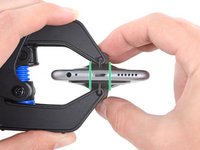
      • The next three steps demonstrate the Anti-Clamp, a tool we designed to make the opening procedure easier. If you aren't using the Anti-Clamp, skip down three steps for an alternate method.

      • For complete instructions on how to use the Anti-Clamp, check out this guide.

      • Pull the blue handle backwards to unlock the Anti-Clamp's arms.

      • Slide the arms over either the left or right edge of your iPhone.

      • Position the suction cups near the bottom edge of the iPhone just above the home button—one on the front, and one on the back.

      • Squeeze the cups together to apply suction to the desired area.

      • If you find that the surface of your iPhone is too slippery for the Anti-Clamp to hold onto, you can use tape to create a grippier surface.

      Pergunte ao FixBot

      Comentar

    2. iPhone 8 Earpiece Speaker Replacement: passo 4, imagem 1 %32 iPhone 8 Earpiece Speaker Replacement: passo 4, imagem 2 %32 iPhone 8 Earpiece Speaker Replacement: passo 4, imagem 3 %32
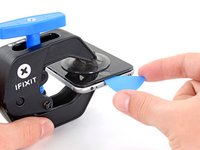
      • Pull the blue handle forwards to lock the arms.

      • Turn the handle clockwise 360 degrees or until the cups start to stretch.

      • Make sure the suction cups remain aligned with each other. If they begin to slip out of alignment, loosen the suction cups slightly and realign the arms.

      Pergunte ao FixBot

      Comentar

    3. iPhone 8 Earpiece Speaker Replacement: passo 5, imagem 1 %32 iPhone 8 Earpiece Speaker Replacement: passo 5, imagem 2 %32
      • Heat an iOpener and thread it through the arms of the Anti-Clamp.

      • You can also use a hair dryer, heat gun, or hot plate—but extreme heat can damage the display and/or internal battery, so proceed with care.

      • Fold the iOpener so it lays on the bottom edge of the iPhone.

      • Wait one minute to give the adhesive a chance to release and present an opening gap.

      • Insert an opening pick into the gap.

      • If the Anti-Clamp doesn't create a sufficient gap, apply more heat to the area and rotate the handle a quarter turn.

      • Don't crank more than a quarter turn at a time, and wait one minute between turns. Let the Anti-Clamp and time do the work for you.

      • Skip the next three steps.

      Pergunte ao FixBot

      Comentar

    4. iPhone 8 Earpiece Speaker Replacement, Heat the display: passo 6, imagem 1 %32
      • The next three steps show how to separate the screen using a suction cup.

      • Apply a heated iOpener to the bottom edge of the screen for two minutes. This softens the adhesive securing it.

      • Alternatively, you can use a hair dryer or heat gun to heat the bottom half of the screen until it’s slightly too hot to touch

      • Improper use of a heat gun can destroy the display and/or battery—review this guide for instructions. To prevent screen damage, keep your heat source moving rather than focused on one spot.

      • For tips on using a hair dryer to soften adhesive, check out this guide.

      Pergunte ao FixBot

      Comentar

    5. iPhone 8 Earpiece Speaker Replacement, Separate the display: passo 7, imagem 1 %32 iPhone 8 Earpiece Speaker Replacement, Separate the display: passo 7, imagem 2 %32
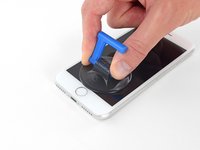
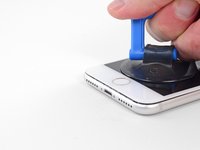
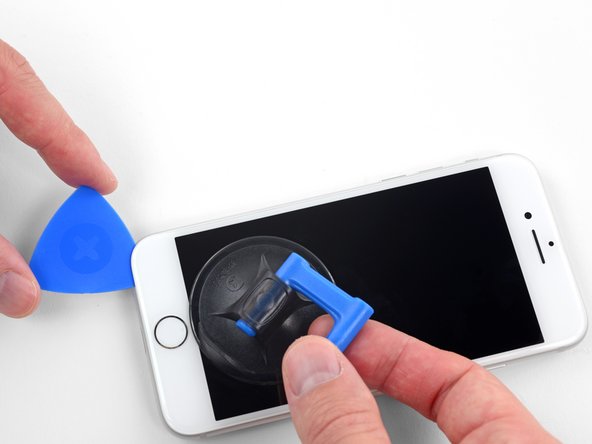
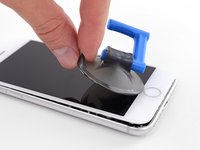
      • Apply a suction cup to the lower half of the front panel, just above the home button.

      • Be sure the suction cup does not overlap with the home button, as this will prevent a seal from forming between the suction cup and front glass.

      Pergunte ao FixBot

      Comentar

    6. iPhone 8 Earpiece Speaker Replacement: passo 8, imagem 1 %32 iPhone 8 Earpiece Speaker Replacement: passo 8, imagem 2 %32 iPhone 8 Earpiece Speaker Replacement: passo 8, imagem 3 %32
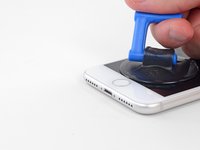
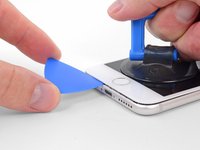
      • Pull up on the suction cup with firm, constant pressure to create a slight gap between the screen and the frame.

      • Insert an opening pick into the gap.

      • The watertight adhesive holding the screen in place is very strong; creating this initial gap takes a significant amount of force. If you're having a hard time opening a gap, apply more heat, and gently rock the screen up and down to weaken the adhesive until you create enough of a gap to insert your tool.

      Pergunte ao FixBot

      Comentar

    7. iPhone 8 Earpiece Speaker Replacement: passo 9, imagem 1 %32 iPhone 8 Earpiece Speaker Replacement: passo 9, imagem 2 %32 iPhone 8 Earpiece Speaker Replacement: passo 9, imagem 3 %32
      • Slide the opening pick up the left edge of the phone starting at the lower edge and moving towards the volume control buttons and silent switch, breaking up the adhesive holding the display in place.

      • Stop near the top left corner of the display.

      • Do not try to pry the top edge of the display away from the rear case, as it is held in place by plastic clips that may break.

      Pergunte ao FixBot

      Comentar

    8. iPhone 8 Earpiece Speaker Replacement, Screen information: passo 10, imagem 1 %32
      • There are delicate cables along the right edge of your iPhone. Don't insert your pick here, as you may damage the cables.

      Pergunte ao FixBot

      Comentar

    9. iPhone 8 Earpiece Speaker Replacement: passo 11, imagem 1 %32 iPhone 8 Earpiece Speaker Replacement: passo 11, imagem 2 %32 iPhone 8 Earpiece Speaker Replacement: passo 11, imagem 3 %32
      • Re-insert your tool at the lower right corner of the iPhone, and slide it around the corner and up the right side of the phone to separate the adhesive.

      • Don't insert your pick more than 3 mm, as you may damage the display cables.

      Pergunte ao FixBot

      Comentar

    10. iPhone 8 Earpiece Speaker Replacement: passo 12, imagem 1 %32 iPhone 8 Earpiece Speaker Replacement: passo 12, imagem 2 %32
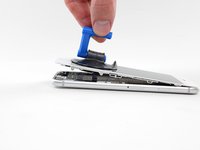
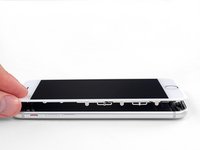
      • Gently pull up on the suction cup to lift up the bottom edge of the display.

      • Do not raise the display more than 15º or you'll risk straining or tearing the ribbon cables connecting the display.

      • Pull on the small nub on the suction cup to remove it from the front panel.

      Pergunte ao FixBot

      Comentar

    11. iPhone 8 Earpiece Speaker Replacement: passo 13, imagem 1 %32 iPhone 8 Earpiece Speaker Replacement: passo 13, imagem 2 %32 iPhone 8 Earpiece Speaker Replacement: passo 13, imagem 3 %32
      • Slide an opening pick underneath the display around the top left corner and along the top edge of the phone to loosen the last of the adhesive.

      Pergunte ao FixBot

      Comentar

    12. iPhone 8 Earpiece Speaker Replacement: passo 14, imagem 1 %32 iPhone 8 Earpiece Speaker Replacement: passo 14, imagem 2 %32
      • Slide the display assembly slightly down (away from the top edge of the phone) to disengage the clips holding it to the rear case.

      Pergunte ao FixBot

      Comentar

    13. iPhone 8 Earpiece Speaker Replacement: passo 15, imagem 1 %32 iPhone 8 Earpiece Speaker Replacement: passo 15, imagem 2 %32 iPhone 8 Earpiece Speaker Replacement: passo 15, imagem 3 %32
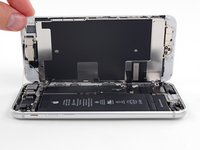
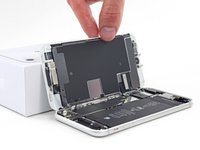
      • Open the iPhone by swinging the display up from the left side, like the back cover of a book.

      • Don't try to fully separate the display yet, as several fragile ribbon cables still connect it to the iPhone's logic board.

      • Lean the display against something to keep it propped up while you're working on the phone.

      Pergunte ao FixBot

      Comentar

    1. iPhone 8 Earpiece Speaker Replacement, Disconnect the battery: passo 16, imagem 1 %32 iPhone 8 Earpiece Speaker Replacement, Disconnect the battery: passo 16, imagem 2 %32
      Ferramenta utilizada neste passo:
      Magnetic Project Mat
      $19.95
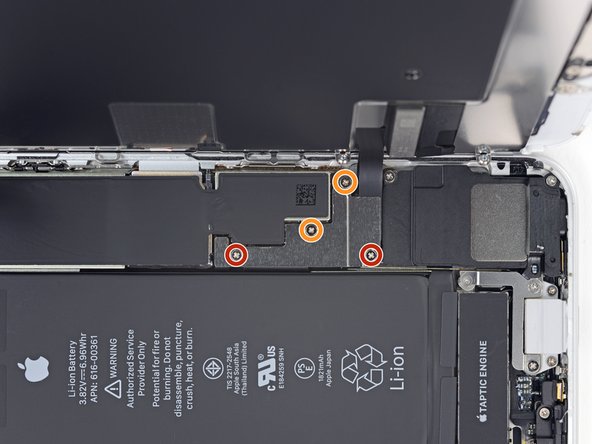
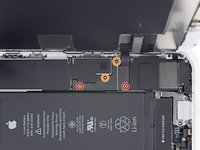
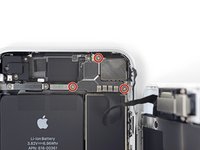
      • Remove four Phillips screws securing the lower display cable bracket to the logic board, of the following lengths:

      • Two 1.3 mm screws

      • Two 2.8 mm screws

      • Throughout this guide, keep careful track of your screws so that each one goes back where it came from during reassembly. Installing a screw in the wrong place can cause permanent damage.

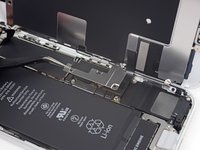
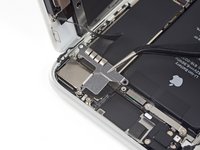
      • Remove the bracket.

      Pergunte ao FixBot

      Comentar

    2. iPhone 8 Earpiece Speaker Replacement: passo 17, imagem 1 %32 iPhone 8 Earpiece Speaker Replacement: passo 17, imagem 2 %32
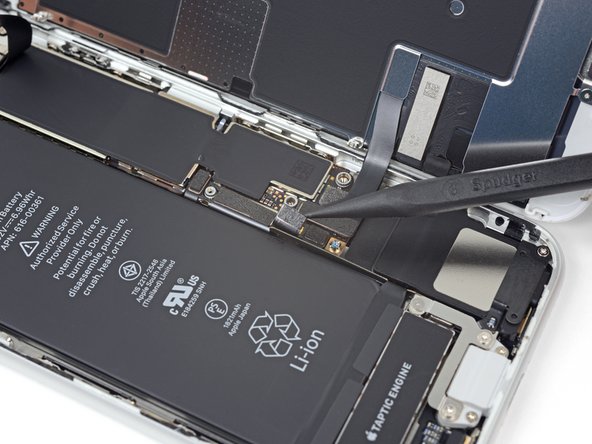
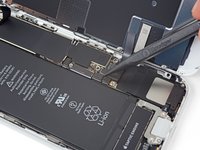
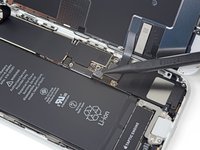
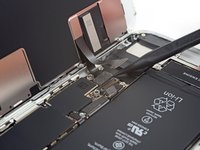
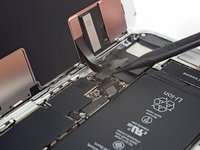
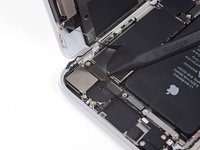
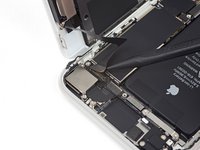
      • Use the point of a spudger to pry the battery connector out of its socket in the logic board.

      • Don't pry against the logic board, or you may damage the charging circuitry.

      • Bend the battery connector cable slightly away from the logic board to prevent it from accidentally making contact with the socket and providing power to the phone during your repair.

      Pergunte ao FixBot

      Comentar

    1. iPhone 8 Earpiece Speaker Replacement, Disconnect the display and digitizer: passo 18, imagem 1 %32 iPhone 8 Earpiece Speaker Replacement, Disconnect the display and digitizer: passo 18, imagem 2 %32
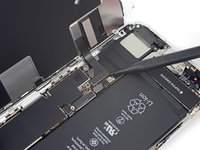
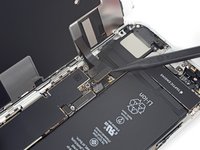
      • Use the point of a spudger to pry the lower display connector out of its socket.

      • To re-attach press connectors like this one, press down on one side until it clicks into place, then repeat on the other side. Do not press down on the middle. If the connector is even slightly misaligned, the connector can bend, causing permanent damage.

      Pergunte ao FixBot

      Comentar

    2. iPhone 8 Earpiece Speaker Replacement: passo 19, imagem 1 %32 iPhone 8 Earpiece Speaker Replacement: passo 19, imagem 2 %32
      • Use the point of a spudger to disconnect the second lower display cable.

      Pergunte ao FixBot

      Comentar

    3. iPhone 8 Earpiece Speaker Replacement: passo 20, imagem 1 %32 iPhone 8 Earpiece Speaker Replacement: passo 20, imagem 2 %32
      • Remove the three 1.3 mm Phillips screws securing the bracket over the front panel sensor assembly connector.

      • Remove the bracket.

      Pergunte ao FixBot

      Comentar

    4. iPhone 8 Earpiece Speaker Replacement: passo 21, imagem 1 %32 iPhone 8 Earpiece Speaker Replacement: passo 21, imagem 2 %32
      • Use the point of a spudger to disconnect the front panel sensor assembly connector.

      Pergunte ao FixBot

      Comentar

    5. iPhone 8 Earpiece Speaker Replacement, Remove the display assembly: passo 22, imagem 1 %32
      Pergunte ao FixBot

      Comentar

    1. iPhone 8 Earpiece Speaker Replacement, Remove the earpiece bracket: passo 23, imagem 1 %32
      • Remove the three Phillips screws securing the top earpiece bracket to the front panel:

      • Two 2.6 mm screws

      • One 1.8 mm screw

      Pergunte ao FixBot

      Comentar

    2. iPhone 8 Earpiece Speaker Replacement: passo 24, imagem 1 %32
      • Remove the earpiece speaker bracket.

      Pergunte ao FixBot

      Comentar

    3. iPhone 8 Earpiece Speaker Replacement, Move the front-facing camera: passo 25, imagem 1 %32 iPhone 8 Earpiece Speaker Replacement, Move the front-facing camera: passo 25, imagem 2 %32
      • Lift the front facing camera up out of its socket and swing it out of the way.

      Pergunte ao FixBot

      Comentar

    4. iPhone 8 Earpiece Speaker Replacement, Remove the earpiece speaker: passo 26, imagem 1 %32
      • Remove the two Phillips screws securing the earpiece speaker to the front panel:

      • One 1.8 mm screw

      • One 2.3 mm screw

      Pergunte ao FixBot

      Comentar

    5. iPhone 8 Earpiece Speaker Replacement: passo 27, imagem 1 %32
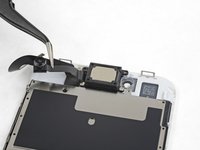
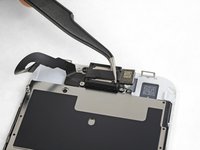
      • Remove the earpiece speaker.

      Pergunte ao FixBot

      Comentar

Conclusão

Compare your new replacement part to the original part. You may need to transfer remaining components or remove adhesive backings from the new part before installing.

To reassemble your device, follow these instructions in reverse order.

Take your e-waste to an R2 or e-Stewards certified recycler.

Repair didn’t go as planned? Check out our iPhone 8 Answers community for troubleshooting help.

Cancelar: não concluí este guia.

44 outras pessoas executaram este guia.

Arthur Shi

Membro desde: 01/03/18

351.569 Reputação

Autoria de 937 guias

Equipe

iFixit Membro de iFixit

Staff

121 Membros

Autoria de 72.888 guias

1Comentário do guia

very helpfull.

Amer Khan - Responder Compartilhar
Comentar

Visualizações:

Últimas 24 horas: 8

Últimos 7 dias: 58

Últimos 30 dias: 238

Ao todo: 68,267