Ir para o conteúdo principal
Participe da comunidade de reparos - Criar conta

DualSense Motherboard Replacement

O que você precisa

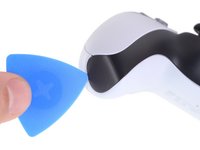
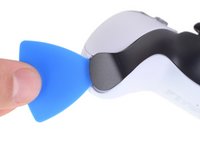
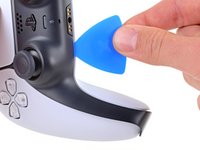
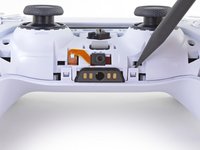
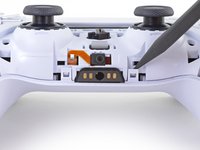
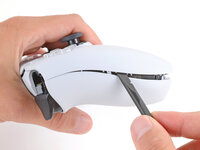
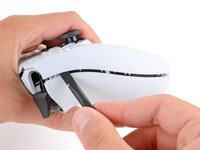
  1. DualSense Motherboard Replacement, Unclip the right end of the middle trim: passo 1, imagem 1 %32 DualSense Motherboard Replacement, Unclip the right end of the middle trim: passo 1, imagem 2 %32
    • Disconnect and power down your controller before you begin.

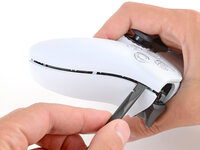
    • Insert an opening pick underneath the middle trim at the bottom-right corner of the controller to release the clips securing it to the case.

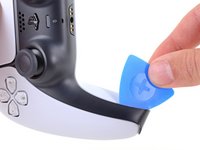
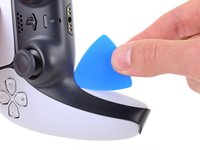
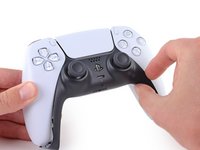
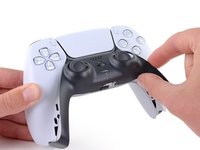
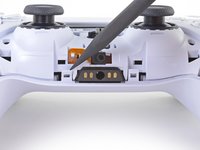
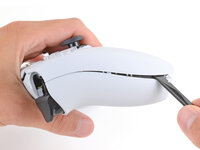
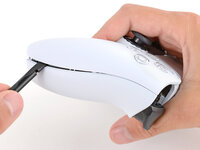
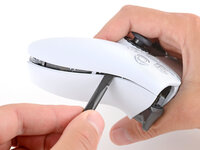
  2. DualSense Motherboard Replacement, Unclip the lower-right edge of the middle trim: passo 2, imagem 1 %32 DualSense Motherboard Replacement, Unclip the lower-right edge of the middle trim: passo 2, imagem 2 %32 DualSense Motherboard Replacement, Unclip the lower-right edge of the middle trim: passo 2, imagem 3 %32
    • Slide the opening pick along the lower-right edge of the middle trim to release the clips securing it to the case.

  3. DualSense Motherboard Replacement, Unclip the left end of the middle trim: passo 3, imagem 1 %32 DualSense Motherboard Replacement, Unclip the left end of the middle trim: passo 3, imagem 2 %32
    • Insert an opening pick underneath the middle trim at the bottom-left corner of the controller to release the clips securing it to the case.

  4. DualSense Motherboard Replacement, Unclip the lower-left edge of the middle trim: passo 4, imagem 1 %32 DualSense Motherboard Replacement, Unclip the lower-left edge of the middle trim: passo 4, imagem 2 %32 DualSense Motherboard Replacement, Unclip the lower-left edge of the middle trim: passo 4, imagem 3 %32
    • Slide the opening pick along the lower-left edge of the middle trim to release the clips securing it to the case.

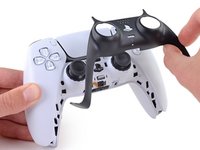
  5. DualSense Motherboard Replacement, Remove the middle trim: passo 5, imagem 1 %32 DualSense Motherboard Replacement, Remove the middle trim: passo 5, imagem 2 %32 DualSense Motherboard Replacement, Remove the middle trim: passo 5, imagem 3 %32
    • Use your fingers to lift up the bottom edge of the middle trim to release the remaining clips.

    • Lift the middle trim over the joysticks to remove it.

  6. DualSense Motherboard Replacement, Remove the L1 button: passo 6, imagem 1 %32 DualSense Motherboard Replacement, Remove the L1 button: passo 6, imagem 2 %32 DualSense Motherboard Replacement, Remove the L1 button: passo 6, imagem 3 %32
    • With one hand, grip the controller and use your thumb to hold down the left trigger.

    • With your free hand, insert the flat end of a spudger between the L1 and L2 buttons.

    • Use the spudger to gently pry the L1 button away from the controller and remove it, holding your finger over the button so it doesn't eject.

  7. DualSense Motherboard Replacement, Remove the R1 button: passo 7, imagem 1 %32 DualSense Motherboard Replacement, Remove the R1 button: passo 7, imagem 2 %32 DualSense Motherboard Replacement, Remove the R1 button: passo 7, imagem 3 %32
    • Repeat the previous step to remove the R1 button.

  8. DualSense Motherboard Replacement, Remove the rear case screws: passo 8, imagem 1 %32 DualSense Motherboard Replacement, Remove the rear case screws: passo 8, imagem 2 %32
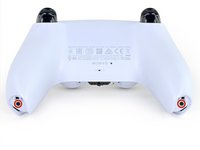
    • Use a Phillips screwdriver to remove the two 6.4 mm screws securing the bottom corners of the lower case.

  9. DualSense Motherboard Replacement: passo 9, imagem 1 %32 DualSense Motherboard Replacement: passo 9, imagem 2 %32
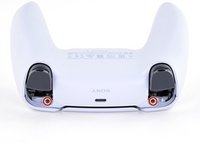
    • Use a Phillips screwdriver to remove the two 6.4 mm screws behind the L1 and R1 buttons.

  10. DualSense Motherboard Replacement, Separate the rear case: passo 10, imagem 1 %32 DualSense Motherboard Replacement, Separate the rear case: passo 10, imagem 2 %32 DualSense Motherboard Replacement, Separate the rear case: passo 10, imagem 3 %32
    • Be gentle when releasing the rear cover clips—they're delicate and can easily break.

    • Use the point of a spudger to release the two clips on either side of the headset jack.

  11. DualSense Motherboard Replacement: passo 11, imagem 1 %32 DualSense Motherboard Replacement: passo 11, imagem 2 %32 DualSense Motherboard Replacement: passo 11, imagem 3 %32
    • Tight plastic clips secure the left and right edges of the rear case.

    • Insert the flat end of a spudger between the front and rear shells near the bottom of the left edge.

    • Slide the spudger along the left edge and gently pry the shells apart to release the clips.

  12. DualSense Motherboard Replacement: passo 12, imagem 1 %32 DualSense Motherboard Replacement: passo 12, imagem 2 %32 DualSense Motherboard Replacement: passo 12, imagem 3 %32
    • Repeat the previous step on the right edge to release its clips.

  13. DualSense Motherboard Replacement: passo 13, imagem 1 %32 DualSense Motherboard Replacement: passo 13, imagem 2 %32
    • Lay your controller upside down so the joysticks are on your work surface.

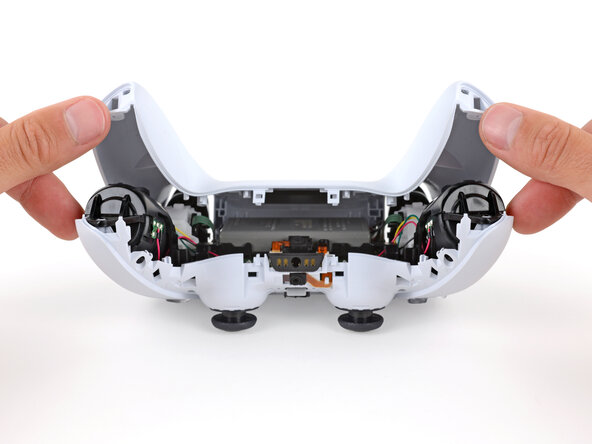
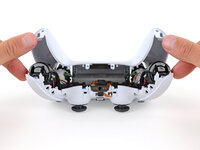
    • Hold the controller down with your fingers and use your thumbs to lift the rear case away from the controller to fully separate it.

  14. DualSense Motherboard Replacement, Remove the rear case: passo 14, imagem 1 %32
    • Remove the rear case.

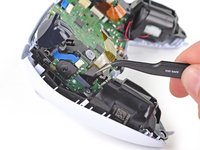
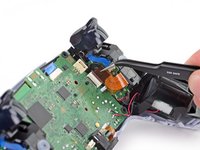
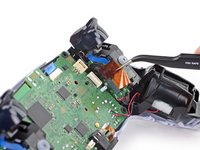
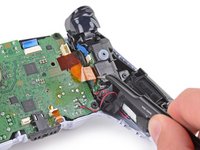
  15. DualSense Motherboard Replacement, Disconnect the battery: passo 15, imagem 1 %32 DualSense Motherboard Replacement, Disconnect the battery: passo 15, imagem 2 %32
    Ferramenta utilizada neste passo:
    Tweezers
    $4.99
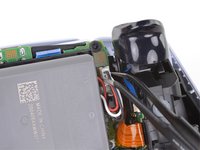
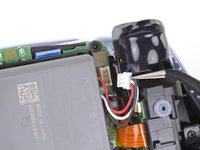
    • Use a pair of tweezers or your fingers to disconnect the battery from the motherboard.

    • Grip the connector, not the wires, when disconnecting.

  16. DualSense Motherboard Replacement, Remove the battery: passo 16, imagem 1 %32 DualSense Motherboard Replacement, Remove the battery: passo 16, imagem 2 %32
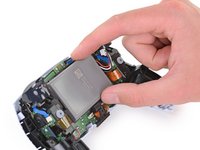
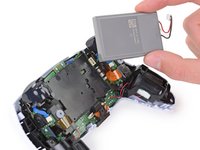
    • Lift the battery straight out of the battery bracket.

  17. DualSense Motherboard Replacement, Remove the lower microphone: passo 17, imagem 1 %32 DualSense Motherboard Replacement, Remove the lower microphone: passo 17, imagem 2 %32
    Ferramenta utilizada neste passo:
    Tweezers
    $4.99
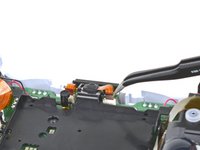
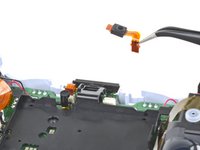
    • Grab the lower microphone ribbon cable pull tab with your fingers or a pair of tweezers and disconnect it from the motherboard.

  18. DualSense Motherboard Replacement, Remove the battery bracket: passo 18, imagem 1 %32 DualSense Motherboard Replacement, Remove the battery bracket: passo 18, imagem 2 %32
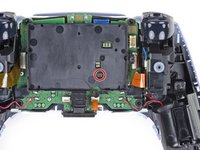
    • Use a Phillips screwdriver to remove the 6.4 mm screw securing the battery bracket.

  19. DualSense Motherboard Replacement: passo 19, imagem 1 %32 DualSense Motherboard Replacement: passo 19, imagem 2 %32
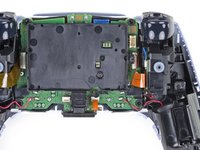
    • Lift the battery bracket out of the motherboard.

  20. DualSense Motherboard Replacement, Disconnect the right trigger assembly: passo 20, imagem 1 %32 DualSense Motherboard Replacement, Disconnect the right trigger assembly: passo 20, imagem 2 %32
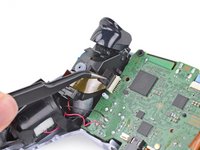
    • Grip the right trigger assembly ribbon cable pull tab with a pair of tweezers or your fingers and pull up to disconnect it from the motherboard.

    • Do not completely remove the ribbon cable yet.

  21. DualSense Motherboard Replacement: passo 21, imagem 1 %32 DualSense Motherboard Replacement: passo 21, imagem 2 %32
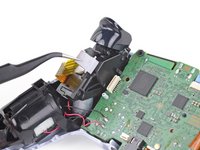
    • Grip the right trigger assembly ribbon cable pull tab with a pair of tweezers or your fingers, and pull up to disconnect it from the trigger assembly.

    • Remove the ribbon cable.

  22. DualSense Motherboard Replacement, Disconnect the left trigger assembly: passo 22, imagem 1 %32 DualSense Motherboard Replacement, Disconnect the left trigger assembly: passo 22, imagem 2 %32
    • Grip the left trigger assembly ribbon cable pull tab with a pair of tweezers or your fingers and pull up to disconnect it from the motherboard.

    • Do not completely remove the ribbon cable yet.

  23. DualSense Motherboard Replacement: passo 23, imagem 1 %32 DualSense Motherboard Replacement: passo 23, imagem 2 %32
    • Grip the left trigger assembly ribbon cable pull tab with a pair of tweezers or your fingers, and pull up to disconnect it from the trigger assembly.

    • Remove the ribbon cable.

  24. DualSense Motherboard Replacement, Disconnect the upper microphone: passo 24, imagem 1 %32 DualSense Motherboard Replacement, Disconnect the upper microphone: passo 24, imagem 2 %32
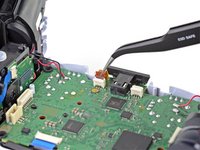
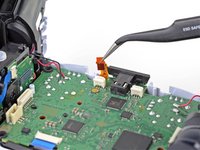
    • Use a pair of tweezers or your fingers to grip the upper microphone ribbon cable pull tab, and pull up to disconnect it from the motherboard.

  25. DualSense Motherboard Replacement, Disconnect the touchpad: passo 25, imagem 1 %32 DualSense Motherboard Replacement, Disconnect the touchpad: passo 25, imagem 2 %32
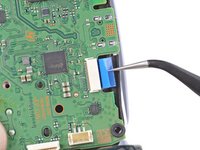
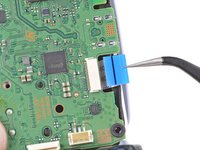
    • Use a pair of tweezers or your fingers to grip the touchpad ribbon cable pull tab, and pull it straight out of the motherboard connector.

  26. DualSense Motherboard Replacement, Lift out the motherboard: passo 26, imagem 1 %32 DualSense Motherboard Replacement, Lift out the motherboard: passo 26, imagem 2 %32 DualSense Motherboard Replacement, Lift out the motherboard: passo 26, imagem 3 %32
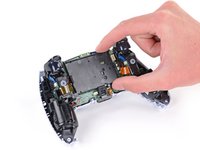
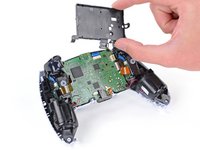
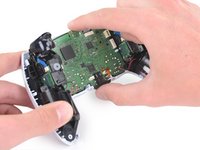
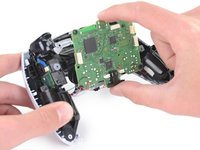
    • Carefully guide the joysticks through the front case and lift the motherboard out.

    • The motherboard is held down by two clips. One between the motherboard itself and the right trigger assembly, and one between the motherboard itself and the left trigger assembly. Gently push on either clip to release the motherboard from its restraints.

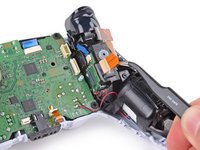
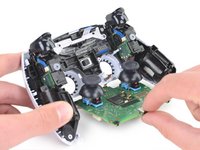
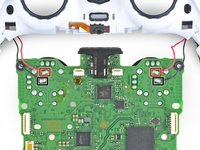
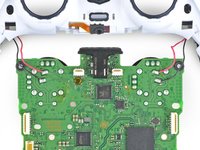
    • Do not completely remove the motherboard. There are four soldered wires tethering the motherboard to the vibrator motors.

  27. DualSense Motherboard Replacement, Desolder the vibration motors: passo 27, imagem 1 %32 DualSense Motherboard Replacement, Desolder the vibration motors: passo 27, imagem 2 %32 DualSense Motherboard Replacement, Desolder the vibration motors: passo 27, imagem 3 %32
    Ferramenta utilizada neste passo:
    FixHub | Power Series Smart Soldering Iron
    $79.95
    • The next few steps require desoldering and soldering connections. To learn how to solder, check out our soldering guide—if you've already soldered, you can still find some helpful tips and tricks in this guide!

    • Flip over the controller and motherboard.

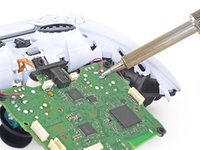
    • Use a soldering iron to desolder the vibration motor wires from the motherboard:

    • Two red wires

    • Two black wires

    • During reassembly, remember to solder the wires back into the same position. The red wires belong closest to the edge and next to the Rs on the motherboard.

  28. DualSense Motherboard Replacement: passo 28, imagem 1 %32
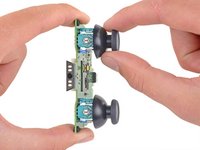
    • Separate the controller from the motherboard.

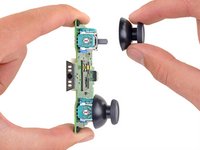
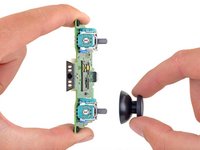
  29. DualSense Motherboard Replacement, Remove the joystick covers: passo 29, imagem 1 %32 DualSense Motherboard Replacement, Remove the joystick covers: passo 29, imagem 2 %32 DualSense Motherboard Replacement, Remove the joystick covers: passo 29, imagem 3 %32
    • Pull the joystick covers straight off the joystick assemblies.

    • Only the motherboard remains.

Conclusão

To reassemble your device, follow the above steps in reverse order.

Take your e-waste to an R2 or e-Stewards certified recycler.

Repair didn’t go as planned? Try some basic troubleshooting, or ask our Answers community for help.

15 outras pessoas executaram este guia.

Sam Omiotek

Membro desde: 02/25/19

93.875 Reputação

Autoria de 290 guias

3Comentários do guia

Where can you buy a new motherboard in the UK?

adam.williams.95 - Responder

Cool tutorial, all we need now is to know which chip slows the input 5v current to only push 1.5A then we would be able to get a service which can enable fast charge. Karl brook.

karl brook - Responder

what size capacitors are used near the toggle controller, there is one near the right joystick and another by the left joystick at the bottom right.

any help would be apreciated.

bill beddow - Responder
Comentar

Visualizações:

Últimas 24 horas: 63

Últimos 7 dias: 555

Últimos 30 dias: 2,145

Ao todo: 56,594