Introdução
Upgrading or replacing the RAM (memory) on the Asus ROG G20CB can help boost system performance, especially for gaming, multitasking, or professional workloads.This guide will walk you through how to safely access, remove, and install RAM in the G20CB's compact chassis.
Important:
- The G20CB uses DDR4 SODIMM (laptop-style) RAM, not standard desktop DIMMs.
- Maximum supported memory depends on your CPU and motherboard model, but generally caps around 32GB (2x16GB).
O que você precisa
-
-
-
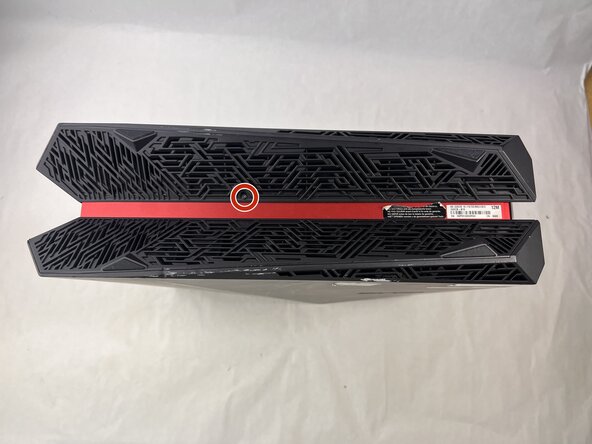
Remove each of the two 4.6 mm Phillips screws on the top and bottom of the tower.
 Pergunte ao FixBot
-
-
-
Disconnect the cable carefully by pulling gently on both sides of the connector.
-
-
-
Remove the five 4.6 mm Phillips screws holding down the fan tray and then pull the fan tray out of the system.
-
-
-
-
Carefully unplug the two fan cables from the motherboard by pulling straight up from the base of the connector.
-
-
-
Remove the six 4.6 mm Phillips screws connecting the fans to the fan tray.
-
-
-
-
-
Remove the 4.6 mm Phillips screw that secures the optical drive.
-
-
-
Pull back the tape on the heat sink and use a long-neck Phillips screwdriver to remove the four screws securing the heat sink.
-
-
-
Remove the 4.6 mm Phillips screw from the heatsink at the top of the case.
-
Lift the CPU cooler out of the system.
-
Be sure to apply fresh thermal paste before reinstalling a cooler.
-
-
-
-
-
Gently push outward on the two retaining clips on either side of the RAM stick.
-
-



To reassemble your device, follow the above steps in reverse order.
Take your e-waste to an R2 or e-Stewards certified recycler.
Repair didn’t go as planned? Try some basic troubleshooting or ask our Answers community for help.
Cancelar: não concluí este guia.
Uma outra pessoa concluiu este guia.

Equipe

UMass Dartmouth, Team 3-3, Botvin Spring 2025 Membro de UMass Dartmouth, Team 3-3, Botvin Spring 2025
UMASSD-BOTVIN-S25S3G3
3 Membros
Autoria de 5 guias
