Ir para o conteúdo principal
Participe da comunidade de reparos - Criar conta
Steam Deck Display Disconnection

Pré-requisito somente
Este é um guia somente para pré-requisitos! Este guia faz parte de outro procedimento e não deve ser usado sozinho.

O que você precisa

  1. Steam Deck Display Disconnection, Prepare your Steam Deck for disassembly: passo 1, imagem 1 %32 Steam Deck Display Disconnection, Prepare your Steam Deck for disassembly: passo 1, imagem 2 %32 Steam Deck Display Disconnection, Prepare your Steam Deck for disassembly: passo 1, imagem 3 %32
    • Turn on your Steam Deck and allow the battery to discharge below 25% before starting your repairs, as a charged lithium-ion polymer battery can be dangerous if accidentally punctured.

    • As an extra precaution, Valve recommends putting your Steam Deck into battery storage mode within the BIOS before starting any internal repairs. Read how to do that here.

    • Power down your Steam Deck and unplug any cables.

    • If you have a microSD card installed, make sure to remove it before opening the Steam Deck. If you attempt to remove the back cover with it still installed, it could snap right in half.

    • During your repair, it can be helpful at times to lay the Steam Deck face-down into its case to protect the thumbsticks and prevent wobble.

  2. Steam Deck Display Disconnection, Remove the back cover screws: passo 2, imagem 1 %32
    Ferramenta utilizada neste passo:
    FixMat
    $36.95
    • Use a Phillips driver to remove the eight screws securing the back cover:

    • Four coarse thread 9.5 mm-long screws

    • Four fine thread 5.8 mm-long screws

    • Despite the standards, Phillips screwdrivers can vary in size and shape—two drivers labeled as the same size may fit differently in the same screw. Use the size that fits the snuggest into the screw head.

    • Throughout this repair, keep track of each screw and make sure it goes back exactly where it came from to avoid damaging your Steam Deck.

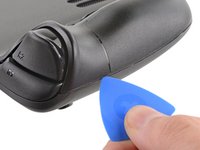
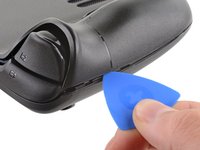
  3. Steam Deck Display Disconnection, Unclip the back cover: passo 3, imagem 1 %32 Steam Deck Display Disconnection, Unclip the back cover: passo 3, imagem 2 %32
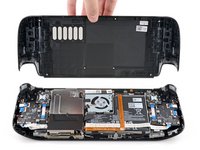
    • Insert an opening pick into the thin gap between the back cover and the front shell, along the edge of the right grip.

    • If you're having trouble inserting your pick at the grip seam, try starting at either the top or bottom long edges first, then slide the pick towards the grip.

    • Pry up on the back cover to release it from the locking clips.

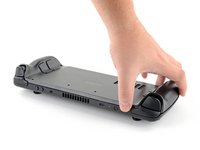
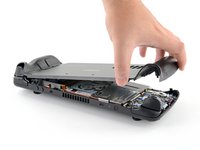
  4. Steam Deck Display Disconnection, Remove the back cover: passo 4, imagem 1 %32 Steam Deck Display Disconnection, Remove the back cover: passo 4, imagem 2 %32 Steam Deck Display Disconnection, Remove the back cover: passo 4, imagem 3 %32
    • Once the clips are disconnected from one edge, the rest disconnect easily.

    • Grip the back cover at the opening you just created and pull it up and away from the device to unclip the long edges.

    • Remove the back cover.

  5. Steam Deck Display Disconnection, Uncover the hidden shield screw: passo 5, imagem 1 %32 Steam Deck Display Disconnection, Uncover the hidden shield screw: passo 5, imagem 2 %32
    Ferramenta utilizada neste passo:
    Tweezers
    $4.99
    • If you have a refreshed Steam Deck version with the black motherboard cover, skip this step.

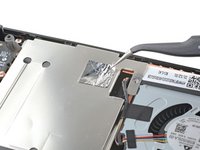
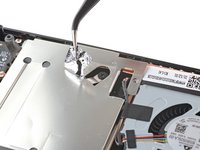
    • Use a pair of tweezers to remove the piece of foil tape covering the hidden screw on the board shield.

    • If possible, try not to rip or tear this tape so it can be reused. If necessary, you can fashion a replacement by cutting a piece of aluminum foil tape to fit.

  6. Steam Deck Display Disconnection, Remove the shield screws: passo 6, imagem 1 %32 Steam Deck Display Disconnection, Remove the shield screws: passo 6, imagem 2 %32
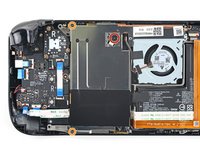
    • Use a Phillips driver to remove the three screws securing the board shield:

    • One 3.4 mm screw

    • Two 3.7 mm screws

    • Only the two 3.7 mm screws along the left edge are present in refreshed Steam Decks.

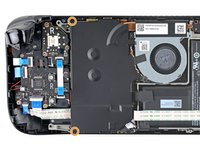
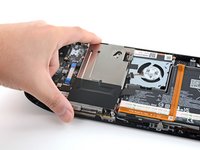
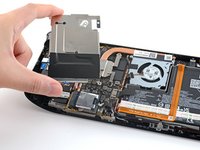
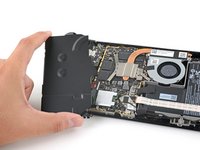
  7. Steam Deck Display Disconnection, Remove the shield: passo 7, imagem 1 %32 Steam Deck Display Disconnection, Remove the shield: passo 7, imagem 2 %32 Steam Deck Display Disconnection, Remove the shield: passo 7, imagem 3 %32
    • Remove the board shield.

    • Depending on the age of your Steam Deck, this shield may stick to the thermal pads underneath.

    • During reassembly, ensure that the fan cable lays on the side of the board shield and isn't pinched underneath.

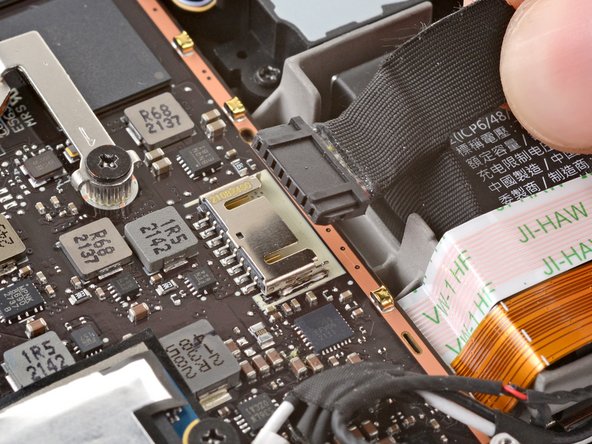
  8. Steam Deck Display Disconnection, Disconnect the battery: passo 8, imagem 1 %32 Steam Deck Display Disconnection, Disconnect the battery: passo 8, imagem 2 %32 Steam Deck Display Disconnection, Disconnect the battery: passo 8, imagem 3 %32
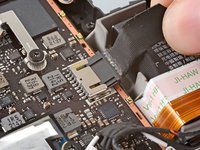
    • Grip the battery cable by its pull tab and pull it directly away from the motherboard to disconnect it.

    • Alternatively, use the flat end of a spudger or a clean fingernail to gently push the connector out of its socket, then disconnect it completely by hand.

  9. Steam Deck Display Disconnection, Remove the SSD screw: passo 9, imagem 1 %32
    • Use a Phillips driver to remove the 3.4 mm screw securing the SSD.

  10. Steam Deck Display Disconnection, Remove the SSD: passo 10, imagem 1 %32 Steam Deck Display Disconnection, Remove the SSD: passo 10, imagem 2 %32
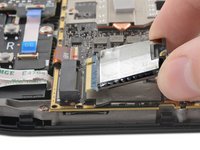
    • With the SSD screw removed, the SSD will pop up at a shallow angle.

    • Grip the end of the SSD and pull it away from its M.2 board connector to remove it.

    • During reassembly, insert the SSD at a shallow angle into its board connector, and secure it back into its horizontal position with the SSD screw.

  11. Steam Deck Display Disconnection, Remove the heatsink sticker: passo 11, imagem 1 %32 Steam Deck Display Disconnection, Remove the heatsink sticker: passo 11, imagem 2 %32 Steam Deck Display Disconnection, Remove the heatsink sticker: passo 11, imagem 3 %32
    Ferramenta utilizada neste passo:
    Tweezers
    $4.99
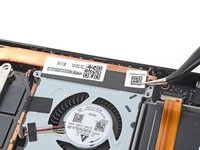
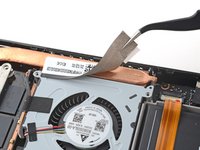
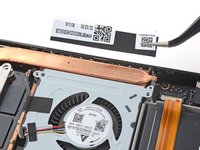
    • Use a pair of tweezers to remove the sticker from the top edge of the fan.

    • If possible, try not to rip or tear this sticker so it can be reused. Use a little bit of heat if necessary to soften the adhesive.

    • If the sticker feels like it might tear, use tweezers to peel up one edge just until you can grip it with your fingers, then remove the rest by hand.

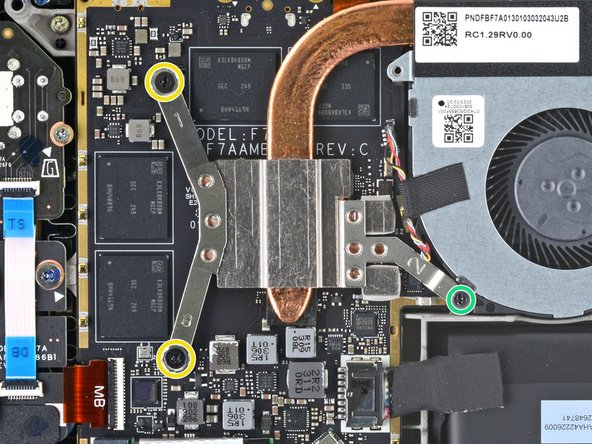
  12. Steam Deck Display Disconnection, Remove the heatsink screws: passo 12, imagem 1 %32 Steam Deck Display Disconnection, Remove the heatsink screws: passo 12, imagem 2 %32
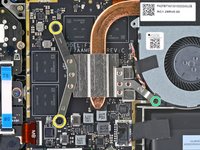
    • For original Steam Decks: Use a Phillips driver to loosen and remove the two screws securing the heatsink to the motherboard:

    • One captive 3.5 mm screw

    • One 3.4 mm screw

    • No, your eyes don't deceive you! The third heatsink screw was removed earlier in the disassembly: it doubles as the hidden board shield screw.

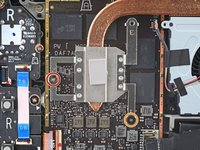
    • For refreshed Steam Decks: Use a Phillips driver to remove the three screws securing the heatsink to the motherboard:

    • Two 2.9 mm screws

    • One 3.7 mm screw

    • During reassembly on both versions, tighten these screws in order (1, 2, 3) as stamped into the heatsink.

  13. Steam Deck Display Disconnection, Remove the heatsink: passo 13, imagem 1 %32 Steam Deck Display Disconnection, Remove the heatsink: passo 13, imagem 2 %32 Steam Deck Display Disconnection, Remove the heatsink: passo 13, imagem 3 %32
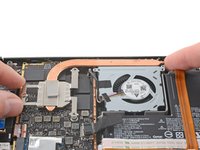
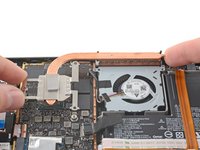
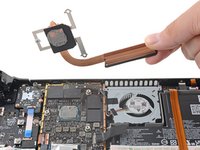
    • Lift and remove the heatsink.

    • Before reinstalling the heatsink, follow this guide to clean the heatsink and APU and reapply thermal paste.

  14. Steam Deck Display Disconnection, Disconnect the fan: passo 14, imagem 1 %32 Steam Deck Display Disconnection, Disconnect the fan: passo 14, imagem 2 %32
    Ferramenta utilizada neste passo:
    Tweezers
    $4.99
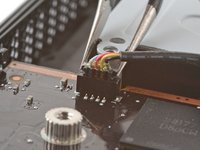
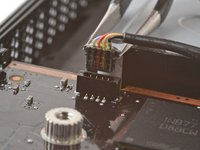
    • Use a pair of tweezers to grip the edges of the fan connector and pull up to disconnect it from the motherboard.

    • Pull the fan cable by its connector, not the wires themselves.

  15. Steam Deck Display Disconnection, Remove the Wi-Fi shield tape: passo 15, imagem 1 %32 Steam Deck Display Disconnection, Remove the Wi-Fi shield tape: passo 15, imagem 2 %32 Steam Deck Display Disconnection, Remove the Wi-Fi shield tape: passo 15, imagem 3 %32
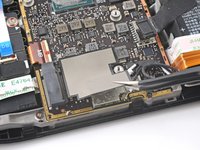
    • Use a pair of tweezers to peel up and remove the Wi-Fi shield tape.

    • If possible, try not to rip or tear this sticker so it can be reused. Use a little bit of heat if necessary to soften the adhesive.

  16. Steam Deck Display Disconnection, Disconnect the speakers: passo 16, imagem 1 %32 Steam Deck Display Disconnection, Disconnect the speakers: passo 16, imagem 2 %32
    • Use a pair of tweezers to grip the edges of the speaker connector and pull up to disconnect it from the motherboard.

    • Pull the speaker cable by its connector, not the wires themselves.

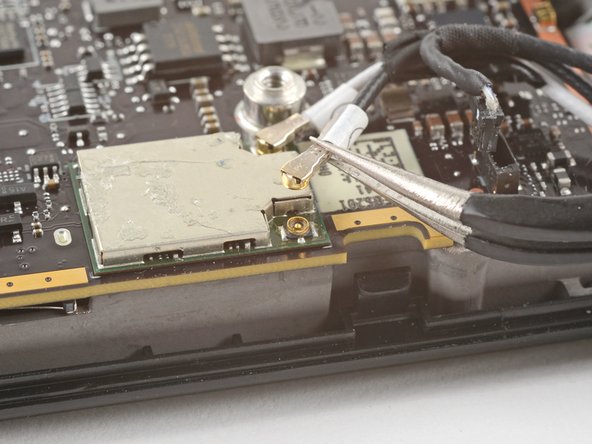
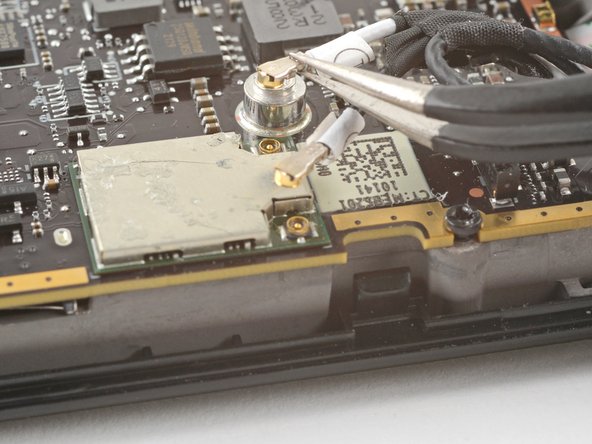
  17. Steam Deck Display Disconnection, Disconnect the Wi-Fi: passo 17, imagem 1 %32 Steam Deck Display Disconnection, Disconnect the Wi-Fi: passo 17, imagem 2 %32 Steam Deck Display Disconnection, Disconnect the Wi-Fi: passo 17, imagem 3 %32
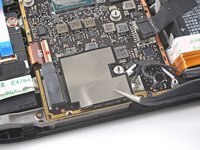
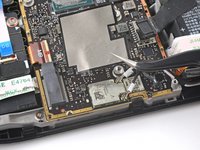
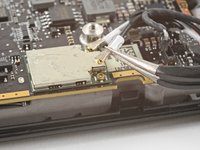
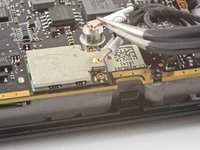
    • The Wi-Fi module is located next to the SSD on refreshed Steam Decks.

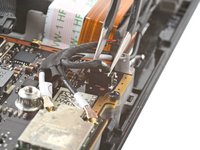
    • Use a pair of tweezers to grip the antenna connector close to its base.

    • Pull straight up to disconnect the cable.

    • Repeat for the second antenna cable.

    • During reassembly, ensure that both antenna cables are reconnected at their appropriate connectors. The labels on the cables match the markings on the Wi-Fi module.

    • To reconnect each cable, align the connector directly over its socket, and then press down so it snaps into place.

  18. Steam Deck Display Disconnection, Disconnect the display: passo 18, imagem 1 %32 Steam Deck Display Disconnection, Disconnect the display: passo 18, imagem 2 %32 Steam Deck Display Disconnection, Disconnect the display: passo 18, imagem 3 %32
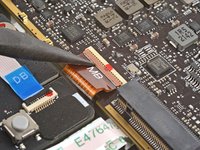
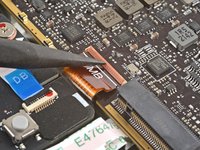
    • Use the pointed end of a spudger to lift up the small locking flap on the display cable's ZIF connector.

    • Use a pair of tweezers to slide the cable out of its connector.

    • Grip the cable by the pull tab, not by the cable itself.

  19. Steam Deck Display Disconnection, Disconnect the audio cable: passo 19, imagem 1 %32 Steam Deck Display Disconnection, Disconnect the audio cable: passo 19, imagem 2 %32
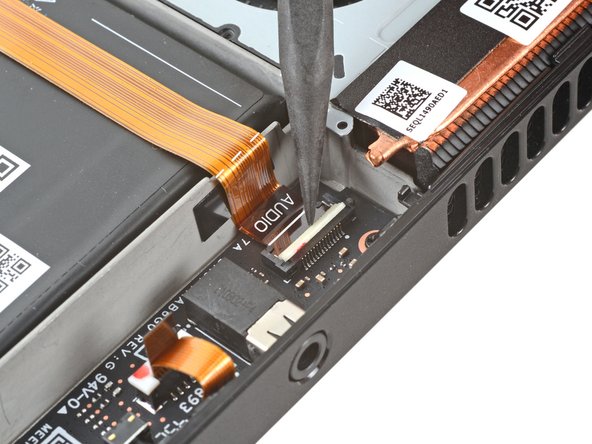
    • Refreshed Steam Decks don't have this audio cable. If you have a refreshed version, skip the next three steps.

    • Use the pointed end of a spudger to lift up the small locking flap on the audio cable's ZIF connector.

  20. Steam Deck Display Disconnection: passo 20, imagem 1 %32 Steam Deck Display Disconnection: passo 20, imagem 2 %32
    • Use a pair of tweezers to slide the cable out of its connector.

    • Grip the cable by its pull tab, not by the cable itself.

  21. Steam Deck Display Disconnection: passo 21, imagem 1 %32 Steam Deck Display Disconnection: passo 21, imagem 2 %32 Steam Deck Display Disconnection: passo 21, imagem 3 %32
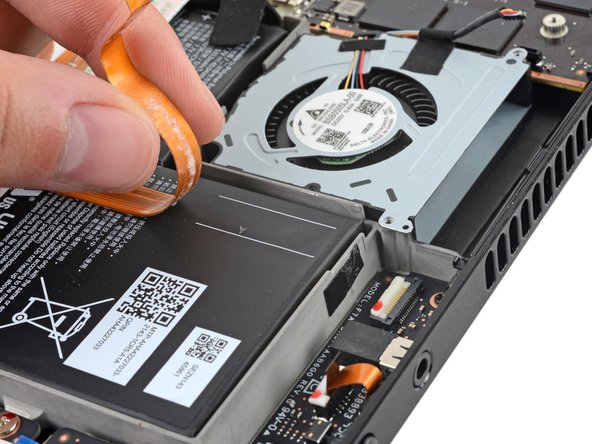
    • Carefully peel the audio cable off of the battery.

    • The audio cable is secured to the battery with some light adhesive.

    • If the adhesive is stubborn, don't force the cable. Lightly heat the audio cable using an iOpener or a hair dryer to soften the adhesive.

  22. Steam Deck Display Disconnection, Disconnect the button board: passo 22, imagem 1 %32 Steam Deck Display Disconnection, Disconnect the button board: passo 22, imagem 2 %32 Steam Deck Display Disconnection, Disconnect the button board: passo 22, imagem 3 %32
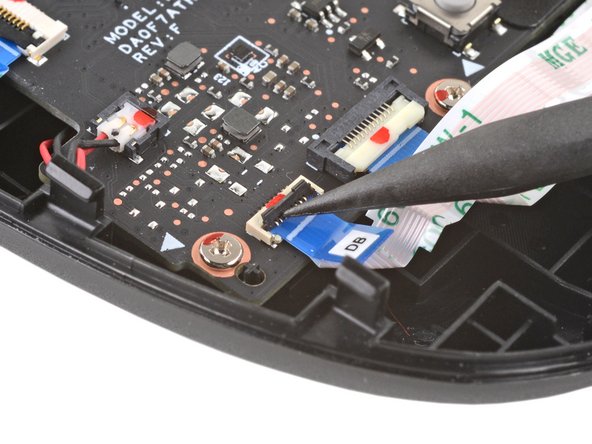
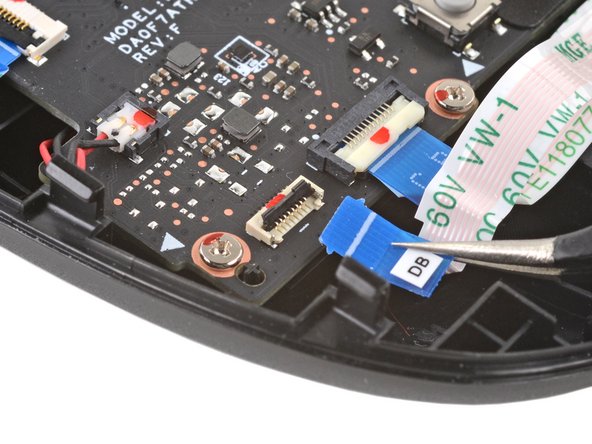
    • Use the pointed end of a spudger to lift up the small locking flap on the button board cable's ZIF connector.

    • Use a pair of tweezers to slide the cable out of its connector.

    • Grip the cable by the blue pull tab, not by the cable itself.

  23. Steam Deck Display Disconnection, Remove the motherboard screws: passo 23, imagem 1 %32
    • Use a Phillips driver to remove the three 3.7 mm screws securing the motherboard.

  24. Steam Deck Display Disconnection, Remove the motherboard: passo 24, imagem 1 %32 Steam Deck Display Disconnection, Remove the motherboard: passo 24, imagem 2 %32 Steam Deck Display Disconnection, Remove the motherboard: passo 24, imagem 3 %32
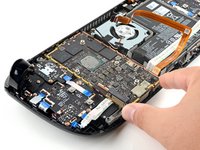
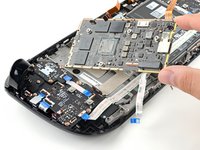
    • Remove the motherboard.

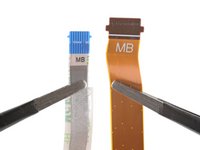
    • The audio and button board cables attach to the underside of the motherboard with ZIF connectors.

  25. Steam Deck Display Disconnection, Uncover the display connector: passo 25, imagem 1 %32 Steam Deck Display Disconnection, Uncover the display connector: passo 25, imagem 2 %32
    Ferramenta utilizada neste passo:
    Tweezers
    $4.99
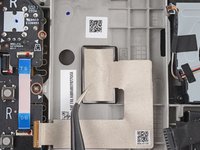
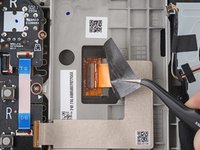
    • Use a pair of tweezers to peel back the sticker covering the display connector.

    • If possible, try not to rip or tear this sticker so it can be reused. Use a little bit of heat if necessary to soften the adhesive.

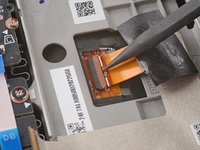
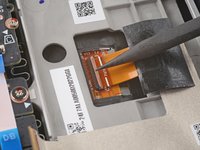
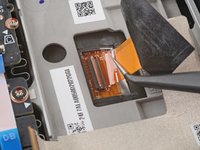
  26. Steam Deck Display Disconnection, Disconnect the display: passo 26, imagem 1 %32 Steam Deck Display Disconnection, Disconnect the display: passo 26, imagem 2 %32 Steam Deck Display Disconnection, Disconnect the display: passo 26, imagem 3 %32
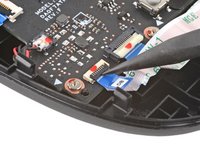
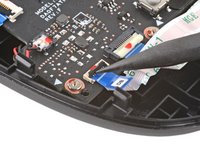
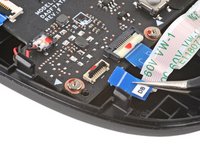
    • Use the pointed end of a spudger to lift up the small locking flap on the display cable's ZIF connector.

    • Use a pair of tweezers to slide the cable out of its connector.

Conclusão

To reassemble your device, follow these instructions in reverse order.

Carsten Frauenheim

Membro desde: 03/10/20

158.176 Reputação

Autoria de 439 guias

Equipe

iFixit Membro de iFixit

Staff

125 Membros

Autoria de 24.045 guias

0Comentários do guia

Comentar

Visualizações:

Últimas 24 horas: 0

Últimos 7 dias: 4

Últimos 30 dias: 38

Ao todo: 200