Introdução
This guide outlines a procedure for completely removing and replacing a non-functioning power port on the motherboard of the Samsung SmartThings Hub.
O que você precisa
-
-
To open your device, gently slide the grey bottom cover in the direction of the arrow as shown.
 Pergunte ao FixBot
-
-
-
Using your Phillips #1 screwdriver, remove the four visible 12.5mm screws.
-
Next, either peel up the longer of the two stickers or punch a hole with the tip of your screwdriver to access the fifth 12.5mm screw.
-
-
-
-
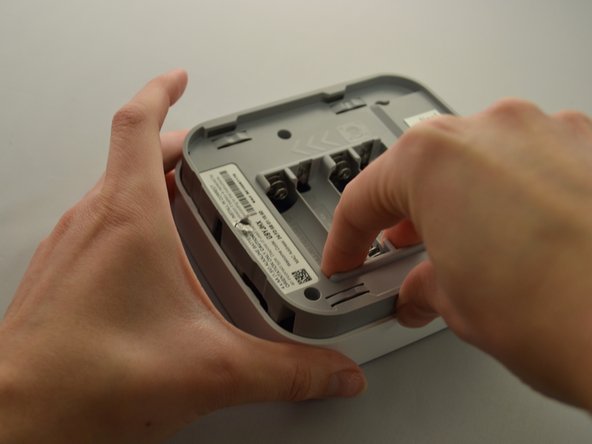
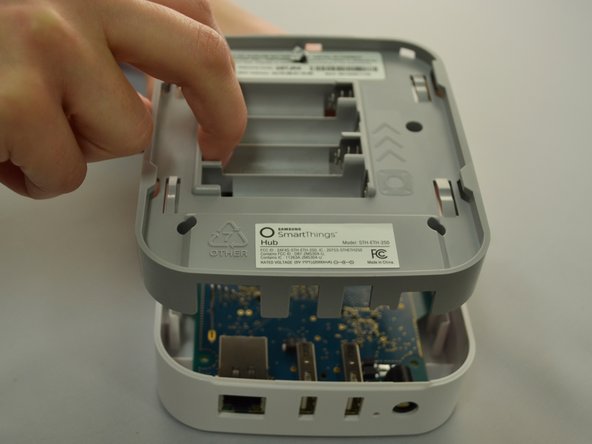
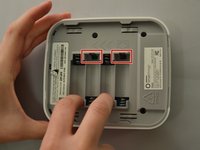
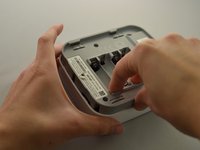
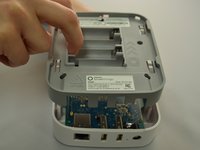
Once all five screws are removed, split the casing apart by applying gentle upwards pressure against the positive terminals in the battery compartment.
-
-
-
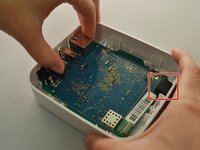
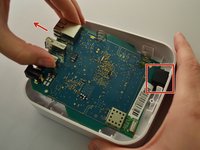
To remove the motherboard, grip the USB port and the Ethernet port. Lift up, then slide towards the front of the device to release the motherboard from the black retaining clip shown on the right.
-
-
-
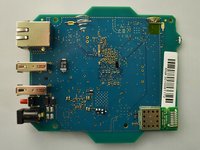
Place the motherboard on a clean, flat surface.
-
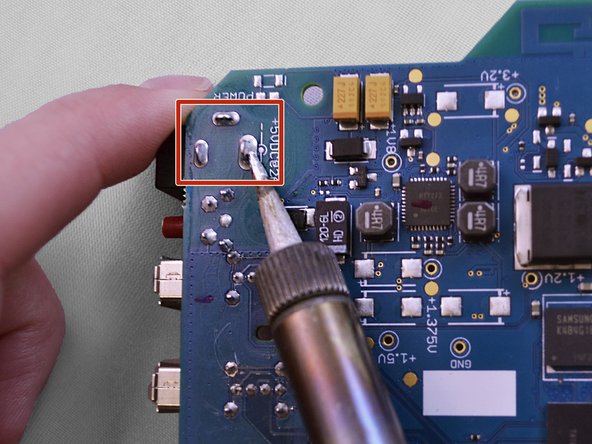
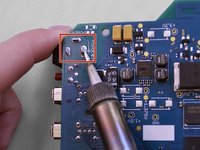
Preheat your soldering iron. The power port has three points of connection to the motherboard (pictured below). Using your soldering iron, apply heat to each solder joint in turn while pulling the power port away from the board.
-
-
Ferramenta utilizada neste passo:Tweezers$4.99
-
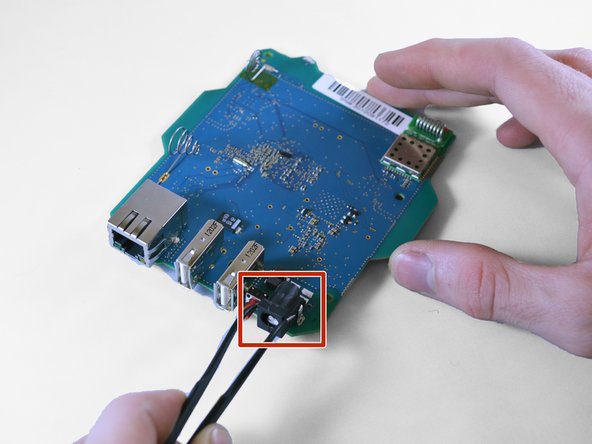
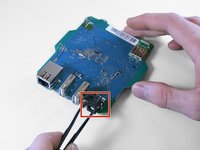
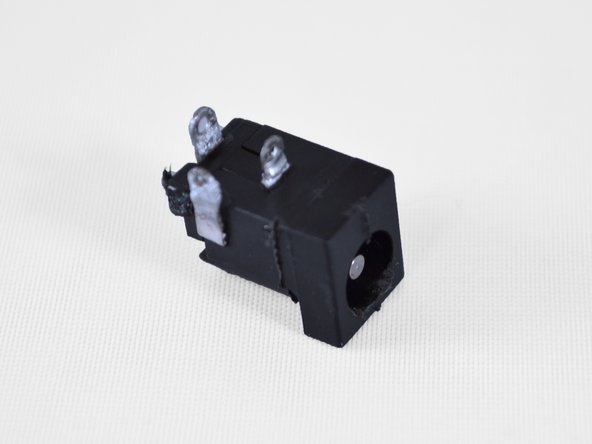
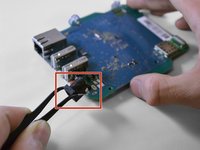
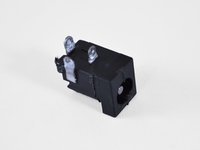
Using tweezers, remove the desoldered power port from the motherboard.
-







To reassemble your device, follow these instructions in reverse order.
Cancelar: não concluí este guia.
5 outras pessoas executaram este guia.

Equipe

Eastern Washington University, Team S2-G4, Crane Fall 2017 Membro de Eastern Washington University, Team S2-G4, Crane Fall 2017
EWU-CRANE-F17S2G4
4 Membros
Autoria de 5 guias
