Ir para o conteúdo principal
Participe da comunidade de reparos - Criar conta

Lexibook Junior Tablet Charging Port Replacement

O que você precisa

  1. Lexibook Junior Tablet Charging Port Replacement, Battery: passo 1, imagem 1 %32
    • Make sure your device is powered off before replacement to prevent electric shock.

    • With the device screen face down, use the metal spudger to remove the small rubber circles on all four corners of the device. The screws should now be revealed.

    • Using the metal spudger, pry open the small, long rubber rectangle on the back of the device to reveal more screws.

    Pergunte ao FixBot
  2. Lexibook Junior Tablet Charging Port Replacement: passo 2, imagem 1 %32
    • Using a Phillips #00 screwdriver, remove the four 6.8mm screws from the four corners of the device.

    • Using the same screwdriver, remove the three screws that were behind the rubber rectangle. These screws do not come out of the device.

    • Use the plastic opening tool to gently pry open the back panel of the tablet.

    Pergunte ao FixBot
  3. Lexibook Junior Tablet Charging Port Replacement: passo 3, imagem 1 %32
    • Use the nylon spudger to gently pry under the battery to remove it.

    • Make sure you do not damage the battery or metal plate in this process and only use a nylon spudger. Be patient and work slowly for the best results.

    Pergunte ao FixBot
  4. Lexibook Junior Tablet Charging Port Replacement: passo 4, imagem 1 %32
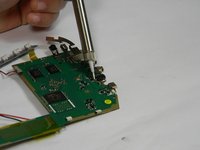
    • Use a soldering iron to remove the battery from the motherboard safely.

    • For advice on how to solder, check out iFixit's Soldering Guide.

    Pergunte ao FixBot
  5. Lexibook Junior Tablet Charging Port Replacement, Motherboard: passo 5, imagem 1 %32 Lexibook Junior Tablet Charging Port Replacement, Motherboard: passo 5, imagem 2 %32
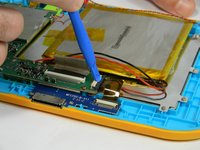
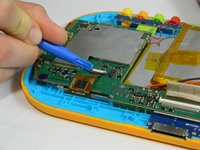
    • Using the plastic opening tool, gently push the two small, black and white switches out in the direction of the ribbon wires.

    • Slowly pull the ribbon wire out of the switch to free it.

    Pergunte ao FixBot
  6. Lexibook Junior Tablet Charging Port Replacement: passo 6, imagem 1 %32
    • Push the larger black and white strip leading to a ribbon wire upward using the plastic opening tool.

    • Carefully pull the ribbon wire out of the switch

    Pergunte ao FixBot
  7. Lexibook Junior Tablet Charging Port Replacement: passo 7, imagem 1 %32 Lexibook Junior Tablet Charging Port Replacement: passo 7, imagem 2 %32 Lexibook Junior Tablet Charging Port Replacement: passo 7, imagem 3 %32
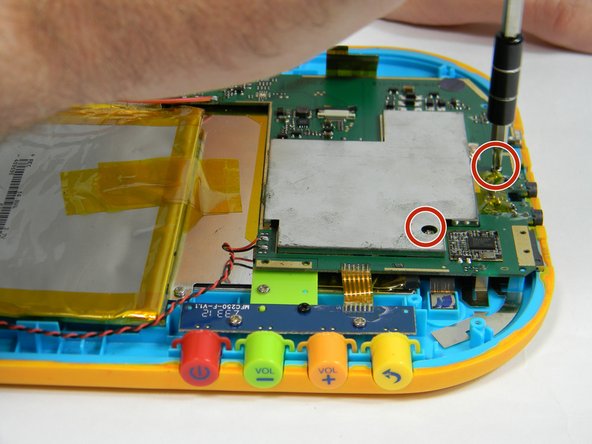
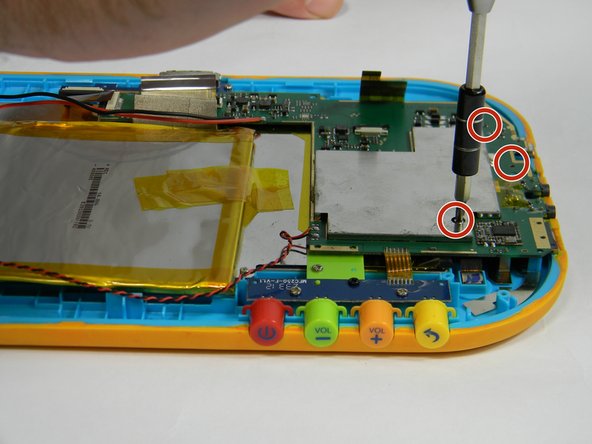
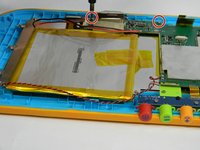
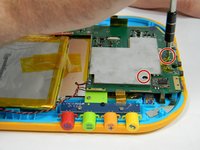
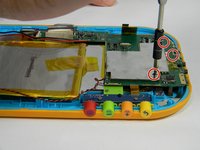
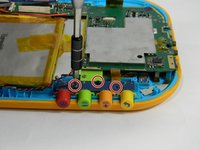
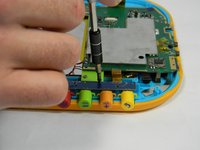
    • Unscrew the five 4 mm screws around the perimeter of the motherboard using the ph00 size phillips head screwdriver.

    Pergunte ao FixBot
  8. Lexibook Junior Tablet Charging Port Replacement: passo 8, imagem 1 %32 Lexibook Junior Tablet Charging Port Replacement: passo 8, imagem 2 %32
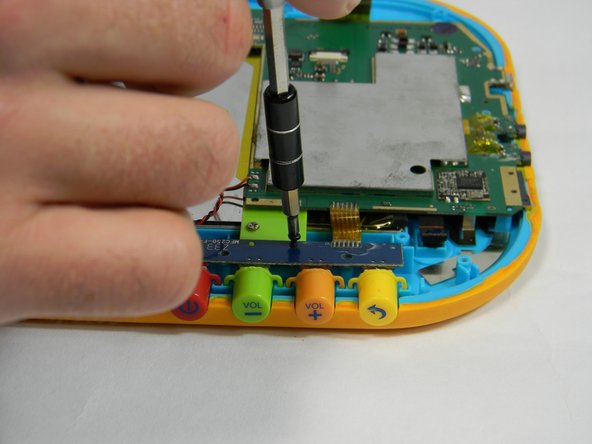
    • Remove the button board by unscrewing two more 4 mm screws and one 6.5 mm screw

    Pergunte ao FixBot
  9. Lexibook Junior Tablet Charging Port Replacement: passo 9, imagem 1 %32
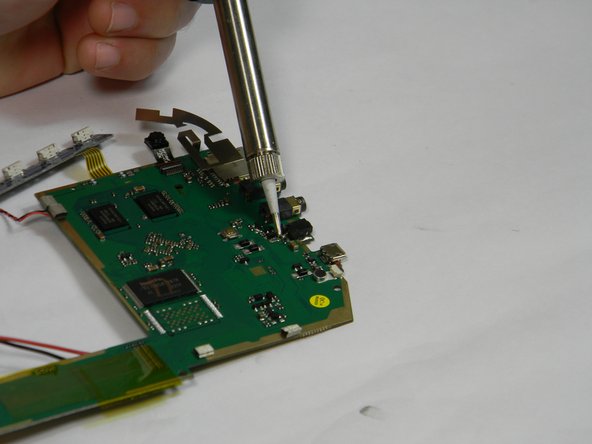
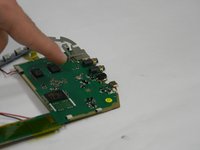
    • Solder off connections from the wire connecting the motherboard to the speaker.

    • For how to solder, check out iFixit's Soldering Guide.

    Pergunte ao FixBot
  10. Lexibook Junior Tablet Charging Port Replacement, Charging Port: passo 10, imagem 1 %32 Lexibook Junior Tablet Charging Port Replacement, Charging Port: passo 10, imagem 2 %32
    Pergunte ao FixBot
Conclusão

To reassemble your device, follow these instructions in reverse order.

Rachel Klesius

Membro desde: 09/19/16

645 Reputação

Autoria de 6 guias

Equipe

USF Tampa, Team 17-3, Blackwell Fall 2016 Membro de USF Tampa, Team 17-3, Blackwell Fall 2016

USFT-BLACKWELL-F16S17G3

4 Membros

Autoria de 12 guias

0Comentários do guia

Comentar

Visualizações:

Últimas 24 horas: 0

Últimos 7 dias: 10

Últimos 30 dias: 51

Ao todo: 897