Ir para o conteúdo principal
Participe da comunidade de reparos - Criar conta

HP Pavilion G6 Screen Replacement

O que você precisa

  1. HP Pavilion G6  Screen Replacement, Remove the battery: passo 1, imagem 1 %32 HP Pavilion G6  Screen Replacement, Remove the battery: passo 1, imagem 2 %32 HP Pavilion G6  Screen Replacement, Remove the battery: passo 1, imagem 3 %32
    • Close the laptop and flip it over.

    • Slide the release pin to pop the battery.

    • Remove the battery completely.

  2. HP Pavilion G6  Screen Replacement, Remove the screw covers: passo 2, imagem 1 %32 HP Pavilion G6  Screen Replacement, Remove the screw covers: passo 2, imagem 2 %32 HP Pavilion G6  Screen Replacement, Remove the screw covers: passo 2, imagem 3 %32
    Ferramenta utilizada neste passo:
    Tweezers
    $4.99
    • Open the laptop and locate the screw covers.

    • Remove the screw covers at the bottom of the screen with tweezers.

    • Keep them somewhere safe as you will need to stick them back after the repair.

  3. HP Pavilion G6  Screen Replacement, Remove the plastic frame: passo 3, imagem 1 %32 HP Pavilion G6  Screen Replacement, Remove the plastic frame: passo 3, imagem 2 %32 HP Pavilion G6  Screen Replacement, Remove the plastic frame: passo 3, imagem 3 %32
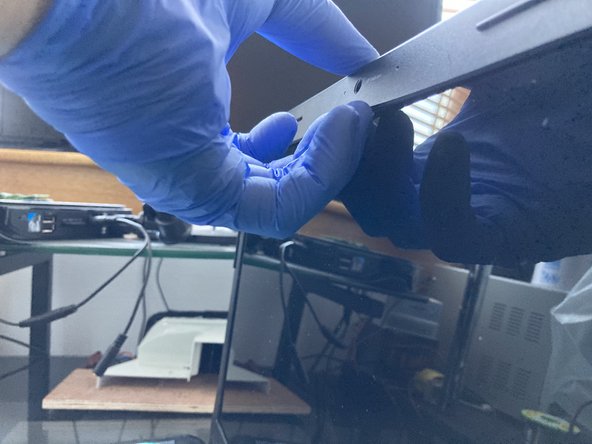
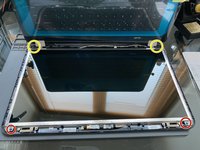
    • Unscrew the exposed 2 x Philips screws and set them aside.

    • Starting from the top, pry up the plastic frame with your fingernails or a pry bar.

    • If you are using a pry bar, it can scratch the screen. Apply gentle pressure until the plastic frame pop out all around the frame. Don't force it!

    • Finally, remove the frame.

  4. HP Pavilion G6  Screen Replacement, Release the screen from the frame: passo 4, imagem 1 %32 HP Pavilion G6  Screen Replacement, Release the screen from the frame: passo 4, imagem 2 %32 HP Pavilion G6  Screen Replacement, Release the screen from the frame: passo 4, imagem 3 %32
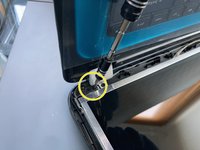
    • Remove the black Philips screw from the top on each side.

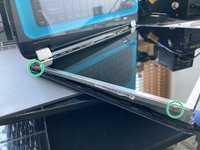
    • Remove the bottom screw from the hinge to make an easier access to the screws on the side of the screen.

    • Now that the frame is loose, you can remove the 4 x Philips screws holding the screen in the frame.

  5. HP Pavilion G6  Screen Replacement, Disconnect the screen connector: passo 5, imagem 1 %32 HP Pavilion G6  Screen Replacement, Disconnect the screen connector: passo 5, imagem 2 %32 HP Pavilion G6  Screen Replacement, Disconnect the screen connector: passo 5, imagem 3 %32
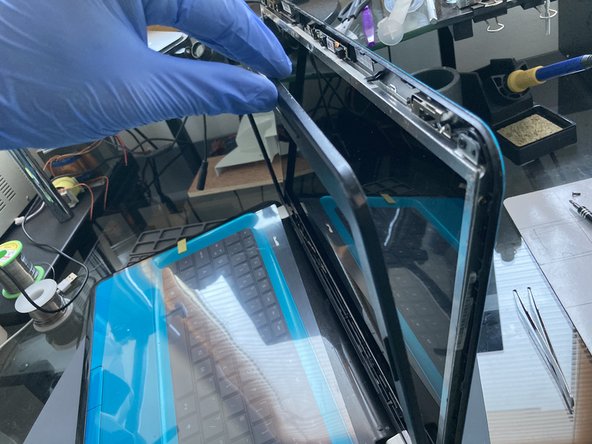
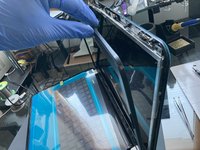
    • Turn the laptop back up and carefully tilt the screen out from the frame and rest it on the keyboard.

    • Don't try to fully remove it yet as it is still attached to the motherboard by the screen cable!

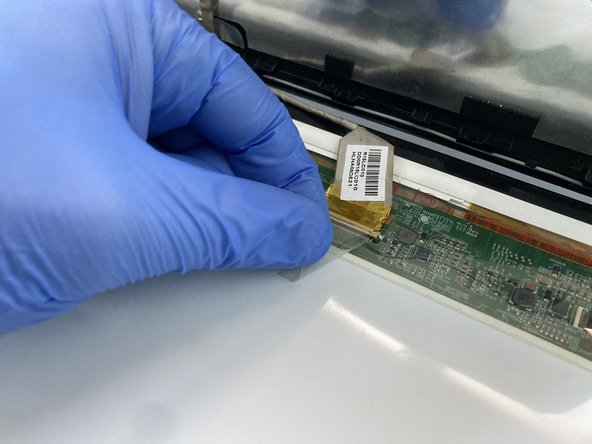
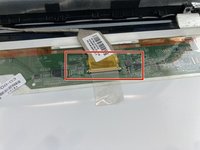
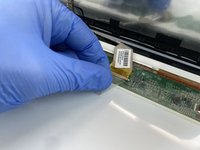
    • Gently lift up the adhesive and disconnect the screen connector. That is the screen released and ready for a change for a new one.

  6. HP Pavilion G6  Screen Replacement, Check the model number before ordering: passo 6, imagem 1 %32 HP Pavilion G6  Screen Replacement, Check the model number before ordering: passo 6, imagem 2 %32
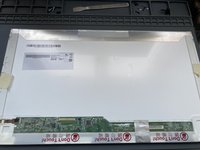
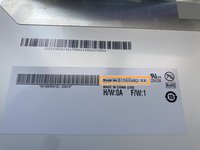
    • Before ordering a new screen make sure that you order the correct model number that is compatible with your old screen.

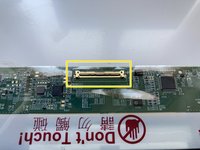
    • Check the cable connector to make sure you order the correct screen with the correct number of pins.

Conclusão

To reassemble your device, follow these instructions in reverse order.

2 outras pessoas executaram este guia.

honakrisi

Membro desde: 01/28/20

4.045 Reputação

Autoria de 8 guias

0Comentários do guia

Comentar

Visualizações:

Últimas 24 horas: 3

Últimos 7 dias: 15

Últimos 30 dias: 67

Ao todo: 2,008