Ir para o conteúdo principal
Participe da comunidade de reparos - Criar conta

Framework Laptop 12 Fan Replacement

O que você precisa

  1. Framework Laptop 12 Fan Replacement, Power down your laptop: passo 1, imagem 1 %32 Framework Laptop 12 Fan Replacement, Power down your laptop: passo 1, imagem 2 %32 Framework Laptop 12 Fan Replacement, Power down your laptop: passo 1, imagem 3 %32
    • Before you begin repairs, unplug your laptop and shut it down from the operating system. This ensures that the laptop isn't in standby/suspend mode.

    • The indicator LEDs along the edges should be unlit. The laptop should be silent.

    • If you accidentally turn on the laptop during repair, hold the power button down for 10 seconds to shut it down.

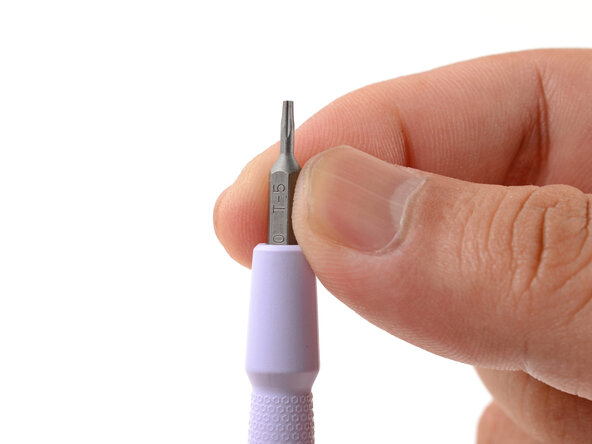
    • Make sure your Framework Screwdriver has the T5 Torx bit (labeled as T-5) facing outwards. If it's not, pull the bit out and flip it.

    Pergunte ao FixBot
  2. Framework Laptop 12 Fan Replacement, Set your laptop down: passo 2, imagem 1 %32
    • Set your Framework Laptop face-down on a clean work surface.

    Pergunte ao FixBot
  3. Framework Laptop 12 Fan Replacement, Loosen the bottom screws: passo 3, imagem 1 %32 Framework Laptop 12 Fan Replacement, Loosen the bottom screws: passo 3, imagem 2 %32
    • Use your Framework Screwdriver to fully loosen the eight captive T5 Torx screws on the bottom of your laptop.

    • Most screws in your Framework Laptop (including these) are captive—they're designed to stay in place after you loosen them.

    Pergunte ao FixBot
  4. Framework Laptop 12 Fan Replacement, Flip your laptop over: passo 4, imagem 1 %32
    • Flip your laptop over so it's face-up on your work surface.

    Pergunte ao FixBot
  5. Framework Laptop 12 Fan Replacement, Open your laptop: passo 5, imagem 1 %32 Framework Laptop 12 Fan Replacement, Open your laptop: passo 5, imagem 2 %32
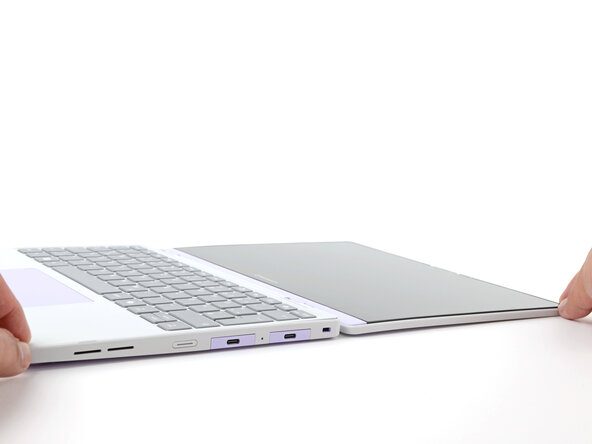
    • Open the laptop lid so that both the screen and the base lie flat on your work surface.

    Pergunte ao FixBot
  6. Framework Laptop 12 Fan Replacement, Remove the Input Cover: passo 6, imagem 1 %32 Framework Laptop 12 Fan Replacement, Remove the Input Cover: passo 6, imagem 2 %32 Framework Laptop 12 Fan Replacement, Remove the Input Cover: passo 6, imagem 3 %32
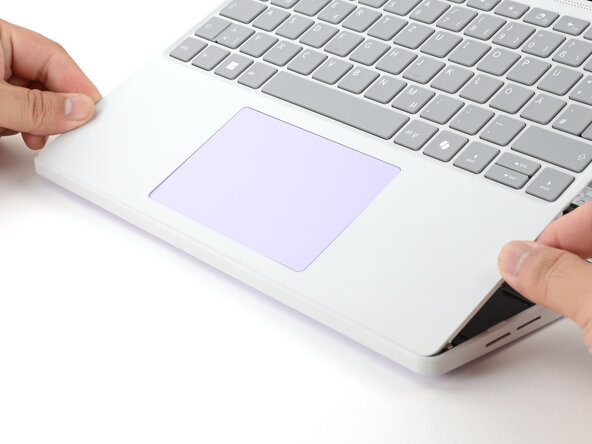
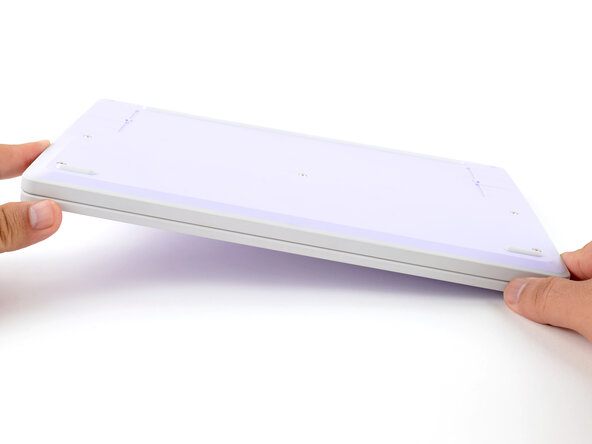
    • Use your fingers to grip the Input Cover in the hinge cutouts.

    • Lift upwards to swing the Input Cover up from the base of the laptop.

    • Magnets hold the Input Cover down, so you'll feel some resistance. If it feels stuck, check that you've fully loosened all the screws on the bottom of your laptop.

    • Remove the Input Cover.

    Pergunte ao FixBot
  7. Framework Laptop 12 Fan Replacement, Disconnect the fan connector: passo 7, imagem 1 %32 Framework Laptop 12 Fan Replacement, Disconnect the fan connector: passo 7, imagem 2 %32 Framework Laptop 12 Fan Replacement, Disconnect the fan connector: passo 7, imagem 3 %32
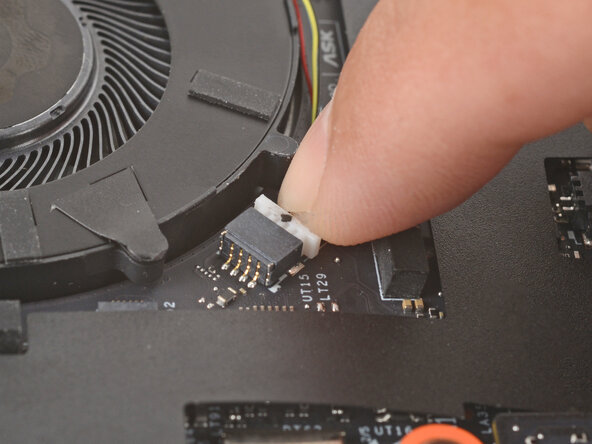
    • Use the flat end of your Framework Screwdriver to gently push on one of the fan connector's protruding edges, then the other, to loosen the connector out of its socket.

    Pergunte ao FixBot
  8. Framework Laptop 12 Fan Replacement: passo 8, imagem 1 %32 Framework Laptop 12 Fan Replacement: passo 8, imagem 2 %32
    • Use your fingers and your Framework Screwdriver to slide the fan connector out of its socket.

    Pergunte ao FixBot
  9. Framework Laptop 12 Fan Replacement, Loosen the fan screws: passo 9, imagem 1 %32
    • Use your Framework Screwdriver to loosen the two captive T5 Torx screws securing the fan.

    Pergunte ao FixBot
  10. Framework Laptop 12 Fan Replacement, Remove the fan: passo 10, imagem 1 %32 Framework Laptop 12 Fan Replacement, Remove the fan: passo 10, imagem 2 %32
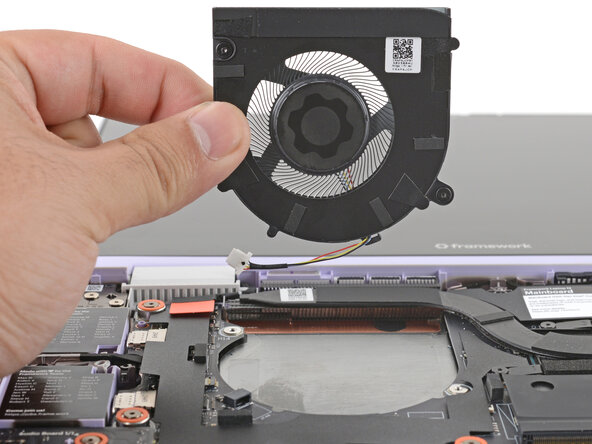
    • Lift and remove the fan.

    Pergunte ao FixBot
  11. Framework Laptop 12 Fan Replacement, Clean the fan: passo 11, imagem 1 %32 Framework Laptop 12 Fan Replacement, Clean the fan: passo 11, imagem 2 %32
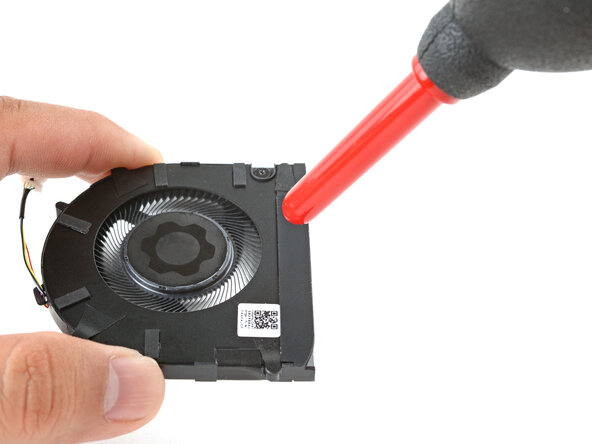
    • If your fan's dirty, this is a great opportunity to clean it! A clean fan will help your laptop stay cooler.

    • Use a soft bristled brush or a clean toothbrush to gently scrub the fan blades and exhaust fins.

    • Use a dust blower to blow away the dust from the fan.

    Pergunte ao FixBot
  12. Framework Laptop 12 Fan Replacement, Disassembly complete: passo 12, imagem 1 %32
    • Congratulations on completing disassembly! The remaining steps will show how to reassemble your Framework Laptop.

    Pergunte ao FixBot
  13. Framework Laptop 12 Fan Replacement, Install the fan: passo 13, imagem 1 %32
    • Lay the fan in the laptop.

    Pergunte ao FixBot
  14. Framework Laptop 12 Fan Replacement, Tighten the fan screws: passo 14, imagem 1 %32
    • Use your Framework Screwdriver to tighten the two captive T5 Torx screws to secure the fan.

    Pergunte ao FixBot
  15. Framework Laptop 12 Fan Replacement: passo 15, imagem 1 %32 Framework Laptop 12 Fan Replacement: passo 15, imagem 2 %32
    • Use your fingers to gently push the fan connector back into its socket.

    • Don't push too hard, or you may break the socket. If you're having trouble, wiggle the connector slightly to help it slide into the socket.

    Pergunte ao FixBot
  16. Framework Laptop 12 Fan Replacement, Install the Input Cover: passo 16, imagem 1 %32 Framework Laptop 12 Fan Replacement, Install the Input Cover: passo 16, imagem 2 %32 Framework Laptop 12 Fan Replacement, Install the Input Cover: passo 16, imagem 3 %32
    • Angle the bottom edge of the Input Cover towards the base of the laptop.

    • Align and insert the bottom edge of the Input Cover into the base of the laptop.

    • Make sure the slots along the bottom edge of the Input Cover slide into the tabs in the base.

    • Lower the Input Cover's top edge onto the laptop until the magnets snap it in place.

    • Make sure the Input Cover sits neatly within the laptop frame and no corners are popping up.

    Pergunte ao FixBot
  17. Framework Laptop 12 Fan Replacement, Close and flip your laptop: passo 17, imagem 1 %32 Framework Laptop 12 Fan Replacement, Close and flip your laptop: passo 17, imagem 2 %32
    • Close the laptop lid.

    • Flip your laptop face-down on a clean work surface.

    Pergunte ao FixBot
  18. Framework Laptop 12 Fan Replacement, Tighten the bottom screws: passo 18, imagem 1 %32 Framework Laptop 12 Fan Replacement, Tighten the bottom screws: passo 18, imagem 2 %32
    • Use your Framework Screwdriver to tighten the eight captive T5 Torx screws on the bottom of your laptop.

    • Tighten the screws until they're snug. Don't over-tighten them, or you may strip the screws.

    Pergunte ao FixBot
Conclusão

You finished fixing your Framework Laptop!

Take your e-waste to an R2 or e-Stewards certified recycler.

If you need help, contact Framework support.

Arthur Shi

Membro desde: 01/03/18

336.176 Reputação

Autoria de 848 guias

Equipe

Guide Team Membro de Guide Team

Staff

10 Membros

Autoria de 17.798 guias

0Comentários do guia

Comentar

Visualizações:

Últimas 24 horas: 0

Últimos 7 dias: 9

Últimos 30 dias: 57

Ao todo: 745