Essa tradução foi gerada por um programa e ainda não foi revisada por uma pessoa. Falas essa língua? Dá uma olhada.
Introdução
A memória RAM fornece aos programas acesso rápido aos dados de que precisam. Quanto mais programas você tiver abertos ao mesmo tempo, mais RAM seu computador precisará.
O que você precisa
-
-
-
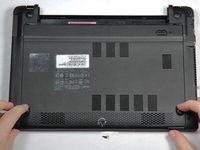
Coloque o notebook em uma superfície plana com o lado inferior virado para cima.
-
Coloque a ponta de uma espátula ou o dedo no orifício da trava de liberação da bateria.
 Pergunte ao FixBot
-
-
-
Use a espátula para mover a trava para a direita e mantenha-a nessa posição.
-
Com a trava segurada, use a outra mão para puxar a bateria para fora do notebook.
-
-
-
-
-
-
Use a chave Phillips para perfurar o selo de garantia.
-
Desaparafuse e remova o parafuso Phillips #0 de 6 mm e coloque-o de lado.
-
-
-
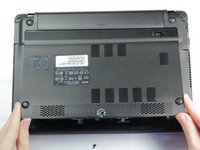
Deslize o painel traseiro na sua direção. Os melhores lugares para colocar os dedos são nos botões de ombro.
-
Levante pela borda frontal para remover o painel.
-
-
-
-
-
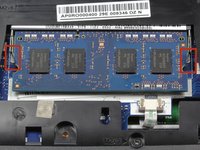
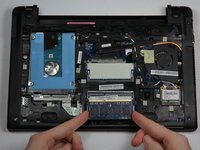
Puxe as abas de metal para os lados, afastando-as do pente de memória.
-
-
-
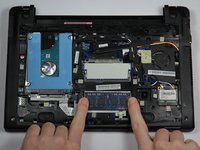
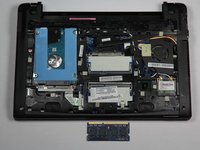
Puxe o módulo de memória RAM para cima e para fora do notebook.
-
-






Para a remontagem de seu dispositivo, siga estas instruções na ordem inversa.
Cancelar: não concluí este guia.
13 outras pessoas executaram este guia.

Equipe

Cal Poly, Team 13-3, Forte Fall 2013 Membro de Cal Poly, Team 13-3, Forte Fall 2013
CPSU-FORTE-F13S13G3
5 Membros
Autoria de 63 guias
7Comentários do guia
Is there only one RAM stick? My wife's C710 has 2 GB of RAM and I have two spare 2 GB sticks. I assumed that the C710 had two 1 GB sticks. Is this incorrect? Are two 2 GB sticks not going to help?
I believe the C710 comes with a single stick of RAM preinstalled, but there are two slots there. So if you have the correct type of RAM, you should be good to go. One installs right on top of the other.
Awesome, thank you!
Acer and Crucial insist that 4 GB is maximum ram, but I’ve successfully installed 12 GB and I’ve read reports on the web of 16 GB. It uses the same memory as my 2012 Mac Mini, (my source for the additional RAM) Adding a SSD will make this a powerful machine indeed. The main limitation is that although it will run the (aging) Chrubuntu (an Ubuntu install running on the Chrome kernel), it will not dual boot with linux. The firmware needs to be flashed in order to install a newer linux distro (Gallium OS or a specialized Mint 18), and this will effectively end it’s ability to run Chrome (although I beleive the firmware can be re-flashed so as to return it to Chrome OS .)
I want to change the ram stick up to 16 GB ram stick.
How?
