Ir para o conteúdo principal
Participe da comunidade de reparos - Criar conta

iMac G5 17" Model A1058 Optical Drive Replacement

O que você precisa

  1. iMac G5 17" Model A1058 Optical Drive Replacement, Rear Panel: passo 1, imagem 1 %32
    • Lay the iMac display-side down on a flat surface.

    • Loosen the three Phillips screws securing the rear panel to the iMac.

    • These screws are captive in the iMac. The center screw will stop turning after about 3.5 turns and the outer screws will stop turning after about 5.5 turns. Do not try to remove these screws from your iMac.

    Pergunte ao FixBot

    Comentar

  2. iMac G5 17" Model A1058 Optical Drive Replacement: passo 2, imagem 1 %32 iMac G5 17" Model A1058 Optical Drive Replacement: passo 2, imagem 2 %32 iMac G5 17" Model A1058 Optical Drive Replacement: passo 2, imagem 3 %32
    • Lift the rear panel slightly from the bottom edge of the iMac.

    • Pull the rear panel toward yourself and remove it from the iMac.

    Pergunte ao FixBot

    Comentar

  3. iMac G5 17" Model A1058 Optical Drive Replacement, Optical Drive: passo 3, imagem 1 %32
    • Remove the three 8 mm brass Phillips screws securing the optical drive to the midplane.

    Pergunte ao FixBot

    Comentar

  4. iMac G5 17" Model A1058 Optical Drive Replacement: passo 4, imagem 1 %32 iMac G5 17" Model A1058 Optical Drive Replacement: passo 4, imagem 2 %32 iMac G5 17" Model A1058 Optical Drive Replacement: passo 4, imagem 3 %32
    • Lift the optical drive near the connector to separate it from the logic board.

    • Lift the free end of the optical drive just enough to clear the fan cover. Lifting the free end of the optical drive too far may break the plastic positioning pins off the front bezel.

    • Lift the free end of the optical drive slightly, then pull it away from the edge of the rear case to clear the two plastic positioning pins.

    • Lift the optical drive out of your iMac.

    • When reinstalling your optical drive it may be necessary to set the bezel attached to the open end of the drive on the plastic positioning pins molded into the front bezel of the iMac and pull the connector side of the drive toward the edge of the rear case, bending it outward slightly, to properly seat the connector.

    Pergunte ao FixBot

    Comentar

  5. iMac G5 17" Model A1058 Optical Drive Replacement, Optical Drive: passo 5, imagem 1 %32
    • Remove the two 3.7 mm T6 Torx screws securing the optical drive connector board to the optical drive.

    Pergunte ao FixBot

    Comentar

  6. iMac G5 17" Model A1058 Optical Drive Replacement: passo 6, imagem 1 %32
    • Working from alternating sides of the board, use the flat end of a spudger to separate the optical drive connector board from the optical drive.

    • The socket in the optical drive is particularly deep, so don't pry the connector up too far from one side to avoid shearing the connector off the board.

    Pergunte ao FixBot

    Comentar

  7. iMac G5 17" Model A1058 Optical Drive Replacement: passo 7, imagem 1 %32
    • Remove the optical drive connector board.

    Pergunte ao FixBot

    Comentar

  8. iMac G5 17" Model A1058 Optical Drive Replacement: passo 8, imagem 1 %32 iMac G5 17" Model A1058 Optical Drive Replacement: passo 8, imagem 2 %32
    • Remove the two 4.5 mm shouldered T6 Torx screws from each side of the optical drive (four screws total).

    Pergunte ao FixBot

    Comentar

  9. iMac G5 17" Model A1058 Optical Drive Replacement: passo 9, imagem 1 %32
    • Insert a spudger into the gap between the optical drive and its cage near the optical drive connector.

    • Pry the optical drive away from the vibration isolating material along the inside of the cage.

    Pergunte ao FixBot

    Comentar

  10. iMac G5 17" Model A1058 Optical Drive Replacement: passo 10, imagem 1 %32
    • Pull the optical drive away from the cage by its open side.

    • It may be necessary to wiggle the optical drive as you pull it away from the cage to free it from the vibration isolating material.

    Pergunte ao FixBot

    Comentar

  11. iMac G5 17" Model A1058 Optical Drive Replacement: passo 11, imagem 1 %32 iMac G5 17" Model A1058 Optical Drive Replacement: passo 11, imagem 2 %32
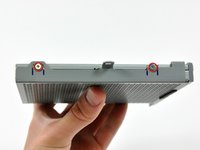
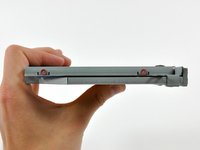
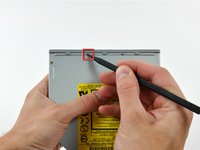
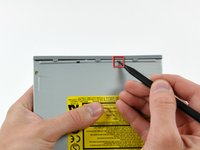
    • Use the tip of a spudger to push the two plastic bezel tabs away from their retaining slots on the top of the optical drive.

    Pergunte ao FixBot

    Comentar

  12. iMac G5 17" Model A1058 Optical Drive Replacement: passo 12, imagem 1 %32
    • Use the pointed end of a spudger to depress and release the bezel retaining tab on the side of the optical drive.

    Pergunte ao FixBot

    Comentar

  13. iMac G5 17" Model A1058 Optical Drive Replacement: passo 13, imagem 1 %32
    • If necessary, use the pointed tip of a spudger to release the two plastic bezel tabs from their slots on the bottom of the optical drive.

    Pergunte ao FixBot

    Comentar

  14. iMac G5 17" Model A1058 Optical Drive Replacement: passo 14, imagem 1 %32
    • Remove the plastic bezel from the optical drive.

    • If you have a disk or anything else stuck inside your optical drive, we have a guide to fix it.

    Pergunte ao FixBot

    Comentar

Conclusão

To reassemble your device, follow these instructions in reverse order.

Cancelar: não concluí este guia.

15 outras pessoas executaram este guia.

0Comentários do guia

Comentar

Visualizações:

Últimas 24 horas: 3

Últimos 7 dias: 13

Últimos 30 dias: 53

Ao todo: 15,936