Ir para o conteúdo principal
Participe da comunidade de reparos - Criar conta

Xiaomi Air 12 SSD Replacement

O que você precisa

  1. Xiaomi Air 12 SSD Replacement, Rear Casing: passo 1, imagem 1 %32
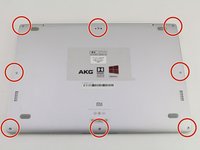
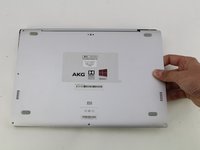
    • Orient the computer so the Xiaomi logo is at the bottom of the device.

    Pergunte ao FixBot
  2. Xiaomi Air 12 SSD Replacement: passo 2, imagem 1 %32 Xiaomi Air 12 SSD Replacement: passo 2, imagem 2 %32 Xiaomi Air 12 SSD Replacement: passo 2, imagem 3 %32
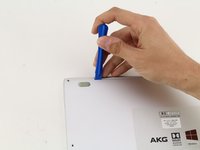
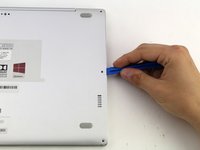
    • Insert the plastic opening tool underneath the top-middle rubber covering and lift upwards to reveal the hidden screw.

    Pergunte ao FixBot
  3. Xiaomi Air 12 SSD Replacement: passo 3, imagem 1 %32 Xiaomi Air 12 SSD Replacement: passo 3, imagem 2 %32
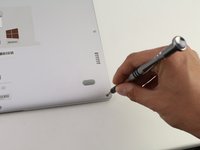
    • Remove the eight 3 mm screws using the Torx T5 driver by inserting the screwdriver into each screw and rotating counterclockwise.

    Pergunte ao FixBot
  4. Xiaomi Air 12 SSD Replacement: passo 4, imagem 1 %32 Xiaomi Air 12 SSD Replacement: passo 4, imagem 2 %32 Xiaomi Air 12 SSD Replacement: passo 4, imagem 3 %32
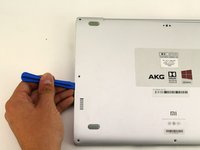
    • Insert the plastic opening tool into each side of the computer and push the tool downwards to pop open the back cover.

    • You will hear popping noises as you remove the cover.

    Pergunte ao FixBot
  5. Xiaomi Air 12 SSD Replacement: passo 5, imagem 1 %32 Xiaomi Air 12 SSD Replacement: passo 5, imagem 2 %32
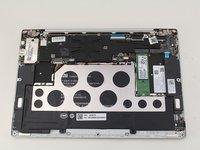
    • Remove the back of the laptop by gently lifting the casing upwards.

    Pergunte ao FixBot
  6. Xiaomi Air 12 SSD Replacement, SSD: passo 6, imagem 1 %32 Xiaomi Air 12 SSD Replacement, SSD: passo 6, imagem 2 %32
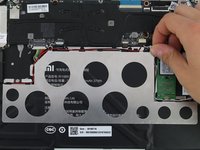
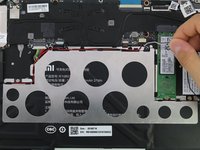
    • Detach the white and black speaker wires by pulling them from the small black tabs along the perimeter of the metal bracket.

    Pergunte ao FixBot
  7. Xiaomi Air 12 SSD Replacement: passo 7, imagem 1 %32 Xiaomi Air 12 SSD Replacement: passo 7, imagem 2 %32
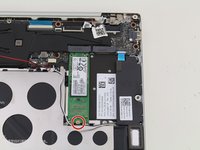
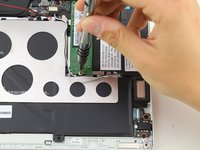
    • Remove the 1.5mm screw using the JIS #00 screwdriver.

    Pergunte ao FixBot
  8. Xiaomi Air 12 SSD Replacement: passo 8, imagem 1 %32 Xiaomi Air 12 SSD Replacement: passo 8, imagem 2 %32
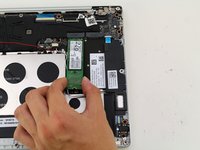
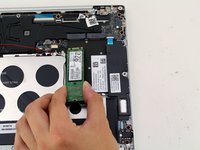
    • Lift the SSD up from the device and gently pull the SSD from the laptop.

    Pergunte ao FixBot
Conclusão

To reassemble your device, follow these instructions in reverse order.

4 outras pessoas executaram este guia.

Hannah Kwan

Membro desde: 04/18/18

928 Reputação

Autoria de 5 guias

Equipe

Cal Poly, Team S18-G4, Livingston Spring 2018 Membro de Cal Poly, Team S18-G4, Livingston Spring 2018

CPSU-LIVINGSTON-S18S18G4

4 Membros

Autoria de 34 guias

1Comentário do guia

Excelente!!!!

hugolfreitas1 - Responder Compartilhar

Comentar

Visualizações:

Últimas 24 horas: 2

Últimos 7 dias: 26

Últimos 30 dias: 137

Ao todo: 7,557