Ir para o conteúdo principal
Participe da comunidade de reparos - Criar conta

Xbox 360 Dual Fans Replacement

O que você precisa

  1. Xbox 360 Dual Fans Replacement, Hard Drive: passo 1, imagem 1 %32 Xbox 360 Dual Fans Replacement, Hard Drive: passo 1, imagem 2 %32
    • Grasp the hard drive assembly and press the release button while lifting its front edge.

    • Remove the hard drive assembly from the top vent.

    Pergunte ao FixBot

    Comentar

  2. Xbox 360 Dual Fans Replacement, Bottom Vent: passo 2, imagem 1 %32
    Ferramenta utilizada neste passo:
    Xbox 360 Opening Tool
    $4.99
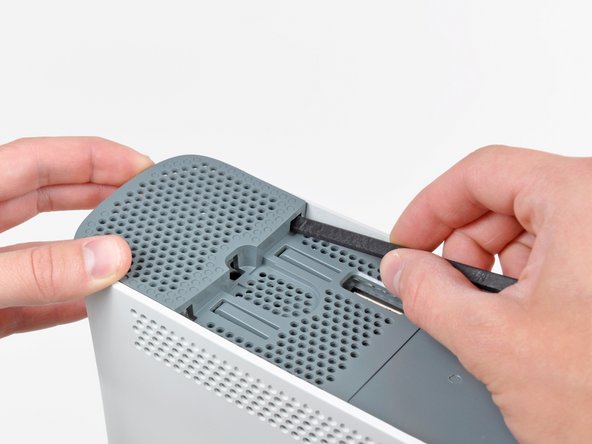
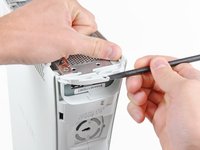
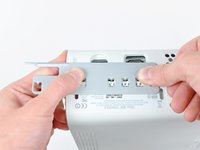
    • Stand the console vertically with the bottom edge facing up.

    • Throughout the following opening procedure, the finger of an Xbox 360 opening tool can be used in place of a spudger.

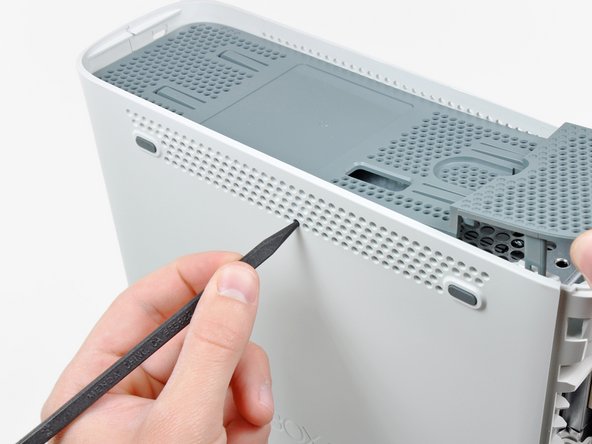
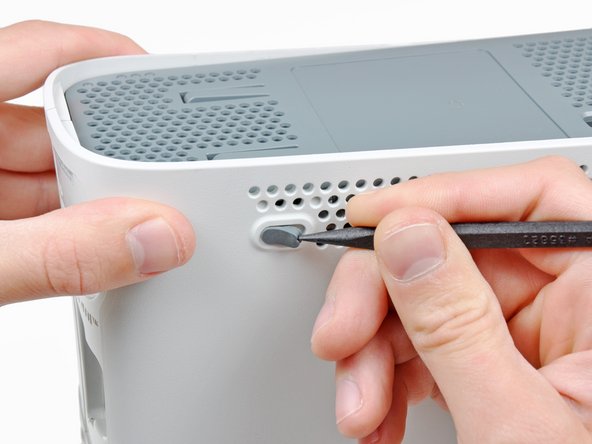
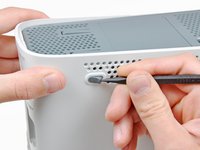
    • Insert the flat end of a spudger or the edge of an Xbox 360 opening tool into the small gap at the front edge of the bottom vent.

    • Pry the front edge of the bottom vent away from the faceplate.

    Pergunte ao FixBot

    Comentar

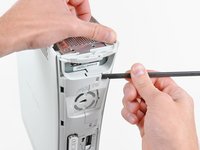
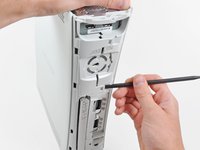
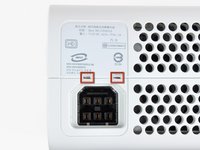
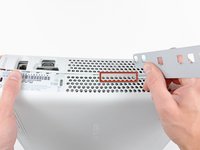
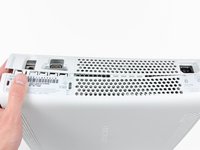
  3. Xbox 360 Dual Fans Replacement: passo 3, imagem 1 %32 Xbox 360 Dual Fans Replacement: passo 3, imagem 2 %32 Xbox 360 Dual Fans Replacement: passo 3, imagem 3 %32
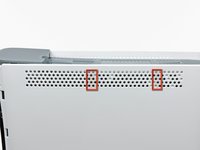
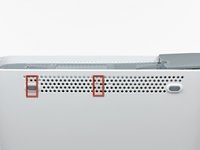
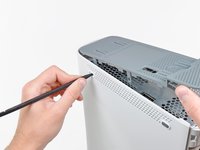
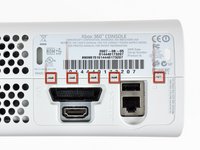
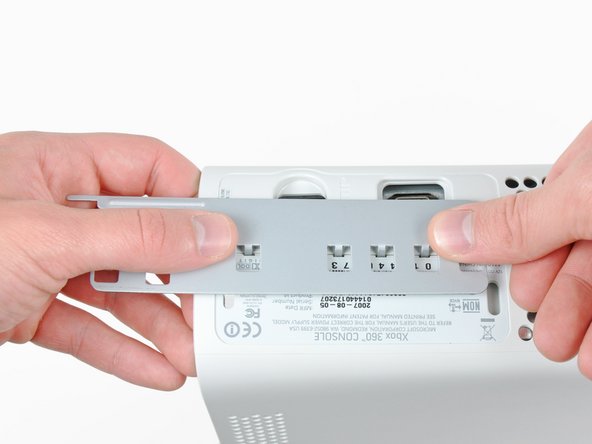
    • In the next few steps, you will use the tip of a spudger or the finger of an Xbox 360 opening tool to release the clips along the left and right sides of the bottom vent. Their locations are highlighted in red.

    • You will insert the tool into the holes molded into the white plastic side case pieces.

    Pergunte ao FixBot

    Comentar

  4. Xbox 360 Dual Fans Replacement: passo 4, imagem 1 %32 Xbox 360 Dual Fans Replacement: passo 4, imagem 2 %32
    • To release the clips, work from the front edge of the bottom vent.

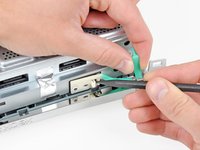
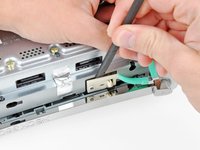
    • While slightly lifting the front edge of the bottom vent, use the tip of a spudger to push the clips closest to the front of the bottom vent towards the inside of the console.

    Pergunte ao FixBot

    Comentar

  5. Xbox 360 Dual Fans Replacement: passo 5, imagem 1 %32 Xbox 360 Dual Fans Replacement: passo 5, imagem 2 %32
    • Repeat the same process to release the two center clips on the bottom vent.

    Pergunte ao FixBot

    Comentar

  6. Xbox 360 Dual Fans Replacement: passo 6, imagem 1 %32 Xbox 360 Dual Fans Replacement: passo 6, imagem 2 %32
    • Use the tip of your spudger to release the clips on the bottom vent nearest the back of the Xbox.

    Pergunte ao FixBot

    Comentar

  7. Xbox 360 Dual Fans Replacement: passo 7, imagem 1 %32
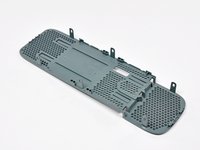
    • Remove the bottom vent from the 360.

    Pergunte ao FixBot

    Comentar

  8. Xbox 360 Dual Fans Replacement, Faceplate: passo 8, imagem 1 %32 Xbox 360 Dual Fans Replacement, Faceplate: passo 8, imagem 2 %32
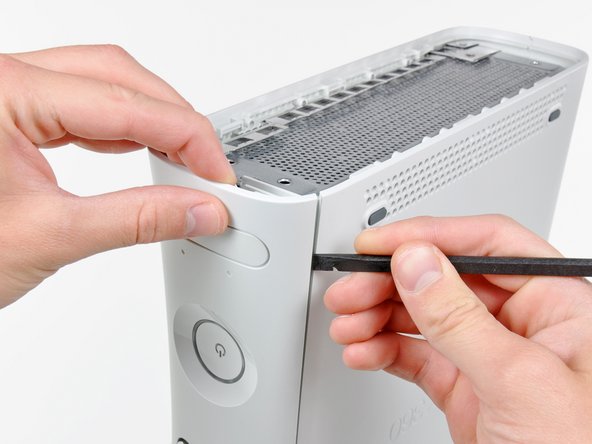
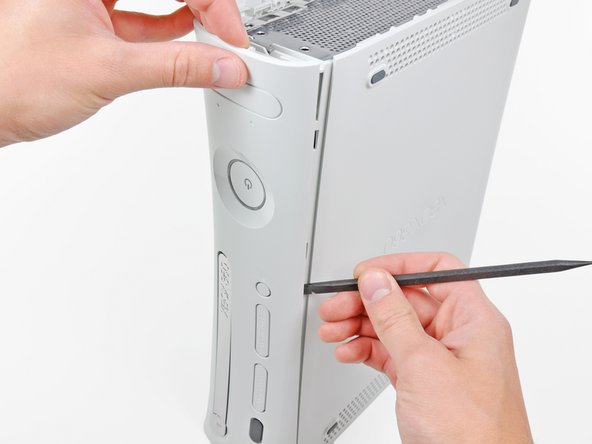
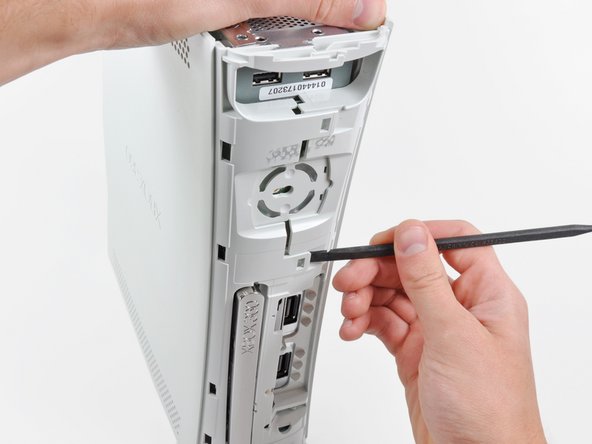
    • Insert the flat edge of a spudger between the faceplate and the outer casing near the power button.

    • Run your spudger along the edge of the faceplate to release the clips securing it to the front of the console.

    • You may also accomplish this task by using the edge of the Xbox 360 opening tool, but it may scratch the plastic case.

    • Alternatively, you can use your hands to carefully pull the faceplate away from the Xbox.

    Pergunte ao FixBot

    Comentar

  9. Xbox 360 Dual Fans Replacement: passo 9, imagem 1 %32
    • Repeat the same motions as previously mentioned to release the left side of the faceplate.

    Pergunte ao FixBot

    Comentar

  10. Xbox 360 Dual Fans Replacement: passo 10, imagem 1 %32
    • Remove the faceplate from the front face of the console.

    Pergunte ao FixBot

    Comentar

  11. Xbox 360 Dual Fans Replacement, Top Vent: passo 11, imagem 1 %32 Xbox 360 Dual Fans Replacement, Top Vent: passo 11, imagem 2 %32
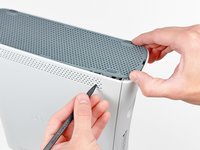
    • Stand the console vertically with the top edge facing up.

    • The top vent is secured to the console via clips. The first two clips are located underneath the top vent closest to the faceplate, as shown in the pictures.

    Pergunte ao FixBot

    Comentar

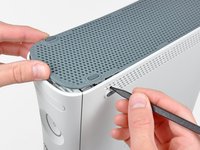
  12. Xbox 360 Dual Fans Replacement: passo 12, imagem 1 %32 Xbox 360 Dual Fans Replacement: passo 12, imagem 2 %32
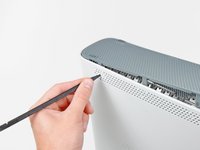
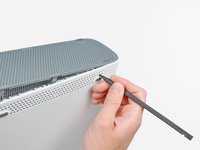
    • Insert the flat end of a spudger into the small gaps previously mentioned to release the clips.

    • You may also use the long finger of an Xbox 360 opening tool to accomplish this task.

    Pergunte ao FixBot

    Comentar

  13. Xbox 360 Dual Fans Replacement: passo 13, imagem 1 %32 Xbox 360 Dual Fans Replacement: passo 13, imagem 2 %32 Xbox 360 Dual Fans Replacement: passo 13, imagem 3 %32
    • In the next few steps, you will use the tip of a spudger or the finger of an Xbox 360 opening tool to release the clips along the left and right sides of the top vent. Their locations are highlighted in red.

    Pergunte ao FixBot

    Comentar

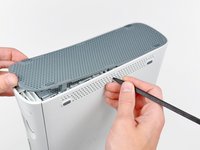
  14. Xbox 360 Dual Fans Replacement: passo 14, imagem 1 %32 Xbox 360 Dual Fans Replacement: passo 14, imagem 2 %32
    • To release the clips, work from the middle of the top vent.

    • While slightly lifting the front edge of the top vent, use the tip of a spudger to push the clips closest to the center of the top vent towards the inside of the console.

    Pergunte ao FixBot

    Comentar

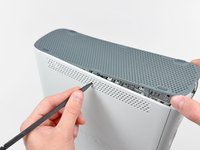
  15. Xbox 360 Dual Fans Replacement: passo 15, imagem 1 %32
    • Use the tip of your spudger to release the clip on the top vent nearest the back of the Xbox's upper case.

    Pergunte ao FixBot

    Comentar

  16. Xbox 360 Dual Fans Replacement: passo 16, imagem 1 %32 Xbox 360 Dual Fans Replacement: passo 16, imagem 2 %32
    • The last clip is hidden underneath the rubber foot nearest the back of the console.

    • Use the tip of your spudger to release the clip on the top vent nearest the back of the Xbox.

    • Remove the top vent from the 360.

    Pergunte ao FixBot

    Comentar

  17. Xbox 360 Dual Fans Replacement, Lower Case: passo 17, imagem 1 %32
    • Stand the console vertically with the top edge facing down.

    • Carefully peel the warranty sticker off the console.

    Pergunte ao FixBot

    Comentar

  18. Xbox 360 Dual Fans Replacement: passo 18, imagem 1 %32 Xbox 360 Dual Fans Replacement: passo 18, imagem 2 %32 Xbox 360 Dual Fans Replacement: passo 18, imagem 3 %32
    • The upper and lower cases are attached via several latches, located in the front and back of the console. These latches must be disengaged to separate the upper case from the console.

    • Use the flat end of a spudger to release the following latches:

    • Above the front-facing USB ports.

    • Beneath the front-facing USB ports.

    • Above the Memory Unit slots.

    Pergunte ao FixBot

    Comentar

  19. Xbox 360 Dual Fans Replacement: passo 19, imagem 1 %32
    • Insert the flat end of a spudger and pry upwards to release the last remaining latch located above the eject button.

    Pergunte ao FixBot

    Comentar

  20. Xbox 360 Dual Fans Replacement: passo 20, imagem 1 %32
    • Slightly lift the front portion of the lower case to ensure that the latches in the front have been completely released.

    Pergunte ao FixBot

    Comentar

  21. Xbox 360 Dual Fans Replacement: passo 21, imagem 1 %32 Xbox 360 Dual Fans Replacement: passo 21, imagem 2 %32
    • The upper and lower cases are held together by seven release latches located on the back of the console. Their locations are highlighted in red.

    Pergunte ao FixBot

    Comentar

  22. Xbox 360 Dual Fans Replacement: passo 22, imagem 1 %32 Xbox 360 Dual Fans Replacement: passo 22, imagem 2 %32 Xbox 360 Dual Fans Replacement: passo 22, imagem 3 %32
    • Press the Xbox 360 opening tool down into the clips securing the lower case to the upper case near the I/O ports.

    • While pressing down on the tool, push the lower and upper cases apart to separate the retaining clips.

    Pergunte ao FixBot

    Comentar

  23. Xbox 360 Dual Fans Replacement: passo 23, imagem 1 %32 Xbox 360 Dual Fans Replacement: passo 23, imagem 2 %32
    • While pushing the upper and lower cases apart, use the tip of a spudger or the finger of an Xbox 360 opening tool to push the long clip highlighted in red toward the center of the 360.

    • The clip should release, leaving the clips near the power connector as the only thing holding the upper and lower cases together.

    Pergunte ao FixBot

    Comentar

  24. Xbox 360 Dual Fans Replacement: passo 24, imagem 1 %32
    • Press the Xbox 360 opening tool down into the two remaining clips near the power connector.

    • Push the upper and lower cases apart to fully release the retaining clips.

    Pergunte ao FixBot

    Comentar

  25. Xbox 360 Dual Fans Replacement: passo 25, imagem 1 %32
    • Orient the console so that the front portion is facing downwards.

    • Grasp the back portion of the lower case and lift it upwards to separate it from the console.

    • Be careful not to excessively bend the lower case near the power plug, as it can crack easily.

    Pergunte ao FixBot

    Comentar

  26. Xbox 360 Dual Fans Replacement, Eject Button: passo 26, imagem 1 %32 Xbox 360 Dual Fans Replacement, Eject Button: passo 26, imagem 2 %32
    • Use the tip of a spudger to release the clip securing the eject button to the metal casing.

    • Insert the flat end of a spudger between the eject button and the optical drive.

    • Pry the eject button off its retaining posts and remove it from the 360.

    • This can also be accomplished using an Xbox 360 opening tool.

    Pergunte ao FixBot

    Comentar

  27. Xbox 360 Dual Fans Replacement, Upper Case: passo 27, imagem 1 %32
    • Remove the six silver 64 mm T10 Torx screws securing the upper case to the metal casing.

    Pergunte ao FixBot

    Comentar

  28. Xbox 360 Dual Fans Replacement: passo 28, imagem 1 %32
    • Orient the console so that the upper case is facing upwards.

    • Lift the upper case straight up and remove it from the console.

    Pergunte ao FixBot

    Comentar

  29. Xbox 360 Dual Fans Replacement, Optical Drive: passo 29, imagem 1 %32
    • Peel the silver tape securing the optical drive to the metal casing.

    Pergunte ao FixBot

    Comentar

  30. Xbox 360 Dual Fans Replacement: passo 30, imagem 1 %32
    • Slightly lift the optical drive upwards to gain clearance to disconnect the SATA and power connectors located on the backside of the optical drive.

    • Don't try to completely remove the optical drive just yet. Two cables still connect it to the motherboard.

    Pergunte ao FixBot

    Comentar

  31. Xbox 360 Dual Fans Replacement: passo 31, imagem 1 %32 Xbox 360 Dual Fans Replacement: passo 31, imagem 2 %32
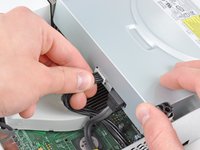
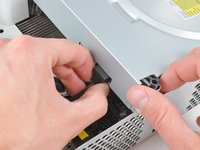
    • Grab the power connector by its cables and pull it straight out of its socket on the optical drive.

    • Disconnect the SATA data connector from its socket on the optical drive by pulling it straight away.

    Pergunte ao FixBot

    Comentar

  32. Xbox 360 Dual Fans Replacement: passo 32, imagem 1 %32
    • Lift the optical drive assembly out of the metal casing.

    Pergunte ao FixBot

    Comentar

  33. Xbox 360 Dual Fans Replacement, Cooling Fan Duct: passo 33, imagem 1 %32 Xbox 360 Dual Fans Replacement, Cooling Fan Duct: passo 33, imagem 2 %32
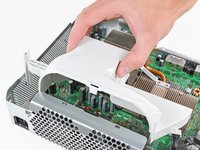
    • Insert the flat end of a spudger into the small rectangular opening on the top of the cooling fan duct.

    • Carefully release the fan duct retaining clip and remove the fan duct from the Xbox.

    • The clip can alternatively be released using the metal finger of an Xbox 360 opening tool.

    Pergunte ao FixBot

    Comentar

  34. Xbox 360 Dual Fans Replacement, Dual Fans: passo 34, imagem 1 %32 Xbox 360 Dual Fans Replacement, Dual Fans: passo 34, imagem 2 %32
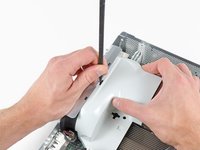
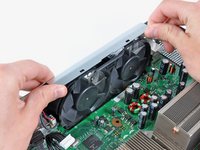
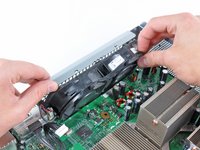
    • While lifting the metal chassis strip above the dual fans, pull the fans toward the center of the motherboard.

    • Do not completely remove the dual fan assembly yet. Its cable is still attached to the motherboard.

    Pergunte ao FixBot

    Comentar

  35. Xbox 360 Dual Fans Replacement: passo 35, imagem 1 %32
    • Lift the dual fan connector straight up from its socket on the motherboard.

    • Some fan connectors have a locking tab. If yours has a locking tab, be sure to depress it while disconnecting the fan from the motherboard.

    • Remove the dual fan assembly from the console.

    Pergunte ao FixBot

    Comentar

Conclusão

To reassemble your device, follow these instructions in reverse order.

Cancelar: não concluí este guia.

42 outras pessoas executaram este guia.

1Comentário do guia

2018, still going strong. Thanks!

Ageo Hernandez - Responder Compartilhar
Comentar

Visualizações:

Últimas 24 horas: 3

Últimos 7 dias: 19

Últimos 30 dias: 135

Ao todo: 53,232