Ir para o conteúdo principal
Participe da comunidade de reparos - Criar conta
Vizio CT15 Keyboard Replacement

O que você precisa

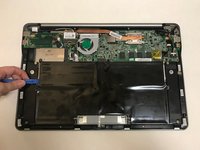
    1. Vizio CT15 Keyboard Replacement, Vizio CT15 Back Panel Removal: passo 1, imagem 1 %32 Vizio CT15 Keyboard Replacement, Vizio CT15 Back Panel Removal: passo 1, imagem 2 %32
      • Turn the laptop off and remove all power cables.

      • Remove the six Phillips #0 screws.

      • Pull the back cover off.

      Pergunte ao FixBot

      Comentar

    1. Vizio CT15 Keyboard Replacement, Battery: passo 2, imagem 1 %32
      • Remove the six Phillips #0 screws.

      Pergunte ao FixBot

      Comentar

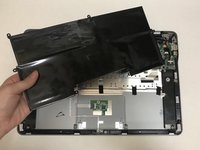
    2. Vizio CT15 Keyboard Replacement: passo 3, imagem 1 %32 Vizio CT15 Keyboard Replacement: passo 3, imagem 2 %32
      • Use the plastic opening tool or your fingers to pry the battery up and pull it from the laptop.

      Pergunte ao FixBot

      Comentar

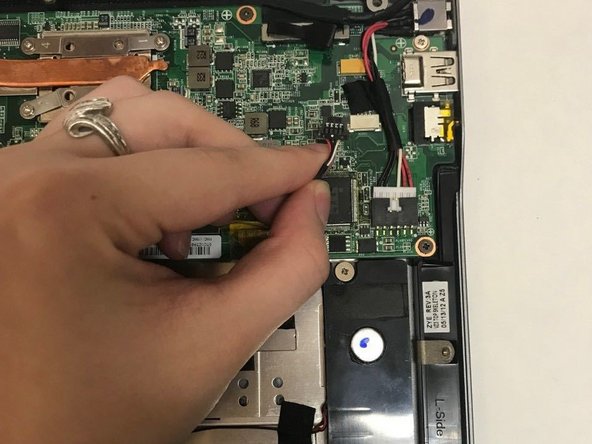
    1. Vizio CT15 Keyboard Replacement, Speakers: passo 4, imagem 1 %32 Vizio CT15 Keyboard Replacement, Speakers: passo 4, imagem 2 %32
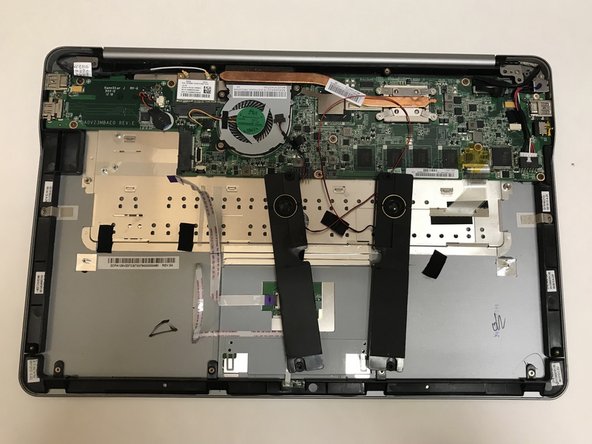
      • Unplug the wire connecting the speakers to the motherboard.

      Pergunte ao FixBot

      Comentar

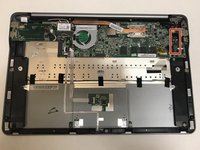
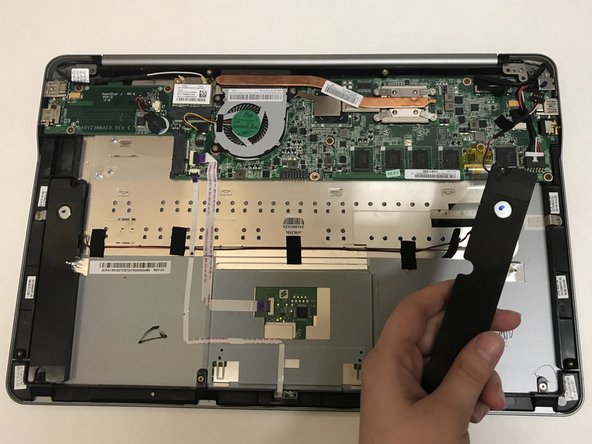
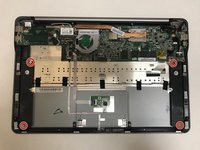
    2. Vizio CT15 Keyboard Replacement: passo 5, imagem 1 %32 Vizio CT15 Keyboard Replacement: passo 5, imagem 2 %32
      • Remove the four Phillips #0 screws.

      • Pull the speakers out to remove.

      Pergunte ao FixBot

      Comentar

    3. Vizio CT15 Keyboard Replacement: passo 6, imagem 1 %32 Vizio CT15 Keyboard Replacement: passo 6, imagem 2 %32 Vizio CT15 Keyboard Replacement: passo 6, imagem 3 %32
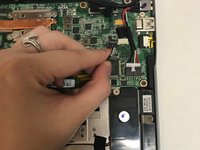
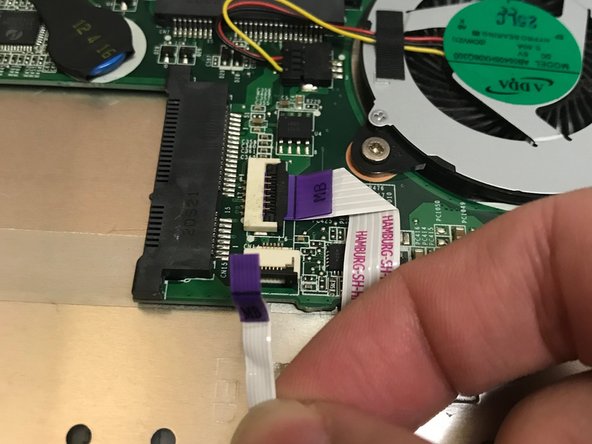
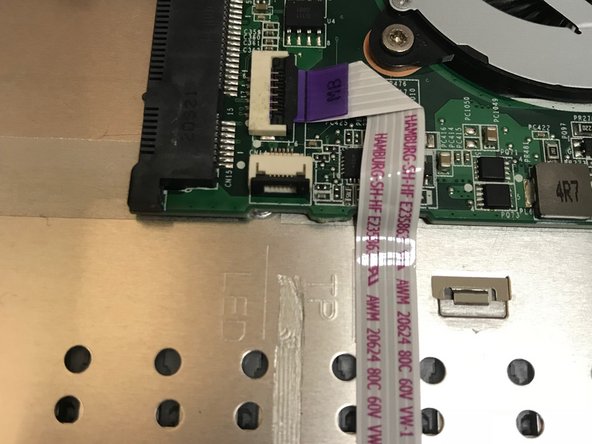
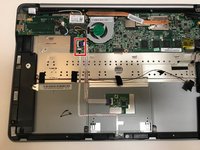
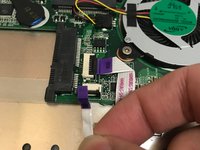
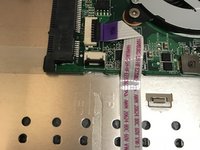
      • Use the flat end of a spudger to lift up the black tab on the ZIF connector.

      • Pull the ribbon cables out of the ZIF connector.

      • These wires are not connected to the speakers. We are only unplugging them to remove the wire underneath.

      Pergunte ao FixBot

      Comentar

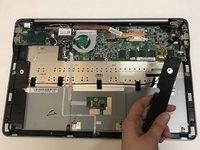
    4. Vizio CT15 Keyboard Replacement: passo 7, imagem 1 %32 Vizio CT15 Keyboard Replacement: passo 7, imagem 2 %32
      • Pull off the black strips of tape from the speaker wires and remove the speakers from the laptop.

      Pergunte ao FixBot

      Comentar

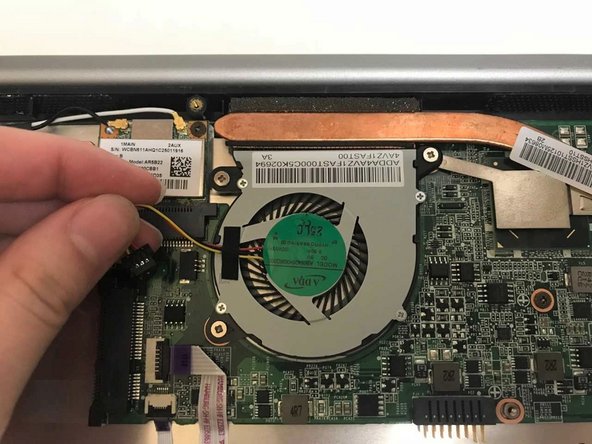
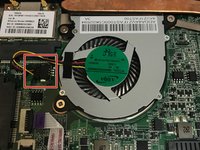
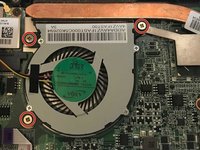
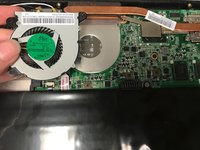
    1. Vizio CT15 Keyboard Replacement, CPU Fan: passo 8, imagem 1 %32 Vizio CT15 Keyboard Replacement, CPU Fan: passo 8, imagem 2 %32
      • Unplug the fan from the motherboard.

      Pergunte ao FixBot

      Comentar

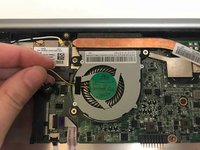
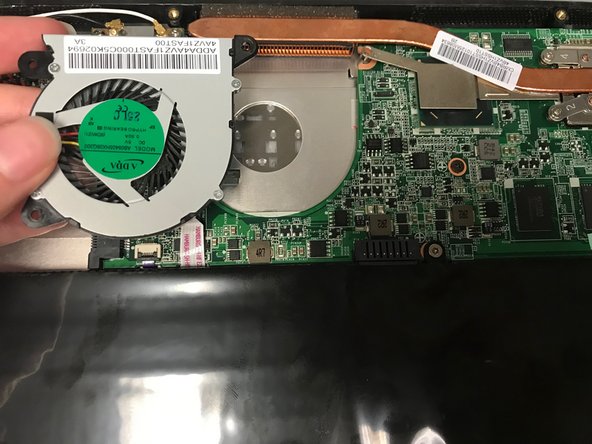
    2. Vizio CT15 Keyboard Replacement: passo 9, imagem 1 %32 Vizio CT15 Keyboard Replacement: passo 9, imagem 2 %32
      • Remove the three Phillips #0 screws.

      • Pull the fan out to remove.

      Pergunte ao FixBot

      Comentar

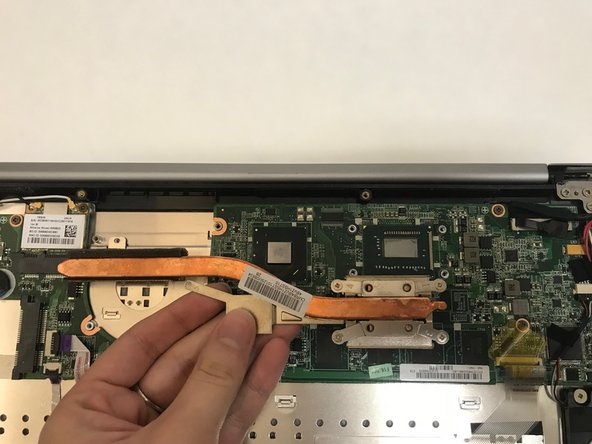
    1. Vizio CT15 Keyboard Replacement, Keyboard: passo 10, imagem 1 %32 Vizio CT15 Keyboard Replacement, Keyboard: passo 10, imagem 2 %32
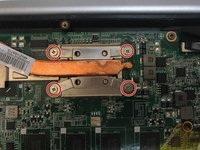
      • Remove the four Philips #0 screws from the heatsink.

      • Pull up and out to remove the heatsink from the laptop.

      Pergunte ao FixBot

      Comentar

    2. Vizio CT15 Keyboard Replacement: passo 11, imagem 1 %32 Vizio CT15 Keyboard Replacement: passo 11, imagem 2 %32
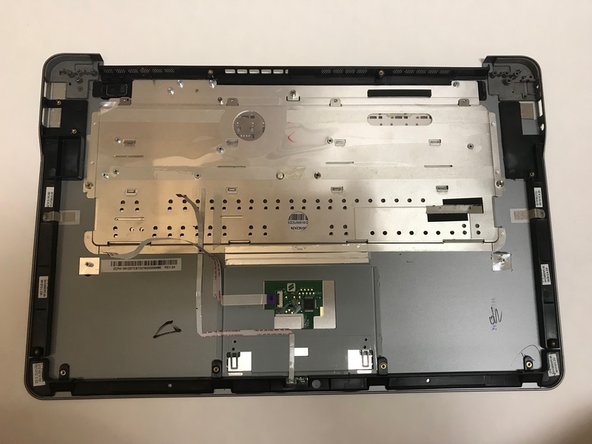
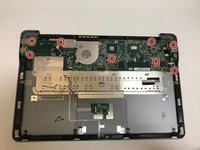
      • Remove the eight Phillips #0 screws from the motherboard.

      • Lift the motherboard up and out to remove it from the laptop.

      Pergunte ao FixBot

      Comentar

    3. Vizio CT15 Keyboard Replacement: passo 12, imagem 1 %32
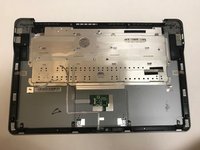
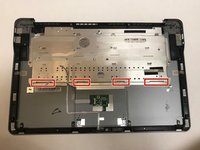
      • Remove the four Phillips #00 screws that hold the keyboard to the laptop case.

      Pergunte ao FixBot

      Comentar

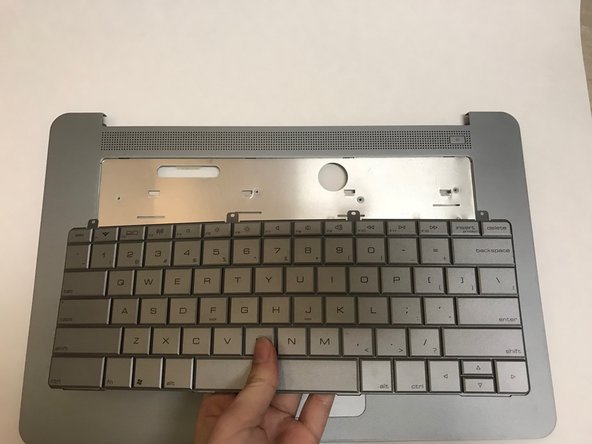
    4. Vizio CT15 Keyboard Replacement: passo 13, imagem 1 %32 Vizio CT15 Keyboard Replacement: passo 13, imagem 2 %32 Vizio CT15 Keyboard Replacement: passo 13, imagem 3 %32
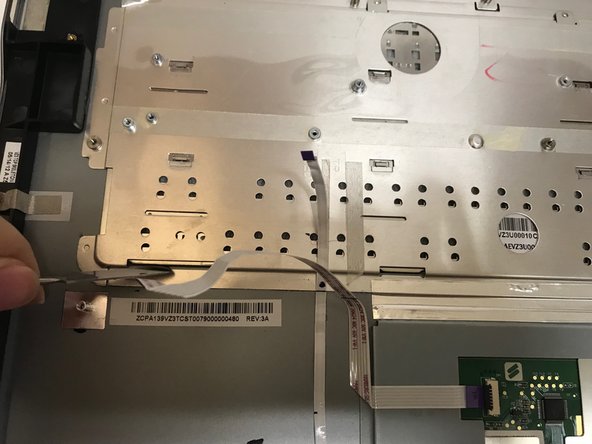
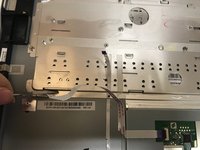
      • Use a metal spudger to carefully push the keyboard out of place.

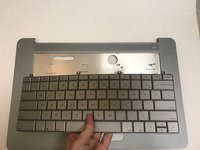
      • Carefully flip the laptop over and pull the keyboard out.

      Pergunte ao FixBot

      Comentar

Conclusão

To reassemble your device, follow these instructions in reverse order.

Cancelar: não concluí este guia.

3 outras pessoas executaram este guia.

0Comentários do guia

Comentar

Visualizações:

Últimas 24 horas: 0

Últimos 7 dias: 8

Últimos 30 dias: 24

Ao todo: 1,179