Ir para o conteúdo principal
Participe da comunidade de reparos - Criar conta
USB/Auxiliary Port

O que você precisa

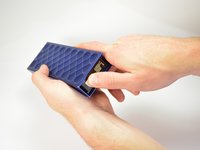
  1. USB/Auxiliary Port, Outer Case: passo 1, imagem 1 %32 USB/Auxiliary Port, Outer Case: passo 1, imagem 2 %32
    • Using the standard metal spudger, begin by prying at the bottom of the plain rubber end cap (the end without the USB or auxiliary input).

    Pergunte ao FixBot

    Comentar

  2. USB/Auxiliary Port: passo 2, imagem 1 %32
    • Continue prying around the end panel, prying at different points until the entire panel is out of its seating.

    • Carefully remove the end panel.

    • The tabs which connect the panel are on the short sides.

    • WARNING: you will likely cause cosmetic damage to the end cap.

    Pergunte ao FixBot

    Comentar

  3. USB/Auxiliary Port: passo 3, imagem 1 %32
    • Slide out the rubber foot located on the bottom of the case.

    Pergunte ao FixBot

    Comentar

  4. USB/Auxiliary Port: passo 4, imagem 1 %32
    • Using a T6 bit, remove the flat topped 5mm screw located on the bottom of the casing, underneath the rubber foot.

    • This is the only flat topped screw in the speaker, so keep track of which one it is.

    Pergunte ao FixBot

    Comentar

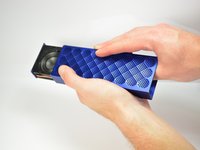
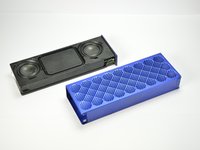
  5. USB/Auxiliary Port: passo 5, imagem 1 %32 USB/Auxiliary Port: passo 5, imagem 2 %32 USB/Auxiliary Port: passo 5, imagem 3 %32
    • Push against the side without end cap to slide the internal components out of the case.

    • While holding the metal outset casing with one hand, press on the black inner plastic casing with your thumb.

    • It will be very difficult the first time. There is a rubber seal on the outside of the plastic inner case that creates a lot of friction with the metal outer case.

    Pergunte ao FixBot

    Comentar

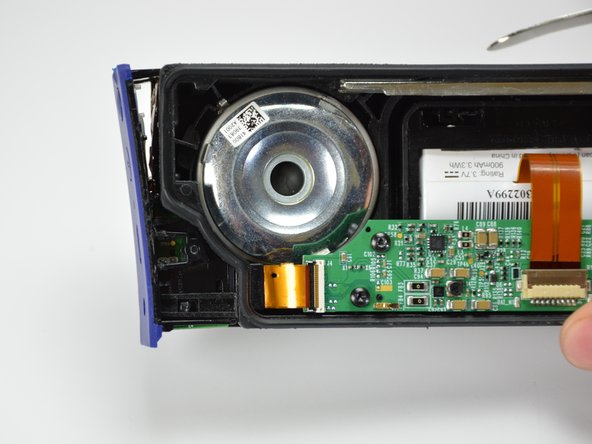
  6. USB/Auxiliary Port, USB/Auxiliary Port: passo 6, imagem 1 %32 USB/Auxiliary Port, USB/Auxiliary Port: passo 6, imagem 2 %32
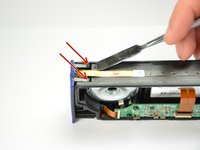
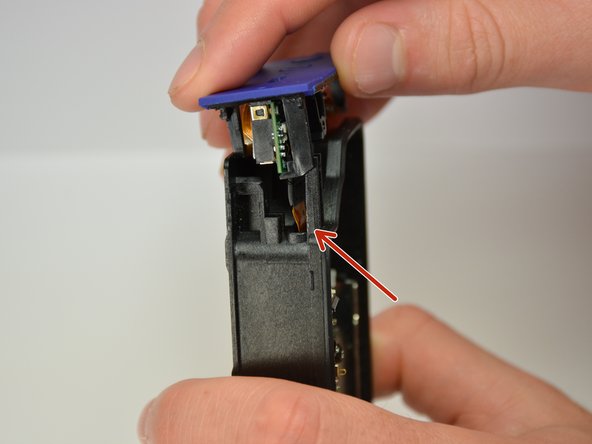
    • Using the standard metal spudger, carefully pry up the top 2 plastic tabs which hold the exterior button and port cover onto the interior plastic frame.

    Pergunte ao FixBot

    Comentar

  7. USB/Auxiliary Port: passo 7, imagem 1 %32
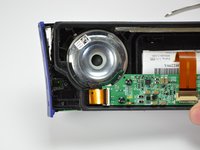
    • Using the classic metal spudger, pry up the bottom 2 tabs attaching the other side of the button panel.

    • It should come off after prying up the first tab.

    Pergunte ao FixBot

    Comentar

  8. USB/Auxiliary Port: passo 8, imagem 1 %32 USB/Auxiliary Port: passo 8, imagem 2 %32 USB/Auxiliary Port: passo 8, imagem 3 %32
    Ferramenta utilizada neste passo:
    Tweezers
    $4.99
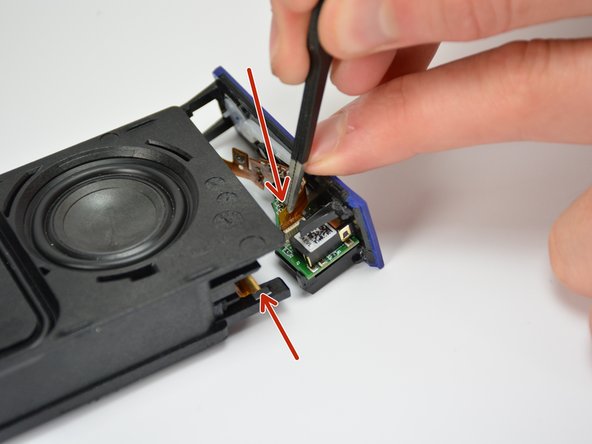
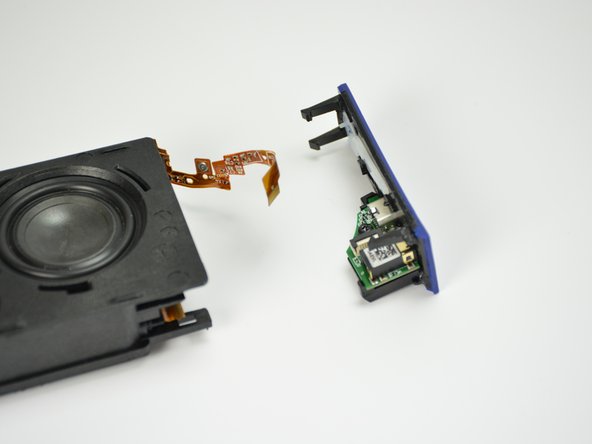
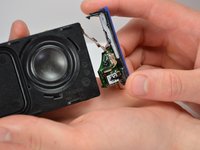
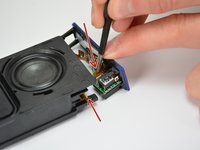
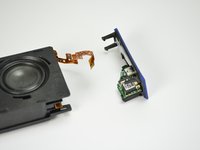
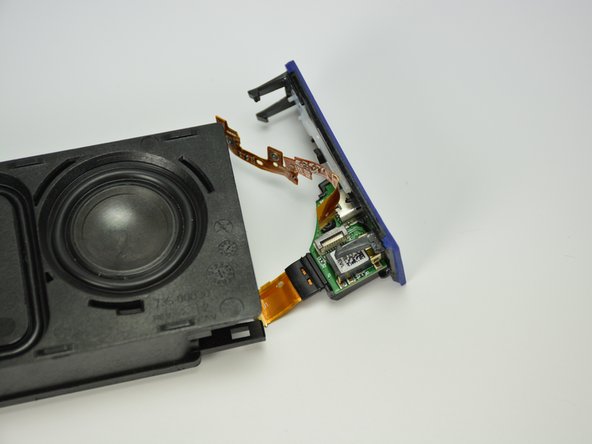
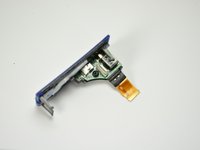
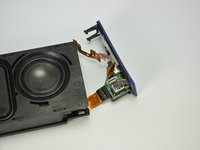
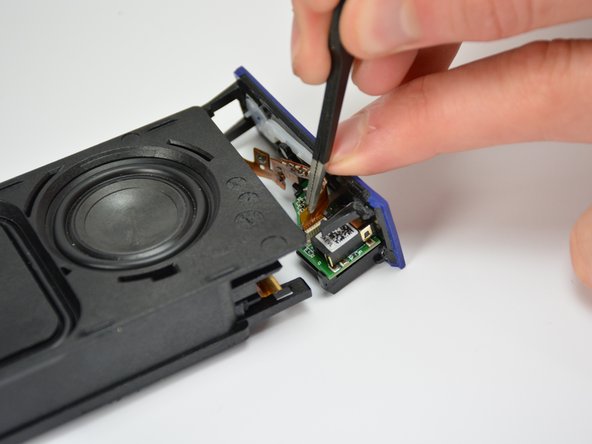
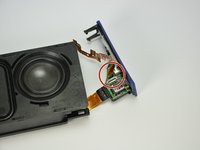
    • Carefully lift out the end panel.

    • Unplug both the connection ribbon and the ZIF ribbon using tweezers or your hands.

    • There is a bit of glue to hold the connection ribbon down.

    Pergunte ao FixBot

    Comentar

  9. USB/Auxiliary Port: passo 9, imagem 1 %32
    • Remove the 5mm T6 screw holding the port assembly onto the end cap.

    • Unlike the flat top screw holding the metal housing, these screws are roundtop.

    Pergunte ao FixBot

    Comentar

  10. USB/Auxiliary Port: passo 10, imagem 1 %32
    • Remove the old port assembly from the end cap.

    • Alternate Reassembly required, read on.

    Pergunte ao FixBot

    Comentar

  11. USB/Auxiliary Port: passo 11, imagem 1 %32
    • Disconnect the Motherboard connection ribbon from the motherboard.

    • The ribbon should no longer be connected at either end.

    Pergunte ao FixBot

    Comentar

  12. USB/Auxiliary Port: passo 12, imagem 1 %32
    • Very carefully pull the motherboard connection ribbon through the plastic casing, removing it from the plastic casing.

    Pergunte ao FixBot

    Comentar

  13. USB/Auxiliary Port: passo 13, imagem 1 %32
    • Insert the connection ribbon into its ZIF connection port on the bottom of the new port assembly

    • ZIF connectors are delicate and often give beginners trouble, search for ZIF connector tips on the web.

    Pergunte ao FixBot

    Comentar

  14. USB/Auxiliary Port: passo 14, imagem 1 %32 USB/Auxiliary Port: passo 14, imagem 2 %32
    • Position the new port assembly on the end cap and reinsert the 5mm T6 screw.

    • The rubber insulation around the motherboard connector should help hold the ZIF connector in place after the screw has been reinserted.

    Pergunte ao FixBot

    Comentar

  15. USB/Auxiliary Port: passo 15, imagem 1 %32 USB/Auxiliary Port: passo 15, imagem 2 %32
    • Reconnect the button ribbon connector on the top of the port assembly.

    Pergunte ao FixBot

    Comentar

  16. USB/Auxiliary Port: passo 16, imagem 1 %32 USB/Auxiliary Port: passo 16, imagem 2 %32
    • Reconnect the endcap to the plastic housing.

    • While you reconnect the endcap to the plastic housing, carefully position the ribbon slide through the ribbon slit and into the plastic casing.

    Pergunte ao FixBot

    Comentar

  17. USB/Auxiliary Port: passo 17, imagem 1 %32
    • Snap the end cap back onto the inner plastic casing and reconnect the ZIF ribbon to the motherboard.

    • Finish reassembling in descending order starting at step 5.

    Pergunte ao FixBot

    Comentar

Conclusão

To reassemble your device, follow steps 1 through 5 in reverse order.

Cancelar: não concluí este guia.

5 outras pessoas executaram este guia.

Noah Sadler

Membro desde: 04/01/15

548 Reputação

Autoria de 2 guias

Equipe

Cal Poly, Team 12-1, Lancaster Spring 2015 Membro de Cal Poly, Team 12-1, Lancaster Spring 2015

CPSU-LANCASTER-S15S12G1

5 Membros

Autoria de 11 guias

1Comentário do guia

Can anyone at all tell us where we can definitely purchase the USB/Auxiliary Port and its Motherboard to Aux Port ZIF Ribbon?

Thanks in advance.

barrysum - Responder Compartilhar

Comentar

Visualizações:

Últimas 24 horas: 2

Últimos 7 dias: 17

Últimos 30 dias: 72

Ao todo: 15,872