Essa tradução foi gerada por um programa e ainda não foi revisada por uma pessoa. Falas essa língua? Dá uma olhada.

Substituição da manta do teclado da Texas Instruments TI-80

brian decater e 7 outros colaboradores
Última atualização em 21 de jul de 2026
Visualizações: 853
Visualizar Estatísticas:
- Últimas 24 horas:
- 3
- Últimos 7 dias:
- 22
- Últimos 30 dias:
- 81
- Ao todo:
- 853
Comentários: 0
Ninguém deixou comentários sobre este guia. Você será o primeiro?
Go to guide commentsConcluído: 0 1
Ninguém marcou este guia como "concluído". Será você o primeiro?
1 pessoa marcou este guia como "concluído". Você — ótimo trabalho!
Favorites: 0 1
Ninguém favoritou (e se inscreveu) neste guia como favorito. Você será o primeiro?
1 pessoa marcou como favorito (e assinou) este guia — você!
Introdução
Ir para o passo 1 ↓As mantas do teclado estão ocasionalmente sujeitas ao desgaste. Sujeira e detritos também podem entrar na almofada. Este guia ajudará você a chegar à manta do teclado para limpá-la ou substituí-la.
O que você precisa
Ferramentas
-
Spudger4.9
-


-
-
-
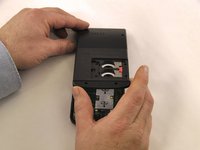
Localize a capa traseira na parte de trás da carcaça.
-
Deslize a capa traseira para a direita para revelar as baterias.
 Pergunte ao FixBot
-
-
-
Remova a tampa da bateria.
-
Deslize a trava vermelha para baixo.
-
Deslize a aba de metal para a direita da pilha botão superior.
-
Remova a pilha botão de 3 volts.
-
Deslize a trava vermelha para cima.
-
Deslize a aba de metal para a direita da pilha botão inferior.
-
Remova a pilha botão de 3 volts.
-
-
-
-
-
-
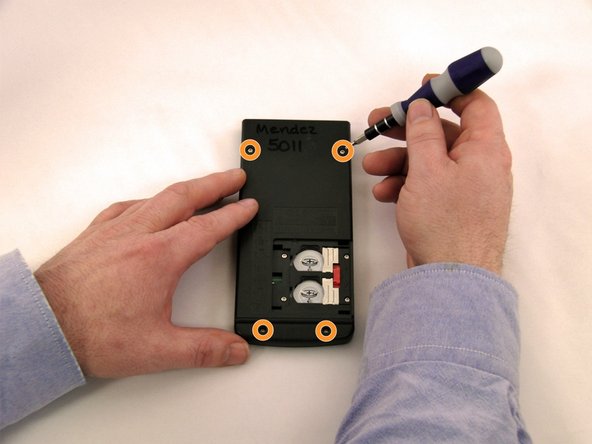
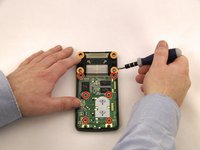
Usando uma chave Torx T6, desparafuse quatro parafusos de 7,38 mm da carcaça da bateria.
-
Desparafuse quatro parafusos de 7,15 mm da carcaça traseira.
-
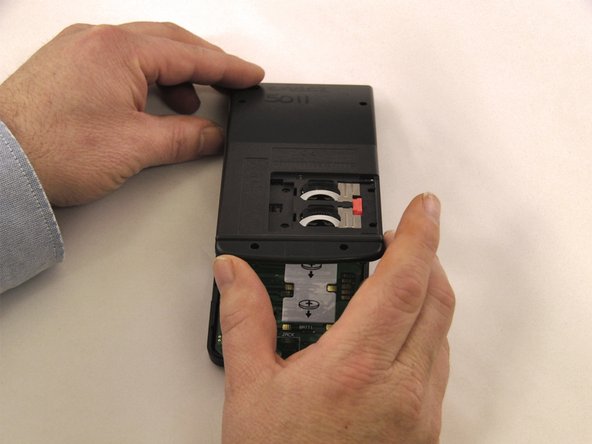
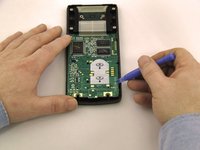
Usando a espátula de plástico azul ao longo da borda da carcaça, force a abertura da carcaça frontal.
-
-
-
-
-
Usando uma chave Phillips PH0, remova os 6 parafusos. 2 da parte superior da placa-mãe, 2 do meio e 2 da parte inferior da placa-mãe.
-
Usando uma chave Phillips PH0, remova 4 parafusos do suporte da tela.
-
Usando a ferramenta de abertura de plástico azul, force a placa-mãe para cima.
-
Usando a ferramenta de abertura de plástico azul, force a tela para fora do suporte da tela.
-
-
-
-
-
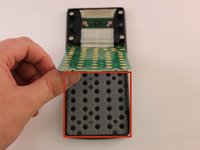
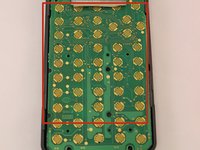
Verifique a manta de borracha quanto a danos ou obstruções na localização dos botões que não estão funcionando.
-
Vire a manta para avaliar sujeira e danos.
-
-






Para a remontagem de seu dispositivo, siga estas instruções na ordem inversa.

Equipe

Eastern Washington University, Team 1-1, Carnegie Winter 2015 Membro de Eastern Washington University, Team 1-1, Carnegie Winter 2015
EWU-CARNEGIE-W15S1G1
4 Membros
Autoria de 60 guias
