Ir para o conteúdo principal
Participe da comunidade de reparos - Criar conta
Samsung Galaxy Note9 Display Assembly Replacement

O que você precisa

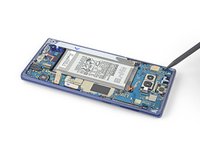
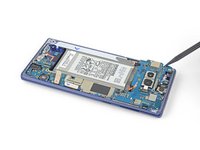
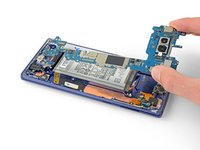
  1. Samsung Galaxy Note9 Display Assembly Replacement, Remove the S-Pen: passo 1, imagem 1 %32 Samsung Galaxy Note9 Display Assembly Replacement, Remove the S-Pen: passo 1, imagem 2 %32 Samsung Galaxy Note9 Display Assembly Replacement, Remove the S-Pen: passo 1, imagem 3 %32
    • Press in the bottom of the S-Pen until it clicks.

    • Release the S-Pen and it will self-eject.

    • Remove the S-Pen.

    Pergunte ao FixBot

    Comentar

  2. Samsung Galaxy Note9 Display Assembly Replacement, Eject the SIM card tray: passo 2, imagem 1 %32 Samsung Galaxy Note9 Display Assembly Replacement, Eject the SIM card tray: passo 2, imagem 2 %32
    • Insert a SIM card eject tool straight into the hole in the SIM card tray.

    • Press to eject the SIM card tray.

    Pergunte ao FixBot

    Comentar

  3. Samsung Galaxy Note9 Display Assembly Replacement, Remove the SIM card tray: passo 3, imagem 1 %32
    • Remove the SIM card tray.

    • The SIM card will fall out of the tray easily.

    Pergunte ao FixBot

    Comentar

  4. Samsung Galaxy Note9 Display Assembly Replacement, Apply a heated iOpener: passo 4, imagem 1 %32
    • Power off your phone before beginning disassembly.

    • Use a hairdryer, a heatgun, or prepare an iOpener and apply it to the right edge of the back of the phone for about a minute to soften the adhesive underneath.

    Pergunte ao FixBot

    Comentar

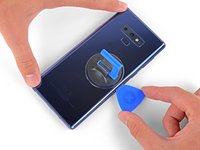
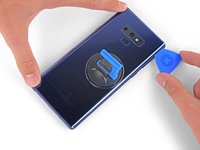
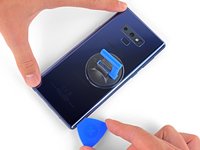
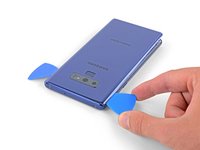
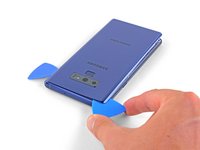
  5. Samsung Galaxy Note9 Display Assembly Replacement, Insert an opening pick: passo 5, imagem 1 %32 Samsung Galaxy Note9 Display Assembly Replacement, Insert an opening pick: passo 5, imagem 2 %32 Samsung Galaxy Note9 Display Assembly Replacement, Insert an opening pick: passo 5, imagem 3 %32
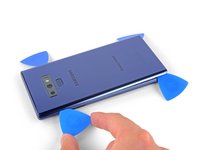
    • Apply a suction handle to the back cover.

    • Lift with a suction handle to create a gap between the back cover and the frame of the phone.

    • Insert an opening pick into the gap.

    • If the glass is badly cracked, cover it in packing tape to create a surface for the suction cup to adhere to.

    • If the adhesive won't budge, apply more heat, not excessive force. Too much force could break the glass.

    Pergunte ao FixBot

    Comentar

  6. Samsung Galaxy Note9 Display Assembly Replacement, Cut through the adhesive: passo 6, imagem 1 %32
    • Note that there is more adhesive along the top edge and around the camera bezel than around the rest of the phone.

    • Cut carefully around the left edge near the fingerprint sensor or you risk damaging the ribbon cable inside.

    • If, at any point, the adhesive feels stubborn, apply more heat—not more force.

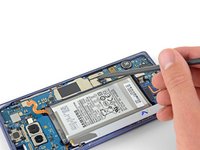
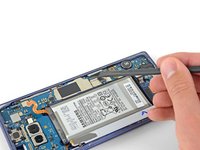
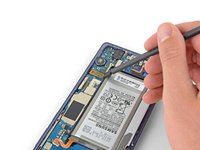
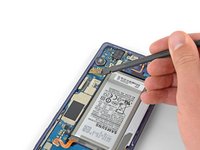
    Pergunte ao FixBot

    Comentar

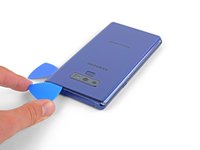
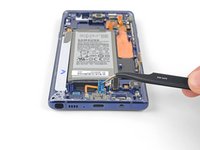
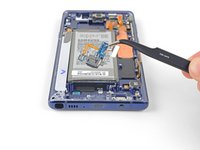
  7. Samsung Galaxy Note9 Display Assembly Replacement, Slide the opening pick: passo 7, imagem 1 %32 Samsung Galaxy Note9 Display Assembly Replacement, Slide the opening pick: passo 7, imagem 2 %32 Samsung Galaxy Note9 Display Assembly Replacement, Slide the opening pick: passo 7, imagem 3 %32
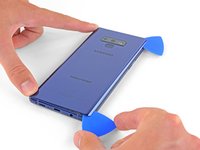
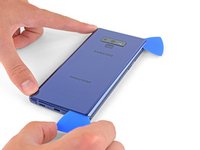
    • Starting from the center, cut the adhesive up and down the right side with an opening pick.

    • Do not insert the pick more than halfway into the phone when cutting near the fingerprint sensor or cameras, or you risk damaging internal components.

    Pergunte ao FixBot

    Comentar

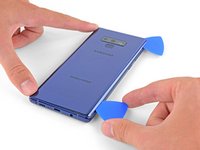
  8. Samsung Galaxy Note9 Display Assembly Replacement: passo 8, imagem 1 %32 Samsung Galaxy Note9 Display Assembly Replacement: passo 8, imagem 2 %32 Samsung Galaxy Note9 Display Assembly Replacement: passo 8, imagem 3 %32
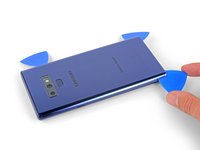
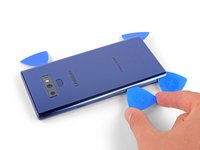
    • Be careful near the corner, as the glass is very weak. Apply more heat at any time if the adhesive becomes stuck.

    • Leave an opening pick in the upper-right corner.

    • Use another opening pick to cut the adhesive around the bottom-right corner.

    • Leave that opening pick in the phone.

    Pergunte ao FixBot

    Comentar

  9. Samsung Galaxy Note9 Display Assembly Replacement: passo 9, imagem 1 %32
    • Use a heat gun or hair dryer or apply a heated iOpener to the left side of the rear panel for at three minutes to soften the adhesive underneath.

    Pergunte ao FixBot

    Comentar

  10. Samsung Galaxy Note9 Display Assembly Replacement: passo 10, imagem 1 %32 Samsung Galaxy Note9 Display Assembly Replacement: passo 10, imagem 2 %32 Samsung Galaxy Note9 Display Assembly Replacement: passo 10, imagem 3 %32
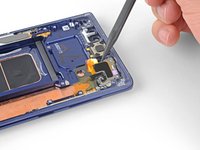
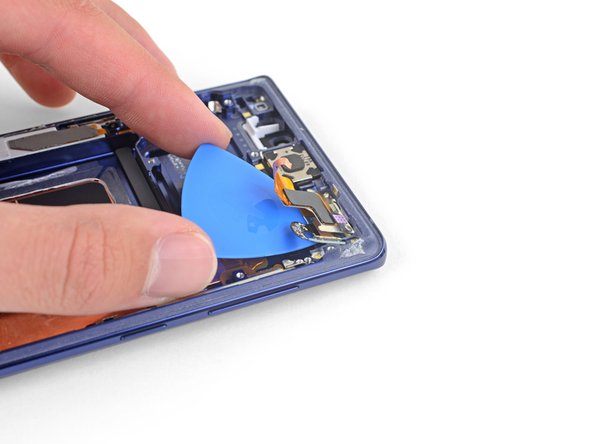
    • Be careful near the corners, as the glass is weakest there.

    • Insert an opening pick into the lower-left corner of the rear panel.

    • Using another opening pick, cut the adhesive along the left edge of the rear panel.

    • Don't insert an opening pick in more than halfway on the left edge near the fingerprint sensor or you may damage the ribbon cable inside.

    • It is fine if opening picks fall out as the back cover becomes separated.

    Pergunte ao FixBot

    Comentar

  11. Samsung Galaxy Note9 Display Assembly Replacement: passo 11, imagem 1 %32 Samsung Galaxy Note9 Display Assembly Replacement: passo 11, imagem 2 %32 Samsung Galaxy Note9 Display Assembly Replacement: passo 11, imagem 3 %32
    • Using the inserted opening pick, carefully cut the adhesive around the upper-left corner of the rear panel.

    • Finally, cut the last of the adhesive along the top of the phone.

    • Use an iOpener, hair dryer, or heat gun to apply more heat as needed where you are cutting the adhesive.

    Pergunte ao FixBot

    Comentar

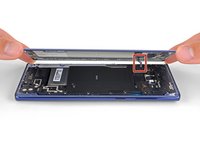
  12. Samsung Galaxy Note9 Display Assembly Replacement: passo 12, imagem 1 %32 Samsung Galaxy Note9 Display Assembly Replacement: passo 12, imagem 2 %32
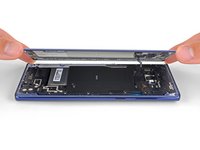
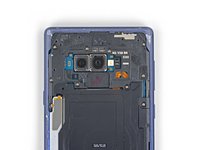
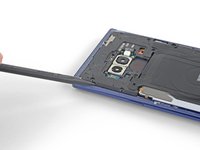
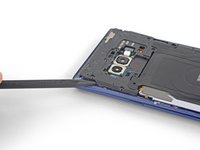
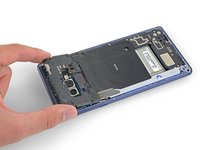
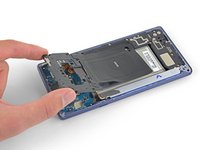
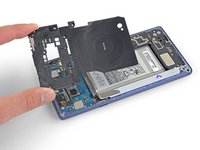
    • Separate the right side of the rear cover first.

    • Tilt the cover up along the left edge to expose the fingerprint sensor ribbon cable.

    • Do not pull out the fingerprint sensor ribbon cable yet.

    • The fingerprint sensor cover might stay attached to the midframe.

    Pergunte ao FixBot

    Comentar

  13. Samsung Galaxy Note9 Display Assembly Replacement, Disconnect the fingerprint sensor: passo 13, imagem 1 %32 Samsung Galaxy Note9 Display Assembly Replacement, Disconnect the fingerprint sensor: passo 13, imagem 2 %32
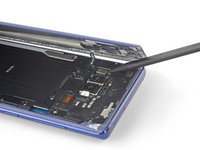
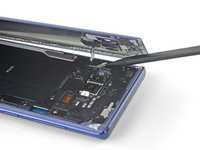
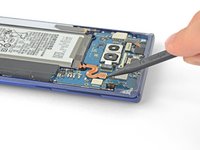
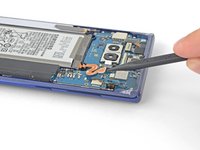
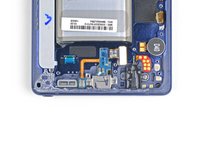
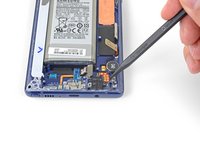
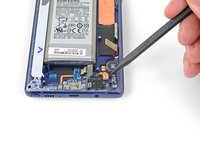
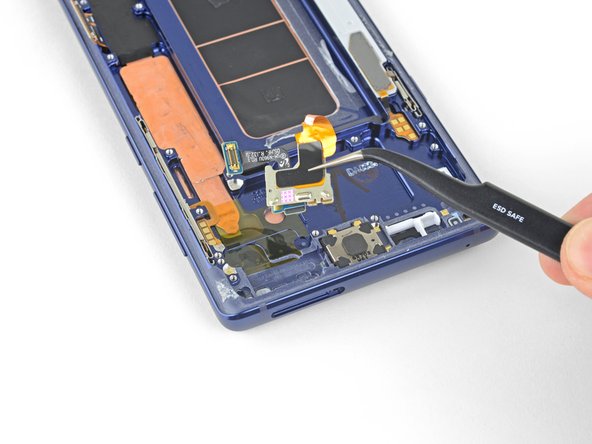
    • Use the tip of a spudger to pry the fingerprint sensor ribbon cable up and out of its socket.

    Pergunte ao FixBot

    Comentar

  14. Samsung Galaxy Note9 Display Assembly Replacement: passo 14, imagem 1 %32
    Ferramenta utilizada neste passo:
    Tweezers
    $4.99
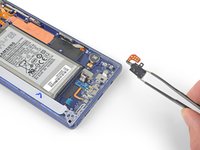
    • Remove the back cover.

    • To re-install the back cover:

    • Use tweezers to peel away any remaining adhesive from the phone's chassis. Then clean the adhesion areas with high concentration isopropyl alcohol (at least 90%) and a lint-free cloth to prep the surface for the new adhesive. You don't have to clear out adhesive down to the plastic but larger pieces should be removed.

    • Turn on your phone and test your repair before installing new adhesive and resealing the phone.

    • Carefully apply the new adhesive to the back cover, then line up one edge of the glass against the phone chassis and firmly press the glass into the phone.

    Pergunte ao FixBot

    Comentar

  15. Cuidado: os passos de 15 a 18 são provenientes de um guia marcado como em andamento.

    Samsung Galaxy Note9 Display Assembly Replacement, Remove the upper midframe: passo 15, imagem 1 %32 Samsung Galaxy Note9 Display Assembly Replacement, Remove the upper midframe: passo 15, imagem 2 %32
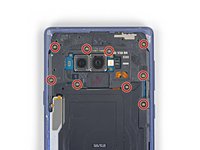
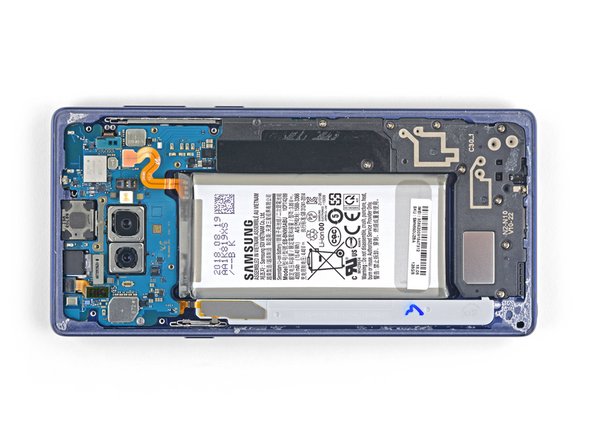
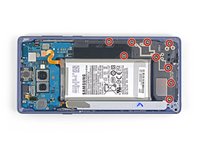
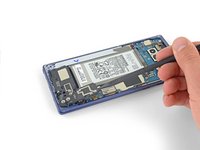
    • Use a Phillips screwdriver to remove the nine 4 mm screws securing the upper midframe.

    Pergunte ao FixBot

    Comentar

  16. Samsung Galaxy Note9 Display Assembly Replacement: passo 16, imagem 1 %32 Samsung Galaxy Note9 Display Assembly Replacement: passo 16, imagem 2 %32
    • Insert the tip of a spudger into the upper-left corner of the upper midframe.

    • Pry the upper midframe out of the phone.

    • The upper midframe snaps into and out of place.

    Pergunte ao FixBot

    Comentar

  17. Samsung Galaxy Note9 Display Assembly Replacement: passo 17, imagem 1 %32 Samsung Galaxy Note9 Display Assembly Replacement: passo 17, imagem 2 %32 Samsung Galaxy Note9 Display Assembly Replacement: passo 17, imagem 3 %32
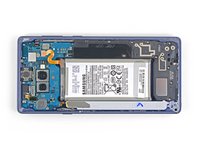
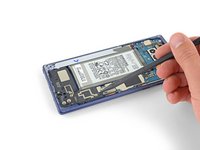
    • Peel the wireless charging coil off the battery starting with the left side.

    • The adhesive is weak but you can use an opening pick to cut it if necessary.

    • During reassembly start by snapping the midframe into place first before adhering the wireless charging coil.

    Pergunte ao FixBot

    Comentar

  18. Samsung Galaxy Note9 Display Assembly Replacement, Disconnect the battery: passo 18, imagem 1 %32 Samsung Galaxy Note9 Display Assembly Replacement, Disconnect the battery: passo 18, imagem 2 %32
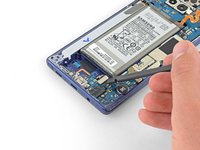
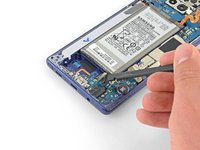
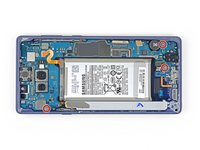
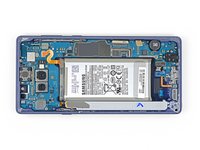
    • Use the tip of a spudger to disconnect the orange ribbon cable connecting the battery to the motherboard.

    Pergunte ao FixBot

    Comentar

  19. Samsung Galaxy Note9 Display Assembly Replacement, Remove the midframe: passo 19, imagem 1 %32 Samsung Galaxy Note9 Display Assembly Replacement, Remove the midframe: passo 19, imagem 2 %32
    • Remove the nine 4 mm Phillips screws from the plastic cover next to the battery.

    Pergunte ao FixBot

    Comentar

  20. Samsung Galaxy Note9 Display Assembly Replacement: passo 20, imagem 1 %32
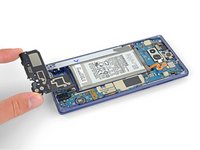
    • Remove the plastic cover next to the battery.

    Pergunte ao FixBot

    Comentar

  21. Samsung Galaxy Note9 Display Assembly Replacement: passo 21, imagem 1 %32 Samsung Galaxy Note9 Display Assembly Replacement: passo 21, imagem 2 %32 Samsung Galaxy Note9 Display Assembly Replacement: passo 21, imagem 3 %32
    • Insert the tip of a spudger into the top of the lower midframe.

    • Pry the lower midframe out from the phone.

    • The lower midframe snaps into and out of place.

    • Remove the lower midframe.

    Pergunte ao FixBot

    Comentar

  22. Samsung Galaxy Note9 Display Assembly Replacement, Remove the front camera: passo 22, imagem 1 %32 Samsung Galaxy Note9 Display Assembly Replacement, Remove the front camera: passo 22, imagem 2 %32 Samsung Galaxy Note9 Display Assembly Replacement, Remove the front camera: passo 22, imagem 3 %32
    Ferramenta utilizada neste passo:
    Tweezers
    $4.99
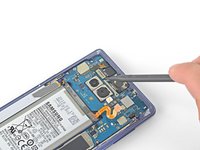
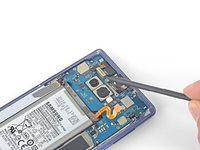
    • Use the tip of a spudger to pry the front camera connector straight up and out of its socket.

    • Use tweezers to remove the front camera.

    Pergunte ao FixBot

    Comentar

  23. Samsung Galaxy Note9 Display Assembly Replacement, Remove the iris scanner: passo 23, imagem 1 %32 Samsung Galaxy Note9 Display Assembly Replacement, Remove the iris scanner: passo 23, imagem 2 %32 Samsung Galaxy Note9 Display Assembly Replacement, Remove the iris scanner: passo 23, imagem 3 %32
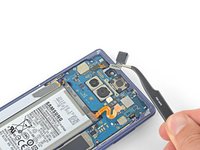
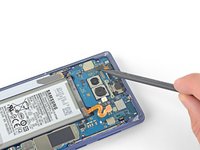
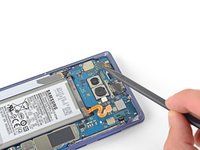
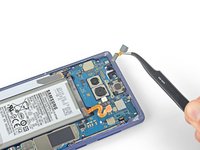
    • Use the tip of a spudger to disconnect the iris scanner from the motherboard.

    • Use tweezers to remove the iris scanner.

    Pergunte ao FixBot

    Comentar

  24. Samsung Galaxy Note9 Display Assembly Replacement, Disconnect the front sensor array: passo 24, imagem 1 %32 Samsung Galaxy Note9 Display Assembly Replacement, Disconnect the front sensor array: passo 24, imagem 2 %32
    • Use the flat end of a spudger to pry the front sensor connector out of its socket.

    Pergunte ao FixBot

    Comentar

  25. Samsung Galaxy Note9 Display Assembly Replacement, Disconnect the display assembly: passo 25, imagem 1 %32 Samsung Galaxy Note9 Display Assembly Replacement, Disconnect the display assembly: passo 25, imagem 2 %32
    • Use the flat end of a spudger to disconnect the display cable from the motherboard.

    Pergunte ao FixBot

    Comentar

  26. Samsung Galaxy Note9 Display Assembly Replacement: passo 26, imagem 1 %32 Samsung Galaxy Note9 Display Assembly Replacement: passo 26, imagem 2 %32
    • Use the flat end of a spudger to disconnect the touchscreen cable from the motherboard.

    Pergunte ao FixBot

    Comentar

  27. Samsung Galaxy Note9 Display Assembly Replacement, Disconnect the charging assembly: passo 27, imagem 1 %32 Samsung Galaxy Note9 Display Assembly Replacement, Disconnect the charging assembly: passo 27, imagem 2 %32
    • Use the flat end of a spudger to disconnect the charging assembly from the motherboard.

    Pergunte ao FixBot

    Comentar

  28. Samsung Galaxy Note9 Display Assembly Replacement: passo 28, imagem 1 %32 Samsung Galaxy Note9 Display Assembly Replacement: passo 28, imagem 2 %32
    • Remove the three 4 mm Phillips screws securing the motherboard.

    • There are triangles next to the holes indicating the motherboard screw locations.

    Pergunte ao FixBot

    Comentar

  29. Samsung Galaxy Note9 Display Assembly Replacement: passo 29, imagem 1 %32 Samsung Galaxy Note9 Display Assembly Replacement: passo 29, imagem 2 %32 Samsung Galaxy Note9 Display Assembly Replacement: passo 29, imagem 3 %32
    • Use a spudger to gently lift the motherbord from the upper-left corner.

    • Carefully remove the motherboard.

    • Move the ribbon cables out of the way as necessary. Do not pull the motherboard out if it becomes snagged on any cables.

    Pergunte ao FixBot

    Comentar

  30. Samsung Galaxy Note9 Display Assembly Replacement, Remove the headphone jack assembly: passo 30, imagem 1 %32 Samsung Galaxy Note9 Display Assembly Replacement, Remove the headphone jack assembly: passo 30, imagem 2 %32
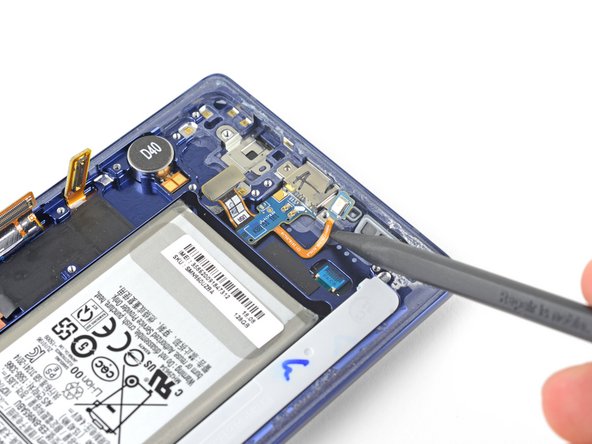
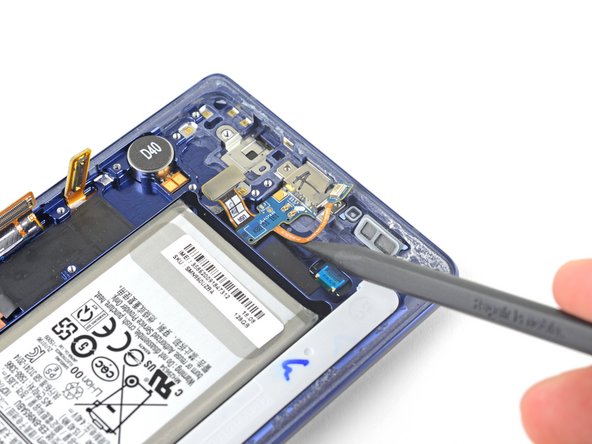
    • Remove the 3.2 mm Phillips screw from the headphone jack.

    Pergunte ao FixBot

    Comentar

  31. Samsung Galaxy Note9 Display Assembly Replacement: passo 31, imagem 1 %32 Samsung Galaxy Note9 Display Assembly Replacement: passo 31, imagem 2 %32
    • Insert the tip of a spudger into the notch next to the headphone jack contact points.

    • Pry the contact board straight up to free it from the adhesive underneath.

    • If the contact board is difficult to separate, apply a drop of 90% isopropyl alcohol into the notch and allow it to soften the adhesive. Then, try again.

    Pergunte ao FixBot

    Comentar

  32. Samsung Galaxy Note9 Display Assembly Replacement: passo 32, imagem 1 %32 Samsung Galaxy Note9 Display Assembly Replacement: passo 32, imagem 2 %32
    Ferramenta utilizada neste passo:
    Tweezers
    $4.99
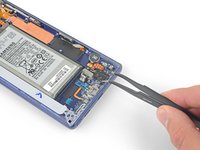
    • Use a pair of tweezers to remove the headphone jack assembly.

    Pergunte ao FixBot

    Comentar

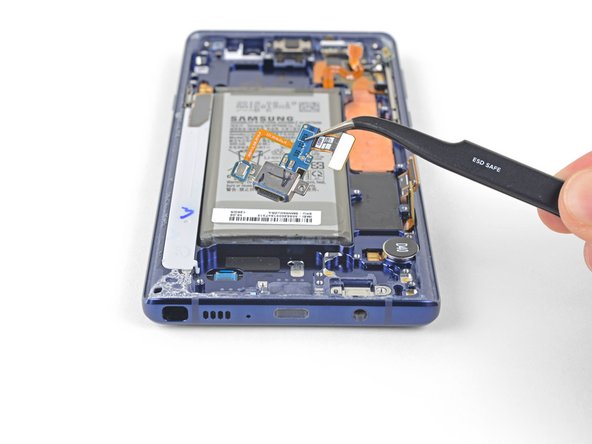
  33. Samsung Galaxy Note9 Display Assembly Replacement, Remove the Charging Assembly: passo 33, imagem 1 %32 Samsung Galaxy Note9 Display Assembly Replacement, Remove the Charging Assembly: passo 33, imagem 2 %32
    • Remove the two 3.2 mm Phillips screws from the charging assembly.

    Pergunte ao FixBot

    Comentar

  34. Samsung Galaxy Note9 Display Assembly Replacement: passo 34, imagem 1 %32 Samsung Galaxy Note9 Display Assembly Replacement: passo 34, imagem 2 %32 Samsung Galaxy Note9 Display Assembly Replacement: passo 34, imagem 3 %32
    • Use a spudger to lift the microphone out from its housing.

    Pergunte ao FixBot

    Comentar

  35. Samsung Galaxy Note9 Display Assembly Replacement: passo 35, imagem 1 %32 Samsung Galaxy Note9 Display Assembly Replacement: passo 35, imagem 2 %32 Samsung Galaxy Note9 Display Assembly Replacement: passo 35, imagem 3 %32
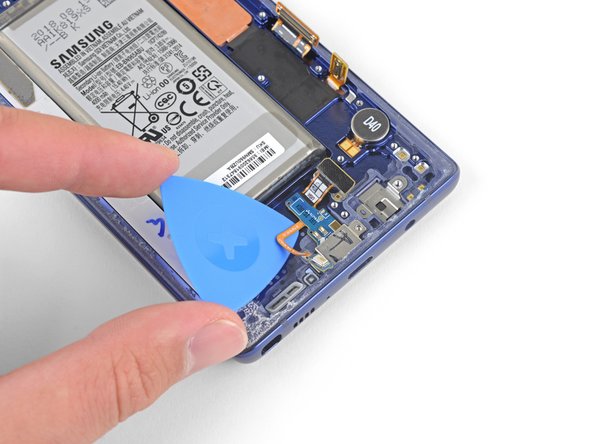
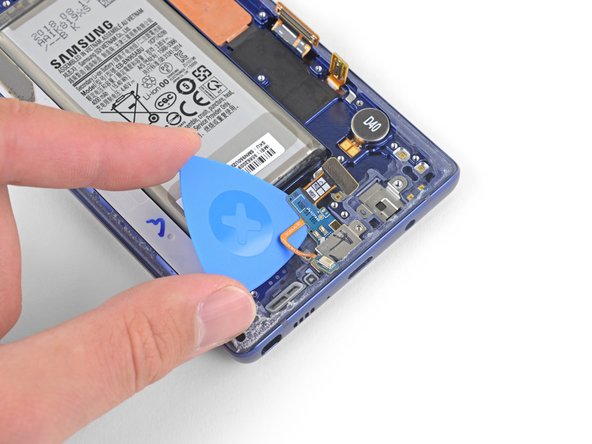
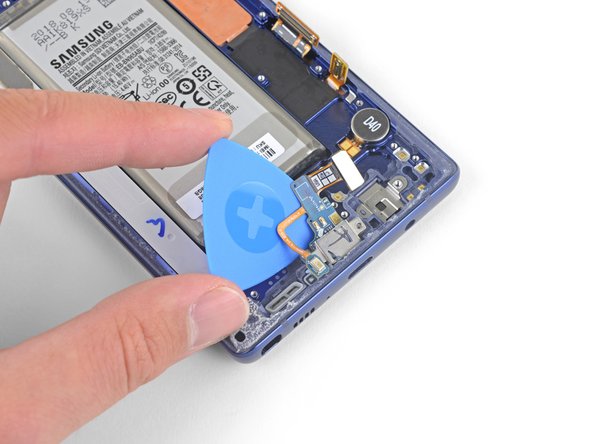
    • Use an opening pick to separate the charging assembly from the phone.

    Pergunte ao FixBot

    Comentar

  36. Samsung Galaxy Note9 Display Assembly Replacement: passo 36, imagem 1 %32 Samsung Galaxy Note9 Display Assembly Replacement: passo 36, imagem 2 %32
    Ferramenta utilizada neste passo:
    Tweezers
    $4.99
    • Use a pair of tweezers to remove the charging assembly.

    Pergunte ao FixBot

    Comentar

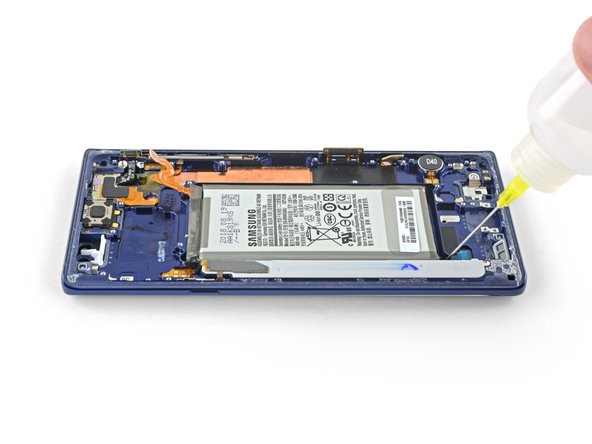
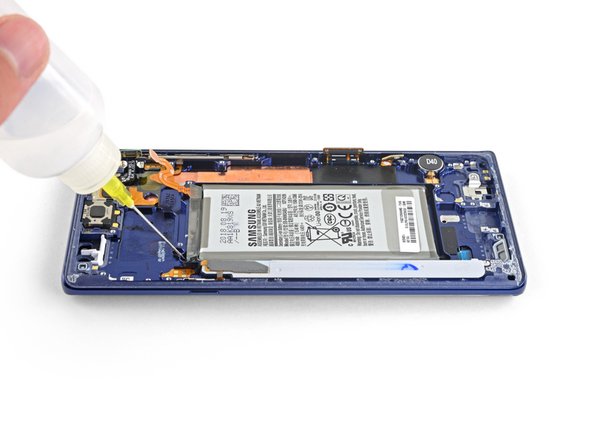
  37. Samsung Galaxy Note9 Display Assembly Replacement, Remove the battery: passo 37, imagem 1 %32 Samsung Galaxy Note9 Display Assembly Replacement, Remove the battery: passo 37, imagem 2 %32 Samsung Galaxy Note9 Display Assembly Replacement, Remove the battery: passo 37, imagem 3 %32
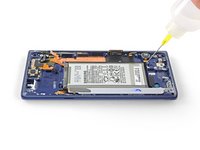
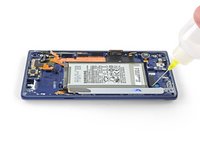
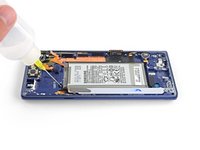
    • Apply a few drops of 90% isopropyl alcohol into the battery well along the bottom and upper-left corner of the battery.

    • Wait a couple of minutes for the alcohol to soften the adhesive under the battery.

    • Hold the phone at various angles to help the alcohol flow under the battery.

    Pergunte ao FixBot

    Comentar

  38. Samsung Galaxy Note9 Display Assembly Replacement: passo 38, imagem 1 %32 Samsung Galaxy Note9 Display Assembly Replacement: passo 38, imagem 2 %32 Samsung Galaxy Note9 Display Assembly Replacement: passo 38, imagem 3 %32
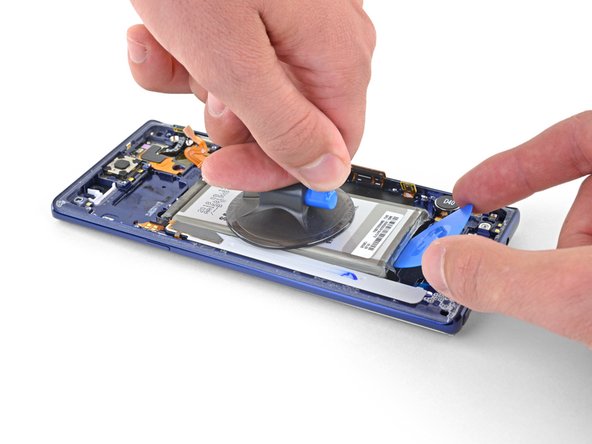
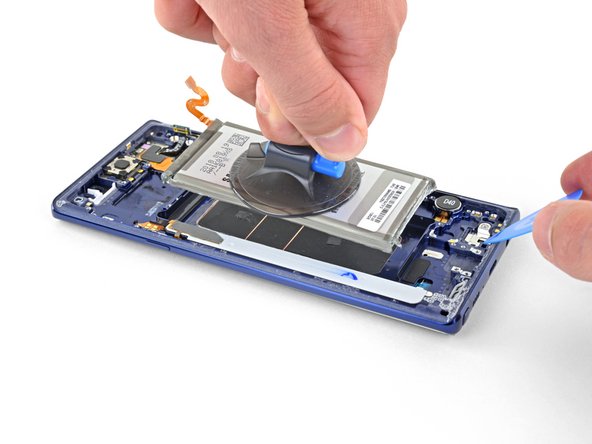
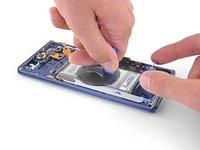
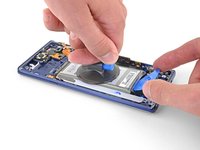
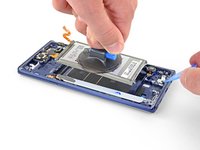
    • Apply a suction cup to the battery.

    • Lift the battery straight up until there is a gap large enough to insert the opening pick.

    • Insert an opening pick underneath the bottom edge of the battery and twist to loosen the battery adhesive.

    • Remove the battery.

    • It may take multiple attempts to get the suction cup to adhere. Apply is as close to the center of the battery as possible and avoid the white sticker at the bottom of the battery.

    • Do not bend the battery.

    Pergunte ao FixBot

    Comentar

  39. Samsung Galaxy Note9 Display Assembly Replacement, Remove the front sensor array: passo 39, imagem 1 %32 Samsung Galaxy Note9 Display Assembly Replacement, Remove the front sensor array: passo 39, imagem 2 %32
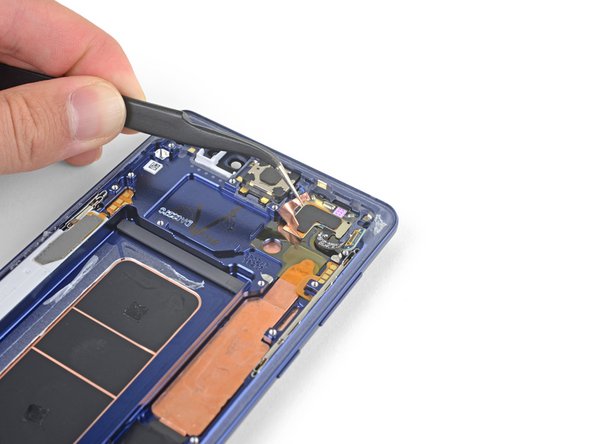
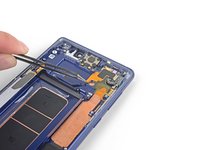
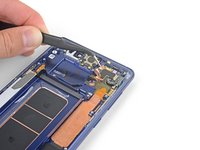
    • Use a pair of tweezers to peel back the adhesive-backed copper foil.

    • Stop peeling once you reach the sensor array.

    • Be careful not to tear the foil.

    Pergunte ao FixBot

    Comentar

  40. Samsung Galaxy Note9 Display Assembly Replacement: passo 40, imagem 1 %32 Samsung Galaxy Note9 Display Assembly Replacement: passo 40, imagem 2 %32
    • Use a spudger to lift the left side of the front sensor array and separate the adhesive the rest of the way.

    • The front sensor array is still connected to a ribbon cable that is adhered to the phone. Do not try to remove the front sensor array yet or you will damage it.

    Pergunte ao FixBot

    Comentar

  41. Samsung Galaxy Note9 Display Assembly Replacement: passo 41, imagem 1 %32 Samsung Galaxy Note9 Display Assembly Replacement: passo 41, imagem 2 %32
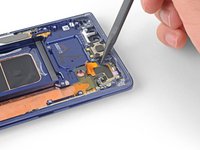
    • Carefully slide an opening pick under the front sensor array ribbon cable to cut the adhesive underneath.

    Pergunte ao FixBot

    Comentar

  42. Samsung Galaxy Note9 Display Assembly Replacement: passo 42, imagem 1 %32 Samsung Galaxy Note9 Display Assembly Replacement: passo 42, imagem 2 %32
    • Use a pair of tweezers to remove the front sensor array.

    • Only the display assembly remains.

    • Before you begin reassembly, compare the new display assembly with the original and transfer any remaining components if necessary.

    Pergunte ao FixBot

    Comentar

Conclusão

To reassemble your device, follow the above steps in reverse order.

Take your e-waste to an R2 or e-Stewards certified recycler.

Repair didn’t go as planned? Check out our Answers community for troubleshooting help.

Compare your new replacement part to the original part—you may need to transfer remaining components or remove adhesive backings from the new part before installing.

Cancelar: não concluí este guia.

54 outras pessoas executaram este guia.

Sam Omiotek

Membro desde: 02/25/19

98.850 Reputação

Autoria de 290 guias

20Comentários do guia

Make sure you transfer over the vibration motor if the new frame does not have it… didn’t realize my replacement didn’t have it until I put the glass back on :/

Oakman978 - Responder Compartilhar

Thank you for pointing this out! I almost missed it! I wish this guide showed how to put it back together instead of just saying “okay now do it again but backwards.” Anyway, I appreciate this comment right here haha.

Jeremiah Furlow - Responder Compartilhar
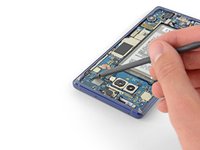
Is it just me or is this guide not complete?

ben allen - Responder Compartilhar
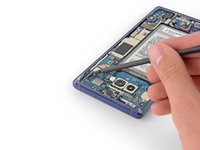
The guide assumes that you have a new display unit containing all the parts that are left after the last step (display, front glass, screen, cooling system, vibration motor and so on.)

Nils Hennings - Responder Compartilhar

Since replacement parts vary from seller to seller, you’ll have to compare yours to the original and transfer any remaining components. This guide was written for the display assembly that we were selling at the time.

When transferring other components such as the vibration motor just be sure to use the same methods as with similar components. Work slowly, always use heat or ≥90% isopropyl alcohol to soften adhesives, and search the internet for more information as necessary.

Sam Omiotek - Responder Compartilhar

Comentar

Visualizações:

Últimas 24 horas: 13

Últimos 7 dias: 111

Últimos 30 dias: 468

Ao todo: 62,647