Ir para o conteúdo principal
Participe da comunidade de reparos - Criar conta

Replacement or expansion RAM

O que você precisa

  1. Replacement or expansion RAM, Battery: passo 1, imagem 1 %32 Replacement or expansion RAM, Battery: passo 1, imagem 2 %32 Replacement or expansion RAM, Battery: passo 1, imagem 3 %32
    • Unlock the battery latch on the right.

    • Unlock the battery lock on the left.

    • Remove the battery pack from its slot.

    Pergunte ao FixBot
  2. Replacement or expansion RAM, Access to Components 2: passo 2, imagem 1 %32 Replacement or expansion RAM, Access to Components 2: passo 2, imagem 2 %32 Replacement or expansion RAM, Access to Components 2: passo 2, imagem 3 %32
    • Using the Philips # 0 screwdriver, unscrew the 2 screws of the top cover

    • Check the marks indicating the direction in which the cover must be removed.

    • Remove the bottom cover by removing it in the direction of the markers.

    Pergunte ao FixBot
  3. Replacement or expansion RAM: passo 3, imagem 1 %32
    • Then appear the other components of the Laptop.

    Pergunte ao FixBot
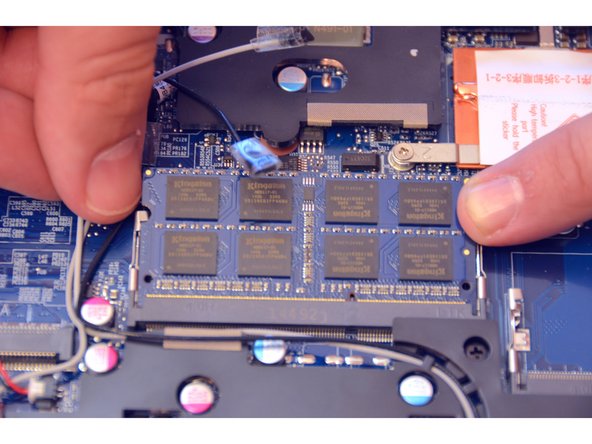
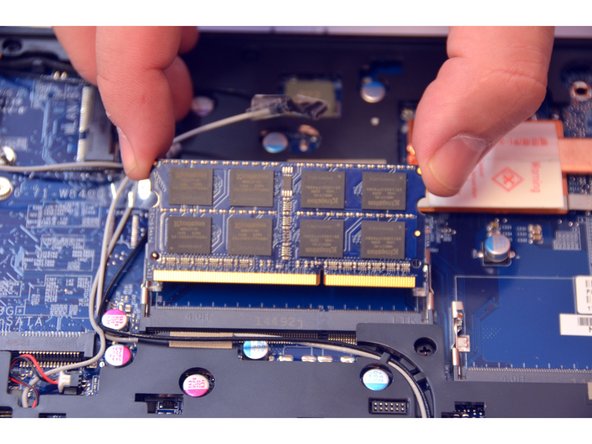
  4. Replacement or expansion RAM, RAM: passo 4, imagem 1 %32 Replacement or expansion RAM, RAM: passo 4, imagem 2 %32 Replacement or expansion RAM, RAM: passo 4, imagem 3 %32
    • Here is the RAM bar installed by default.

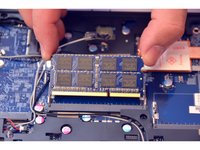
    • Locate and remove the spring blades that hold the memory module in place.

    • Remove the memory module (RAM).

    Pergunte ao FixBot
  5. Replacement or expansion RAM: passo 5, imagem 1 %32
    • Here is the RAM bar out of its location.

    Pergunte ao FixBot
Conclusão

To reassemble your device follow the instructions in reverse order

Um agradecimento especial a esses tradutores:

fr en

100%

irlanda está nos ajudando a consertar o mundo! Quer contribuir?
Comece a traduzir ›

Felice Suglia

Membro desde: 06/15/13

33.562 Reputação

Autoria de 283 guias

0Comentários do guia

Comentar

Visualizações:

Últimas 24 horas: 0

Últimos 7 dias: 8

Últimos 30 dias: 62

Ao todo: 510