Introdução
This is the battery replacement guide for the Proscan PLT 7050. If you find the need to replace the battery, please follow these steps.
O que você precisa
-
-
-
Make sure device is unplugged and turned off while working on the device.
-
Remove 2 Phillips head, 4.3 mm screws from the bottom side of the tablet with a PH00 screwdriver.
 Pergunte ao FixBot
-
-
-
Use the plastic opening tools to pry the back of the tablet open.
-
You may need to slide the tool along the sides of the device to get it to open. You might hear some popping noises, it is okay.
-
-
-
-
-
-
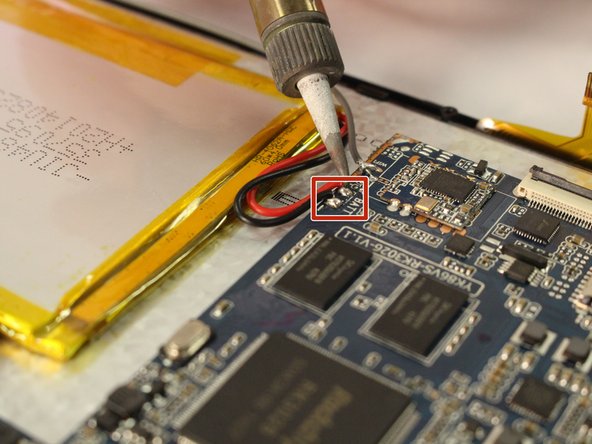
Use the soldering tool to remove the wires from the motherboard. (Black and Red)
-
-
-
Remove the black tape from the battery.
-
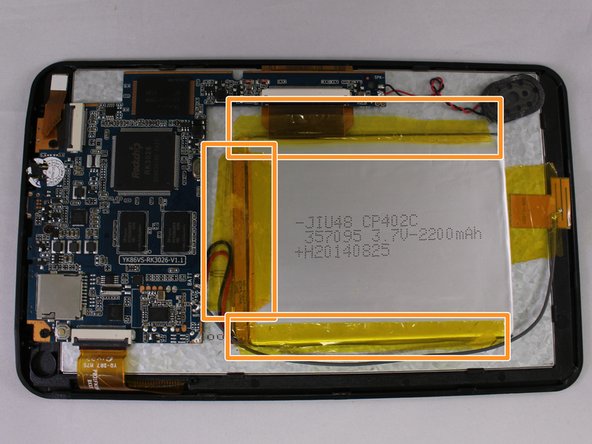
Remove the three pieces of yellow tape from the battery.
-
-
-
Use the plastic opening tool to pry the battery from the device as it is attached by an adhesive.
-
-






To reassemble your device, follow these instructions in reverse order.
Cancelar: não concluí este guia.
4 outras pessoas executaram este guia.

Equipe

Eastern Washington University, Team 1-4, Mathisen Winter 2017 Membro de Eastern Washington University, Team 1-4, Mathisen Winter 2017
EWU-MATHISEN-W17S1G4
5 Membros
Autoria de 12 guias
