Ir para o conteúdo principal
Participe da comunidade de reparos - Criar conta

Power Mac G5 CD-ROM Drive Replacement

  1. Power Mac G5 CD-ROM Drive Replacement, Side Panel: passo 1, imagem 1 %32
    • To avoid electrocution, shut down the computer. Do not open the computer or attempt to install any items inside it while the computer is on.

    • To avoid being burned, wait at least 10 minutes to allow the computer's internal components to cool.

    Pergunte ao FixBot

    Comentar

  2. Power Mac G5 CD-ROM Drive Replacement: passo 2, imagem 1 %32
    • Remove all the cables, including the power cables before opening the unit.

    Pergunte ao FixBot

    Comentar

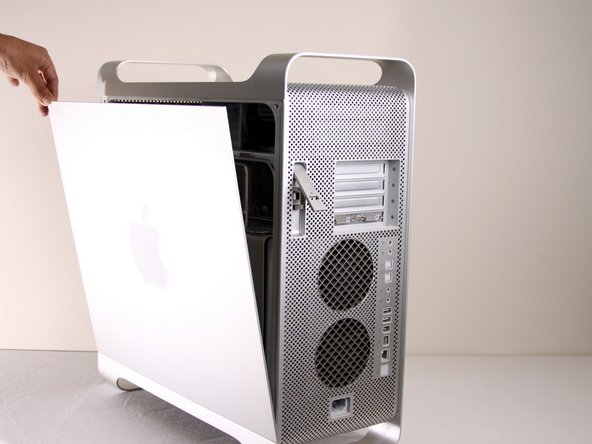
  3. Power Mac G5 CD-ROM Drive Replacement: passo 3, imagem 1 %32 Power Mac G5 CD-ROM Drive Replacement: passo 3, imagem 2 %32
    • Lift the tab to unlock the side panel.

    • The panel should fall out. If the panel does not fall out by itself pull a little from the edges.

    Pergunte ao FixBot

    Comentar

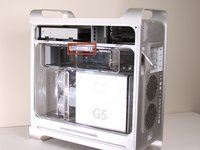
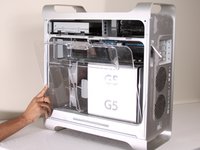
  4. Power Mac G5 CD-ROM Drive Replacement: passo 4, imagem 1 %32 Power Mac G5 CD-ROM Drive Replacement: passo 4, imagem 2 %32 Power Mac G5 CD-ROM Drive Replacement: passo 4, imagem 3 %32
    • Remove the air deflector (the clear plastic cover) by pulling on the handle.

    Pergunte ao FixBot

    Comentar

  5. Power Mac G5 CD-ROM Drive Replacement, CD-ROM Drive: passo 5, imagem 1 %32
    • Locate the CD-ROM Drive on the top left corner of desktop.

    Pergunte ao FixBot

    Comentar

  6. Power Mac G5 CD-ROM Drive Replacement: passo 6, imagem 1 %32 Power Mac G5 CD-ROM Drive Replacement: passo 6, imagem 2 %32 Power Mac G5 CD-ROM Drive Replacement: passo 6, imagem 3 %32
    • Pull and rotate latches to the left.

    Pergunte ao FixBot

    Comentar

  7. Power Mac G5 CD-ROM Drive Replacement: passo 7, imagem 1 %32
    • Wiggle and pull out the CD Drive.

    Pergunte ao FixBot

    Comentar

  8. Power Mac G5 CD-ROM Drive Replacement: passo 8, imagem 1 %32 Power Mac G5 CD-ROM Drive Replacement: passo 8, imagem 2 %32
    • Detach the first cable from the CD-ROM drive.

    • Detach the second cable from the CD-ROM drive.

    • On some models, the IDE cable is stuck to the top of the CD-ROM with foam tape. It is easier to unplug the IDE connector from the motherboard, and de-route the IDE cable as you remove the drive.

    Pergunte ao FixBot

    Comentar

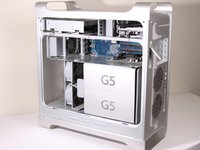
  9. Power Mac G5 CD-ROM Drive Replacement: passo 9, imagem 1 %32
    • After the CD-ROM drive is removed, the area should look like this.

    Pergunte ao FixBot

    Comentar

Conclusão

To reassemble your device, follow these instructions in reverse order.

Cancelar: não concluí este guia.

44 outras pessoas executaram este guia.

Jessica Chaidez

Membro desde: 01/13/10

8.061 Reputação

Autoria de 3 guias

Equipe

Cal Poly, Team 5-8, Forte Winter 2010 Membro de Cal Poly, Team 5-8, Forte Winter 2010

CPSU-FORTE-W10S5G8

7 Membros

Autoria de 30 guias

2Comentários do guia

Is it possible to use an IDE to SATA connector? I want to install my Pioneer BDR burner to potentially use the PMG5 for data disc burning only. Any thoughts?

nirv - Responder Compartilhar

Misleading title. I know how to unplug the drive, thank you very much.

I've replaced the original drive with a better one and the %#*@ tray is stuck because it's too high.

engineer2137 - Responder Compartilhar

Comentar

Visualizações:

Últimas 24 horas: 0

Últimos 7 dias: 20

Últimos 30 dias: 81

Ao todo: 36,341