Ir para o conteúdo principal
Participe da comunidade de reparos - Criar conta

Motion Computing LE1600 Speaker Modules Replacement

O que você precisa

  1. Motion Computing LE1600 Speaker Modules Replacement, Battery: passo 1, imagem 1 %32
    • Turn the device so the screen is facing down.

    Pergunte ao FixBot
    Comentar

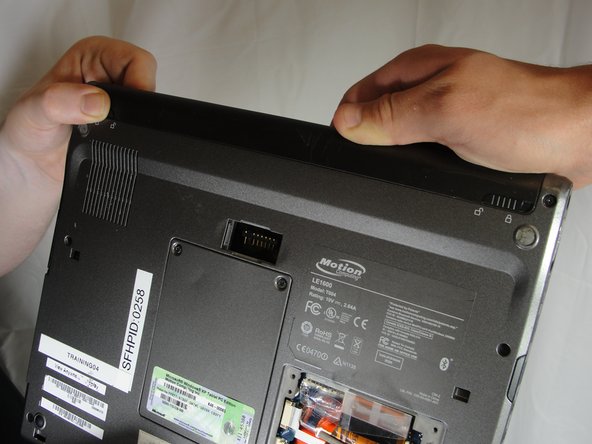
  2. Motion Computing LE1600 Speaker Modules Replacement: passo 2, imagem 1 %32 Motion Computing LE1600 Speaker Modules Replacement: passo 2, imagem 2 %32
    • Slide the battery lock switch next to the power slider to the unlocked position.

    Pergunte ao FixBot

    Comentar

  3. Motion Computing LE1600 Speaker Modules Replacement: passo 3, imagem 1 %32 Motion Computing LE1600 Speaker Modules Replacement: passo 3, imagem 2 %32 Motion Computing LE1600 Speaker Modules Replacement: passo 3, imagem 3 %32
    • Slide and hold the switch by the fan vent to the unlocked position. Firmly grasp the battery and pull away from tablet.

    • When replacing the battery, place the end near the fan vent in first. Make sure to keep the other switch in the unlocked position while pushing the battery into place.

    Pergunte ao FixBot

    Comentar

  4. Motion Computing LE1600 Speaker Modules Replacement, Bluetooth Module: passo 4, imagem 1 %32
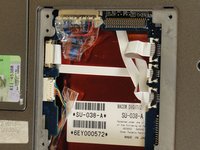
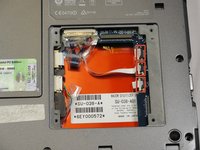
    • Unscrew hard drive panel using a Phillips head #1 screwdriver.

    • (Our device was not given to us with a hard drive or a hard drive panel)

    Pergunte ao FixBot

    Comentar

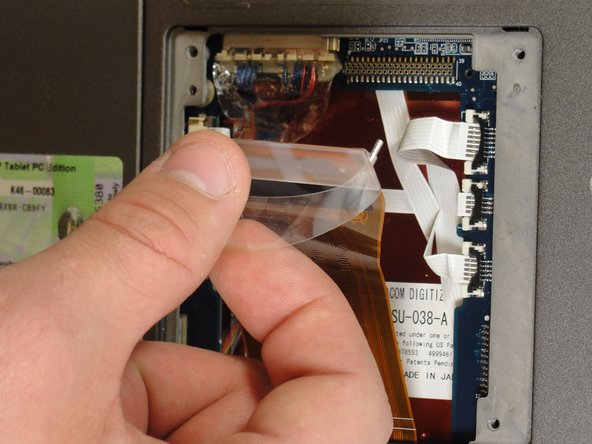
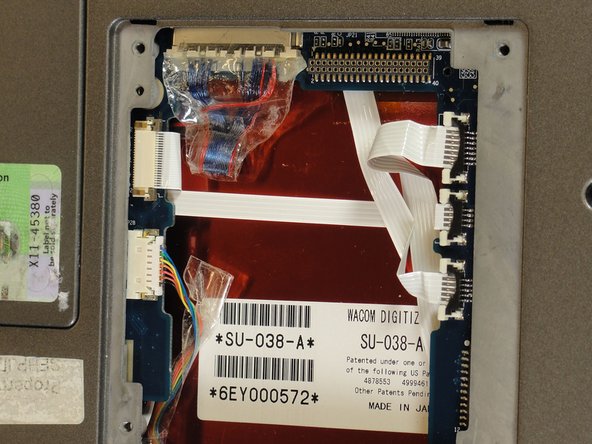
  5. Motion Computing LE1600 Speaker Modules Replacement: passo 5, imagem 1 %32 Motion Computing LE1600 Speaker Modules Replacement: passo 5, imagem 2 %32 Motion Computing LE1600 Speaker Modules Replacement: passo 5, imagem 3 %32
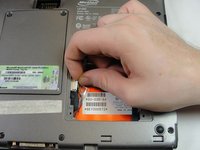
    • Pull clear plastic tab to detach hard drive from tablet.

    Pergunte ao FixBot
    Comentar

  6. Motion Computing LE1600 Speaker Modules Replacement: passo 6, imagem 1 %32 Motion Computing LE1600 Speaker Modules Replacement: passo 6, imagem 2 %32
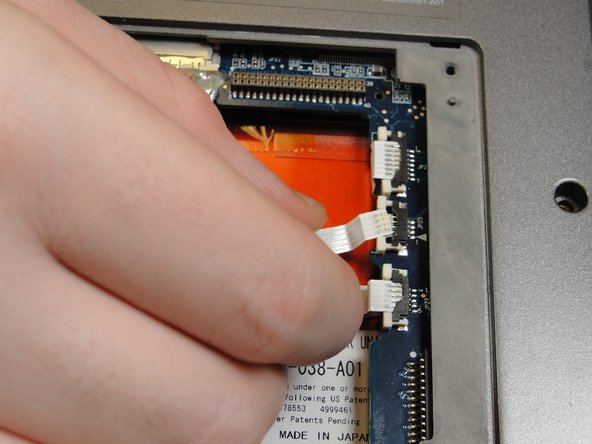
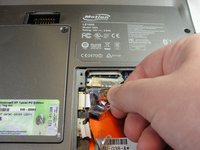
    • To disconnect the three white ribbon cables on the side closest to the hard drive connector, pull the white plastic tabs.

    Pergunte ao FixBot
    Comentar

  7. Motion Computing LE1600 Speaker Modules Replacement: passo 7, imagem 1 %32
    • Pull the brown tabs to disconnect the white ribbon cable on the other side.

    Pergunte ao FixBot

    Comentar

  8. Motion Computing LE1600 Speaker Modules Replacement: passo 8, imagem 1 %32 Motion Computing LE1600 Speaker Modules Replacement: passo 8, imagem 2 %32
    • Caution: do not pull on the wires, instead pull from the plastic connectors.

    • To disconnect the remaining ribbon cables, pull the plastic connectors away from their connections.

    Pergunte ao FixBot

    Comentar

  9. Motion Computing LE1600 Speaker Modules Replacement: passo 9, imagem 1 %32
    • With a Phillips #1 screwdriver, Unscrew the nine 10mm screws holding the case together.

    Pergunte ao FixBot

    Comentar

  10. Motion Computing LE1600 Speaker Modules Replacement: passo 10, imagem 1 %32
    • Using a spudger, press in the five tabs on the side where the battery was.

    • This should separate the two halves of the device. Carefully set the side with the display off to the side.

    Pergunte ao FixBot
    Comentar

  11. Motion Computing LE1600 Speaker Modules Replacement: passo 11, imagem 1 %32 Motion Computing LE1600 Speaker Modules Replacement: passo 11, imagem 2 %32 Motion Computing LE1600 Speaker Modules Replacement: passo 11, imagem 3 %32
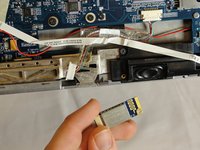
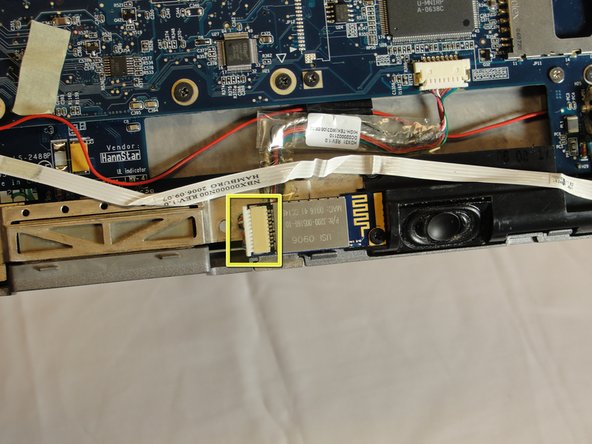
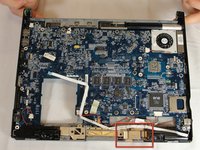
    • Locate the Bluetooth board.

    • Disconnect the ribbon cable by pulling on the plastic connector.

    Pergunte ao FixBot

    Comentar

  12. Motion Computing LE1600 Speaker Modules Replacement: passo 12, imagem 1 %32 Motion Computing LE1600 Speaker Modules Replacement: passo 12, imagem 2 %32
    • Unscrew the 4mm screw holding the board onto the tablet.

    • Lift the board out of the tablet and carefully set it aside.

    Pergunte ao FixBot
    Comentar

  13. Motion Computing LE1600 Speaker Modules Replacement, Speaker Modules: passo 13, imagem 1 %32 Motion Computing LE1600 Speaker Modules Replacement, Speaker Modules: passo 13, imagem 2 %32 Motion Computing LE1600 Speaker Modules Replacement, Speaker Modules: passo 13, imagem 3 %32
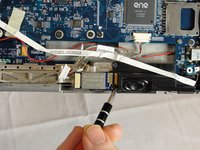
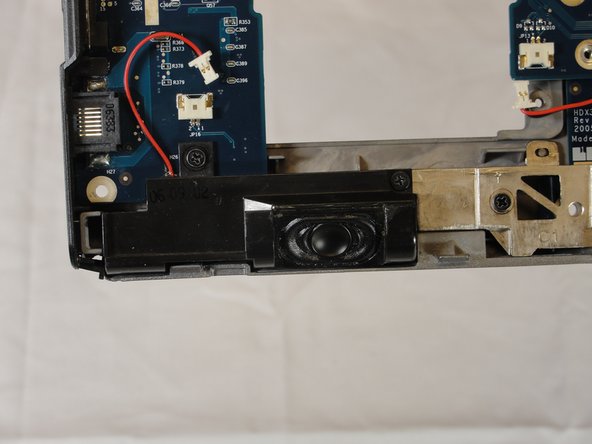
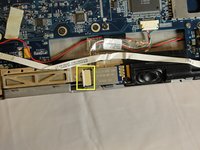
    • Locate speaker connectors on tablet and unplug them by pulling on the plastic heads.

    Pergunte ao FixBot
    Comentar

  14. Motion Computing LE1600 Speaker Modules Replacement: passo 14, imagem 1 %32 Motion Computing LE1600 Speaker Modules Replacement: passo 14, imagem 2 %32
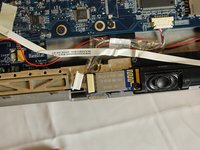
    • To remove the speaker near the network port, unscrew the two black 4mm screws securing it to the tablet and pull away.

    Pergunte ao FixBot
    Comentar

  15. Motion Computing LE1600 Speaker Modules Replacement: passo 15, imagem 1 %32 Motion Computing LE1600 Speaker Modules Replacement: passo 15, imagem 2 %32
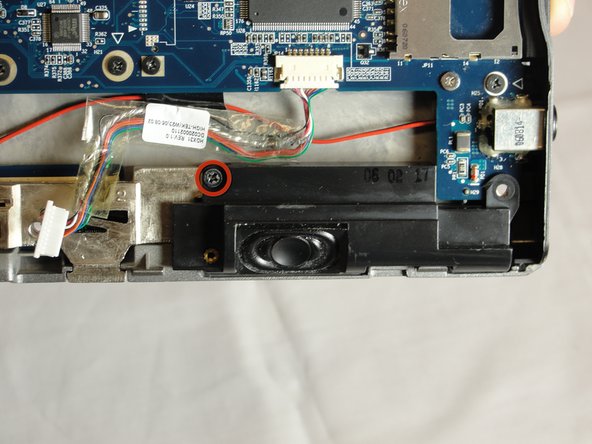
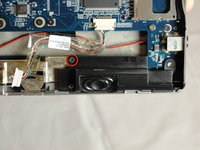
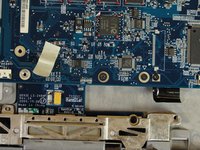
    • To remove the speaker near the headphone jack, unscrew the one 4mm black screw securing it to the tablet.

    Pergunte ao FixBot

    Comentar

  16. Motion Computing LE1600 Speaker Modules Replacement: passo 16, imagem 1 %32 Motion Computing LE1600 Speaker Modules Replacement: passo 16, imagem 2 %32
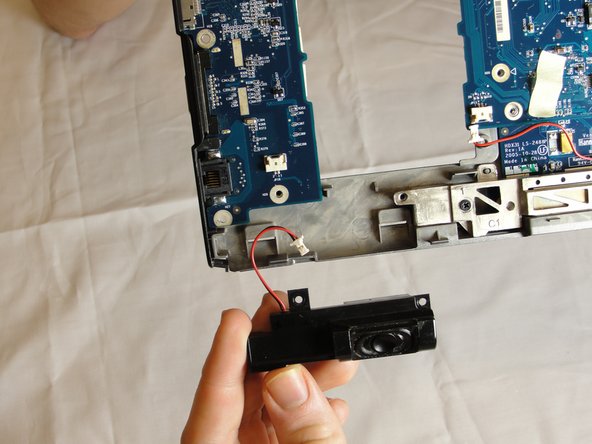
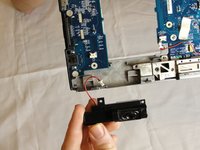
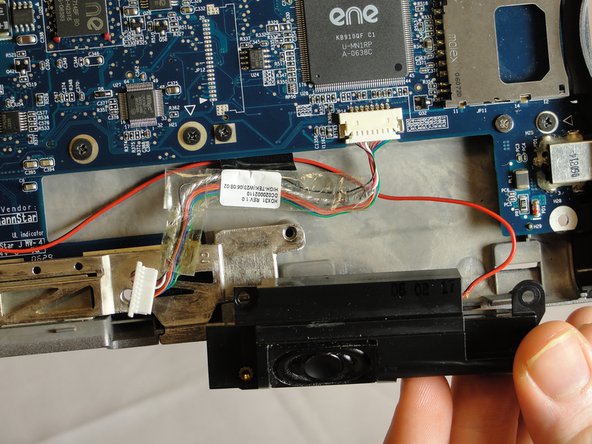
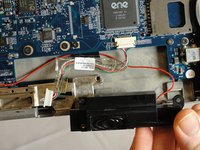
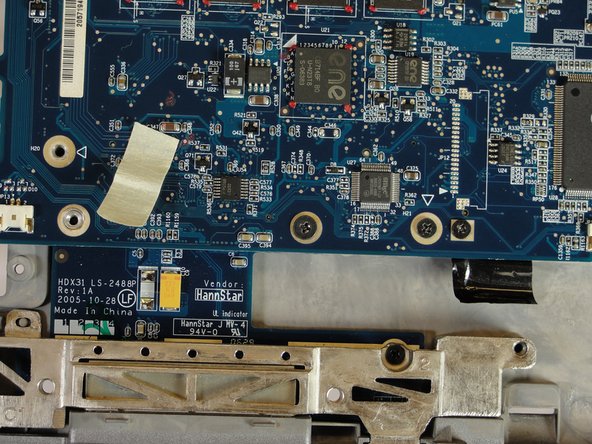
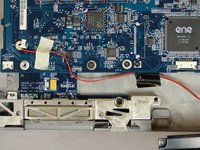
    • Unstick the white masking tape and the black electrical tape holding the black and red wire down.

    • Pull out the wire and speaker.

    Pergunte ao FixBot

    Comentar

Conclusão

To reassemble your device, follow these instructions in reverse order.

Cancelar: não concluí este guia.

David Troy

Membro desde: 04/04/12

44 Reputação

Autoria de 3 guias

Equipe

Cal Poly, Team 15-14, Forte Spring 2012 Membro de Cal Poly, Team 15-14, Forte Spring 2012

CPSU-FORTE-S12S15G14

5 Membros

Autoria de 5 guias

0Comentários do guia

Comentar

Visualizações:

Últimas 24 horas: 0

Últimos 7 dias: 8

Últimos 30 dias: 49

Ao todo: 1,483