Essa tradução foi gerada por um programa e ainda não foi revisada por uma pessoa. Falas essa língua? Dá uma olhada.
Introdução
O notebook não liga? Substitua a placa DC-in.
O que você precisa
-
-
-
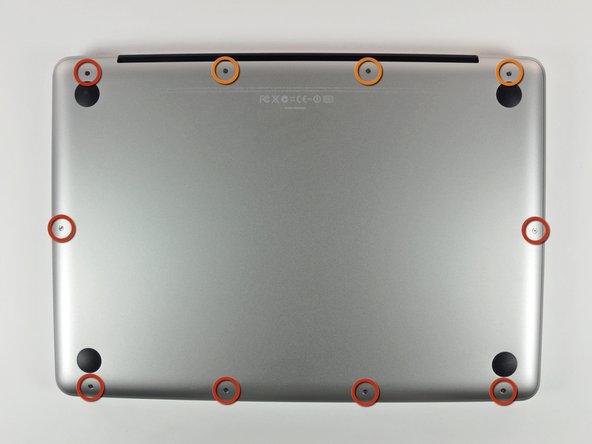
Remova os 10 parafusos a seguir que fixam a estrutura inferior ao MacBook Pro 13" Monobloco:
-
Sete parafusos Phillips de 3 mm.
-
Três parafusos Phillips de 13,5 mm.
 Pergunte ao FixBot
-
-
-
Levante ligeiramente a estrutura inferior e empurre-a em direção à parte traseira do computador para liberar as linguetas de montagem.
-
-
-
-
-
Use a ponta chata de uma espátula para levantar o conector da bateria para fora do seu soquete na placa lógica.
-
-
-
-
-
Use uma espátula para soltar o conector da ventoinha de seu encaixe, puxando-o diretamente para cima da placa lógica.
-
-
-
Remova os três parafusos a seguir que prendem a ventoinha à carcaça superior:
-
Um parafuso Phillips de 6,5 mm.
-
Um parafuso Phillips de 5,5 mm.
-
Um parafuso Phillips de 4,5 mm.
-
-
-
-
-
Segure a aba de puxar de plástico fixada à trava do cabo de dados do display e gire-a em direção ao lado da entrada CC (DC-in) do computador.
-
Puxe o conector do cabo de dados do display para fora do soquete, em direção ao lado da entrada CC (DC-in) do computador.
-
-
-
-
Remova os dois parafusos a seguir que prendem o suporte do cabo de dados da tela à carcaça superior:
-
Um parafuso Phillips de 7 mm.
-
Um parafuso Phillips de 5 mm.
-
Levante o suporte do cabo de dados da tela para fora da carcaça superior.
-
-
-
Use a ponta chata da espátula para desconectar o conector do subwoofer e do alto-falante direito da placa lógica.
-
-
-
Puxe o conector do cabo da câmera em direção à unidade de disco óptico para desconectá-lo da placa lógica.
-
-
-
Use a ponta chata da espátula para desconectar os conectores da unidade de disco óptico, do disco rígido e do Trackpad da placa lógica.
-
-
-
Use a sua unha ou a ponta de uma espátula para levantar a aba de retenção no soquete ZIF do cabo plano do teclado.
-
Use a sua espátula para deslizar o cabo plano do teclado para fora do seu soquete.
-
-
-
Retire a pequena tira de fita preta do soquete do cabo plano de luz de fundo do teclado.
-
-
-
Use a ponta de uma espátula para levantar a aba de retenção do cabo no soquete ZIF do cabo plano da luz de fundo do teclado.
-
Use a sua espátula para deslizar o cabo plano da luz de fundo do teclado para fora do seu soquete.
-
-
-
Use a ponta plana de uma espátula para desconectar o cabo do indicador da bateria da placa lógica.
-
-
-
Use a ponta de uma espátula para soltar o microfone do adesivo que o prende à carcaça superior.
-
-
-
Remova os seguintes parafusos:
-
Cinco parafusos Phillips de 3,1 mm.
-
Dois parafusos Phillips de 3,9 mm.
-
Dois parafusos Phillips de 7 mm da placa DC-in.
-
-
-
Remova os seguintes parafusos Tri-point que prendem a bateria à carcaça superior:
-
Um parafuso Tri-point de 5,5 mm.
-
Um parafuso Tri-point de 13,5 mm.
-
Levante a bateria para fora da carcaça superior.
-
-
-
Levante a placa lógica pela borda esquerda e erga-a até que as portas estejam livres da lateral da carcaça superior.
-
Puxe a placa lógica para fora da lateral da carcaça superior e remova-a, tomando cuidado com a placa de conexões DC-in que pode enroscar.
-
-
-
-
-
Desconecte a placa de conexões DC-In puxando o seu conector para fora do soquete na placa lógica.
-
-


Para a remontagem de seu dispositivo, siga estas instruções na ordem inversa.
Cancelar: não concluí este guia.
89 outras pessoas executaram este guia.
Um agradecimento especial a esses tradutores:
100%

Sandra Hiller está nos ajudando a consertar o mundo! Quer contribuir?
Comece a traduzir ›

5Comentários do guia
Reassembling: Make sure, the cable of the DC-In board is on the logic board-side of the screw hole when putting in the logic board. Otherwise the display data cable bracket won't fit in and you have to remove the board again.
So I hope, the DC-In board was really the cause of my problems. I changed the battery and the charging cable before and still had problems. At this moment my macbook loads again, but I don't know if its because of the board or again just luck. Thank you very much for the guide.
Thank you Team for wonderful blog, I had replaced DC-in board successfully.
~Dushyanta
I just replaced the DC-in board but my Mac did not turn on. Any other suggestion?
Many thanks for this great manual. You helped me to prolong my old MacBook’s life and I saved a lot of money. Carry on the good work!
Any possibilities to also show “how to upgrade the mother board”?
