Ir para o conteúdo principal
Participe da comunidade de reparos - Criar conta

Mac mini Late 2014 Hard Drive Cable Replacement

O que você precisa

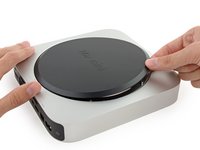
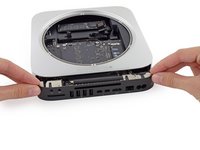
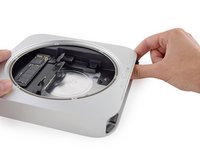
  1. Mac mini Late 2014 Hard Drive Cable Replacement, Bottom Cover: passo 1, imagem 1 %32
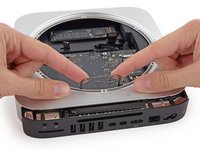
    • The bottom cover is clipped onto three screw posts.

    • Pry near, but not right on the screw posts.

    Pergunte ao FixBot

    Comentar

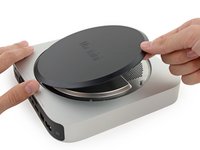
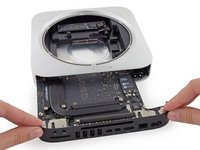
  2. Mac mini Late 2014 Hard Drive Cable Replacement: passo 2, imagem 1 %32 Mac mini Late 2014 Hard Drive Cable Replacement: passo 2, imagem 2 %32 Mac mini Late 2014 Hard Drive Cable Replacement: passo 2, imagem 3 %32
    • Use the plastic opening tool to pry the bottom cover up off of the Mac mini.

    Pergunte ao FixBot

    Comentar

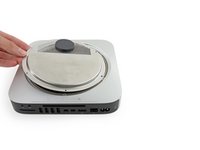
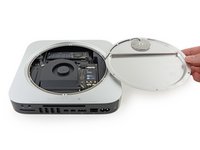
  3. Mac mini Late 2014 Hard Drive Cable Replacement: passo 3, imagem 1 %32 Mac mini Late 2014 Hard Drive Cable Replacement: passo 3, imagem 2 %32
    • Lift and remove the bottom cover.

    Pergunte ao FixBot

    Comentar

  4. Mac mini Late 2014 Hard Drive Cable Replacement, Antenna Plate: passo 4, imagem 1 %32
    • Remove the following TR6 screws from the antenna plate:

    • Three 4.1 mm screws

    • Three 1.9 mm screws

    Pergunte ao FixBot

    Comentar

  5. Mac mini Late 2014 Hard Drive Cable Replacement: passo 5, imagem 1 %32 Mac mini Late 2014 Hard Drive Cable Replacement: passo 5, imagem 2 %32
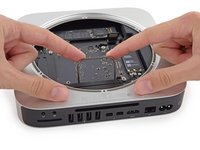
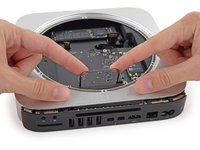
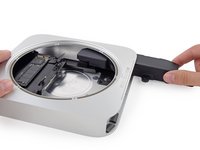
    • Do not completely remove the antenna plate; it is still connected to the Mac mini by an antenna cable.

    • With the I/O ports facing you, flip the antenna plate to the right to allow access to the antenna cable connector.

    Pergunte ao FixBot

    Comentar

  6. Mac mini Late 2014 Hard Drive Cable Replacement: passo 6, imagem 1 %32
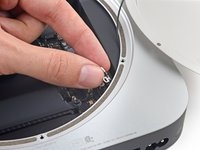
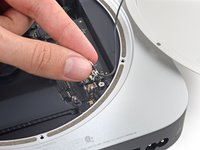
    • Remove the single 3.4 mm T6 screw and washer from the antenna cable.

    • Be careful not to lose the washer when removing the screw.

    Pergunte ao FixBot

    Comentar

  7. Mac mini Late 2014 Hard Drive Cable Replacement: passo 7, imagem 1 %32 Mac mini Late 2014 Hard Drive Cable Replacement: passo 7, imagem 2 %32
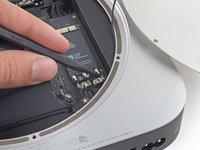
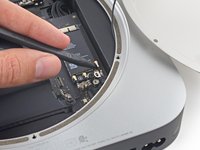
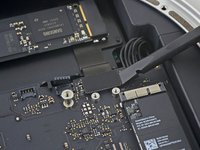
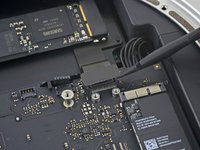
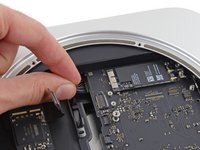
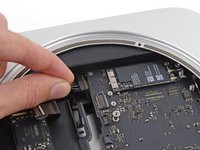
    • Use the point of a spudger to lift the antenna connector straight up off its socket on the airport card.

    Pergunte ao FixBot

    Comentar

  8. Mac mini Late 2014 Hard Drive Cable Replacement: passo 8, imagem 1 %32 Mac mini Late 2014 Hard Drive Cable Replacement: passo 8, imagem 2 %32
    • Carefully pull the antenna cable out from the gap between the power supply and case.

    Pergunte ao FixBot

    Comentar

  9. Mac mini Late 2014 Hard Drive Cable Replacement: passo 9, imagem 1 %32
    • Remove the antenna plate from the Mac mini.

    Pergunte ao FixBot

    Comentar

  10. Mac mini Late 2014 Hard Drive Cable Replacement, Fan Assembly: passo 10, imagem 1 %32
    • Remove the two 12 mm T6 screws from the fan.

    • Loosen the 27 mm T6 captive screw–it will get removed with the fan assembly.

    Pergunte ao FixBot

    Comentar

  11. Mac mini Late 2014 Hard Drive Cable Replacement: passo 11, imagem 1 %32 Mac mini Late 2014 Hard Drive Cable Replacement: passo 11, imagem 2 %32 Mac mini Late 2014 Hard Drive Cable Replacement: passo 11, imagem 3 %32
    • The fan connector is trapped under the edge of the fan and cannot be disconnected until the fan is moved.

    • Do not attempt to remove the fan entirely.

    • Lift the fan straight up to free the captive screw from its hole in the logic board.

    • Pull the fan away from the SSD until you can easily access the fan connector.

    Pergunte ao FixBot

    Comentar

  12. Mac mini Late 2014 Hard Drive Cable Replacement: passo 12, imagem 1 %32 Mac mini Late 2014 Hard Drive Cable Replacement: passo 12, imagem 2 %32
    • Use the point of a spudger to lift the fan connector straight up out of its socket on the logic board.

    Pergunte ao FixBot

    Comentar

  13. Mac mini Late 2014 Hard Drive Cable Replacement: passo 13, imagem 1 %32
    • Remove the fan from the Mac mini.

    Pergunte ao FixBot

    Comentar

  14. Mac mini Late 2014 Hard Drive Cable Replacement, Logic Board Assembly: passo 14, imagem 1 %32
    • Remove the 2.6 mm T6 screw securing the SATA cable connector bracket.

    Pergunte ao FixBot

    Comentar

  15. Mac mini Late 2014 Hard Drive Cable Replacement: passo 15, imagem 1 %32 Mac mini Late 2014 Hard Drive Cable Replacement: passo 15, imagem 2 %32
    • Remove the SATA cable connector bracket.

    Pergunte ao FixBot

    Comentar

  16. Mac mini Late 2014 Hard Drive Cable Replacement: passo 16, imagem 1 %32 Mac mini Late 2014 Hard Drive Cable Replacement: passo 16, imagem 2 %32
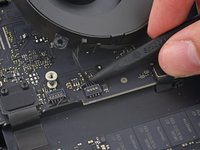
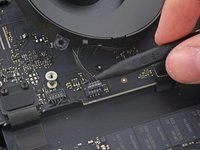
    • Use the flat end of a spudger to lift the SATA cable connector up off of its socket on the logic board.

    Pergunte ao FixBot

    Comentar

  17. Mac mini Late 2014 Hard Drive Cable Replacement: passo 17, imagem 1 %32 Mac mini Late 2014 Hard Drive Cable Replacement: passo 17, imagem 2 %32
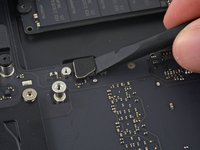
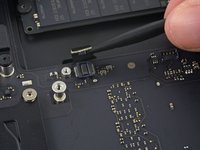
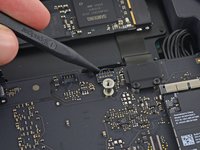
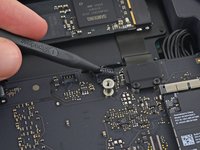
    • Use the tip of a spudger to disconnect the IR sensor cable connector by prying it straight up from its socket.

    Pergunte ao FixBot

    Comentar

  18. Mac mini Late 2014 Hard Drive Cable Replacement: passo 18, imagem 1 %32
    • The following three steps only apply to Mac minis equipped with a PCIe SSD. Skip the next three steps if your Mac mini only has a hard drive.

    • Remove the two 2.6 mm T6 screws securing the PCIe SSD cable bracket.

    Pergunte ao FixBot

    Comentar

  19. Mac mini Late 2014 Hard Drive Cable Replacement: passo 19, imagem 1 %32 Mac mini Late 2014 Hard Drive Cable Replacement: passo 19, imagem 2 %32
    • Remove the PCIe SSD cable bracket.

    Pergunte ao FixBot

    Comentar

  20. Mac mini Late 2014 Hard Drive Cable Replacement: passo 20, imagem 1 %32 Mac mini Late 2014 Hard Drive Cable Replacement: passo 20, imagem 2 %32
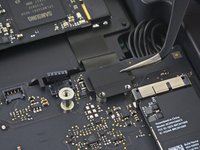
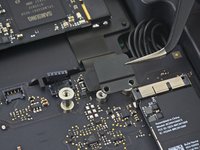
    • Lift the PCIe SSD connector up off its socket.

    Pergunte ao FixBot

    Comentar

  21. Mac mini Late 2014 Hard Drive Cable Replacement: passo 21, imagem 1 %32
    • Remove the single 16 mm T6 screw securing the logic board.

    Pergunte ao FixBot

    Comentar

  22. Mac mini Late 2014 Hard Drive Cable Replacement: passo 22, imagem 1 %32
    Ferramenta utilizada neste passo:
    Mac mini Logic Board Removal Tool
    $4.99
    • To remove the logic board, the two cylindrical rods of the Mac mini Logic Board Removal Tool must be inserted into the holes highlighted in red. Inserting instruments into any logic board holes other than the ones highlighted in red may destroy the logic board.

    • Insert the Mac mini Logic Board Removal Tool into the two holes highlighted in red. Be sure the rods make contact with the case under the logic board before proceeding.

    Pergunte ao FixBot

    Comentar

  23. Mac mini Late 2014 Hard Drive Cable Replacement: passo 23, imagem 1 %32 Mac mini Late 2014 Hard Drive Cable Replacement: passo 23, imagem 2 %32 Mac mini Late 2014 Hard Drive Cable Replacement: passo 23, imagem 3 %32
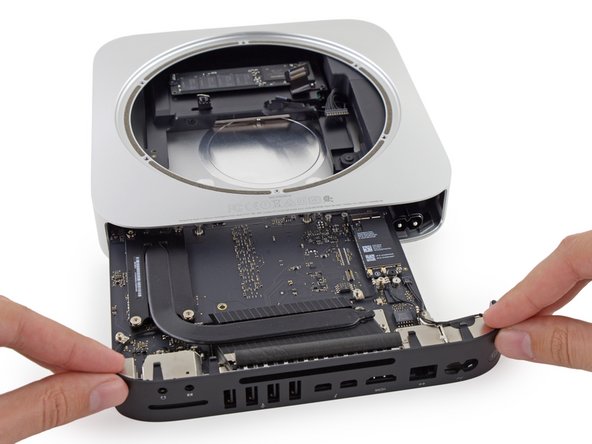
    • Carefully pull the tool toward the I/O board. The logic board and I/O board assembly should slightly slide out of the outer case.

    • Cease prying when the removal tool makes contact with the opening in the rear case.

    • Remove the Mac mini Logic Board Removal tool.

    Pergunte ao FixBot

    Comentar

  24. Mac mini Late 2014 Hard Drive Cable Replacement: passo 24, imagem 1 %32 Mac mini Late 2014 Hard Drive Cable Replacement: passo 24, imagem 2 %32
    • Pull the DC-In cable connector straight out of its socket on the logic board.

    Pergunte ao FixBot

    Comentar

  25. Mac mini Late 2014 Hard Drive Cable Replacement: passo 25, imagem 1 %32 Mac mini Late 2014 Hard Drive Cable Replacement: passo 25, imagem 2 %32
    • Carefully slide the logic board assembly out of the Mac mini, minding any cables that may get caught.

    Pergunte ao FixBot

    Comentar

  26. Mac mini Late 2014 Hard Drive Cable Replacement, Power Supply: passo 26, imagem 1 %32 Mac mini Late 2014 Hard Drive Cable Replacement, Power Supply: passo 26, imagem 2 %32 Mac mini Late 2014 Hard Drive Cable Replacement, Power Supply: passo 26, imagem 3 %32
    Ferramenta utilizada neste passo:
    Tweezers
    $4.99
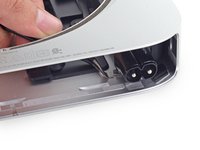
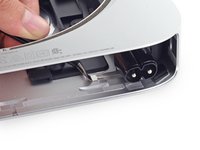
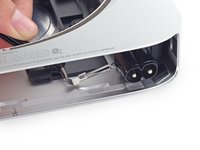
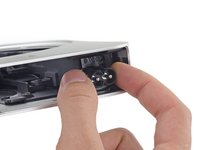
    • The AC-in socket is secured with a small metal retaining clip.

    • Use tweezers or your fingers to pull the clip away from the AC-in socket, and remove it from the Mac mini.

    • When replacing the clip, push it in until it stops—it should be secure even if there is no audible click.

    Pergunte ao FixBot

    Comentar

  27. Mac mini Late 2014 Hard Drive Cable Replacement: passo 27, imagem 1 %32 Mac mini Late 2014 Hard Drive Cable Replacement: passo 27, imagem 2 %32 Mac mini Late 2014 Hard Drive Cable Replacement: passo 27, imagem 3 %32
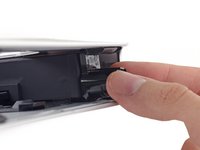
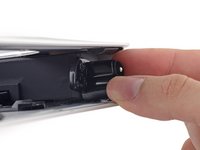
    • To free the power supply from the case, grab the AC-In connector, which acts like a latch.

    • Rotate the AC-In connector 90 degrees counter-clockwise.

    Pergunte ao FixBot

    Comentar

  28. Mac mini Late 2014 Hard Drive Cable Replacement: passo 28, imagem 1 %32
    • The AC-In latch should fit into the groove above it in the case.

    • During reassembly ensure the power supply is inserted far enough into the case that the latch will engage with the groove.

    Pergunte ao FixBot

    Comentar

  29. Mac mini Late 2014 Hard Drive Cable Replacement: passo 29, imagem 1 %32
    • Remove the 8 mm T6 screw securing the power supply.

    Pergunte ao FixBot

    Comentar

  30. Mac mini Late 2014 Hard Drive Cable Replacement: passo 30, imagem 1 %32 Mac mini Late 2014 Hard Drive Cable Replacement: passo 30, imagem 2 %32
    • Slide the power supply out of the mini, minding any cables that may get caught.

    Pergunte ao FixBot

    Comentar

  31. Mac mini Late 2014 Hard Drive Cable Replacement, Drive Tray Assembly: passo 31, imagem 1 %32
    • Remove the single 8 mm T6 screw securing the drive tray.

    Pergunte ao FixBot

    Comentar

  32. Mac mini Late 2014 Hard Drive Cable Replacement: passo 32, imagem 1 %32 Mac mini Late 2014 Hard Drive Cable Replacement: passo 32, imagem 2 %32 Mac mini Late 2014 Hard Drive Cable Replacement: passo 32, imagem 3 %32
    • Lift the drive tray up out of the Mac mini.

    Pergunte ao FixBot

    Comentar

  33. Mac mini Late 2014 Hard Drive Cable Replacement, Hard Drive Assembly: passo 33, imagem 1 %32 Mac mini Late 2014 Hard Drive Cable Replacement, Hard Drive Assembly: passo 33, imagem 2 %32
    • Remove the four (two on each side) 6.5 mm T8 screws securing the hard drive to the drive tray.

    Pergunte ao FixBot

    Comentar

  34. Mac mini Late 2014 Hard Drive Cable Replacement: passo 34, imagem 1 %32 Mac mini Late 2014 Hard Drive Cable Replacement: passo 34, imagem 2 %32 Mac mini Late 2014 Hard Drive Cable Replacement: passo 34, imagem 3 %32
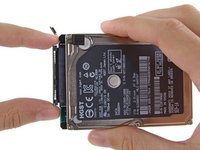
    • Lift the hard drive up and remove it from the drive tray.

    • During reassembly, be sure to thread the hard drive cable through the slot in the drive tray.

    Pergunte ao FixBot

    Comentar

  35. Mac mini Late 2014 Hard Drive Cable Replacement, Hard Drive: passo 35, imagem 1 %32 Mac mini Late 2014 Hard Drive Cable Replacement, Hard Drive: passo 35, imagem 2 %32 Mac mini Late 2014 Hard Drive Cable Replacement, Hard Drive: passo 35, imagem 3 %32
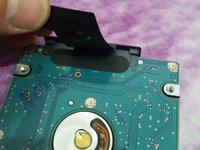
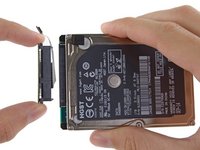
    • Lift up the ribbon cable and carefully peel away the black tape underneath. It secures the SATA cable connector to the PCB of the hard drive. Failing to remove the tape will almost surely cause the contacts soldered to the flex cable to rip from the connector housing, as the retention force of the contacts in the housing is quite low.

    • Pull the SATA cable connector straight out of the hard drive.

    • Carefully peel off the two black, square-shaped sticky pads (one visible in picture) from the corners of the hard drive, and stick them to your new hard drive in the same locations.

    Pergunte ao FixBot

    Comentar

Conclusão

To reassemble your device, follow these instructions in reverse order.

Cancelar: não concluí este guia.

29 outras pessoas executaram este guia.

Sam Goldheart

Membro desde: 10/18/12

477.543 Reputação

Autoria de 538 guias

Equipe

iFixit Membro de iFixit

Staff

122 Membros

Autoria de 26.572 guias

1Comentário do guia

great , thank-you for help me

Francesco Grassi - Responder Compartilhar

Comentar

Visualizações:

Últimas 24 horas: 3

Últimos 7 dias: 45

Últimos 30 dias: 161

Ao todo: 34,785