Ir para o conteúdo principal
Participe da comunidade de reparos - Criar conta

MSI GE72 6QF Apache Pro Fan Replacement

O que você precisa

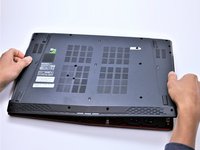
    1. MSI GE72 6QF Apache Pro Fan Replacement, Battery: passo 1, imagem 1 %32 MSI GE72 6QF Apache Pro Fan Replacement, Battery: passo 1, imagem 2 %32
      • Make sure the laptop is off and unplugged (not charging).

      • With the laptop closed and upside down, unscrew the nineteen 5.5mm Phillips #1 screws that keep the back cover in place.

      Pergunte ao FixBot

      Comentar

    2. MSI GE72 6QF Apache Pro Fan Replacement: passo 2, imagem 1 %32
      • Slide the optical drive out of the laptop.

      Pergunte ao FixBot

      Comentar

    3. MSI GE72 6QF Apache Pro Fan Replacement: passo 3, imagem 1 %32
      • Use a Phillips screwdriver to remove the three screws along the edge of the optical drive bay.

      Pergunte ao FixBot

      Comentar

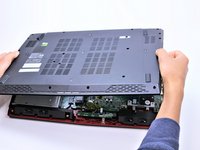
    4. MSI GE72 6QF Apache Pro Fan Replacement: passo 4, imagem 1 %32 MSI GE72 6QF Apache Pro Fan Replacement: passo 4, imagem 2 %32
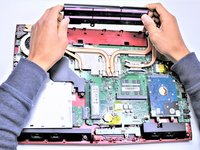
      • Using your fingers, gently loosen the edges of all four sides of the back cover.

      • Gently pull off the back cover.

      Pergunte ao FixBot

      Comentar

    5. MSI GE72 6QF Apache Pro Fan Replacement: passo 5, imagem 1 %32 MSI GE72 6QF Apache Pro Fan Replacement: passo 5, imagem 2 %32
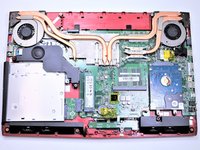
      • Unscrew the single 5.5mm Phillips #1 screw keeping the battery secure.

      Pergunte ao FixBot

      Comentar

    6. MSI GE72 6QF Apache Pro Fan Replacement: passo 6, imagem 1 %32 MSI GE72 6QF Apache Pro Fan Replacement: passo 6, imagem 2 %32
      • Grab the battery with your fingers and gently pull it up and away from the rest of the laptop.

      Pergunte ao FixBot

      Comentar

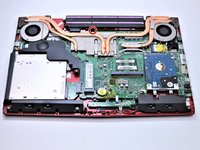
    1. MSI GE72 6QF Apache Pro Fan Replacement, Fan: passo 7, imagem 1 %32 MSI GE72 6QF Apache Pro Fan Replacement, Fan: passo 7, imagem 2 %32 MSI GE72 6QF Apache Pro Fan Replacement, Fan: passo 7, imagem 3 %32
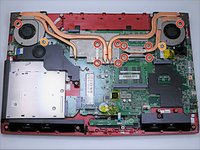
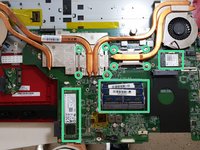
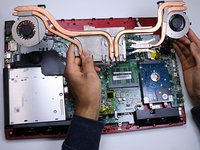
      • If you are replacing only the keyboard, you can skip to step 18, and then skip the WiFi adapter removal step. The CPU fan, m.2 SSD, RAM and WiFi adapter (marked in green) will all come off with the main board, giving you access to the keyboard.

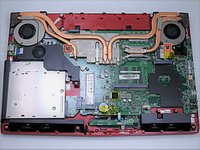
      • Use a Phillips #1 screwdriver to remove the ten 5.5mm screws.

      • Remove the last two 5.5mm Phillips #1 screws, and remove the washers around them.

      Pergunte ao FixBot

      Comentar

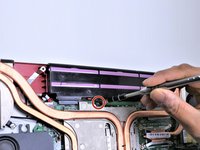
    2. MSI GE72 6QF Apache Pro Fan Replacement: passo 8, imagem 1 %32 MSI GE72 6QF Apache Pro Fan Replacement: passo 8, imagem 2 %32 MSI GE72 6QF Apache Pro Fan Replacement: passo 8, imagem 3 %32
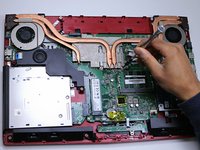
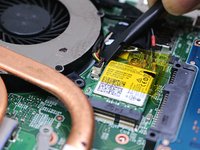
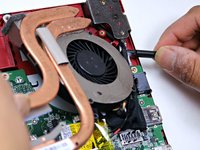
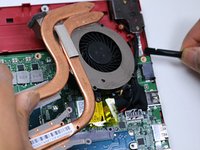
      • Unplug both of the fan power cords from the laptop using a spudger.

      Pergunte ao FixBot

      Comentar

    3. MSI GE72 6QF Apache Pro Fan Replacement: passo 9, imagem 1 %32 MSI GE72 6QF Apache Pro Fan Replacement: passo 9, imagem 2 %32
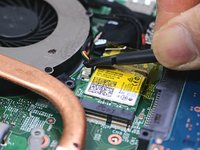
      • Continue to use the spudger to carefully separate the wires of the power cord from the laptop.

      Pergunte ao FixBot

      Comentar

    4. MSI GE72 6QF Apache Pro Fan Replacement: passo 10, imagem 1 %32 MSI GE72 6QF Apache Pro Fan Replacement: passo 10, imagem 2 %32
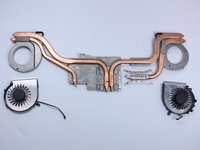
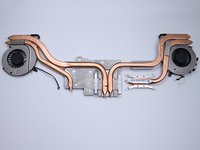
      • Fully remove the fans from the rest of the laptop.

      Pergunte ao FixBot

      Comentar

    5. MSI GE72 6QF Apache Pro Fan Replacement: passo 11, imagem 1 %32 MSI GE72 6QF Apache Pro Fan Replacement: passo 11, imagem 2 %32 MSI GE72 6QF Apache Pro Fan Replacement: passo 11, imagem 3 %32
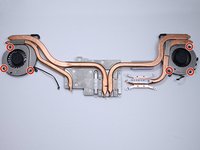
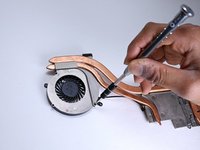
      • Using a Phillips #00 screwdriver, remove the six 5mm screws.

      • Separate the fans from the silver fan covers.

      Pergunte ao FixBot

      Comentar

Conclusão

To reassemble your device, follow these instructions in reverse order.

Cancelar: não concluí este guia.

20 outras pessoas executaram este guia.

Tanmay Kumar

Membro desde: 04/17/17

461 Reputação

Autoria de 4 guias

Equipe

Cal Poly, Team S14-G4, Banghart Spring 2017 Membro de Cal Poly, Team S14-G4, Banghart Spring 2017

CPSU-BANGHART-S17S14G4

4 Membros

Autoria de 24 guias

9Comentários do guia

I can't get the back case off the last bit of it is held on pretty tight. All the screws are out so how do I loosen it?

Aaron Carlston - Responder Compartilhar
Where can I buy new fans?

Aschwin Versteegden - Responder Compartilhar

Where do you buy the replacement fans

customgirl - Responder Compartilhar

I need a link to buy the actual fan itself if you wouldn’t mind I’d greatly appreciate it

dylan davis - Responder Compartilhar

EDIT: The only place I could actually find the fans were on walmart so Ill post the link here -> https://www.walmart.com/search/?query=ms... (I personally bought the blue one that was first I should get it by next friday and Ill try and remember to post if it works or not)

dylan davis - Responder Compartilhar

Comentar

Visualizações:

Últimas 24 horas: 1

Últimos 7 dias: 18

Últimos 30 dias: 82

Ao todo: 26,697