Ir para o conteúdo principal
Participe da comunidade de reparos - Criar conta

Logitech Harmony 900 Button Pad Replacement

O que você precisa

  1. Logitech Harmony 900 Button Pad Replacement, Battery: passo 1, imagem 1 %32 Logitech Harmony 900 Button Pad Replacement, Battery: passo 1, imagem 2 %32
    • Press the oval shaped button on the lower back of the remote to release the battery cover.

    • While pressing the button, remove the cover.

    Pergunte ao FixBot
  2. Logitech Harmony 900 Button Pad Replacement: passo 2, imagem 1 %32 Logitech Harmony 900 Button Pad Replacement: passo 2, imagem 2 %32
    • Push the battery in, pull it up, and slide it out.

    Pergunte ao FixBot
  3. Logitech Harmony 900 Button Pad Replacement, Motherboard: passo 3, imagem 1 %32
    Ferramenta utilizada neste passo:
    Tweezers
    $4.99
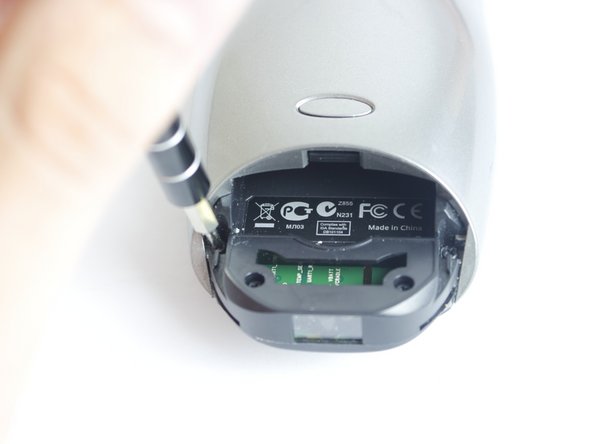
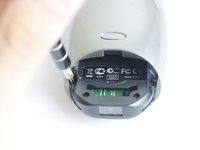
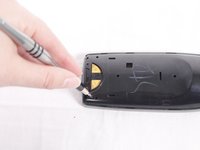
    • Using tweezers, peel off the sticker located under the battery cover to reveal two screws.

    Pergunte ao FixBot
  4. Logitech Harmony 900 Button Pad Replacement: passo 4, imagem 1 %32 Logitech Harmony 900 Button Pad Replacement: passo 4, imagem 2 %32
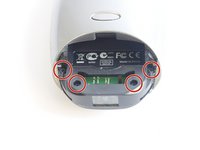
    • Locate and unscrew the four 50mm screws using the Philips #0 screwdriver.

    Pergunte ao FixBot
  5. Logitech Harmony 900 Button Pad Replacement: passo 5, imagem 1 %32
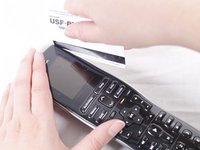
    • Use a credit card to pry the black, plastic, back cover off of the device.

    • You may need to get the process started with a metal prying tool before you start using the credit card.

    Pergunte ao FixBot
  6. Logitech Harmony 900 Button Pad Replacement: passo 6, imagem 1 %32 Logitech Harmony 900 Button Pad Replacement: passo 6, imagem 2 %32
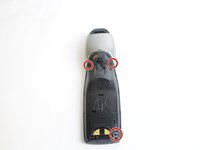
    • Locate the three 50mm screws on the back of the remote and remove them using the Phillips #0 screwdriver.

    Pergunte ao FixBot
  7. Logitech Harmony 900 Button Pad Replacement: passo 7, imagem 1 %32 Logitech Harmony 900 Button Pad Replacement: passo 7, imagem 2 %32
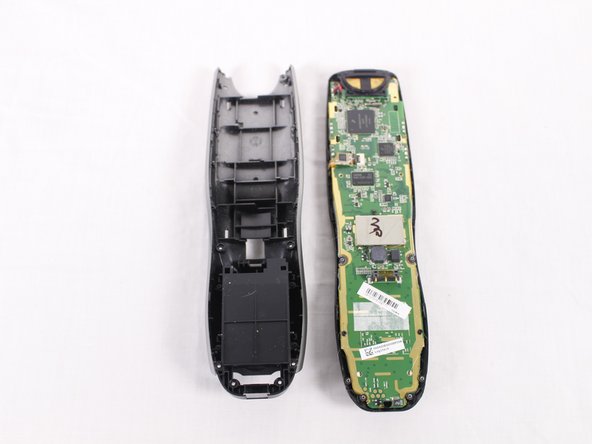
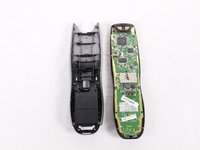
    • Pry the black, front face of the remote from the back silver part by inserting a credit card in between and sliding down.

    • Again, you may need to use a metal prying tool to get the separation started.

    Pergunte ao FixBot
  8. Logitech Harmony 900 Button Pad Replacement: passo 8, imagem 1 %32 Logitech Harmony 900 Button Pad Replacement: passo 8, imagem 2 %32
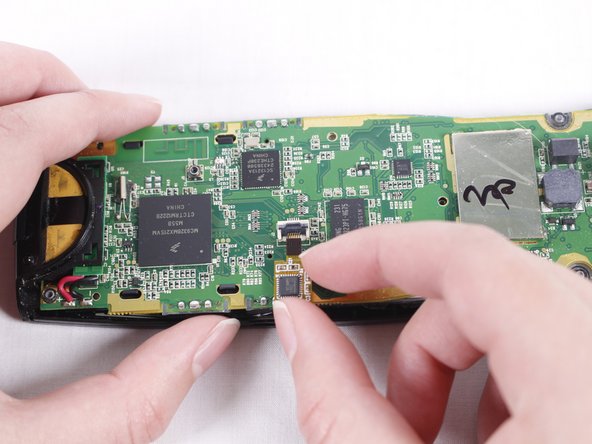
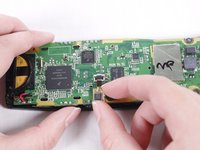
    • When you look at the circuit board, you should see a ribbon attaching the board to the plastic casing.

    • A little lever is holding the ribbon in place. Lift the lever with your nail or a 2.5mm flat-head screwdriver. Move the ribbon away from the circuit board.

    Pergunte ao FixBot
  9. Logitech Harmony 900 Button Pad Replacement: passo 9, imagem 1 %32 Logitech Harmony 900 Button Pad Replacement: passo 9, imagem 2 %32
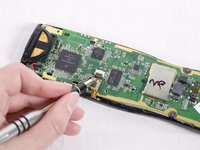
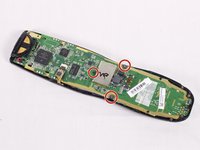
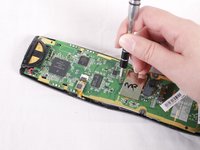
    • Using the Philips #0 screwdriver, remove the three 50mm screws from the circuit board.

    Pergunte ao FixBot
  10. Logitech Harmony 900 Button Pad Replacement: passo 10, imagem 1 %32
    • Using your hands, carefully separate the motherboard from the rest of the remote.

    Pergunte ao FixBot
  11. Logitech Harmony 900 Button Pad Replacement, Button Pad: passo 11, imagem 1 %32 Logitech Harmony 900 Button Pad Replacement, Button Pad: passo 11, imagem 2 %32
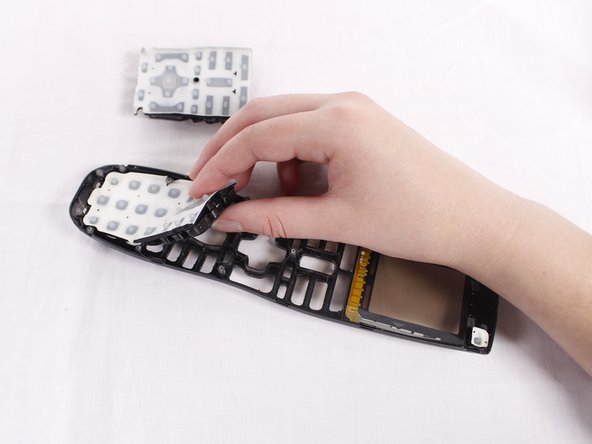
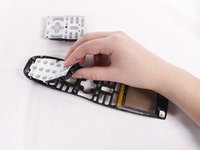
    • Peel off the button pads from the device frame.

    Pergunte ao FixBot
Conclusão

To reassemble your device, follow these instructions in reverse order.

Uma outra pessoa concluiu este guia.

Tyler Hanks

Membro desde: 09/25/17

442 Reputação

Autoria de 3 guias

Equipe

USF Tampa, Team S4-G5, Eyestone Fall 2017 Membro de USF Tampa, Team S4-G5, Eyestone Fall 2017

USFT-EYESTONE-F17S4G5

4 Membros

Autoria de 4 guias

0Comentários do guia

Comentar

Visualizações:

Últimas 24 horas: 0

Últimos 7 dias: 3

Últimos 30 dias: 30

Ao todo: 1,065