Ir para o conteúdo principal

Lenovo ThinkPad P50 SSD Replacement

O que você precisa

  1. Lenovo ThinkPad P50 SSD Replacement, Battery: passo 1, imagem 1 %32 Lenovo ThinkPad P50 SSD Replacement, Battery: passo 1, imagem 2 %32
    • Slide the battery latch to the left to unlock it and remove the battery.

  2. Lenovo ThinkPad P50 SSD Replacement, Bottom case screws: passo 2, imagem 1 %32
    • Loosen the six 12.6 mm captive screws that secure the lower case with the Phillips #00 screwdriver.

    • The screws will not come all the way out; do not attempt to remove them from the case.

    • Pull up the notch with your fingernail or a spudger.

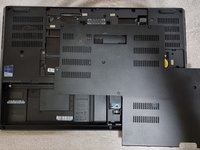
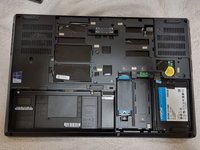
  3. Lenovo ThinkPad P50 SSD Replacement, Bottom case: passo 3, imagem 1 %32 Lenovo ThinkPad P50 SSD Replacement, Bottom case: passo 3, imagem 2 %32
    • Lift the lower case up and off of the chassis.

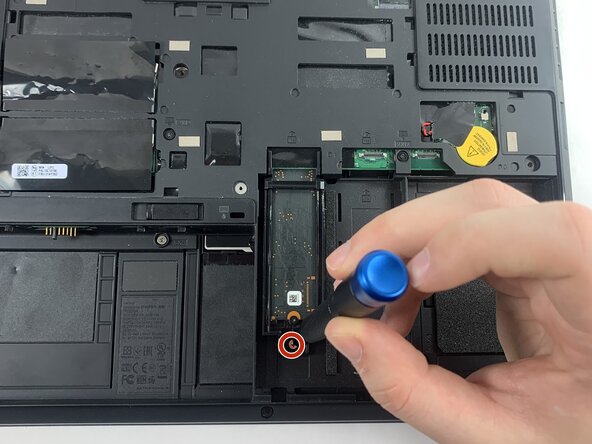
  4. Lenovo ThinkPad P50 SSD Replacement, SSD: passo 4, imagem 1 %32
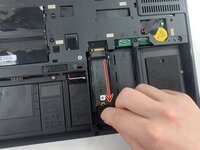
    • Remove the 4.4 mm Phillips #00 screw securing the SSD.

  5. Lenovo ThinkPad P50 SSD Replacement: passo 5, imagem 1 %32 Lenovo ThinkPad P50 SSD Replacement: passo 5, imagem 2 %32
    • Slide the harness backwards, then pull it out.

  6. Lenovo ThinkPad P50 SSD Replacement: passo 6, imagem 1 %32 Lenovo ThinkPad P50 SSD Replacement: passo 6, imagem 2 %32
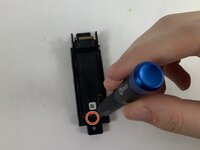
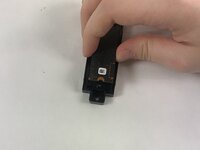
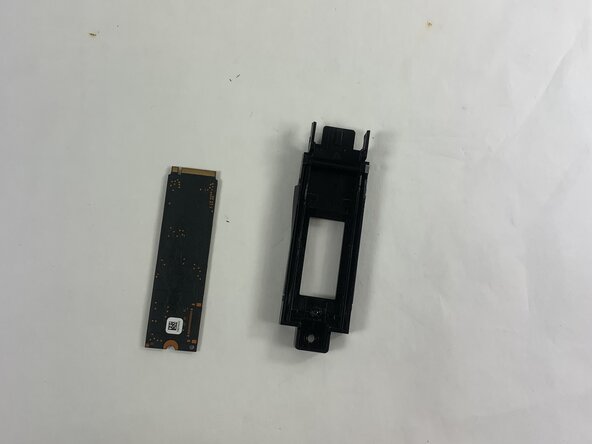
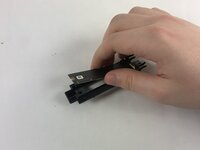
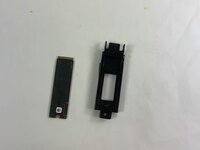
    • Remove the 3.7 mm screw securing the SSD to the harness with a Phillips #00 screwdriver.

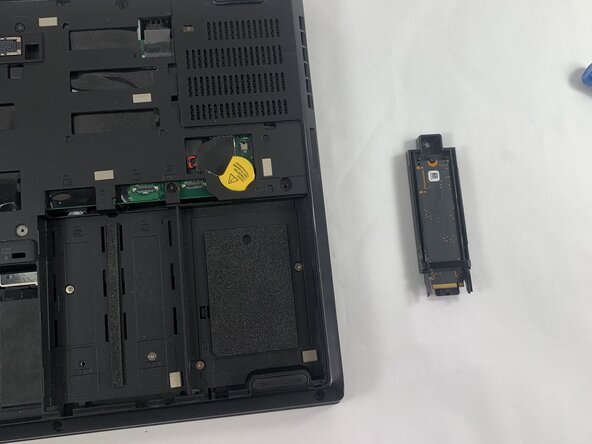
  7. Lenovo ThinkPad P50 SSD Replacement: passo 7, imagem 1 %32 Lenovo ThinkPad P50 SSD Replacement: passo 7, imagem 2 %32
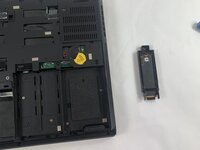
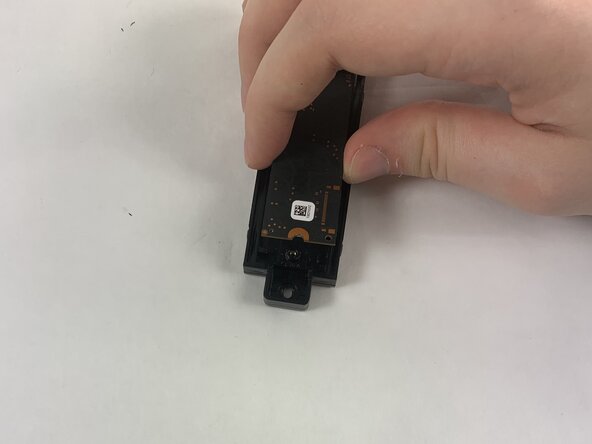
    • Lift the drive up at about a 35 degree angle and pull out to remove it from the case.

Conclusão

To reassemble your device, follow the above steps in reverse order.
Take your e-waste to an R2 or e-Stewards certified recycler.
Repair didn’t go as planned? Try some basic troubleshooting or ask our Answers community for help.

Sara Richardson

Membro desde: 03/21/25

609 Reputação

Autoria de 5 guias

Equipe

0Comentários do guia

Comentar

Visualizações:

Últimas 24 horas: 1

Últimos 7 dias: 12

Últimos 30 dias: 52

Ao todo: 339