Ir para o conteúdo principal
Participe da comunidade de reparos - Criar conta

Lenovo Essential B570 Keyboard Replacement

O que você precisa

  1. Lenovo Essential B570 Keyboard Replacement, Battery: passo 1, imagem 1 %32
    • Turn over laptop.

    • Switch open the left battery lock.

    • If you are replacing inner components of the laptop, it is recommended to remove the battery first to avoid damage to the laptop.

    Pergunte ao FixBot
    Comentar

  2. Lenovo Essential B570 Keyboard Replacement: passo 2, imagem 1 %32
    • Hold the right battery lock open with one hand while removing the battery itself with the other.

    Pergunte ao FixBot

    Comentar

  3. Lenovo Essential B570 Keyboard Replacement, Back Panel: passo 3, imagem 1 %32
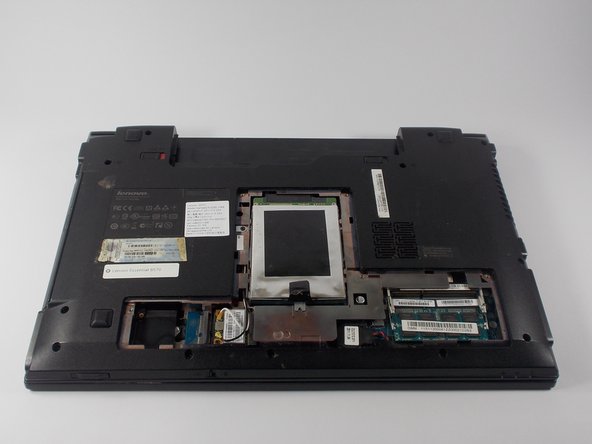
    • Loosen the five Philips screws that secure the panel.

    • The screws do not actually fully remove from the panel. Loosening them as much as you can will be enough to disconnect them from the laptop.

    Pergunte ao FixBot
    Comentar

  4. Lenovo Essential B570 Keyboard Replacement: passo 4, imagem 1 %32 Lenovo Essential B570 Keyboard Replacement: passo 4, imagem 2 %32 Lenovo Essential B570 Keyboard Replacement: passo 4, imagem 3 %32
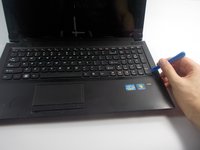
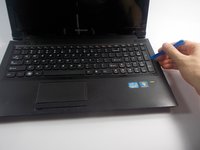
    • Prop open the cover with a plastic opening tool.

    • If the cover does not come off easily, do not force it. Make sure all screws are loosened.

    Pergunte ao FixBot
    Comentar

  5. Lenovo Essential B570 Keyboard Replacement, Keyboard: passo 5, imagem 1 %32
    • Remove the three 3 mm Phillips screws holding the keyboard in. These screws are designated by an imprinted keyboard picture next to them.

    Pergunte ao FixBot
    Comentar

  6. Lenovo Essential B570 Keyboard Replacement: passo 6, imagem 1 %32 Lenovo Essential B570 Keyboard Replacement: passo 6, imagem 2 %32
    • Carefully pry off the keyboard with your plastic opening tool , moving along the edges.

    • DO NOT immediately remove the keyboard as it is still connected underneath by a wire.

    Pergunte ao FixBot

    Comentar

  7. Lenovo Essential B570 Keyboard Replacement: passo 7, imagem 1 %32 Lenovo Essential B570 Keyboard Replacement: passo 7, imagem 2 %32
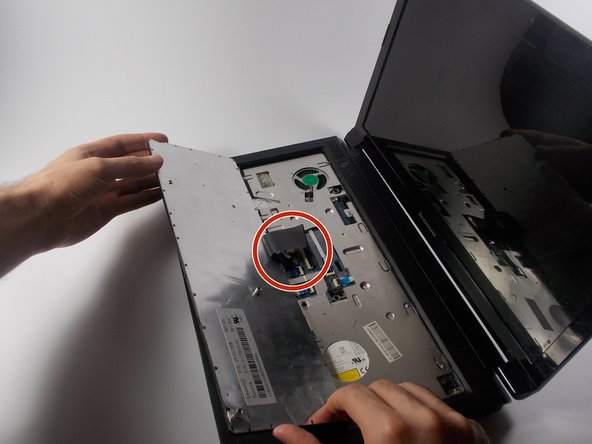
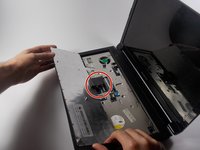
    • Carefully lift the keyboard.

    • The keyboard is still connected to the laptop. Lift it slowly.

    • Turn over the keyboard to locate the keyboards ribbon cable.

    Pergunte ao FixBot

    Comentar

  8. Lenovo Essential B570 Keyboard Replacement: passo 8, imagem 1 %32 Lenovo Essential B570 Keyboard Replacement: passo 8, imagem 2 %32
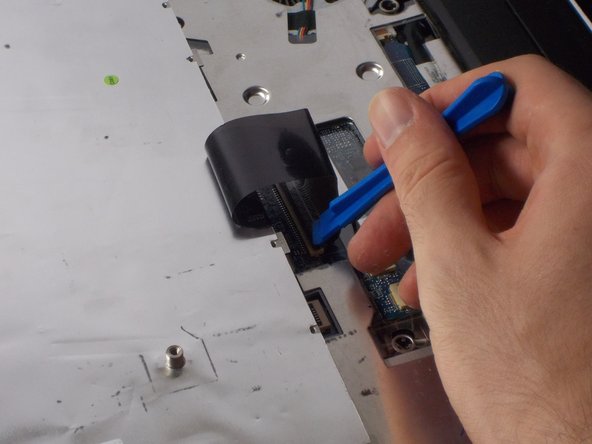
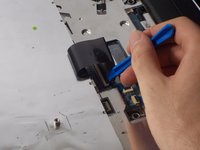
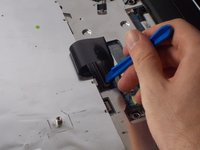
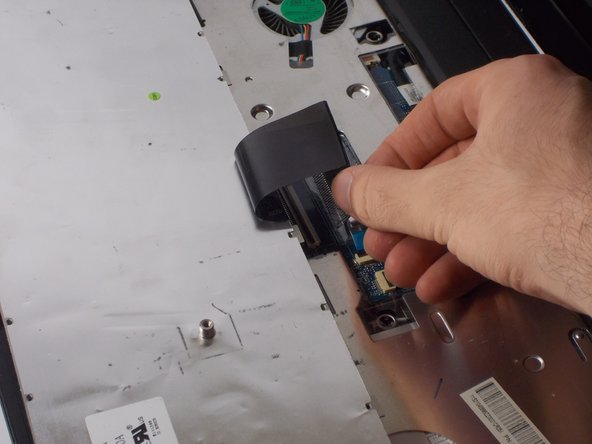
    • Use the plastic opening tool to lift open the ribbon connector that is holding the ribbon cable in its slot.

    Pergunte ao FixBot

    Comentar

  9. Lenovo Essential B570 Keyboard Replacement: passo 9, imagem 1 %32 Lenovo Essential B570 Keyboard Replacement: passo 9, imagem 2 %32
    • Remove the cable from its slot.

    • If the cable does not come out easily, ensure that the black ribbon has been completely released.

    Pergunte ao FixBot

    Comentar

Conclusão

To reassemble your device, follow these instructions in reverse order.

Cancelar: não concluí este guia.

3 outras pessoas executaram este guia.

Equipe

UMass Dartmouth, Team 4-5, Catania Fall 2015 Membro de UMass Dartmouth, Team 4-5, Catania Fall 2015

UMASSD-CATANIA-F15S4G5

4 Membros

Autoria de 6 guias

0Comentários do guia

Comentar

Visualizações:

Últimas 24 horas: 1

Últimos 7 dias: 7

Últimos 30 dias: 25

Ao todo: 3,103