Ir para o conteúdo principal
Participe da comunidade de reparos - Criar conta

Kurio Xtreme Power/Volume Buttons Replacement

O que você precisa

  1. Kurio Xtreme Power/Volume Buttons Replacement, Back Panel: passo 1, imagem 1 %32
    • Remove the rubber case by beginning to peel from one of the top corners and continue peeling until the cover is completely removed.

    Pergunte ao FixBot
  2. Kurio Xtreme Power/Volume Buttons Replacement: passo 2, imagem 1 %32 Kurio Xtreme Power/Volume Buttons Replacement: passo 2, imagem 2 %32
    • Unscrew the four 4 mm black screws using a Phillips #000 screw driver.

    • There are two screws on each side of the device (four total).

    Pergunte ao FixBot
  3. Kurio Xtreme Power/Volume Buttons Replacement: passo 3, imagem 1 %32 Kurio Xtreme Power/Volume Buttons Replacement: passo 3, imagem 2 %32 Kurio Xtreme Power/Volume Buttons Replacement: passo 3, imagem 3 %32
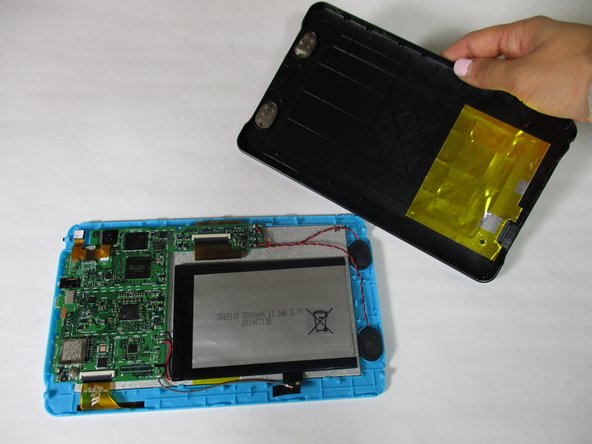
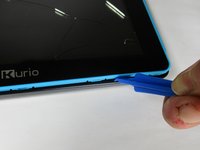
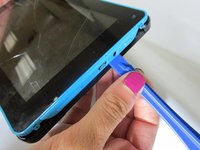
    • Insert the plastic opening tool in between the edges of the blue front casing and black back casing.

    • Slide the plastic opening tool around the perimeter of the device. This may require that you repeatedly run the opening tool up and down the edges of the device.

    • Be sure not to break any of the plastic clamps along the edges of the device when removing the back cover.

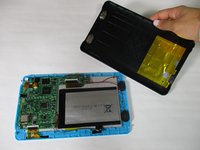
    • Carefully lift the back panel off of the rest of the device.

    Pergunte ao FixBot
  4. Kurio Xtreme Power/Volume Buttons Replacement, Power/Volume Buttons: passo 4, imagem 1 %32
    • Remove the three 4 mm screws on the motherboard with a Phillips #000 screwdriver.

    Pergunte ao FixBot
  5. Kurio Xtreme Power/Volume Buttons Replacement: passo 5, imagem 1 %32 Kurio Xtreme Power/Volume Buttons Replacement: passo 5, imagem 2 %32
    • Remove the orange data display ribbon wire above the battery by prying open the ZIF connector with the plastic opening tool.

    Pergunte ao FixBot
  6. Kurio Xtreme Power/Volume Buttons Replacement: passo 6, imagem 1 %32 Kurio Xtreme Power/Volume Buttons Replacement: passo 6, imagem 2 %32
    • Remove the orange data display ribbon wire to the left of the battery by prying open the ZIF connector with the plastic opening tool.

    Pergunte ao FixBot
  7. Kurio Xtreme Power/Volume Buttons Replacement: passo 7, imagem 1 %32
    • Remove the speakers out of the plastic molds by lifting up the black and red wires.

    • Be careful not to disconnect the black and red wires from the motherboard.

    Pergunte ao FixBot
  8. Kurio Xtreme Power/Volume Buttons Replacement: passo 8, imagem 1 %32 Kurio Xtreme Power/Volume Buttons Replacement: passo 8, imagem 2 %32
    • Remove the motherboard by lifting it out of the casing. Set it upside down below the casing.

    • The motherboard will still be connected to the battery and the speakers.

    Pergunte ao FixBot
  9. Kurio Xtreme Power/Volume Buttons Replacement: passo 9, imagem 1 %32 Kurio Xtreme Power/Volume Buttons Replacement: passo 9, imagem 2 %32 Kurio Xtreme Power/Volume Buttons Replacement: passo 9, imagem 3 %32
    • Remove the volume buttons and/or power button by soldering them at their bases.

    • Volume down

    • Volume up

    • Power

    Pergunte ao FixBot
Conclusão

To reassemble your device, follow these instructions in reverse order.

Uma outra pessoa concluiu este guia.

Mallory Myers

Membro desde: 09/22/15

1.190 Reputação

Autoria de 7 guias

Equipe

Baylor, Team 6-10, Williams Fall 2015 Membro de Baylor, Team 6-10, Williams Fall 2015

BU-WILLIAMS-F15S6G10

3 Membros

Autoria de 14 guias

0Comentários do guia

Comentar

Visualizações:

Últimas 24 horas: 0

Últimos 7 dias: 4

Últimos 30 dias: 21

Ao todo: 1,087