Ir para o conteúdo principal
Participe da comunidade de reparos - Criar conta

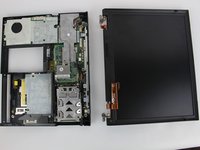
IBM ThinkPad 600E Display Replacement

O que você precisa

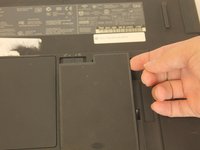
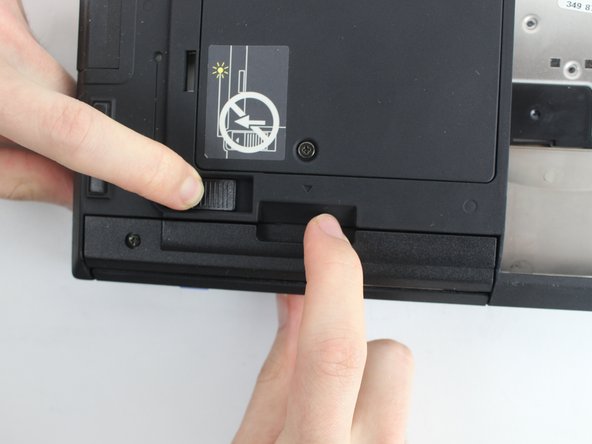
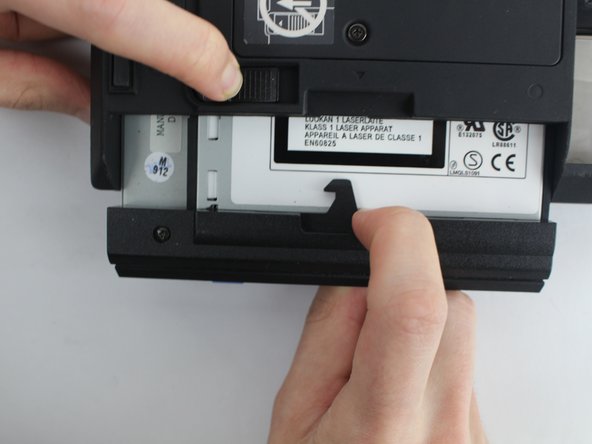
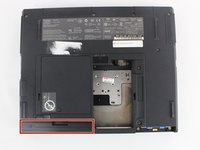
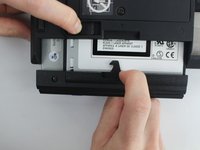
    1. IBM ThinkPad 600E Display Replacement, Battery: passo 1, imagem 1 %32 IBM ThinkPad 600E Display Replacement, Battery: passo 1, imagem 2 %32 IBM ThinkPad 600E Display Replacement, Battery: passo 1, imagem 3 %32
      • Flip the laptop over and find the battery latch.

      Pergunte ao FixBot

      Comentar

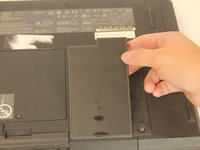
    2. IBM ThinkPad 600E Display Replacement: passo 2, imagem 1 %32
      • Move the latch to the side with the unlocked symbol.

      Pergunte ao FixBot

      Comentar

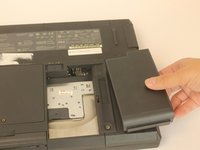
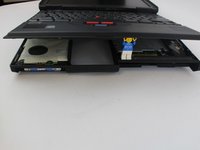
    3. IBM ThinkPad 600E Display Replacement: passo 3, imagem 1 %32 IBM ThinkPad 600E Display Replacement: passo 3, imagem 2 %32 IBM ThinkPad 600E Display Replacement: passo 3, imagem 3 %32
      • Pry the battery out using your fingers.

      Pergunte ao FixBot
      Comentar

    1. IBM ThinkPad 600E Display Replacement, Keyboard: passo 4, imagem 1 %32 IBM ThinkPad 600E Display Replacement, Keyboard: passo 4, imagem 2 %32 IBM ThinkPad 600E Display Replacement, Keyboard: passo 4, imagem 3 %32
      Ferramenta utilizada neste passo:
      Anti-Static Wrist Strap
      $7.95
      • Use an antistatic wrist strap to avoid the risk of electric shock.

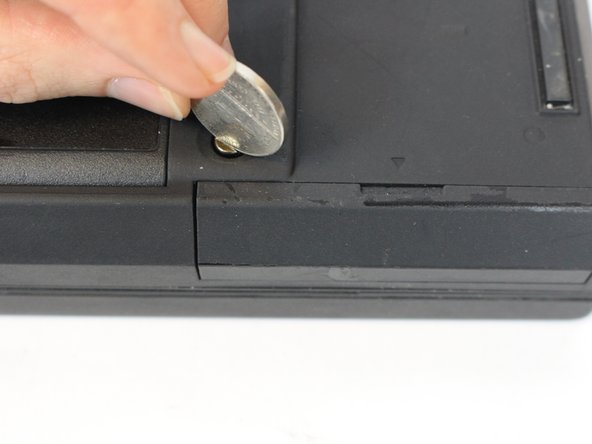
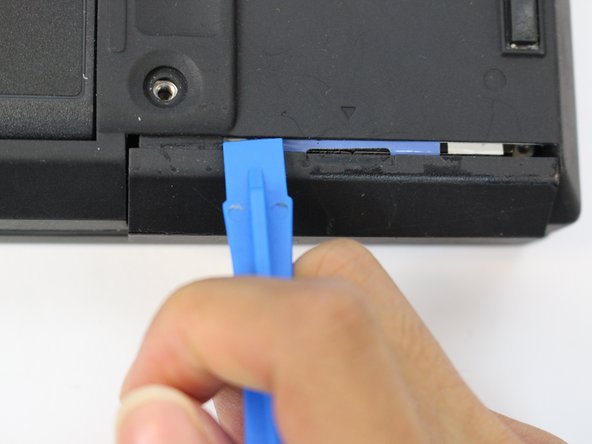
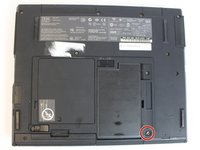
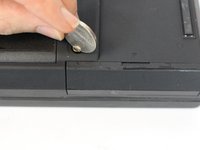
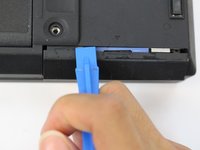
      • Unscrew the coin screw for the hard drive using a coin. Pry off the HDD cover.

      • It is easier to remove the coin screw using a thicker coin, such as a nickel.

      Pergunte ao FixBot
      Comentar

    2. IBM ThinkPad 600E Display Replacement: passo 5, imagem 1 %32 IBM ThinkPad 600E Display Replacement: passo 5, imagem 2 %32 IBM ThinkPad 600E Display Replacement: passo 5, imagem 3 %32
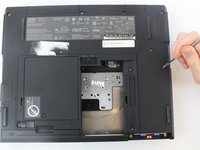
      • Unlock the highlighted latch and pull the disk drive out.

      • Remove the disk drive.

      Pergunte ao FixBot
      Comentar

    3. IBM ThinkPad 600E Display Replacement: passo 6, imagem 1 %32 IBM ThinkPad 600E Display Replacement: passo 6, imagem 2 %32 IBM ThinkPad 600E Display Replacement: passo 6, imagem 3 %32
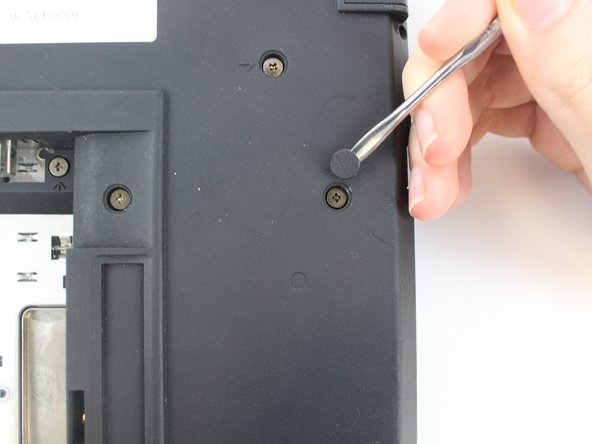
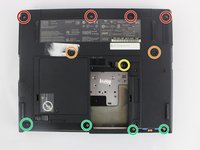
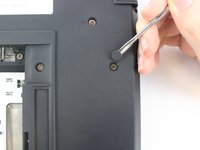
      • Most of the screws have a small, plastic covering attached with an adhesive. Use the metal spudger to pry it off. Make sure to note which screw came from which hole.

      • Four 18mm long M2.5 screws

      • Two 16mm long M2.5 screws

      • One 4.5mm long M2.5 screws

      • Four 3mm long M2.5 screws

      Pergunte ao FixBot
      Comentar

    4. IBM ThinkPad 600E Display Replacement: passo 7, imagem 1 %32 IBM ThinkPad 600E Display Replacement: passo 7, imagem 2 %32
      • Open the laptop all the way until it is flat.

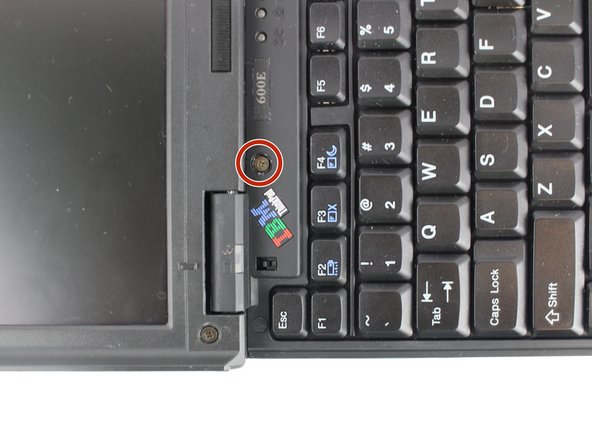
      • Take the black circle off and remove the screw.

      • One 4.5mm long M2.5 screw

      Pergunte ao FixBot

      Comentar

    5. IBM ThinkPad 600E Display Replacement: passo 8, imagem 1 %32 IBM ThinkPad 600E Display Replacement: passo 8, imagem 2 %32 IBM ThinkPad 600E Display Replacement: passo 8, imagem 3 %32
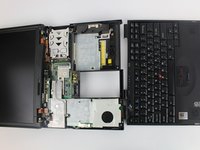
      • Pry the keyboard case up from the bottom and gently pry it up from all other edges.

      • Use caution when opening the case, as there are two ribbon cables attached to the keyboard case.

      Pergunte ao FixBot
      Comentar

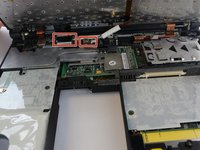
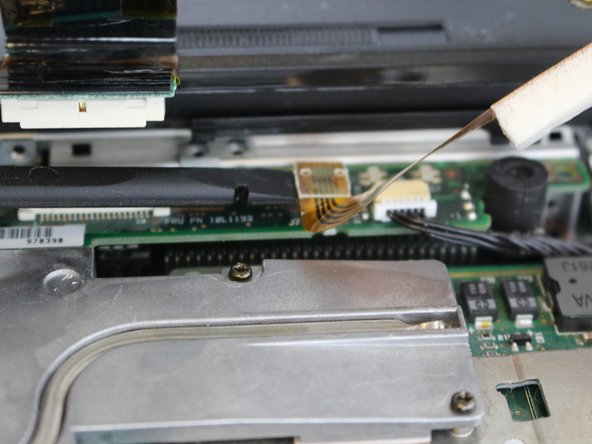
    6. IBM ThinkPad 600E Display Replacement: passo 9, imagem 1 %32 IBM ThinkPad 600E Display Replacement: passo 9, imagem 2 %32 IBM ThinkPad 600E Display Replacement: passo 9, imagem 3 %32
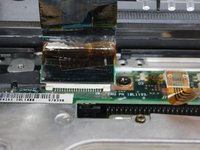
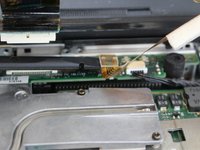
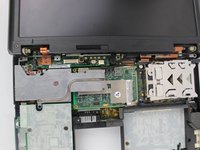
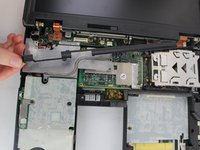
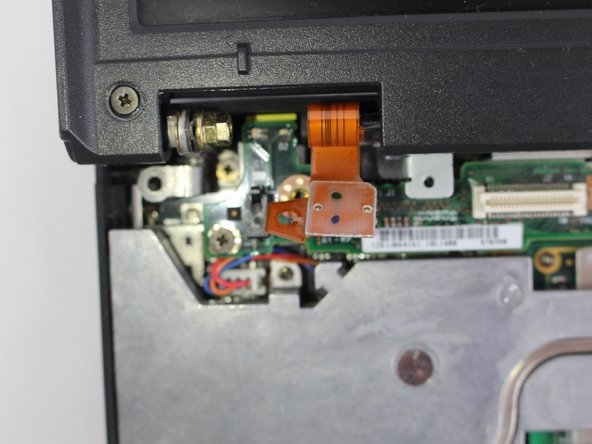
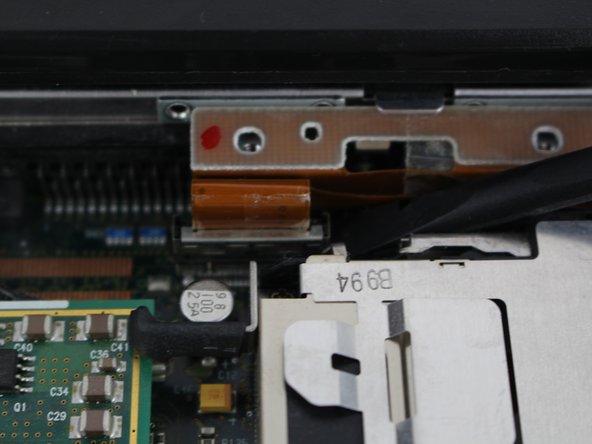
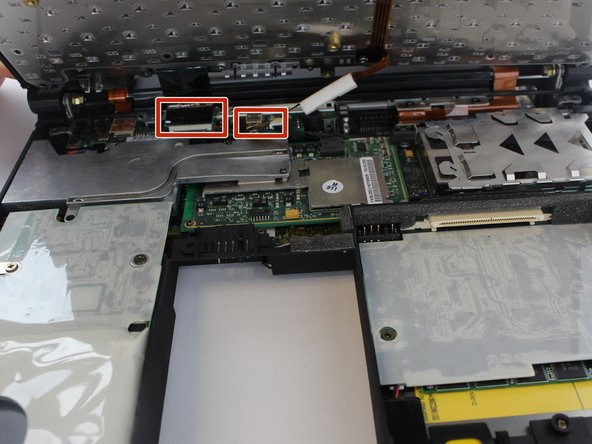
      • Pry the connectors of the ribbon cables off slowly, lifting straight up. Wiggle gently side to side if necessary.

      Pergunte ao FixBot
      Comentar

    1. IBM ThinkPad 600E Display Replacement, Display: passo 10, imagem 1 %32 IBM ThinkPad 600E Display Replacement, Display: passo 10, imagem 2 %32
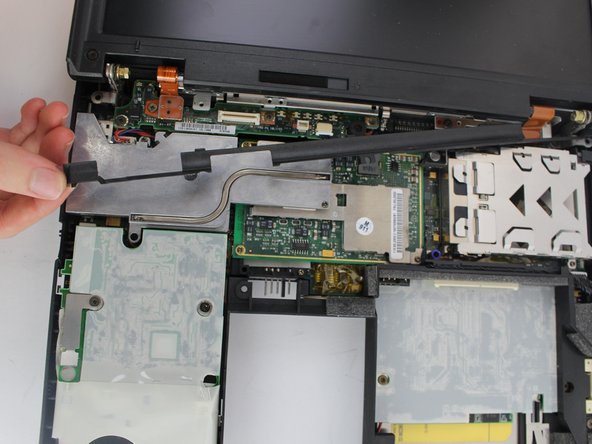
      • Remove the plastic part attached to the bottom of the screen.

      • Gently pull it from one side and then from another.

      Pergunte ao FixBot
      Comentar

    2. IBM ThinkPad 600E Display Replacement: passo 11, imagem 1 %32
      • Remove the highlighted screws.

      • Five 4.8mm long M2.5 screws

      Pergunte ao FixBot

      Comentar

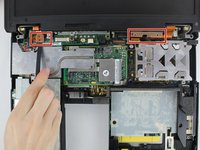
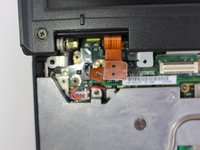
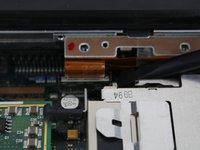
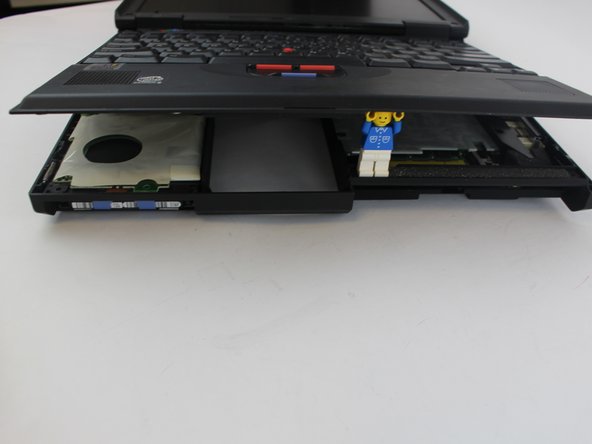
    3. IBM ThinkPad 600E Display Replacement: passo 12, imagem 1 %32 IBM ThinkPad 600E Display Replacement: passo 12, imagem 2 %32 IBM ThinkPad 600E Display Replacement: passo 12, imagem 3 %32
      • Pry the connectors of the ribbon cables off slowly, lifting straight up. Wiggle gently side to side if necessary.

      Pergunte ao FixBot
      Comentar

    4. IBM ThinkPad 600E Display Replacement: passo 13, imagem 1 %32
      • Close the laptop and turn it around. There you will see 4 more screws.

      • Unscrew highlighted screws.

      • Four 4.8mm long M2.5 screws

      Pergunte ao FixBot
      Comentar

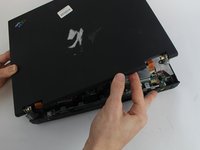
    5. IBM ThinkPad 600E Display Replacement: passo 14, imagem 1 %32 IBM ThinkPad 600E Display Replacement: passo 14, imagem 2 %32
      • After you've removed the screws, open the laptop and gently pull the display out.

      • Be sure you hold it from the bottom edges while taking it out.

      Pergunte ao FixBot
      Comentar

Conclusão

To reassemble your device, follow these instructions in reverse order.

Cancelar: não concluí este guia.

Uma outra pessoa concluiu este guia.

Kevin Nguyen

Membro desde: 10/04/16

737 Reputação

Autoria de 4 guias

Equipe

USF Tampa, Team 1-4, Nance Fall 2016 Membro de USF Tampa, Team 1-4, Nance Fall 2016

USFT-NANCE-F16S1G4

4 Membros

Autoria de 59 guias

0Comentários do guia

Comentar

Visualizações:

Últimas 24 horas: 2

Últimos 7 dias: 17

Últimos 30 dias: 52

Ao todo: 2,216