Ir para o conteúdo principal
Participe da comunidade de reparos - Criar conta

Substituição da bateria para o Huawei P8

O que você precisa

  1. Substituição da bateria para o Huawei P8, Substituição da bateria do Huawei P8: passo 1, imagem 1 %32 Substituição da bateria para o Huawei P8, Substituição da bateria do Huawei P8: passo 1, imagem 2 %32
    • Primeiramente, desligue o seu smartphone.

    • Remova as bandejas do cartão SD e do SIM.

  2. Substituição da bateria para o Huawei P8: passo 2, imagem 1 %32
    • Remova os dois parafusos Torx T2 localizados na parte inferior, ao lado da porta Micro USB do dispositivo.

    • Se a tela estiver quebrada, você pode usar uma fita para proteger seus olhos dos estilhaços de vidro e obter uma melhor aderência para abrir o smartphone.

  3. Substituição da bateria para o Huawei P8: passo 3, imagem 1 %32 Substituição da bateria para o Huawei P8: passo 3, imagem 2 %32
    • Utilize um iSclack ou um punho de sucção para separar a unidade de display e o painel traseiro.

  4. Substituição da bateria para o Huawei P8: passo 4, imagem 1 %32
    • Remova os dois parafusos Phillips tamanho 00 que fixam os suportes do cabo conector da câmera frontal e do display/bateria

  5. Substituição da bateria para o Huawei P8: passo 5, imagem 1 %32 Substituição da bateria para o Huawei P8: passo 5, imagem 2 %32 Substituição da bateria para o Huawei P8: passo 5, imagem 3 %32
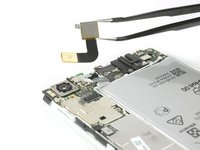
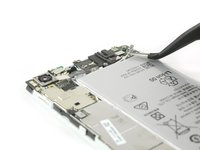
    • Use uma pinça para remover o suporte que cobre o cabo conector flex do display e da bateria.

    • Desplugue o cabo conector flex da bateria com uma espátula.

    • Remova o suporte que cobre o cabo conector flex da câmera frontal.

  6. Substituição da bateria para o Huawei P8: passo 6, imagem 1 %32 Substituição da bateria para o Huawei P8: passo 6, imagem 2 %32 Substituição da bateria para o Huawei P8: passo 6, imagem 3 %32
    • Desplugue os cabos conectores flex do conector do fone de ouvido e da câmera frontal.

    • Remova a câmera frontal.

  7. Substituição da bateria para o Huawei P8: passo 7, imagem 1 %32 Substituição da bateria para o Huawei P8: passo 7, imagem 2 %32
    • Use uma espátula para desconectar o cabo power/volume e afaste-o, virando-o de forma que ele não fique no caminho.

    • Remova o indicador de contato com água.

  8. Substituição da bateria para o Huawei P8: passo 8, imagem 1 %32
    • Remova os cinco parafusos Phillips tipo #00 que fixam a placa-mãe de seu Huawei P8.

  9. Substituição da bateria para o Huawei P8: passo 9, imagem 1 %32 Substituição da bateria para o Huawei P8: passo 9, imagem 2 %32
    • Desplugue o conector flex do motor de vibração.

    • Desconecte o cabo da antena.

  10. Substituição da bateria para o Huawei P8: passo 10, imagem 1 %32 Substituição da bateria para o Huawei P8: passo 10, imagem 2 %32 Substituição da bateria para o Huawei P8: passo 10, imagem 3 %32
    • Desplugue o cabo conector flex do display da placa-mãe com uma espátula.

    • Desconecte e remova o cabo da antena com uma pinça.

  11. Substituição da bateria para o Huawei P8: passo 11, imagem 1 %32
    • Remova a placa-mãe do smartphone.

  12. Substituição da bateria para o Huawei P8: passo 12, imagem 1 %32 Substituição da bateria para o Huawei P8: passo 12, imagem 2 %32
    • Vire cuidadosamente o cabo flex de seu alto-falante para cima.

    • Se estiver difícil de destacá-lo, aqueça o conjunto do fone de ouvido com uma bolsa térmica de gel iOpener ou uma pistola de ar quente.

    • Levante o conjunto do alto-falante com uma espátula e remova-o.

  13. Substituição da bateria para o Huawei P8: passo 13, imagem 1 %32 Substituição da bateria para o Huawei P8: passo 13, imagem 2 %32
    • Libere a extremidade da primeira aba de puxar do adesivo, de forma a obter uma boa aderência para puxá-la.

    • Para liberar a bateria, puxe a aba do adesivo com um movimento constante e lento.

  14. Substituição da bateria para o Huawei P8: passo 14, imagem 1 %32 Substituição da bateria para o Huawei P8: passo 14, imagem 2 %32
    • Libere a ponta da segunda aba do adesivo.

    • Puxe a aba do adesivo, com um movimento constante e lento.

    • Se as abas por acaso rasgarem, use uma bolsa térmica de gel iOpener para aquecê-las e amolecê-las um pouco, de forma que você possa destacar a bateria com uma espátula.

  15. Substituição da bateria para o Huawei P8: passo 15, imagem 1 %32 Substituição da bateria para o Huawei P8: passo 15, imagem 2 %32
    Ferramenta utilizada neste passo:
    Tesa 61395 Tape
    $5.99
Conclusão

Para montar novamente seu dispositivo, siga as instruções na ordem inversa.

18 outras pessoas executaram este guia.

Um agradecimento especial a esses tradutores:

en pt

100%

Udo Baingo está nos ajudando a consertar o mundo! Quer contribuir?
Comece a traduzir ›

Dominik Schnabelrauch

Membro desde: 11/23/16

248.568 Reputação

Autoria de 682 guias

Equipe

iFixit EU Team Membro de iFixit EU Team

Staff

37 Membros

Autoria de 1.205 guias

9Comentários do guia

Really helpful guide. Only hiccup was that on my handset the screws holding the casing together (Step 2) were Torx 2 rather than pentalobe, possibly a regional variation. I opted not to remove the loudspeaker (Step 10) as the ribbon cable was firmly stuck down and I worried it would break. This meant I could only cleanly remove the adhesive pad in line with the charging port. I was able to prise out the battery using spudger and screwdriver to scrape the other pad from the phone body. All now reassembled and working properly!

Ben Raphael - Responder

Overall a very helpful guide . I also had torx screws in mine . The torx screws are tiny , so make sure you have the right screwdriver before starting . We didn’t bother removing the loudspeader assembly either (Step 10) . You can just prise up the ribbon cable (carefully) . Add heat if necessary . Now to the biggest problem . Removing the old battery from the phone . What a nightmare ! It’s really stuck down .We took our time using a hairdryer (no heat gun) , and a flat head screwdriver , and went from one end to the other prising it off gently . It still took about 20 minutes . Saying that . Don’t rush it , as it’s the final stage . Also . If you do use a flat head screwdriver then don’t twist it , as you might damage the casing . Just slide it underneath it applying heat . Total time to remove the old battery was 90 minutes , but about 50 of those were spent just getting the first 2 screws out . 20 minutes to put the new battery in and reassemble . Make sure all flex connectors are properly reseated .

Paul - Responder

My P8 battery has completely died on me. I cannot believe that to replace a battery, we have to now go to these lengths to do it. There must be a mountain of mobile phones, where the only issue with them is a flat battery. Surely, this cannot be allowed to continue. I know why the manufacturers want to make it hard to simply replace a battery, because it sells more mobile phones. But think of all that wasted technology, where a phone may have lasted just over a 24 month contract before the battery is done.

joeninetee - Responder

Many thanks for this tutorial. Together we shall beat them!

joeninetee - Responder

Thank you for a very nice and easy to follow tutorial!

I have now replaced my battery with what should be an original battery for the Huawei Ascend P8, battery nr: HB3447A9EBW. For some reason the width of the new battery is a few millimeters smaller than the old one, meaning that it does not fill out the space completely. Has anyone else experienced the same?

After having assembled the phone again I experience some weird issues with the battery level dropping from 50%, 60%, 70% or even 100% in an instant. I have tried calibrating the battery by, letting it die completely, recharge it to 100% let it drain completely again and recharge. I have tried different battery calibration apps and a factory reset - nothing helps.

I contacted the company I bought the battery from and got a replacement - still same issue.

Unfortunately i damaged the original battery when taking it out, so i cant use that as a reference.

Any suggestions would be most appreciated!

Kris - Responder

Comentar

Visualizações:

Últimas 24 horas: 8

Últimos 7 dias: 30

Últimos 30 dias: 116

Ao todo: 40,817