Ir para o conteúdo principal
Participe da comunidade de reparos - Criar conta

HTC Wizard 100 Screen Replacement

O que você precisa

  1. HTC Wizard 100 Screen Replacement, Battery: passo 1, imagem 1 %32 HTC Wizard 100 Screen Replacement, Battery: passo 1, imagem 2 %32
    • Power the phone off.

    • Use your thumb to gently press downward and away from the camera to remove the battery cover.

    Pergunte ao FixBot

    Comentar

  2. HTC Wizard 100 Screen Replacement: passo 2, imagem 1 %32 HTC Wizard 100 Screen Replacement: passo 2, imagem 2 %32
    • Pull on the plastic tab to release the battery.

    Pergunte ao FixBot

    Comentar

  3. HTC Wizard 100 Screen Replacement, Back Case: passo 3, imagem 1 %32 HTC Wizard 100 Screen Replacement, Back Case: passo 3, imagem 2 %32
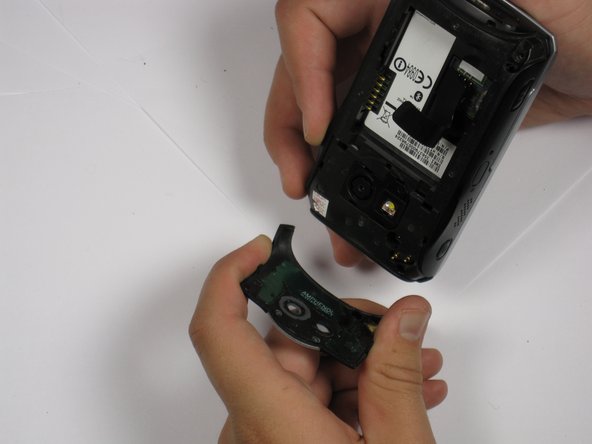
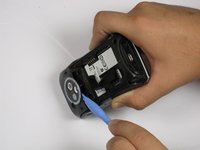
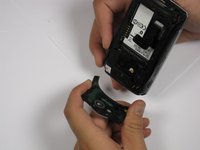
    • Use a plastic opening tool to remove the camera cover.

    • Work around the corners to avoid breaking the plastic clips that hold the camera cover on.

    • Lift the camera cover off of the phone.

    Pergunte ao FixBot

    Comentar

  4. HTC Wizard 100 Screen Replacement: passo 4, imagem 1 %32
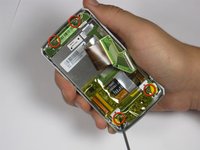
    • Remove the stylus from the phone.

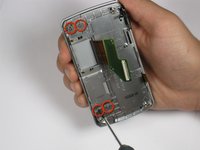
    • Remove the four 5.5 mm screws with the T6 Torx Screwdriver.

    • One of the screws might be under a sticker, which will void your warranty.

    Pergunte ao FixBot

    Comentar

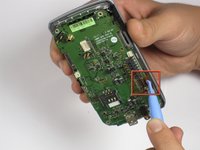
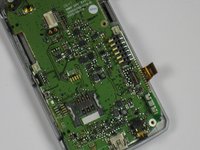
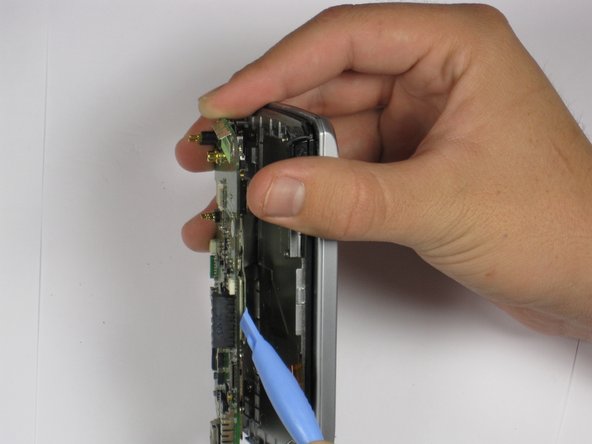
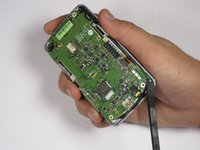
  5. HTC Wizard 100 Screen Replacement: passo 5, imagem 1 %32 HTC Wizard 100 Screen Replacement: passo 5, imagem 2 %32 HTC Wizard 100 Screen Replacement: passo 5, imagem 3 %32
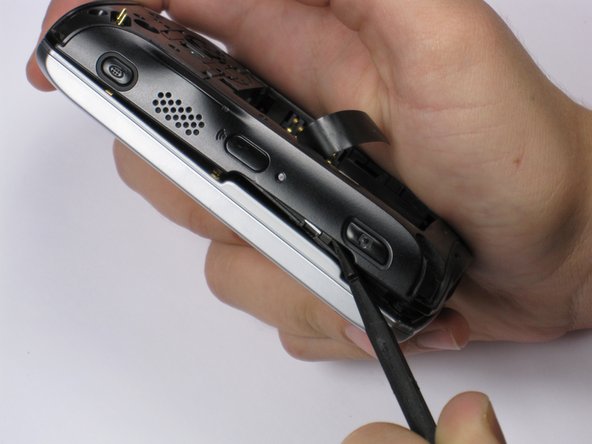
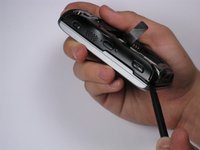
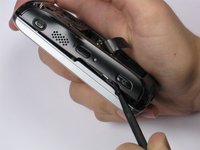
    • Be Careful! Do not insert the spudger in between the keyboard and screen. This could break the keyboard off the phone.

    • If your phone contains a memory card, you may want to remove it before proceeding with this step.

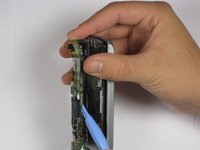
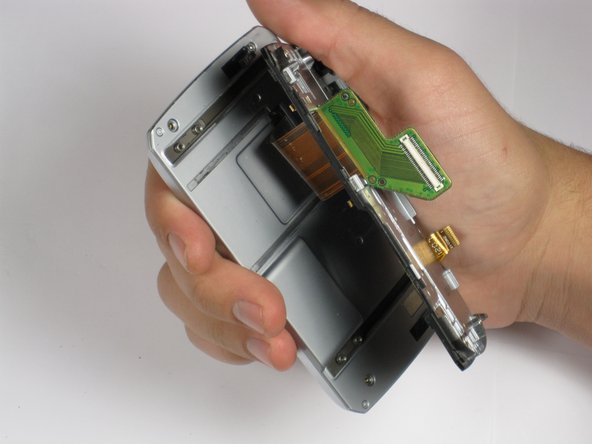
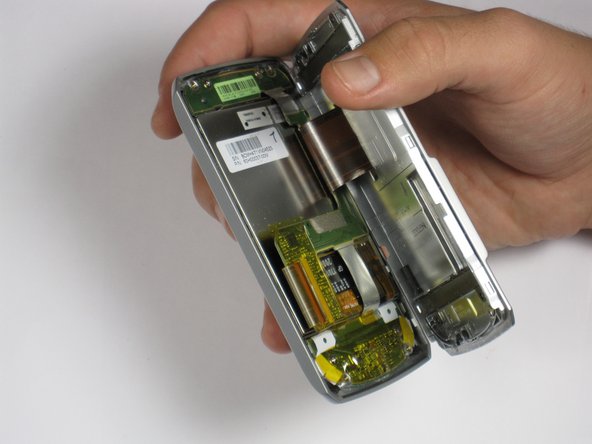
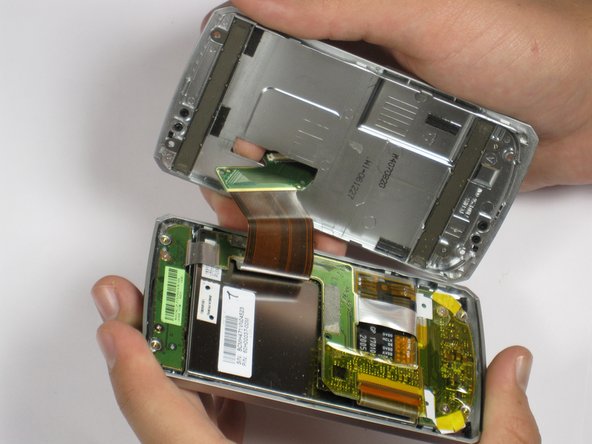
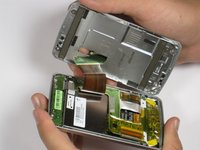
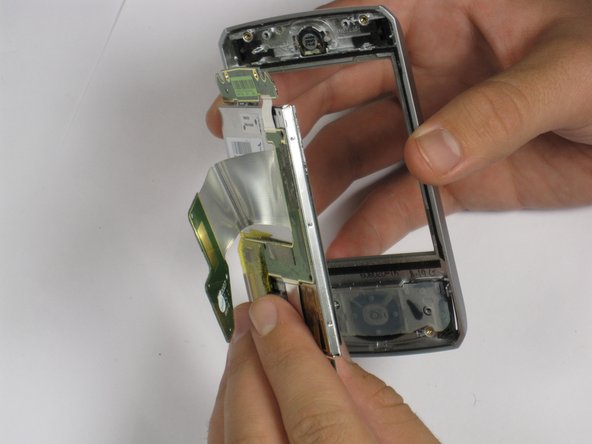
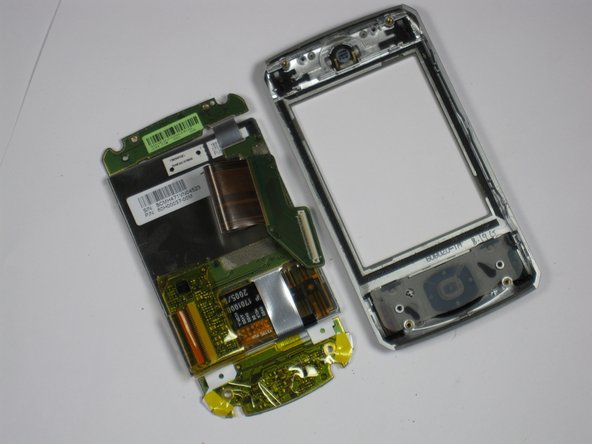
    • Insert spudger in the bottom corner as seen in the picture. Carefully slide the spudger from the bottom towards the top as seen in the second picture.

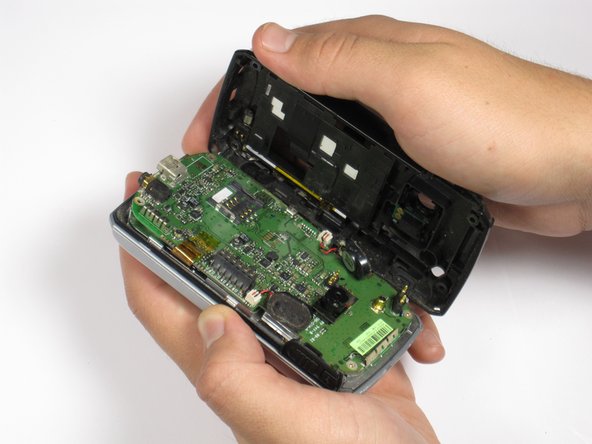
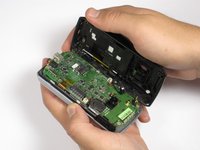
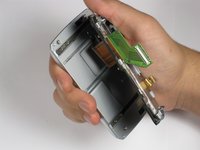
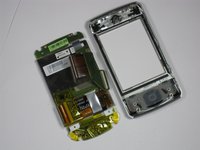
    • Lift the back case off completely.

    • The speakers might be dangling and unsecured.

    Pergunte ao FixBot

    Comentar

  6. HTC Wizard 100 Screen Replacement, Speakers: passo 6, imagem 1 %32 HTC Wizard 100 Screen Replacement, Speakers: passo 6, imagem 2 %32
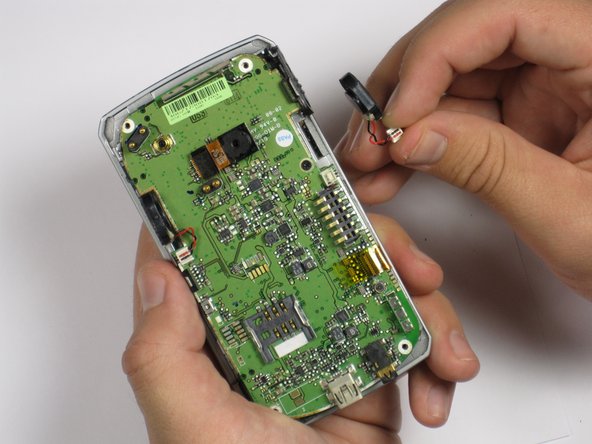
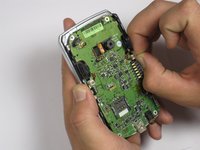
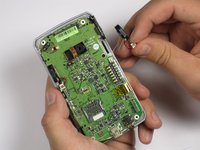
    • Grip the speaker connector with your thumb and finger and gently pull up.

    • Repeat for 2nd speaker.

    Pergunte ao FixBot

    Comentar

  7. HTC Wizard 100 Screen Replacement, Camera: passo 7, imagem 1 %32
    • Locate the camera and pry off with the plastic opening tool or spudger.

    Pergunte ao FixBot

    Comentar

  8. HTC Wizard 100 Screen Replacement, Motherboard: passo 8, imagem 1 %32
    • Remove the 3.4 mm black screw with the Phillips #000 screwdriver.

    Pergunte ao FixBot

    Comentar

  9. HTC Wizard 100 Screen Replacement: passo 9, imagem 1 %32 HTC Wizard 100 Screen Replacement: passo 9, imagem 2 %32
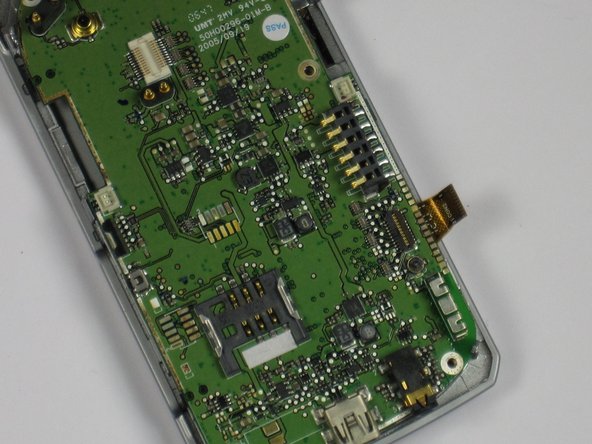
    • Remove the plastic tape to reveal the connector.

    • Use your finger or plastic opening tool to flip the connector and release the cable.

    Pergunte ao FixBot

    Comentar

  10. HTC Wizard 100 Screen Replacement: passo 10, imagem 1 %32 HTC Wizard 100 Screen Replacement: passo 10, imagem 2 %32
    • Use the plastic opening tool to carefully lift the motherboard off one corner at a time.

    • Lift the motherboard slowly away from the keyboard because there is a cable attached to bottom of the motherboard.

    • If the motherboard is not easily removed by pulling, then lift one side of the motherboard until you can see the attached cable. Then use the plastic opening tool to detach the cable from the motherboard.

    Pergunte ao FixBot

    Comentar

  11. HTC Wizard 100 Screen Replacement, Screen: passo 11, imagem 1 %32 HTC Wizard 100 Screen Replacement, Screen: passo 11, imagem 2 %32
    • Using the Phillips Screwdriver #000 remove the four 3.3 mm screws.

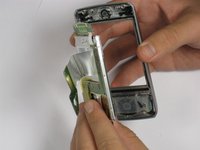
    • Carefully lift the keyboard from the plastic plate by allowing the ribbon cable to slip through the opening of the plastic plate.

    Pergunte ao FixBot

    Comentar

  12. HTC Wizard 100 Screen Replacement: passo 12, imagem 1 %32
    • Use the Phillips Screwdriver #000 to remove the four 3.8 mm screws from the back of the screen.

    Pergunte ao FixBot

    Comentar

  13. HTC Wizard 100 Screen Replacement: passo 13, imagem 1 %32 HTC Wizard 100 Screen Replacement: passo 13, imagem 2 %32 HTC Wizard 100 Screen Replacement: passo 13, imagem 3 %32
    • Insert the spudger between the panel and the case.

    • Gently pry off the panel by rotating or wiggling the spudger back and forth.

    • Lift the panel off while allowing the ribbon to slip through the opening.

    Pergunte ao FixBot

    Comentar

  14. HTC Wizard 100 Screen Replacement: passo 14, imagem 1 %32 HTC Wizard 100 Screen Replacement: passo 14, imagem 2 %32 HTC Wizard 100 Screen Replacement: passo 14, imagem 3 %32
    • Remove the four 2.9 mm screws with the Phillips Screwdriver #000.

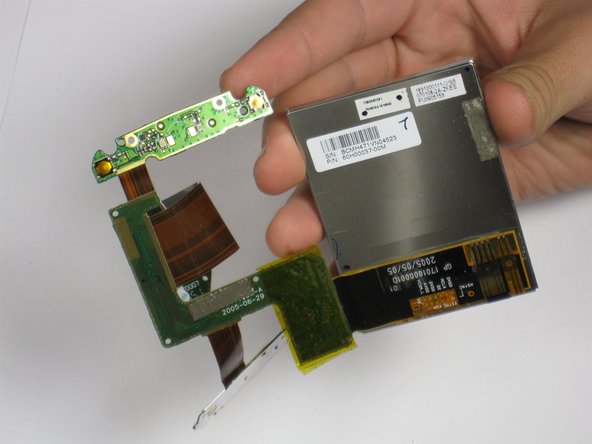
    • Use your fingers to separate the screen assembly from the front panel.

    Pergunte ao FixBot

    Comentar

  15. HTC Wizard 100 Screen Replacement: passo 15, imagem 1 %32 HTC Wizard 100 Screen Replacement: passo 15, imagem 2 %32
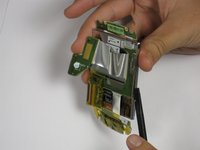
    • Insert the spudger between the green panel and the screen itself.

    • Gently wiggle the spudger to pry them apart.

    Pergunte ao FixBot

    Comentar

  16. HTC Wizard 100 Screen Replacement: passo 16, imagem 1 %32 HTC Wizard 100 Screen Replacement: passo 16, imagem 2 %32 HTC Wizard 100 Screen Replacement: passo 16, imagem 3 %32
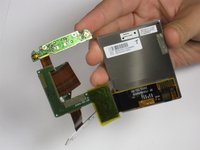
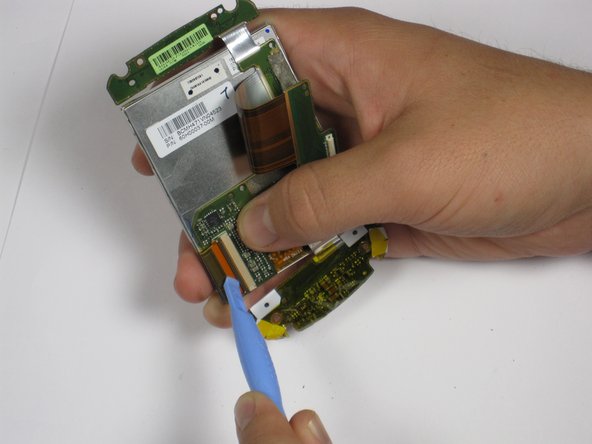
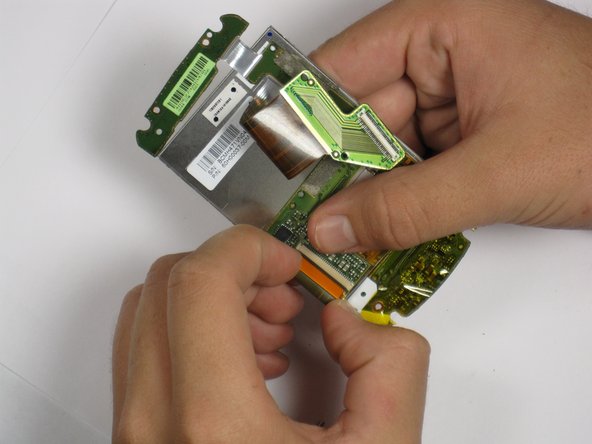
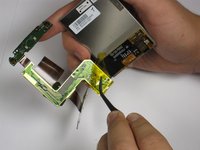
    • Remove the tape.

    • Locate the connecting ribbon.

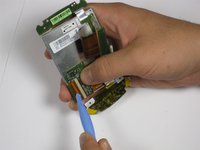
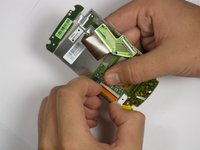
    • Using the spudger or your thumb and finger, flip the switch up and disconnect the ribbon.

    • Lift off the panel from the screen.

    Pergunte ao FixBot

    Comentar

Conclusão

To reassemble your device, follow these instructions in reverse order.

Cancelar: não concluí este guia.

Uma outra pessoa concluiu este guia.

Taylor Stone

Membro desde: 10/06/11

45 Reputação

Autoria de 2 guias

Equipe

Cal Poly, Team 20-28, Maness Fall 2011 Membro de Cal Poly, Team 20-28, Maness Fall 2011

CPSU-MANESS-F11S20G28

4 Membros

Autoria de 15 guias

0Comentários do guia

Comentar

Visualizações:

Últimas 24 horas: 2

Últimos 7 dias: 8

Últimos 30 dias: 60

Ao todo: 1,302