Ir para o conteúdo principal
Participe da comunidade de reparos - Criar conta

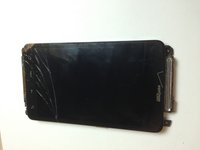
HTC Thunderbolt Power Button Replacement

O que você precisa

  1. HTC Thunderbolt Power Button Replacement, Rear Panel: passo 1, imagem 1 %32
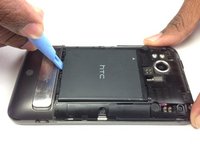
    • Insert the plastic opening tool into the top of the Thunderbolt near the power button.

    • Gently pry up on the rear panel around the edges until it is loose.

    Pergunte ao FixBot

    Comentar

  2. HTC Thunderbolt Power Button Replacement: passo 2, imagem 1 %32
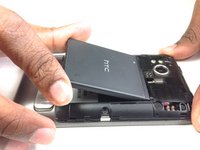
    • Lift and remove the rear panel.

    Pergunte ao FixBot

    Comentar

  3. HTC Thunderbolt Power Button Replacement, Battery: passo 3, imagem 1 %32 HTC Thunderbolt Power Button Replacement, Battery: passo 3, imagem 2 %32
    • Using the plastic opening tool, lift up the battery from the bottom near the kickstand.

    • Remove the battery from the inner frame.

    Pergunte ao FixBot

    Comentar

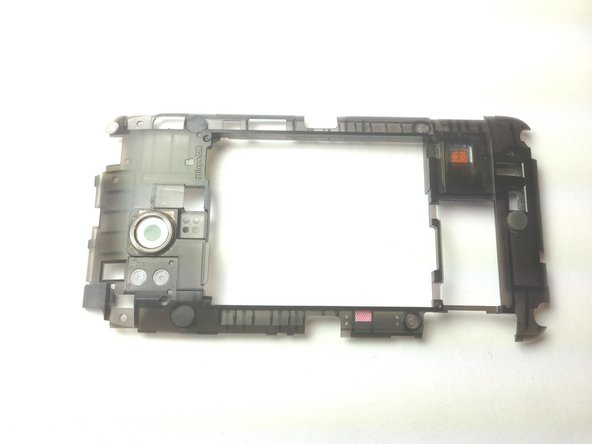
  4. HTC Thunderbolt Power Button Replacement, Rear Frame: passo 4, imagem 1 %32
    • Remove the six Phillips screws from the perimeter of the rear frame.

    • By removing the screw with the "void" sticker on it, your Thunderbolt will no longer be covered under warranty.

    Pergunte ao FixBot

    Comentar

  5. HTC Thunderbolt Power Button Replacement: passo 5, imagem 1 %32 HTC Thunderbolt Power Button Replacement: passo 5, imagem 2 %32
    • Insert the plastic opening tool into the bottom of the phone underneath the soft keys.

    • Gently pry up on the plastic cover by sliding the plastic opening tool across the bottom of the phone.

    • Remove the plastic cover.

    • The plastic cover will have adhesive on it making it difficult to remove.

    Pergunte ao FixBot

    Comentar

  6. HTC Thunderbolt Power Button Replacement: passo 6, imagem 1 %32
    • Remove the two Phillips screws where the plastic cover was.

    Pergunte ao FixBot

    Comentar

  7. HTC Thunderbolt Power Button Replacement: passo 7, imagem 1 %32 HTC Thunderbolt Power Button Replacement: passo 7, imagem 2 %32
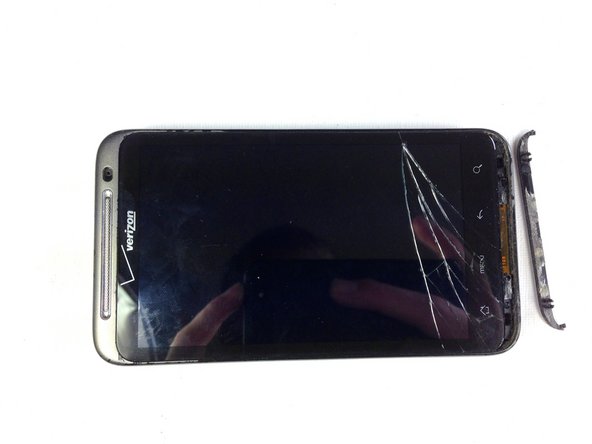
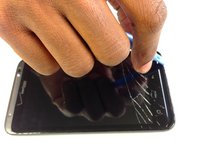
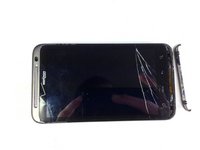
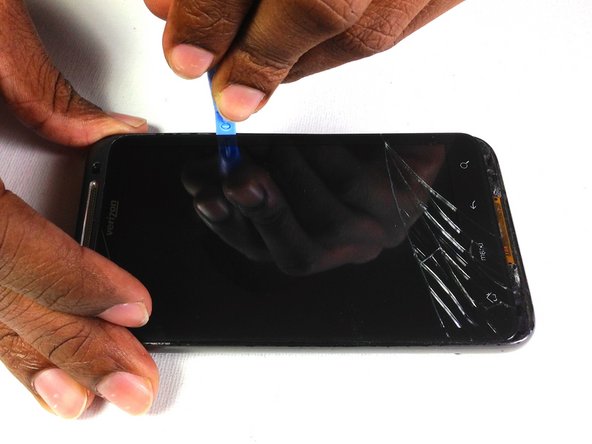
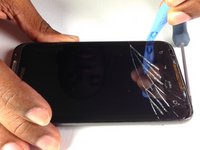
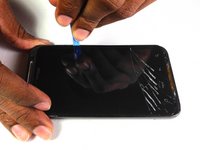
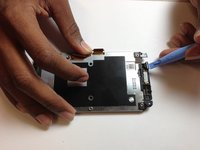
    • Insert the plastic opening tool in between the screen and the frame on the side of the phone.

    • Slowly slide the the plastic opening tool along the side of the phone until the screen begins to separate from the frame.

    • Do the same for the opposite side of the phone.

    Pergunte ao FixBot

    Comentar

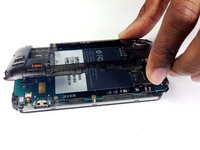
  8. HTC Thunderbolt Power Button Replacement: passo 8, imagem 1 %32 HTC Thunderbolt Power Button Replacement: passo 8, imagem 2 %32 HTC Thunderbolt Power Button Replacement: passo 8, imagem 3 %32
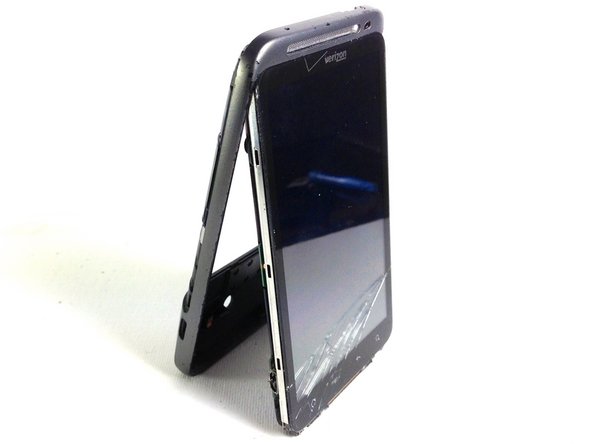
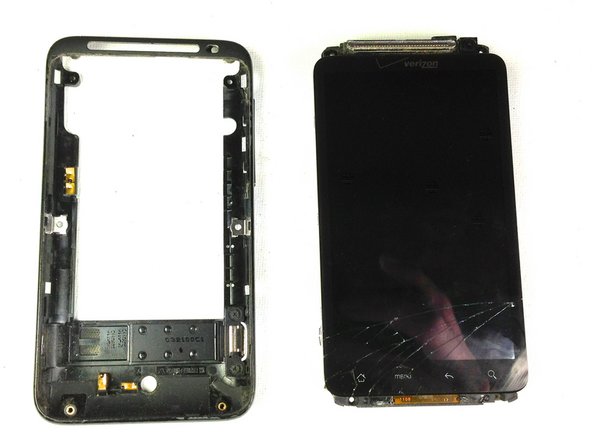
    • Carefully separate the screen and phone from the rear frame, starting from the bottom.

    • Gently pull down on the phone and screen to fully separate it from the rear frame.

    Pergunte ao FixBot

    Comentar

  9. HTC Thunderbolt Power Button Replacement, Rear Inner Frame: passo 9, imagem 1 %32
    • Remove the two Phillips screws securing rear inner frame to device.

    Pergunte ao FixBot

    Comentar

  10. HTC Thunderbolt Power Button Replacement: passo 10, imagem 1 %32
    • Insert the plastic opening tool between the rear inner frame and the motherboard and slowly work your way around the device.

    Pergunte ao FixBot

    Comentar

  11. HTC Thunderbolt Power Button Replacement: passo 11, imagem 1 %32 HTC Thunderbolt Power Button Replacement: passo 11, imagem 2 %32
    • Remove the rear inner frame from the rest of the device.

    Pergunte ao FixBot

    Comentar

  12. HTC Thunderbolt Power Button Replacement, LCD/Screen: passo 12, imagem 1 %32 HTC Thunderbolt Power Button Replacement, LCD/Screen: passo 12, imagem 2 %32
    Ferramenta utilizada neste passo:
    Tweezers
    $4.99
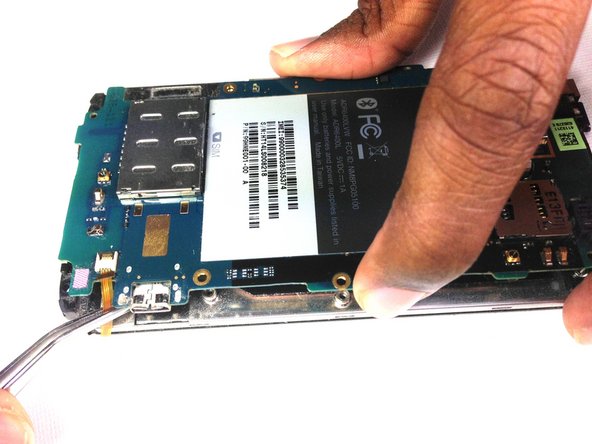
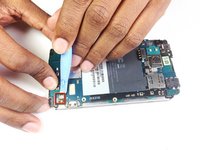
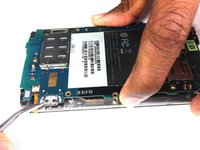
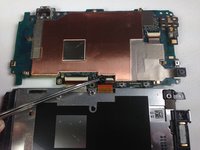
    • Using the tip of an plastic opening tool flip up the tab holding the capacitive button ribbon cable.

    • Be careful opening these tabs as they are very easy to break.

    • Use a pair of tweezers to pull the capacitive button cable out of its socket.

    Pergunte ao FixBot

    Comentar

  13. HTC Thunderbolt Power Button Replacement: passo 13, imagem 1 %32 HTC Thunderbolt Power Button Replacement: passo 13, imagem 2 %32
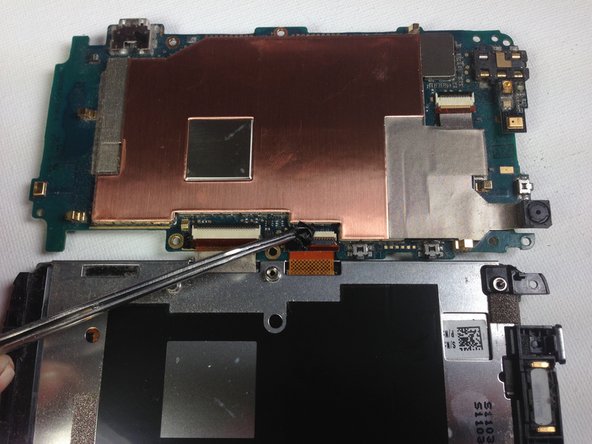
    • Lifting from the side where the ribbon was disconnected, flip over the motherboard.

    • Remove the black tape covering the tabs connecting the motherboard and LCD.

    Pergunte ao FixBot

    Comentar

  14. HTC Thunderbolt Power Button Replacement: passo 14, imagem 1 %32
    • Using the plastic opening tool pop up the two tabs connecting the LCD and motherboard.

    Pergunte ao FixBot

    Comentar

  15. HTC Thunderbolt Power Button Replacement: passo 15, imagem 1 %32 HTC Thunderbolt Power Button Replacement: passo 15, imagem 2 %32
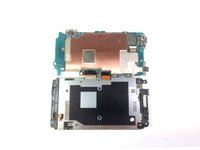
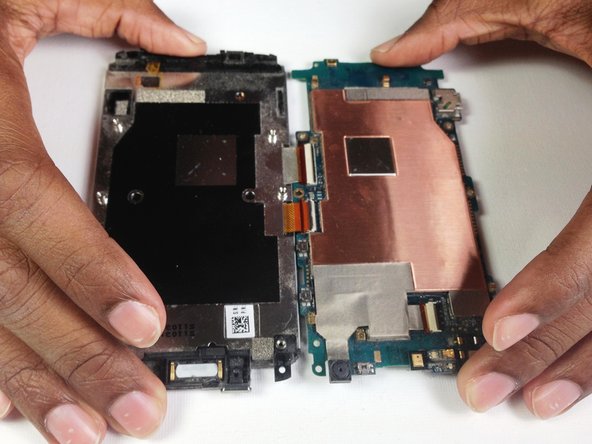
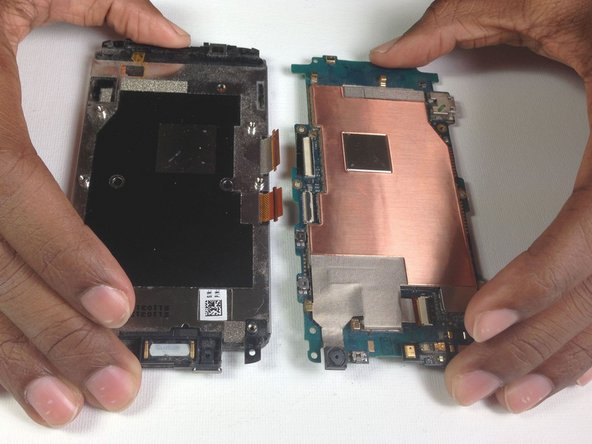
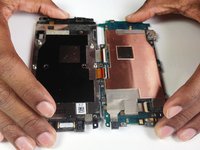
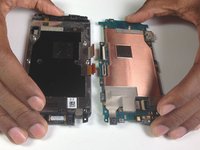
    • Once the tabs have been popped up, slowly pull the two pieces away from each other.

    • If there is resistance pulling apart the phone then a ribbon or tab has not been disconnected properly/completely.

    Pergunte ao FixBot

    Comentar

  16. HTC Thunderbolt Power Button Replacement, Power Button: passo 16, imagem 1 %32 HTC Thunderbolt Power Button Replacement, Power Button: passo 16, imagem 2 %32 HTC Thunderbolt Power Button Replacement, Power Button: passo 16, imagem 3 %32
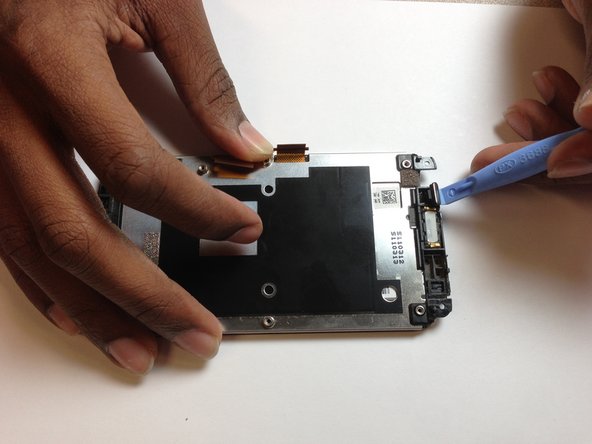
    • Flip the LCD over so that it is facing downward.

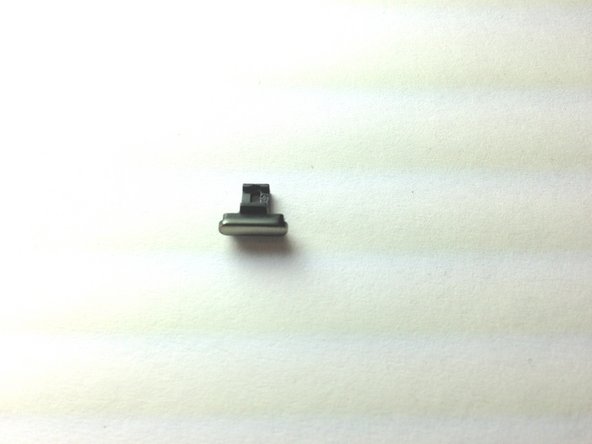
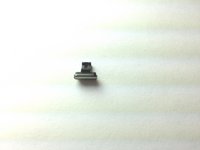
    • Pry out the power button with a plastic opening tool.

    • You have now removed the power button.

    Pergunte ao FixBot

    Comentar

Conclusão

To reassemble your device, follow these instructions in reverse order.

Cancelar: não concluí este guia.

Equipe

Cal Poly, Team 19-45, Regan Winter 2013 Membro de Cal Poly, Team 19-45, Regan Winter 2013

CPSU-REGAN-W13S19G45

4 Membros

Autoria de 24 guias

0Comentários do guia

Comentar

Visualizações:

Últimas 24 horas: 1

Últimos 7 dias: 7

Últimos 30 dias: 36

Ao todo: 3,327