Ir para o conteúdo principal
Participe da comunidade de reparos - Criar conta

HP Stream 11-d010nr Keyboard Replacement

O que você precisa

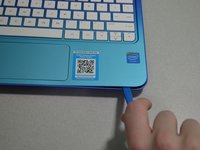
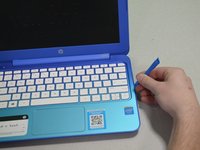
  1. HP Stream 11-d010nr Keyboard Replacement, Pry out the inserts: passo 1, imagem 1 %32 HP Stream 11-d010nr Keyboard Replacement, Pry out the inserts: passo 1, imagem 2 %32
    • Unplug and turn off the HP Stream 11 before disassembling the device.

    • Using a spudger, gently pry off the two elliptical rubber inserts located in the top corners.

    • Carefully remove the two circular rubber inserts positioned beneath the removed elliptical inserts.

  2. HP Stream 11-d010nr Keyboard Replacement, Unscrew the back cover: passo 2, imagem 1 %32
    • Using a Phillips #1 screwdriver, remove the eleven 5.6 mm screws securing the back cover.

    • Keep the screws in a safe place for reassembly.

  3. HP Stream 11-d010nr Keyboard Replacement, Pry the keyboard casing up: passo 3, imagem 1 %32 HP Stream 11-d010nr Keyboard Replacement, Pry the keyboard casing up: passo 3, imagem 2 %32
    • Using an iFixit opening tool, carefully pry open the case to separate the keyboard from the main body. Work slowly to avoid damaging the edges.

    • HP Stream 11s tend to be really difficult to open. If your device is not opening with a standard iFixit opening tool, use a nylon spudger, then the metal spudger, or a metal Jimmy as the last resort.

    • When using the metal spudger or Jimmy, be careful not to bring these tools into contact with any electronic components of the device as this can damage the device.

  4. HP Stream 11-d010nr Keyboard Replacement, Identify the connectors: passo 4, imagem 1 %32
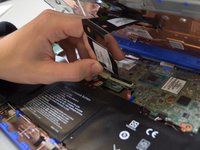
    • Carefully lift the keyboard and identify the three ribbon cables connecting the main body of the laptop to the keyboard.

    • Lift the keyboard with extreme care to avoid damaging the delicate ribbon cables. Applying excessive force can easily tear or break them easily.

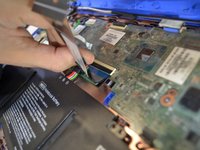
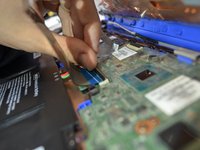
  5. HP Stream 11-d010nr Keyboard Replacement, Disconnect the cables: passo 5, imagem 1 %32 HP Stream 11-d010nr Keyboard Replacement, Disconnect the cables: passo 5, imagem 2 %32 HP Stream 11-d010nr Keyboard Replacement, Disconnect the cables: passo 5, imagem 3 %32
    • Using a spudger, gently lift the flaps on the ZIF connectors to release the three ribbon cables securely attached to them.

    • Carefully disconnect the three ribbon cables.

  6. HP Stream 11-d010nr Keyboard Replacement, Lift the keyboard out: passo 6, imagem 1 %32
    • Gently lift the keyboard out of the laptop to fully detach it from the device.

    • While handling, avoid damaging any remaining components.

Conclusão

To reassemble your device, follow these instructions in reverse order.

Uma outra pessoa concluiu este guia.

Josh Corrigan

Membro desde: 01/24/19

347 Reputação

Autoria de 2 guias

Equipe

Cal Poly, Team S1-G3, White Winter 2019 Membro de Cal Poly, Team S1-G3, White Winter 2019

CPSU-WHITE-W19S1G3

4 Membros

Autoria de 11 guias

3Comentários do guia

I feel like the 5-10 minutes estimated time is way too short for this repair (however, I have not done this, and may be wrong).

Constantin Legras - Responder Share

There will definitely be variation depending on each individual but our group came to the conclusion that this was a reasonable time frame. I appreciate the feedback though and if anyone else reaches out saying it is too short I will increase the estimated time. Thank you!

Josh Corrigan - Share

Hola. La tecla CTRL de mi teclado dejó de funcionar, incluso la del lado derecho que nunca uso, por lo que descarto desgaste. Todas las demás teclas funcionan bien. Que debo hacer? Cómo puedo resolverlo?

Zay - Responder Share

Comentar

Visualizações:

Últimas 24 horas: 0

Últimos 7 dias: 2

Últimos 30 dias: 22

Ao todo: 1,069