Ir para o conteúdo principal
Participe da comunidade de reparos - Criar conta
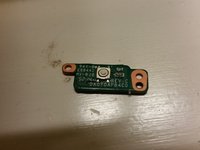
HP Stream 11-d008TU Power Button Replacement

O que você precisa

  1. HP Stream 11-d008TU Power Button Replacement, Rubber Feet Removal: passo 1, imagem 1 %32 HP Stream 11-d008TU Power Button Replacement, Rubber Feet Removal: passo 1, imagem 2 %32 HP Stream 11-d008TU Power Button Replacement, Rubber Feet Removal: passo 1, imagem 3 %32
    • Use a prying tool to pry the 2 rubber feet off closest to the hinge of the device

    • Repeat this process for the other side of the device

    • The bottom rubber feet do not have hidden screws underneath them, and as such, they are unnecessary to remove

    Pergunte ao FixBot
  2. HP Stream 11-d008TU Power Button Replacement, Screw removal: passo 2, imagem 1 %32 HP Stream 11-d008TU Power Button Replacement, Screw removal: passo 2, imagem 2 %32
    • Remove the 11x 5mm Phillips PH-0 screws (circled)

    Pergunte ao FixBot
  3. HP Stream 11-d008TU Power Button Replacement, Keyboard Unclipping: passo 3, imagem 1 %32 HP Stream 11-d008TU Power Button Replacement, Keyboard Unclipping: passo 3, imagem 2 %32 HP Stream 11-d008TU Power Button Replacement, Keyboard Unclipping: passo 3, imagem 3 %32
    • Use your finger to pry the outer blue shell over the keyboard

    • Continue this process around the edges of the device

    • You may have to use a prying tool to pry the harder edges such as around the I/O ports

    • Do not lift the keyboard once all the clips are undone, as there are still various cables connected

    Pergunte ao FixBot
  4. HP Stream 11-d008TU Power Button Replacement, Keyboard removal: passo 4, imagem 1 %32 HP Stream 11-d008TU Power Button Replacement, Keyboard removal: passo 4, imagem 2 %32 HP Stream 11-d008TU Power Button Replacement, Keyboard removal: passo 4, imagem 3 %32
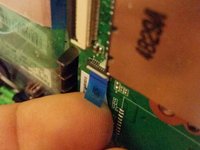
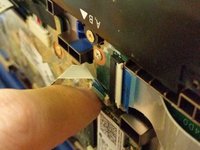
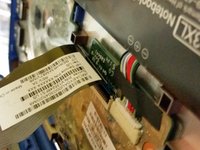
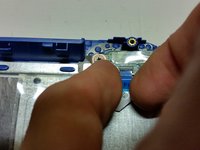
    • Disconnect the power button connector by peeling back the protective tape, using your fingernail to flip the white retaining clip back, and pulling the ribbon cable out

    • Disconnect the touchpad connector by using your fingernail to flip the black retaining clip back, and pulling the ribbon cable out

    • Disconnect the keyboard connector by using your fingernail to flip the black retaining clip back, and pulling the ribbon cable out

    • Your keyboard assembly is now safe to remove

    Pergunte ao FixBot
  5. HP Stream 11-d008TU Power Button Replacement, Connector removal: passo 5, imagem 1 %32 HP Stream 11-d008TU Power Button Replacement, Connector removal: passo 5, imagem 2 %32
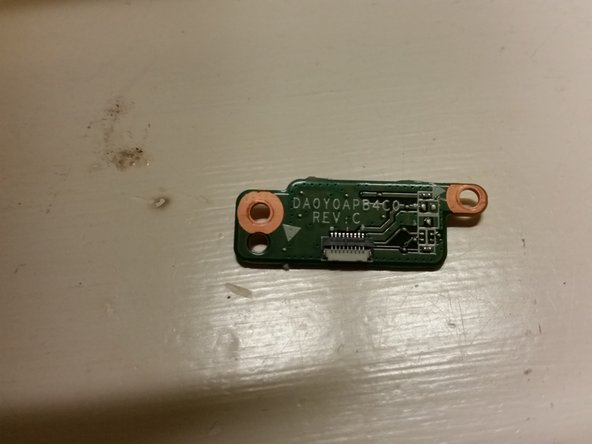
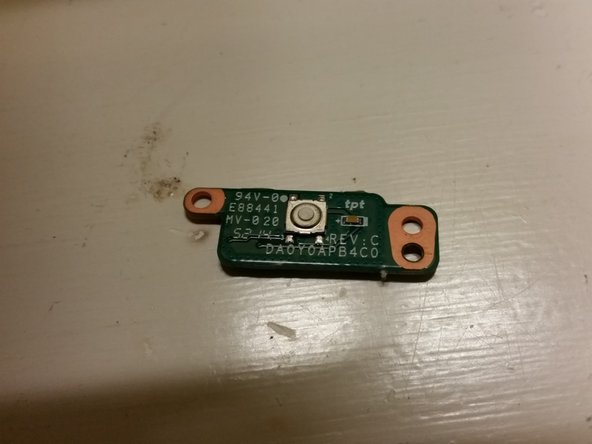
    • Remove the power button connector from the power button by flipping the white tab up and pulling the ribbon cable out

    Pergunte ao FixBot
  6. HP Stream 11-d008TU Power Button Replacement, Unscrew Button: passo 6, imagem 1 %32 HP Stream 11-d008TU Power Button Replacement, Unscrew Button: passo 6, imagem 2 %32 HP Stream 11-d008TU Power Button Replacement, Unscrew Button: passo 6, imagem 3 %32
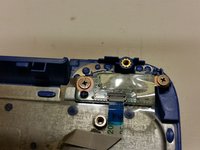
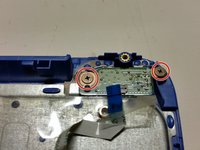
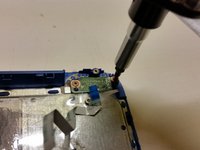
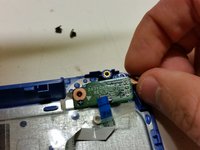
    • Unscrew the two Philips PH0 2.5mm screws

    Pergunte ao FixBot
  7. HP Stream 11-d008TU Power Button Replacement: passo 7, imagem 1 %32 HP Stream 11-d008TU Power Button Replacement: passo 7, imagem 2 %32 HP Stream 11-d008TU Power Button Replacement: passo 7, imagem 3 %32
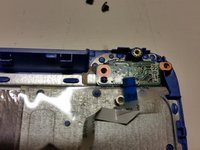
    • Lift the power button out of the slot

    Pergunte ao FixBot
Conclusão

To reassemble your device, follow these instructions in reverse order.

Uma outra pessoa concluiu este guia.

Joel Taylor

Membro desde: 03/07/20

1.376 Reputação

Autoria de 8 guias

Equipe

Australia Membro de Australia

Community

4 Membros

Autoria de 12 guias

0Comentários do guia

Comentar

Visualizações:

Últimas 24 horas: 0

Últimos 7 dias: 4

Últimos 30 dias: 35

Ao todo: 588