Introdução
If your HP ProBook 450 G4 laptop’s battery dies quickly between each charge, this could indicate that your battery is getting old and dying. All laptops have a certain life span and after owning one for a long time, the battery gets worn out. The best way to resolve this issue is to replace the battery with a new one. Before using this guide, check to make sure your charging cable is working properly and is not faulty. In some rare cases, all you need to do is replace the charging cable and not the battery. This guide is designed to help you safely and properly remove your laptop’s battery in an easy to follow way. Before beginning, make sure to power off your laptop and disconnect it from all power sources.
O que você precisa
-
-
-
Flip the laptop over.
-
Orient the laptop so the two vents on the bottom face upward and are further away from you.
 Pergunte ao FixBot
-
-
-
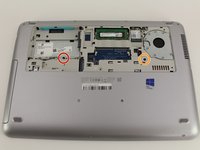
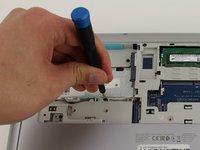
Use the Phillips #0 screwdriver to remove the 6.8 mm screw that secures the vent panel to the laptop.
-
Use the spudger to separate the vent panel from the laptop.
-
Slide the vent panel off the backside of the laptop.
-
-
-
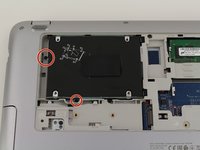
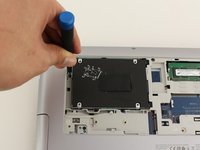
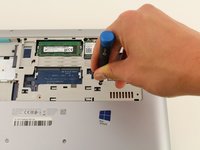
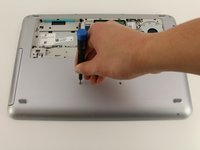
Use the Phillips #0 screwdriver to remove the black 3.2mm screw that secures the hard drive to the left side of the laptop.
-
-
-
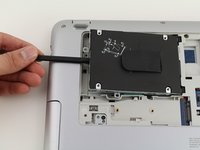
Use the spudger to lift the left side of the hard drive up.
-
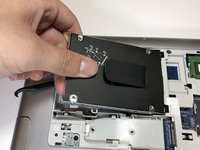
Pull the hard drive diagonally to the left to release the hard drive from the laptop.
-
-
-
-
-
Remove the 6.6mm T8 Torx screw located below where the hard drive used to be.
-
Remove the 6.6mm T8 Torx screw located below and to the left of the circular, silver and black fan.
-
-
-
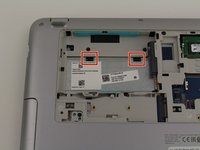
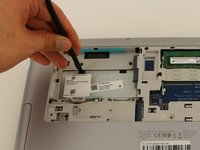
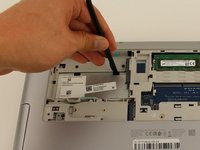
Use the spudger to press down on the two black tabs that are underneath where the hard drive used to be.
-
Apply pressure to the black tabs until they release and pop out.
-
-
-
-
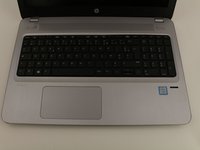
Orient the laptop so the keyboard is facing upwards and towards you.
-
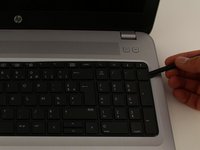
Insert the spudger in between the edge of the keyboard and the computer frame.
-
Slide the spudger around the edge of the keyboard until the keyboard is loose.
-
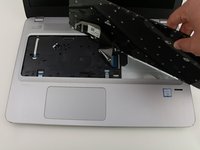
Gently pull the keyboard away from the body of the laptop.
-
-
-
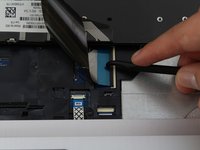
Use a spudger to gently lift up the black locking bar on the keyboard connector.
-
Slide the keyboard ribbon out of the connector.
-
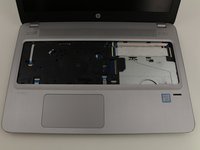
Remove the keyboard.
-
-
-
-
-
Flip the laptop back over.
-
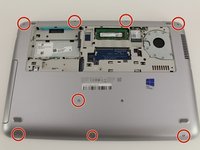
Remove the eight 6.8mm T8 Torx screws on the backside of the laptop.
-
-
-
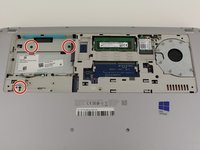
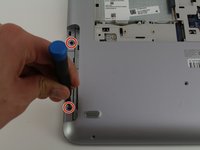
Use a Phillips #0 screwdriver to remove the three 6.6mm screws from the upper left corner of the laptop.
-
-
-
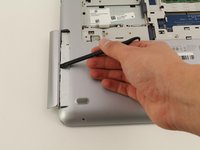
Use the spudger to slide the disk drive out of the laptop.
-
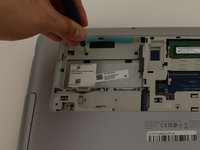
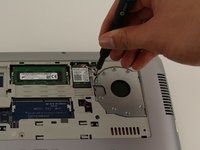
Use the Phillips #0 screwdriver to remove the two 3.2mm screws that are underneath where the disk drive previously was.
-
-
-
Flip the laptop back over so it is facing upwards.
-
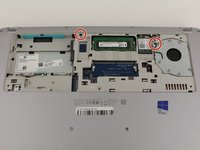
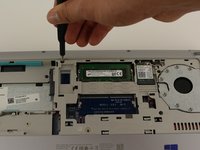
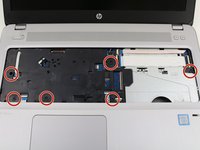
Remove the six 6.6mm T8 Torx screws underneath where the keyboard used to be.
-
-
-
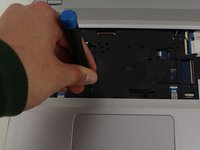
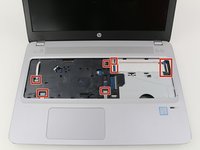
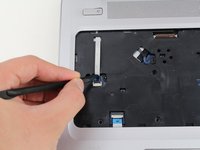
Use the spudger to disconnect the nine cable connectors that secure the top case of the laptop to the body of the laptop.
-
-
-
Insert the spudger in between the top case of the laptop and its outer frame.
-
Slide the spudger around the edge of the laptop until the top case comes off.
-
Remove the top case.
-
-
-
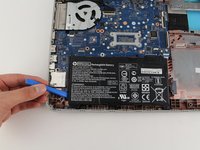
Insert the opening tool underneath the left side of the battery to remove it from the laptop.
-
-
























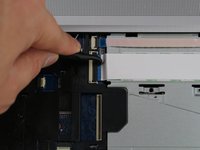


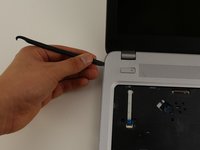
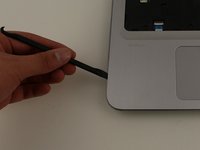


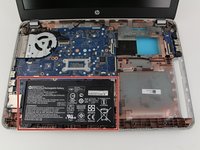
To reassemble your device, follow these instructions in reverse order.
Cancelar: não concluí este guia.
10 outras pessoas executaram este guia.

Equipe

Cal Poly, Team S1-G3, White Winter 2020 Membro de Cal Poly, Team S1-G3, White Winter 2020
CPSU-WHITE-W20S1G3
4 Membros
Autoria de 18 guias
