Introdução
This guide will detail how to replace the RAM modules in your HP Pavilion 15-ba003ds. You can use this guide if you’re having troubles with RAM, would like to upgrade the amount of RAM in your system, or have problems with blue screens as your RAM modules may be faulty.
O que você precisa
-
-
Unplug the AC adapter from the corresponding socket in the laptop.
-
Use your fingers to push the slider located just under the battery on either side to unlock the battery from the laptop.
-
Carefully slide the battery out of the laptop frame and place it somewhere safe.
 Pergunte ao FixBot
-
-
-
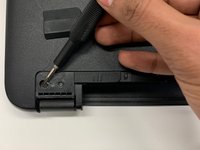
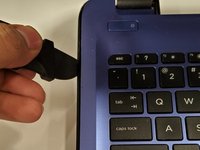
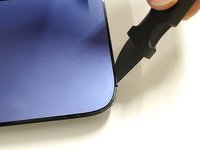
Use a spudger to remove the two rubber feet next to the battery.
-
-
-
-
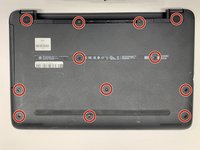
Use a Phillips #00 screwdriver to remove twelve 8 mm screws from the bottom of your laptop including the two screws found underneath the rubber feet.
-
-
-
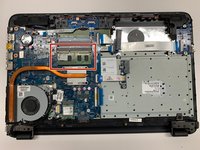
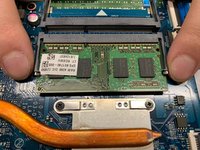
To release the RAM, hold and pull the strips outwards on either side of the RAM.
-




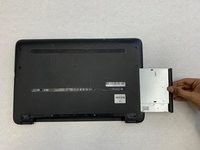
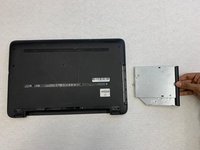




To reassemble your device, follow these instructions in reverse order.

Equipe

York University, Team S1-G9, Woodhouse Winter 2020 Membro de York University, Team S1-G9, Woodhouse Winter 2020
YORK-WOODHOUSE-W20S1G9
3 Membros
Autoria de 8 guias
