Ir para o conteúdo principal
Participe da comunidade de reparos - Criar conta

HP G60T-600 CTO Power Button Frame Replacement

O que você precisa

    1. HP G60T-600 CTO Power Button Frame Replacement, Battery: passo 1, imagem 1 %32
      • Failure to remove the battery before performing any replacement guide may result in electric shock.

      • Close your device, then turn it over.

      Pergunte ao FixBot

      Comentar

    2. HP G60T-600 CTO Power Button Frame Replacement: passo 2, imagem 1 %32 HP G60T-600 CTO Power Button Frame Replacement: passo 2, imagem 2 %32
      • Place your index finger on the ridged tab.

      Pergunte ao FixBot

      Comentar

    3. HP G60T-600 CTO Power Button Frame Replacement: passo 3, imagem 1 %32
      • Apply moderate pressure to the tab and slide it to the right.

      • While the tab is on the right, you should be able to gently slide your battery out of your device.

      Pergunte ao FixBot

      Comentar

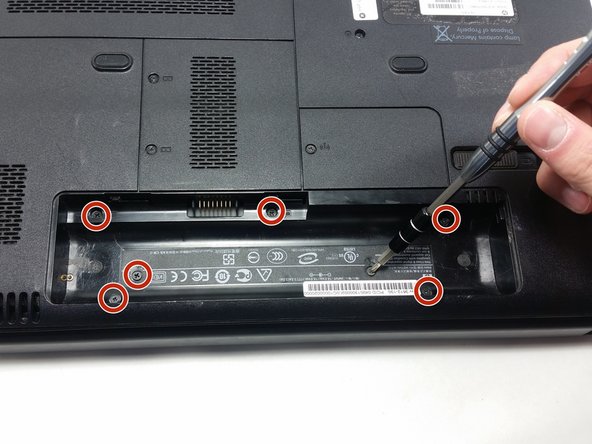
    1. HP G60T-600 CTO Power Button Frame Replacement, Keyboard: passo 4, imagem 1 %32 HP G60T-600 CTO Power Button Frame Replacement, Keyboard: passo 4, imagem 2 %32
      • Unscrew the following 5mm screws with a #0 Phillips screwdriver.

      Pergunte ao FixBot

      Comentar

    2. HP G60T-600 CTO Power Button Frame Replacement: passo 5, imagem 1 %32
      • Turn your laptop over and open it up.

      • Grip your laptop firmly from both sides and use your thumbs to slide the keyboard towards the screen.

      Pergunte ao FixBot

      Comentar

    3. HP G60T-600 CTO Power Button Frame Replacement: passo 6, imagem 1 %32
      • Pull up on the top of your keyboard with medium force. It should start to pop out.

      • A plastic opening tool may facilitate this task.

      • Run your hands underneath the edges of the keyboard until it is free from the device.

      • Do not pull hard to take the keyboard out. There is a small connection that needs to be undone.

      Pergunte ao FixBot

      Comentar

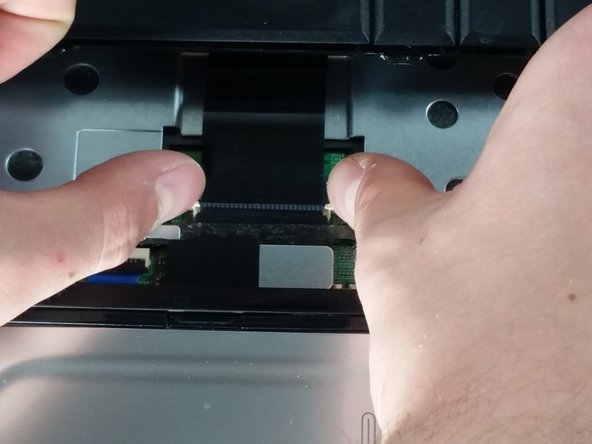
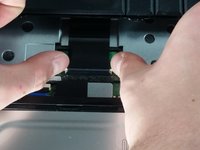
    4. HP G60T-600 CTO Power Button Frame Replacement: passo 7, imagem 1 %32 HP G60T-600 CTO Power Button Frame Replacement: passo 7, imagem 2 %32
      • Place your thumbs on the two small, white tabs.

      • Push these tabs forward to release the connection and free the keyboard from the device.

      Pergunte ao FixBot

      Comentar

    1. HP G60T-600 CTO Power Button Frame Replacement, Power Button Frame: passo 8, imagem 1 %32
      • Similarly to how you remove the keyboard, gently pry a small section of the power button frame up.

      Pergunte ao FixBot

      Comentar

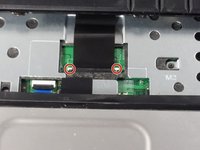
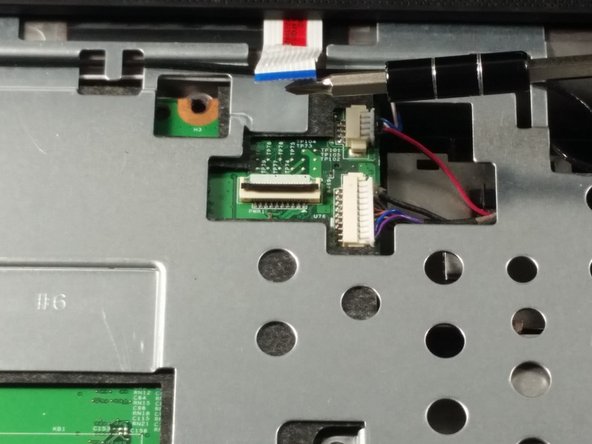
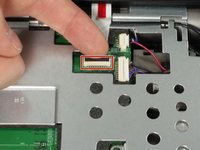
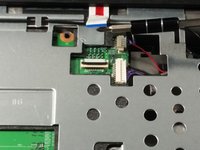
    2. HP G60T-600 CTO Power Button Frame Replacement: passo 9, imagem 1 %32 HP G60T-600 CTO Power Button Frame Replacement: passo 9, imagem 2 %32
      • Gently pull the white tab upwards.

      • With similar force, pull the connection out.

      • You are now free to pull the power button frame off of your device.

      Pergunte ao FixBot

      Comentar

    3. HP G60T-600 CTO Power Button Frame Replacement: passo 10, imagem 1 %32
      • Unscrew the 5mm screw holding the CD player in place.

      Pergunte ao FixBot

      Comentar

Conclusão

To reassemble your device, follow these instructions in reverse order.

Cancelar: não concluí este guia.

Equipe

UMass Dartmouth, Team 4-5, Catania Fall 2016 Membro de UMass Dartmouth, Team 4-5, Catania Fall 2016

UMASSD-CATANIA-F16S4G5

3 Membros

Autoria de 42 guias

0Comentários do guia

Comentar

Visualizações:

Últimas 24 horas: 0

Últimos 7 dias: 5

Últimos 30 dias: 23

Ao todo: 406