Essa tradução foi gerada por um programa e ainda não foi revisada por uma pessoa. Falas essa língua? Dá uma olhada.
Introdução
Este guia mostrará o processo de substituição de um teclado com defeito ou quebrado em seu HP Chromebook 11 G4. Remover o teclado também é o passo básico para acessar todos os outros componentes internos.
O que você precisa
-
-
-
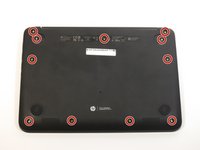
Posicione o Chromebook fechado com as borrachas de apoio voltadas para cima.
 Pergunte ao FixBot
-
-
-
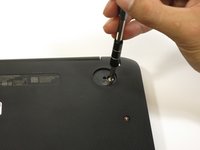
Deslize a extremidade plana da espátula sob as almofadas de borracha nos cantos superior direito e superior esquerdo.
-
Force as almofadas de borracha para removê-las e revelar um parafuso sob cada uma.
-
-
-
Remova os onze parafusos Phillips #1 de 6 mm.
-
-
-
-
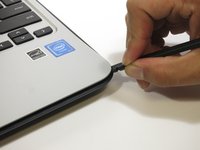
Insira a ponta chata da espátula entre a parte inferior da carcaça do Chromebook e a carcaça do teclado.
-
Deslize a espátula ao longo da fresta, aplicando pressão para baixo para separar os dois componentes.
-
-
-
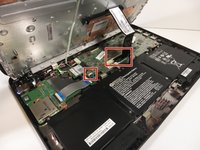
Levante a parte inferior do conjunto do teclado para revelar os componentes internos do dispositivo.
-
-
-
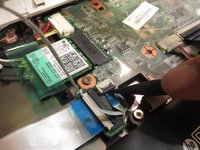
Use a ponta fina da espátula para levantar as abas pretas dos dois conectores ZIF localizados na placa-mãe.
-
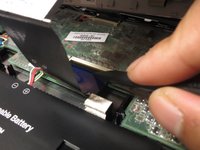
Desconecte os cabos planos da placa-mãe deslizando-os suavemente para fora de seus soquetes.
-
-
-
Remova o conjunto do teclado levantando-o da base do laptop.
-
-








Para a remontagem de seu dispositivo, siga estas instruções na ordem inversa.
Cancelar: não concluí este guia.
3 outras pessoas executaram este guia.

3Comentários do guia
How do you remove the keyboard from the assembly though? And I wish there was a mention of the fact that the heat sink is attached to the keyboard assembly.
Same question as the person above. I need to remove the keyboard from the assembly.
If you look up the parts you'll see that the entire top panel and keyboard are one assembly.
