Ir para o conteúdo principal
Participe da comunidade de reparos - Criar conta

HP 15-g010dx Button Board Replacement

O que você precisa

  1. HP 15-g010dx Button Board Replacement, Battery: passo 1, imagem 1 %32
    • Slide the latch towards the center of the laptop so the unlock emblem appears.

  2. HP 15-g010dx Button Board Replacement: passo 2, imagem 1 %32
    • Place your finger on the left latch and slide it towards the center of the laptop.

  3. HP 15-g010dx Button Board Replacement: passo 3, imagem 1 %32
    • Pull on the battery to remove.

  4. HP 15-g010dx Button Board Replacement, Keyboard: passo 4, imagem 1 %32
    • Remove the two 5 mm screws with the Phillips #00 screwdriver.

  5. HP 15-g010dx Button Board Replacement: passo 5, imagem 1 %32
    • Using either a credit card or flat spudger, wedge it between the palm rest and the keyboard.

  6. HP 15-g010dx Button Board Replacement: passo 6, imagem 1 %32
    • Using the tool of your choice, gently pry up on the top of the keyboard.

  7. HP 15-g010dx Button Board Replacement: passo 7, imagem 1 %32
    • Release the top of the keyboard.

  8. HP 15-g010dx Button Board Replacement: passo 8, imagem 1 %32
    • Remove the ZIF connector that connects the laptop to the keyboard cable.

  9. HP 15-g010dx Button Board Replacement, Button Board: passo 9, imagem 1 %32
    • Using a Phillips #00 screwdriver, remove all the 5 millimeter screws located on the bottom of the laptop.

  10. HP 15-g010dx Button Board Replacement: passo 10, imagem 1 %32
    • Using the spudger, remove the two rubber feet that are located near the battery.

  11. HP 15-g010dx Button Board Replacement: passo 11, imagem 1 %32
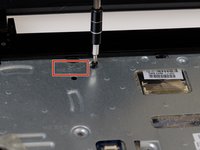
    • Now remove the two Phillips screws that are located below the rubber feet.

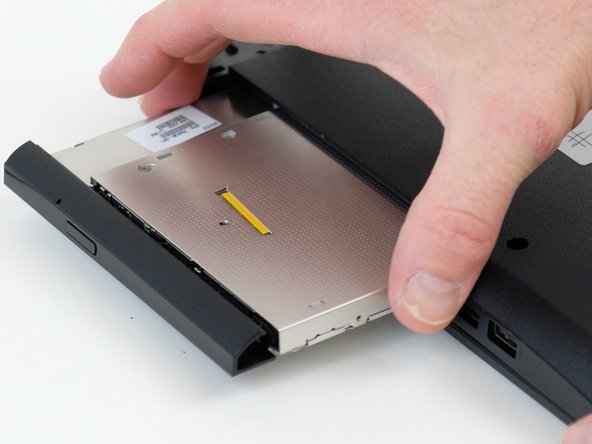
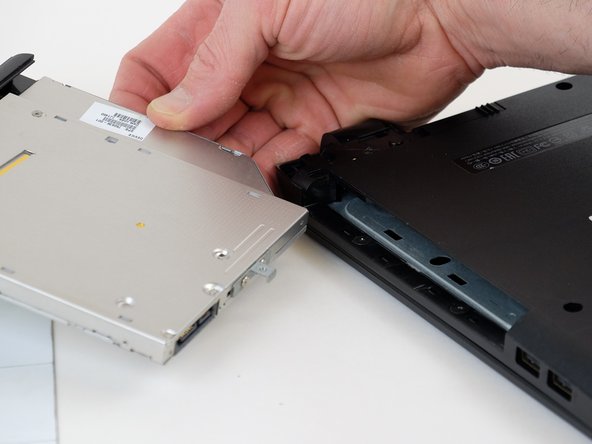
  12. HP 15-g010dx Button Board Replacement: passo 12, imagem 1 %32 HP 15-g010dx Button Board Replacement: passo 12, imagem 2 %32 HP 15-g010dx Button Board Replacement: passo 12, imagem 3 %32
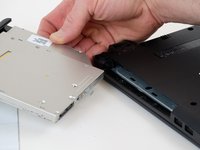
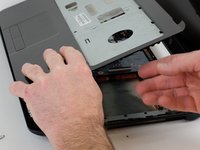
    • Remove the optical drive by pulling it out by hand.

  13. HP 15-g010dx Button Board Replacement: passo 13, imagem 1 %32
    • Remove the two Phillips screws inside the optical drive housing.

  14. HP 15-g010dx Button Board Replacement: passo 14, imagem 1 %32
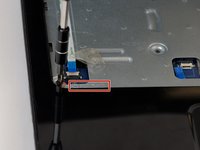
    • Disconnect the power button ribbon cable by lifting the connector.

  15. HP 15-g010dx Button Board Replacement: passo 15, imagem 1 %32
    • Now disconnect the touch pad ribbon cable by lifting the connector.

  16. HP 15-g010dx Button Board Replacement: passo 16, imagem 1 %32 HP 15-g010dx Button Board Replacement: passo 16, imagem 2 %32 HP 15-g010dx Button Board Replacement: passo 16, imagem 3 %32
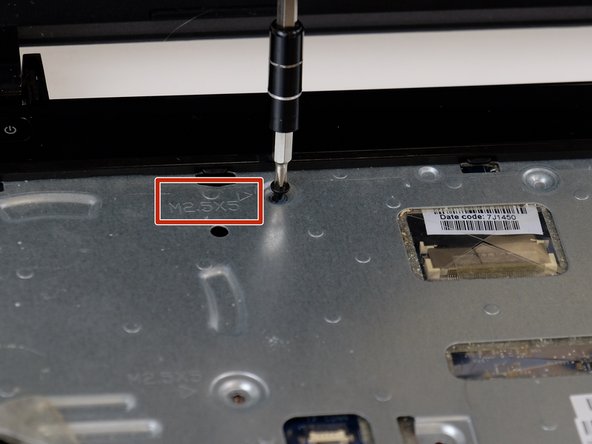
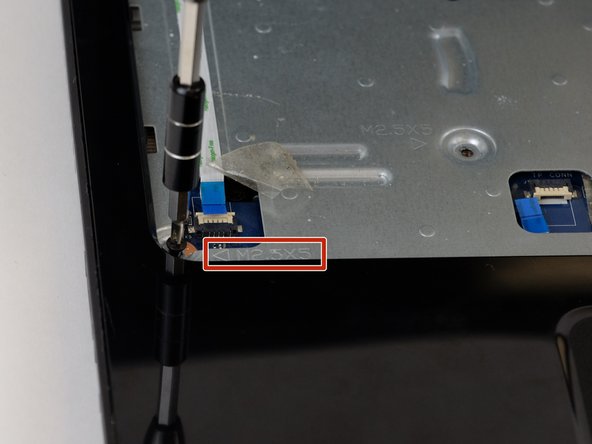
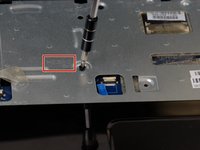
    • Remove the screws indicated by an arrow stamped into the metal.

  17. HP 15-g010dx Button Board Replacement: passo 17, imagem 1 %32
    • Insert the spudger between the palmrest and the laptop body.

  18. HP 15-g010dx Button Board Replacement: passo 18, imagem 1 %32
    • Lift up on palm rest, while working the spudger around the perimeter.

  19. HP 15-g010dx Button Board Replacement: passo 19, imagem 1 %32 HP 15-g010dx Button Board Replacement: passo 19, imagem 2 %32
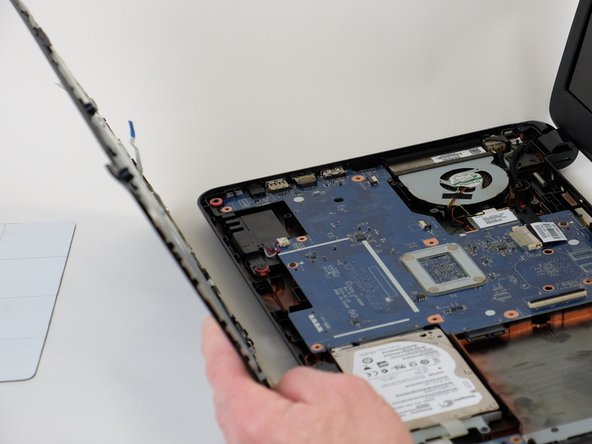
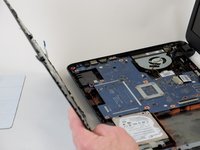
    • Remove palm rest and flip it over.

  20. HP 15-g010dx Button Board Replacement: passo 20, imagem 1 %32 HP 15-g010dx Button Board Replacement: passo 20, imagem 2 %32
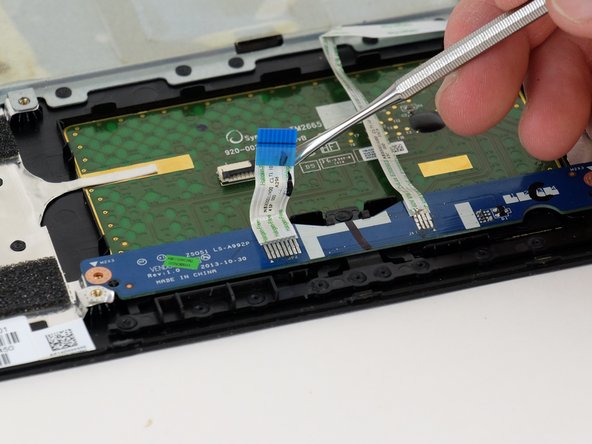
    • Release the cable connected to the button board.

  21. HP 15-g010dx Button Board Replacement: passo 21, imagem 1 %32 HP 15-g010dx Button Board Replacement: passo 21, imagem 2 %32
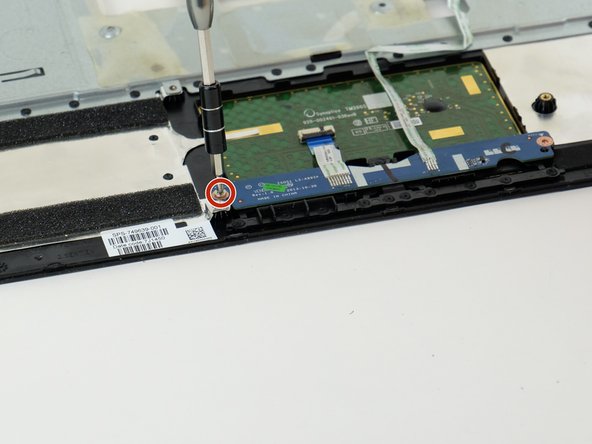
    • Remove the two Phillips screws securing the button board.

  22. HP 15-g010dx Button Board Replacement: passo 22, imagem 1 %32
    • Remove button board.

Linha de Chegada

Uma outra pessoa concluiu este guia.

0Comentários do guia

Comentar

Visualizações:

Últimas 24 horas: 0

Últimos 7 dias: 5

Últimos 30 dias: 15

Ao todo: 559