Ir para o conteúdo principal
Participe da comunidade de reparos - Criar conta

HP 15-R263DX RAM Replacement

O que você precisa

    1. HP 15-R263DX RAM Replacement, Battery: passo 1, imagem 1 %32 HP 15-R263DX RAM Replacement, Battery: passo 1, imagem 2 %32
      • Eject the battery from the computer by sliding the two clips on the bottom of the computer toward the center of the computer.

      • Slide the battery out as shown in the picture.

      Pergunte ao FixBot

      Comentar

    1. HP 15-R263DX RAM Replacement, Optical Drive: passo 2, imagem 1 %32 HP 15-R263DX RAM Replacement, Optical Drive: passo 2, imagem 2 %32
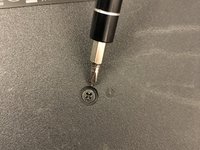
      • Using a Phillips #1 screwdriver, remove the small screw next to the disc engraving shown in the picture.

      Pergunte ao FixBot

      Comentar

    2. HP 15-R263DX RAM Replacement: passo 3, imagem 1 %32
      • Gently slide the optical drive out of the side of the computer.

      Pergunte ao FixBot

      Comentar

    1. HP 15-R263DX RAM Replacement, HP 15-R263DX Disassembly: passo 4, imagem 1 %32 HP 15-R263DX RAM Replacement, HP 15-R263DX Disassembly: passo 4, imagem 2 %32
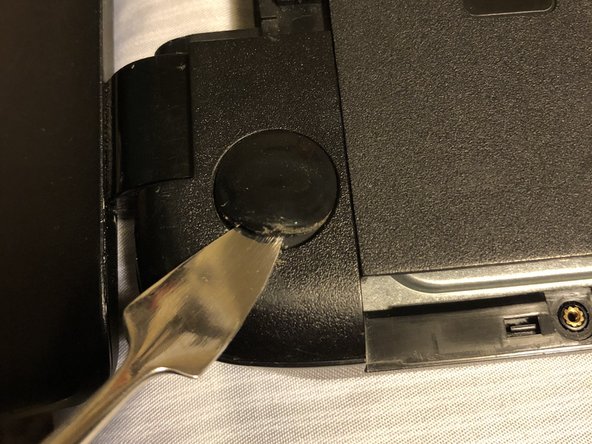
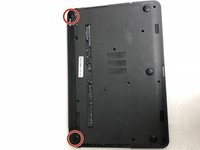
      • Locate the two corner grips on the hinge side of the computer.

      • Using a metal spudger, remove the two corner grips to reveal the screws.

      Pergunte ao FixBot

      Comentar

    2. HP 15-R263DX RAM Replacement: passo 5, imagem 1 %32
      • Remove the 11 small screws on the bottom of the computer that are shown in the picture.

      Pergunte ao FixBot

      Comentar

    3. HP 15-R263DX RAM Replacement: passo 6, imagem 1 %32
      • Remove the 2 small screws that are on the bottom side of the disc tray slot.

      • These screws are shorter and wider than the others.

      Pergunte ao FixBot

      Comentar

    4. HP 15-R263DX RAM Replacement: passo 7, imagem 1 %32 HP 15-R263DX RAM Replacement: passo 7, imagem 2 %32
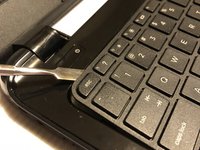
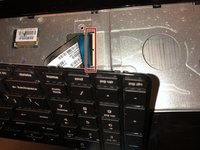
      • Once the keyboard is loose, do not immediately pull away from computer. It is attached by the ribbon connector.

      • Using a spudger, pry around the edges of the keyboard until all clips are disengaged and the keyboard is loose from the computer.

      • To disconnect the ribbon connector, flip up the black clip shown in the picture.

      • Gently pull the ribbon until disconnected.

      Pergunte ao FixBot

      Comentar

    5. HP 15-R263DX RAM Replacement: passo 8, imagem 1 %32 HP 15-R263DX RAM Replacement: passo 8, imagem 2 %32
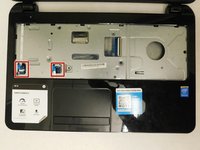
      • Disconnect the other two ribbon connectors underneath the keyboard by fliping up the black clips.

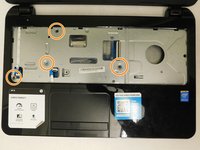
      • Remove the 4 small screws shown in the picture.

      Pergunte ao FixBot

      Comentar

    6. HP 15-R263DX RAM Replacement: passo 9, imagem 1 %32
      • Disengage the face plate clips by prying the case away from around the outer edge of the face plate with a metal wedge.

      • The face plate can then be lifted away from the computer.

      Pergunte ao FixBot

      Comentar

    1. HP 15-R263DX RAM Replacement, Hard Drive: passo 10, imagem 1 %32
      • Remove the 2 black screws holding the hard drive to the computer frame.

      Pergunte ao FixBot

      Comentar

    2. HP 15-R263DX RAM Replacement: passo 11, imagem 1 %32 HP 15-R263DX RAM Replacement: passo 11, imagem 2 %32
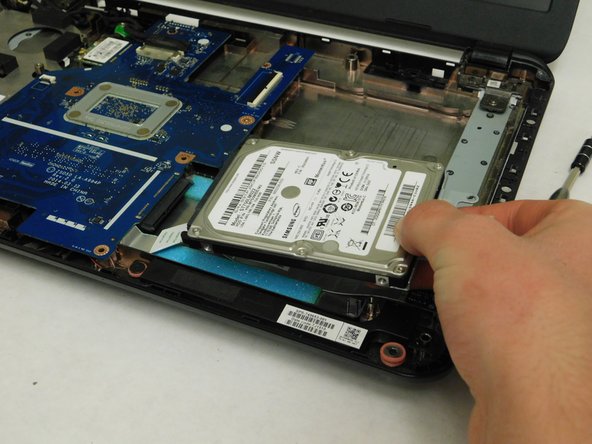
      • Gently slide the hard drive away from the motherboard to disconnect it.

      • After it's disconnected, lift the hard drive up to remove it from the computer.

      Pergunte ao FixBot

      Comentar

    1. HP 15-R263DX RAM Replacement, RAM: passo 12, imagem 1 %32
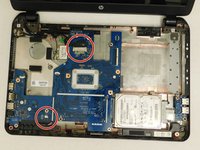
      • Remove the 2 screws holding the motherboard into the case of the laptop.

      Pergunte ao FixBot

      Comentar

    2. HP 15-R263DX RAM Replacement: passo 13, imagem 1 %32 HP 15-R263DX RAM Replacement: passo 13, imagem 2 %32
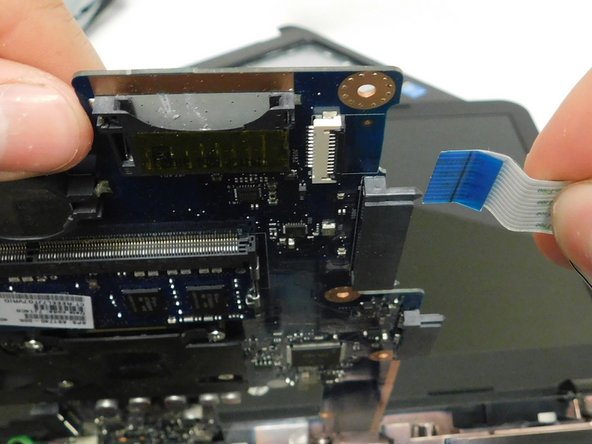
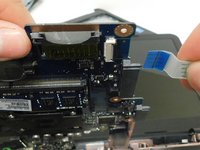
      • Remove the connections around the motherboard.

      • There is a connection hidden underneath the board. Remove this one last as you will need to lift the motherboard up to access it.

      Pergunte ao FixBot

      Comentar

    3. HP 15-R263DX RAM Replacement: passo 14, imagem 1 %32 HP 15-R263DX RAM Replacement: passo 14, imagem 2 %32
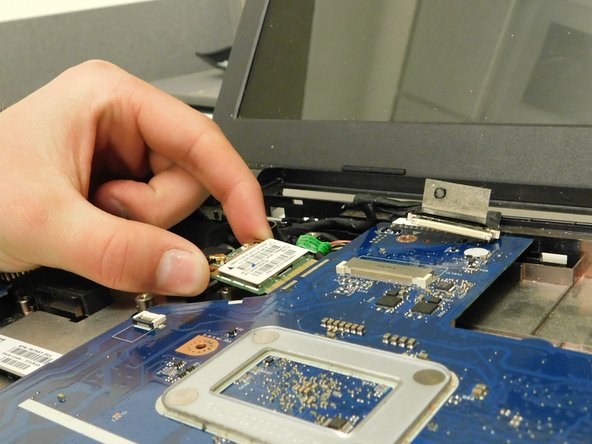
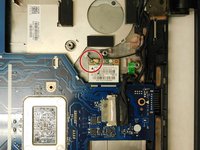
      • Remove the screw holding the WiFi chip in place.

      • Slide the chip away from the motherboard and set it elsewhere inside the computer.

      Pergunte ao FixBot

      Comentar

    4. HP 15-R263DX RAM Replacement: passo 15, imagem 1 %32
      • Flip the motherboard over to access the underside revealing the RAM.

      Pergunte ao FixBot

      Comentar

    5. HP 15-R263DX RAM Replacement: passo 16, imagem 1 %32 HP 15-R263DX RAM Replacement: passo 16, imagem 2 %32
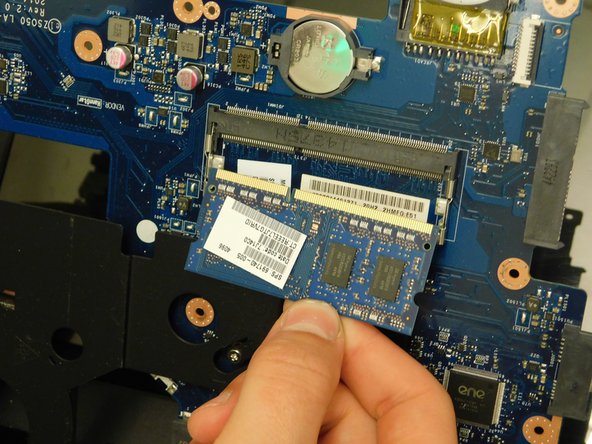
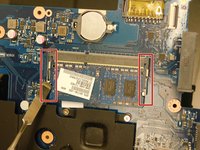
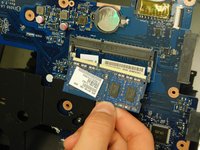
      • Remove the RAM chip by simultaneously prying the 2 spring clips away from the RAM.

      • The RAM will pop up when both clips are completely released.

      Pergunte ao FixBot

      Comentar

Conclusão

To reassemble your device, follow these instructions in reverse order.

Cancelar: não concluí este guia.

5 outras pessoas executaram este guia.

Drake Hort

Membro desde: 03/05/18

487 Reputação

Autoria de 3 guias

1Comentário do guia

is this laptop model ram upgradable?

Gordon Velupillai - Responder Compartilhar
Comentar

Visualizações:

Últimas 24 horas: 2

Últimos 7 dias: 11

Últimos 30 dias: 33

Ao todo: 1,925