Introdução
The hard drive is a component that will act as storage for your device. This guide will go over how to remove and replace the hard drive for the P-6831FX.
O que você precisa
-
-
Turn your laptop upside down and remove the four Philips #0 (5mm) screws for the cover of the hard drive.
 Pergunte ao FixBot
-
-
-
Gently pull the cover away from the device.
-
Set the cover aside for now, until reassembly.
-
-
-
-
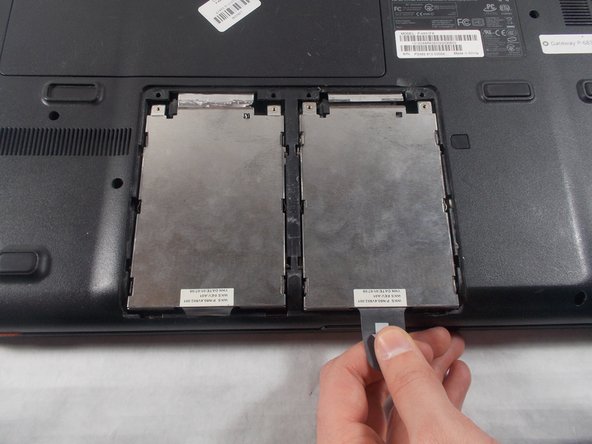
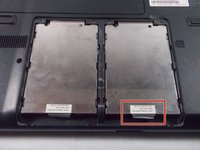
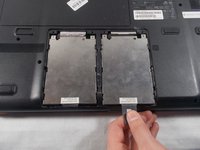
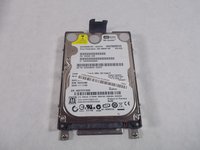
Pull the plastic tab as shown to remove the hard drive from the device.
-
-
-
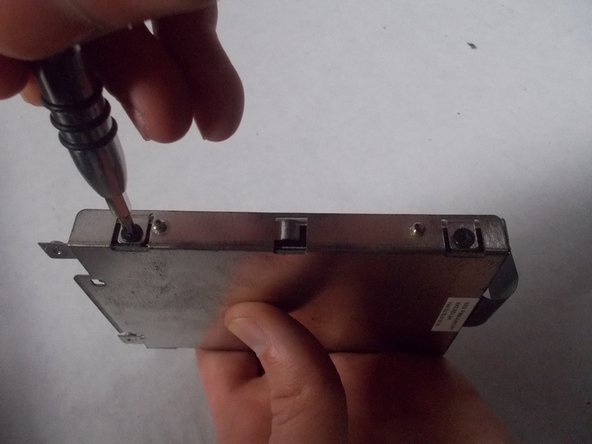
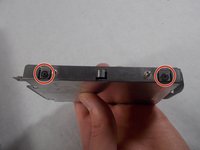
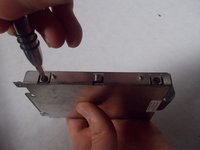
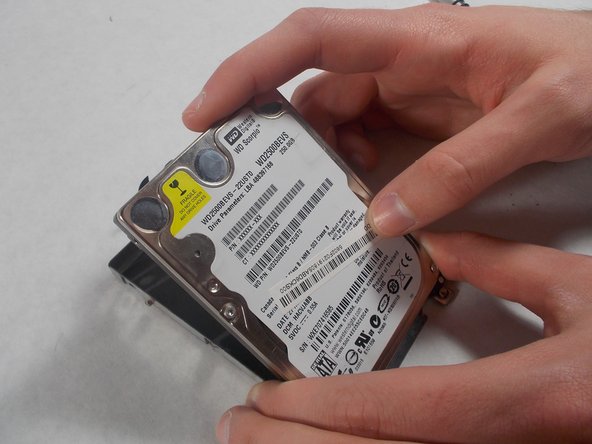
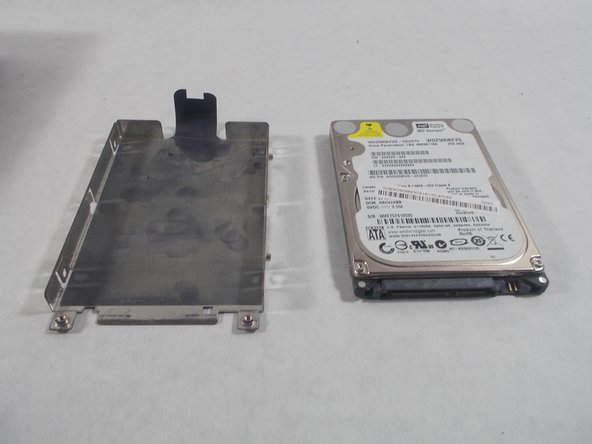
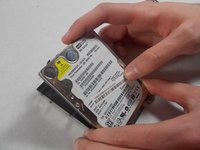
Remove the four Philips #0 (3mm) screws around the case for the hard drive. There will be two screws and the left and right side.
-




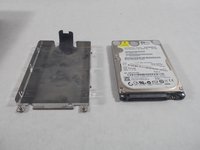
To reassemble your device, follow these instructions in reverse order.
Cancelar: não concluí este guia.
Uma outra pessoa concluiu este guia.

Equipe

UMass Dartmouth, Team S3-G5, Peak Spring 2018 Membro de UMass Dartmouth, Team S3-G5, Peak Spring 2018
UMASSD-PEAK-S18S3G5
2 Membros
Autoria de 12 guias
