Ir para o conteúdo principal
Participe da comunidade de reparos - Criar conta

Gateway MS2370 RAM Replacement

O que você precisa

    1. Gateway MS2370 RAM Replacement, Battery: passo 1, imagem 1 %32
      • Make sure the laptop is turned off and flipped over so that the bottom is facing up. Then, locate the battery clip as shown.

      Pergunte ao FixBot

      Comentar

    2. Gateway MS2370 RAM Replacement: passo 2, imagem 1 %32
      • Either using your fingers or a plastic spudger push the battery clip to the left to release battery.

      Pergunte ao FixBot

      Comentar

    3. Gateway MS2370 RAM Replacement: passo 3, imagem 1 %32
      • Pull the battery from the laptop to remove it.

      Pergunte ao FixBot

      Comentar

    1. Gateway MS2370 RAM Replacement, RAM: passo 4, imagem 1 %32
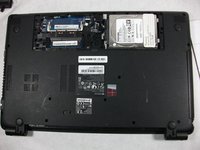
      • Unscrew the three 10mm inch Phillips 01 screws on the back of your laptop.

      • Unplug everything from the USB and SD ports.

      Pergunte ao FixBot

      Comentar

    2. Gateway MS2370 RAM Replacement: passo 5, imagem 1 %32
      • Remove the cover panel.

      • This exposes more screws that must be removed.

      Pergunte ao FixBot

      Comentar

    3. Gateway MS2370 RAM Replacement: passo 6, imagem 1 %32
      • Unplug the two exposed cables from the motherboard.

      Pergunte ao FixBot

      Comentar

    4. Gateway MS2370 RAM Replacement: passo 7, imagem 1 %32 Gateway MS2370 RAM Replacement: passo 7, imagem 2 %32
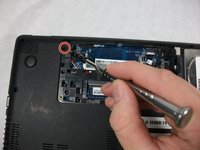
      • Unscrew the rest of the case screws which include several 10mm 01 Phillips screws and three 3mm 00 Phillips screws.

      • This marked screw will not fully come out. Just loosen it and leave it there it will not effect the rest of the replacement.

      Pergunte ao FixBot

      Comentar

    5. Gateway MS2370 RAM Replacement: passo 8, imagem 1 %32 Gateway MS2370 RAM Replacement: passo 8, imagem 2 %32
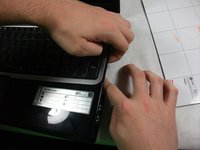
      • Pry the laptop case apart.

      • The disc drive in this photo was removed. You can remove it just by puling it out when the previous step is completed.

      Pergunte ao FixBot

      Comentar

    6. Gateway MS2370 RAM Replacement: passo 9, imagem 1 %32
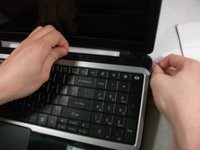
      • Unplug the track-pad and the keyboard ribbon cable by lifting up the grey flap and removing the cable.

      • This cable has a special connector the requires you to lift open a grey flap to unplug properly.

      • The keyboard plug is located at the center of the motherboard and can be unplugged like a normal cable.

      Pergunte ao FixBot

      Comentar

    7. Gateway MS2370 RAM Replacement: passo 10, imagem 1 %32
      • Remove the top half of the case.

      Pergunte ao FixBot

      Comentar

    8. Gateway MS2370 RAM Replacement: passo 11, imagem 1 %32
      • Unscrew all 5 10mm inch Phillips 01 screws.

      • One more off screen

      Pergunte ao FixBot

      Comentar

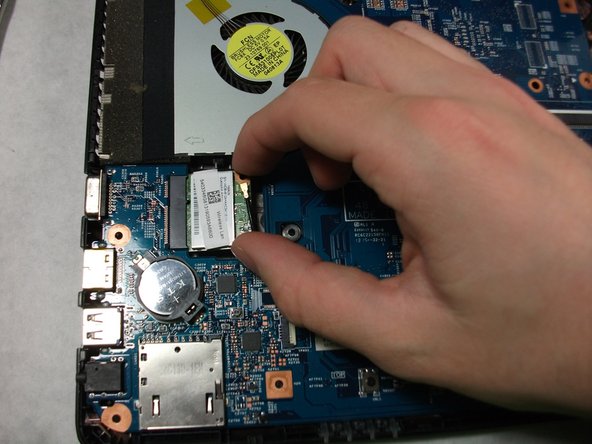
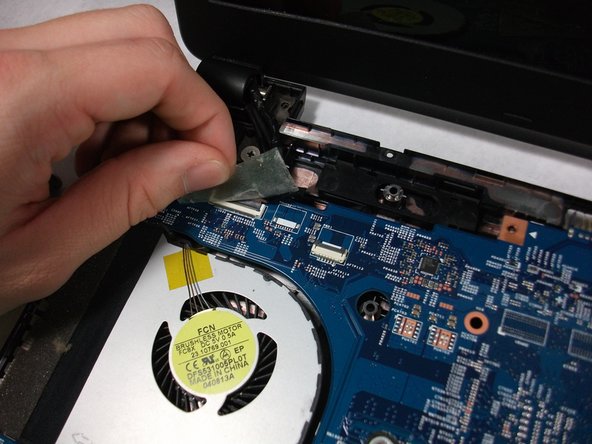
    9. Gateway MS2370 RAM Replacement: passo 12, imagem 1 %32 Gateway MS2370 RAM Replacement: passo 12, imagem 2 %32 Gateway MS2370 RAM Replacement: passo 12, imagem 3 %32
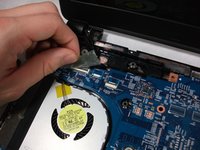
      • Unplug the ribbon cable connected to the USB Hub, the network card, and the monitor cable.

      Pergunte ao FixBot

      Comentar

    10. Gateway MS2370 RAM Replacement: passo 13, imagem 1 %32
      • Flip the motherboard over.

      Pergunte ao FixBot

      Comentar

    11. Gateway MS2370 RAM Replacement: passo 14, imagem 1 %32 Gateway MS2370 RAM Replacement: passo 14, imagem 2 %32 Gateway MS2370 RAM Replacement: passo 14, imagem 3 %32
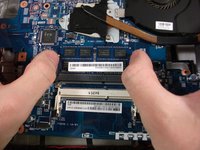
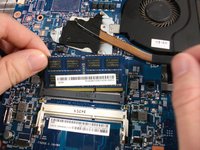
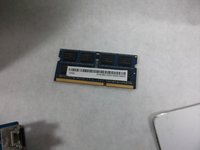
      • Using your two thumbs to pull outwards from the inside of the RAM slot to release and remove the RAM.

      • The last step of this replacement guide is not required to complete the fan replacement guide.

      Pergunte ao FixBot

      Comentar

Conclusão

To reassemble your device, follow these instructions in reverse order.

Cancelar: não concluí este guia.

2 outras pessoas executaram este guia.

Equipe

0Comentários do guia

Comentar

Visualizações:

Últimas 24 horas: 1

Últimos 7 dias: 9

Últimos 30 dias: 28

Ao todo: 2,039