Ir para o conteúdo principal
Participe da comunidade de reparos - Criar conta

Gateway MS2370 Fan Replacement

O que você precisa

  1. Gateway MS2370 Fan Replacement, Battery: passo 1, imagem 1 %32
    • Make sure the laptop is turned off and flipped over so that the bottom is facing up. Then, locate the battery clip as shown.

    Pergunte ao FixBot
  2. Gateway MS2370 Fan Replacement: passo 2, imagem 1 %32
    • Either using your fingers or a plastic spudger push the battery clip to the left to release battery.

    Pergunte ao FixBot
  3. Gateway MS2370 Fan Replacement: passo 3, imagem 1 %32
    • Pull the battery from the laptop to remove it.

    Pergunte ao FixBot
  4. Gateway MS2370 Fan Replacement, RAM: passo 4, imagem 1 %32
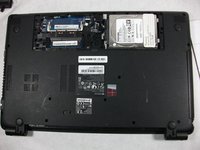
    • Unscrew the three 10mm inch Phillips 01 screws on the back of your laptop.

    • Unplug everything from the USB and SD ports.

    Pergunte ao FixBot
  5. Gateway MS2370 Fan Replacement: passo 5, imagem 1 %32
    • Remove the cover panel.

    • This exposes more screws that must be removed.

    Pergunte ao FixBot
  6. Gateway MS2370 Fan Replacement: passo 6, imagem 1 %32
    • Unplug the two exposed cables from the motherboard.

    Pergunte ao FixBot
  7. Gateway MS2370 Fan Replacement: passo 7, imagem 1 %32 Gateway MS2370 Fan Replacement: passo 7, imagem 2 %32
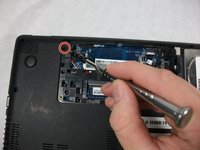
    • Unscrew the rest of the case screws which include several 10mm 01 Phillips screws and three 3mm 00 Phillips screws.

    • This marked screw will not fully come out. Just loosen it and leave it there it will not effect the rest of the replacement.

    Pergunte ao FixBot
  8. Gateway MS2370 Fan Replacement: passo 8, imagem 1 %32 Gateway MS2370 Fan Replacement: passo 8, imagem 2 %32
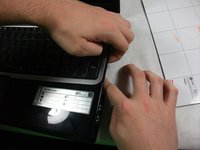
    • Pry the laptop case apart.

    • The disc drive in this photo was removed. You can remove it just by puling it out when the previous step is completed.

    Pergunte ao FixBot
  9. Gateway MS2370 Fan Replacement: passo 9, imagem 1 %32
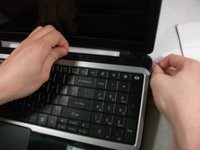
    • Unplug the track-pad and the keyboard ribbon cable by lifting up the grey flap and removing the cable.

    • This cable has a special connector the requires you to lift open a grey flap to unplug properly.

    • The keyboard plug is located at the center of the motherboard and can be unplugged like a normal cable.

    Pergunte ao FixBot
  10. Gateway MS2370 Fan Replacement: passo 10, imagem 1 %32
    • Remove the top half of the case.

    Pergunte ao FixBot
  11. Gateway MS2370 Fan Replacement: passo 11, imagem 1 %32
    • Unscrew all 5 10mm inch Phillips 01 screws.

    • One more off screen

    Pergunte ao FixBot
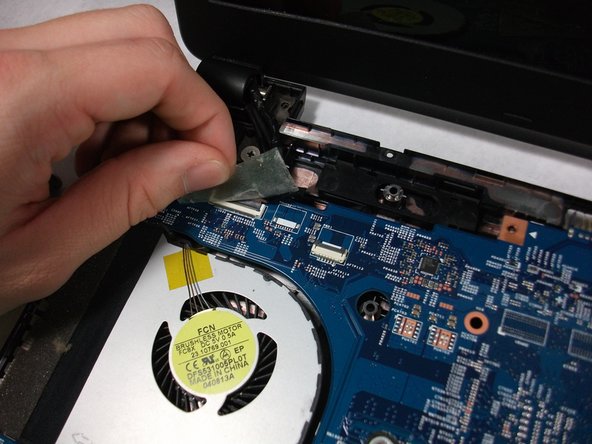
  12. Gateway MS2370 Fan Replacement: passo 12, imagem 1 %32 Gateway MS2370 Fan Replacement: passo 12, imagem 2 %32 Gateway MS2370 Fan Replacement: passo 12, imagem 3 %32
    • Unplug the ribbon cable connected to the USB Hub, the network card, and the monitor cable.

    Pergunte ao FixBot
  13. Gateway MS2370 Fan Replacement: passo 13, imagem 1 %32
    • Flip the motherboard over.

    Pergunte ao FixBot
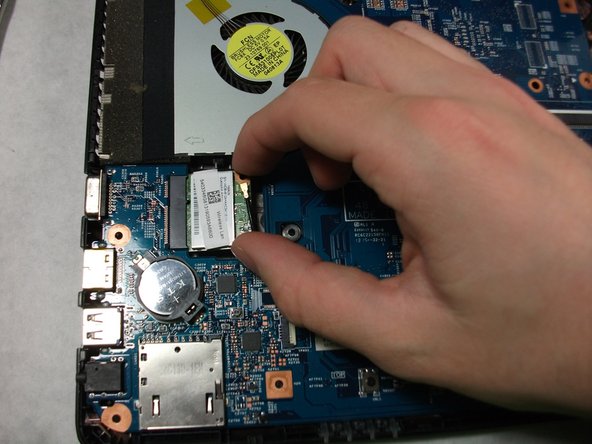
  14. Gateway MS2370 Fan Replacement: passo 14, imagem 1 %32 Gateway MS2370 Fan Replacement: passo 14, imagem 2 %32 Gateway MS2370 Fan Replacement: passo 14, imagem 3 %32
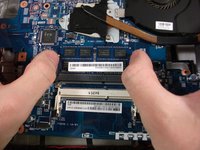
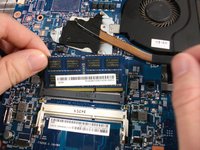
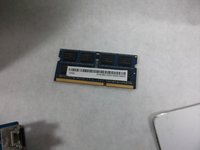
    • Using your two thumbs to pull outwards from the inside of the RAM slot to release and remove the RAM.

    • The last step of this replacement guide is not required to complete the fan replacement guide.

    Pergunte ao FixBot
  15. Gateway MS2370 Fan Replacement, Fan: passo 15, imagem 1 %32
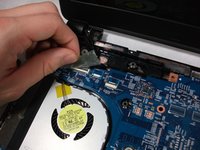
    • Unscrew the three 3mm inch Phillips 01 screws.

    • These screws will not be removed entirely. Just loosen them enough to free the fan from the motherboard.

    Pergunte ao FixBot
  16. Gateway MS2370 Fan Replacement: passo 16, imagem 1 %32
    • Unplug the fan cable from the motherboard.

    Pergunte ao FixBot
  17. Gateway MS2370 Fan Replacement: passo 17, imagem 1 %32
    • Remove the Fan.

    Pergunte ao FixBot
Conclusão

To reassemble your device, follow these instructions in reverse order.

Equipe

0Comentários do guia

Comentar

Visualizações:

Últimas 24 horas: 1

Últimos 7 dias: 3

Últimos 30 dias: 62

Ao todo: 875