Introdução
This is a moderately difficult process. The screen is an essential part of the computer and it is important to follow these steps with care to prevent unwanted damages to the device.
O que você precisa
-
Ferramenta utilizada neste passo:Tweezers$4.99
-
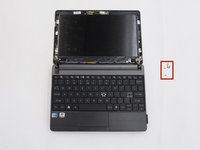
Open the laptop so that the screen and keyboard are facing you.
-
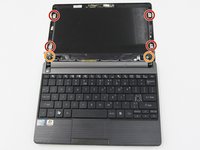
Remove the two screw covers at the bottom right and left corners of the screen using tweezers.
 Pergunte ao FixBot
-
-
-
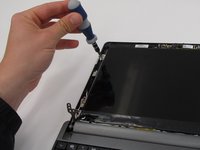
Unscrew the two 5.0mm screws underneath the screen covers on the left and right side and remove them from the laptop. For this step and the following steps, use a Phillips #0 head screwdriver.
-
-
-
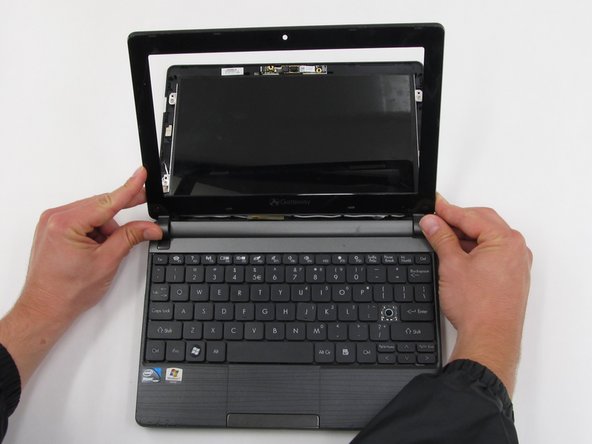
Once the two screws are removed, pry the screen casing away from the screen. You can use your fingernails or a tool such as tweezers to separate the screen casing from the backing.
-
Unhook the screen casing at the bottom of the screen from the central hinges on the left and right side connecting the screen casing to the keyboard.
-
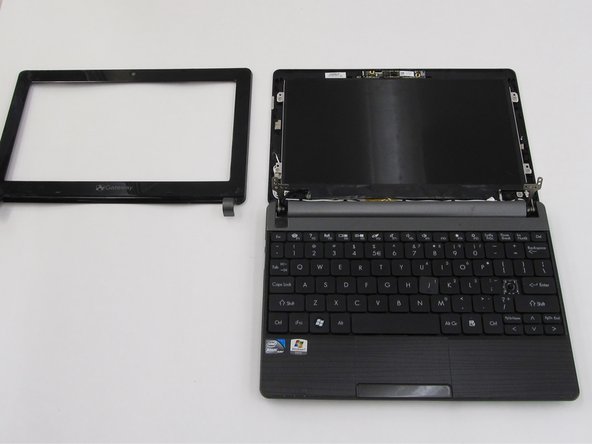
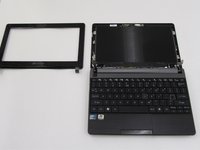
Remove the screen casing.
-
-
-
-
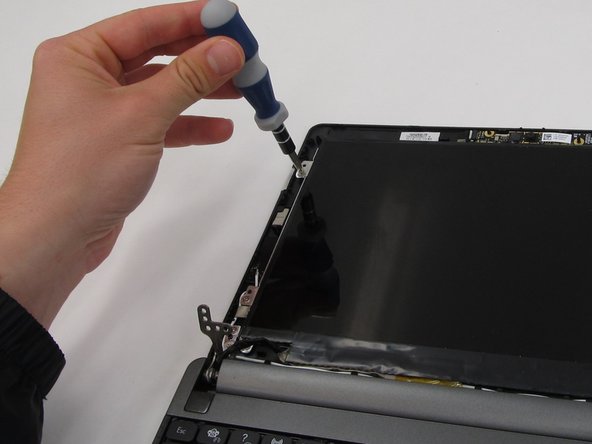
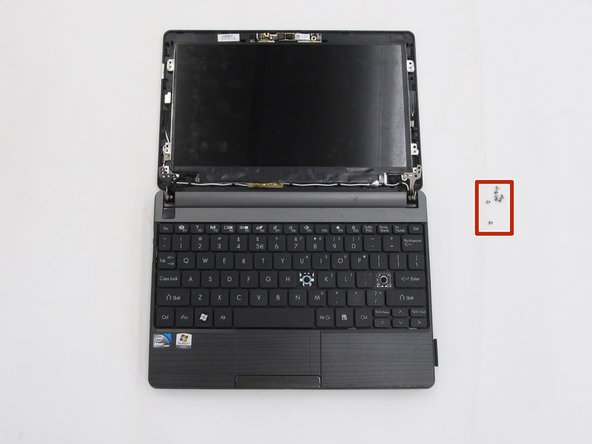
Once the screen casing is removed, unscrew the 8 screws surrounding the screen and remove them from the laptop. All 8 screws should measure 4.0mm long.
-
-
-
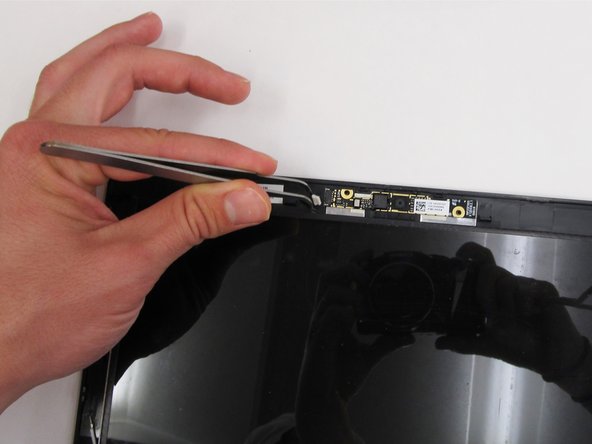
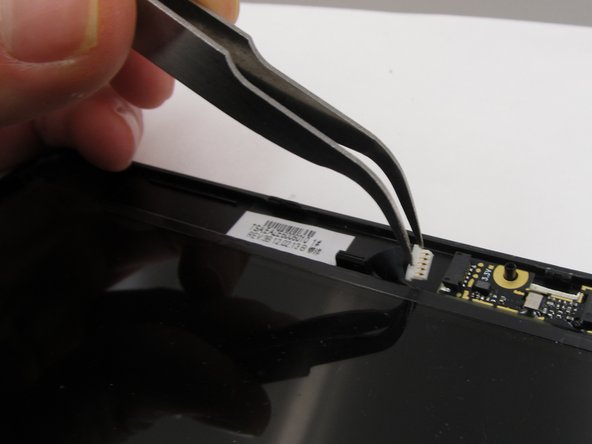
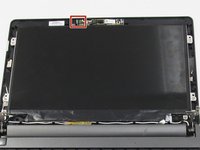
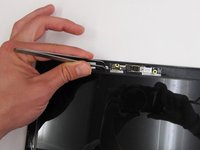
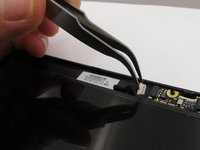
Unplug the webcam connection from the top of the laptop screen backing.
-
-
-
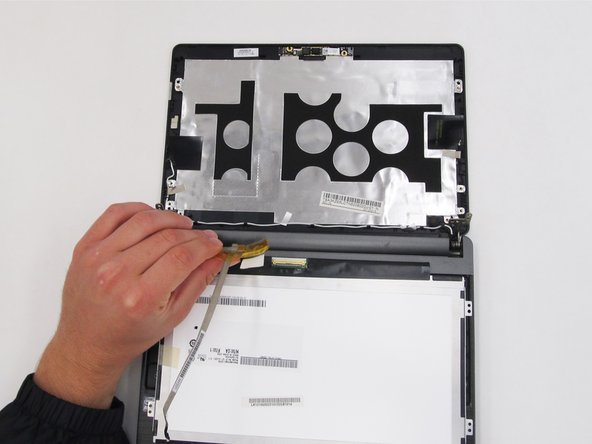
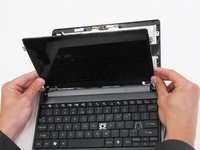
Flip the screen over so that it is lying on top of the keyboard.
-
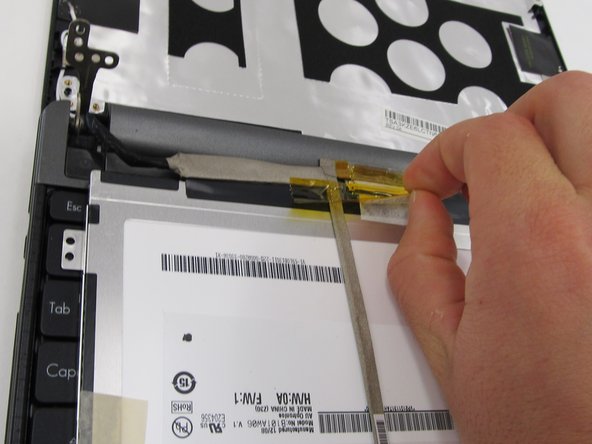
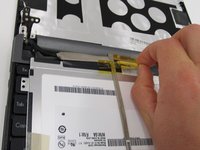
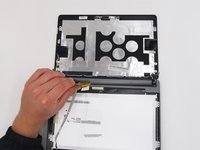
Looking at the underside of the screen, remove the yellow tape and carefully remove the wires attaching the screen to the laptop.
-






To reassemble your device, follow these instructions in reverse order.
Cancelar: não concluí este guia.
Uma outra pessoa concluiu este guia.

Equipe

Clemson, Team 6-5, Benson Spring 2016 Membro de Clemson, Team 6-5, Benson Spring 2016
CLEM-BENSON-S16S6G5
4 Membros
Autoria de 16 guias
