Essa tradução foi gerada por um programa e ainda não foi revisada por uma pessoa. Falas essa língua? Dá uma olhada.
Introdução
Se o touchpad do Dell Precision M3800 não estiver respondendo ou não estiver funcionando, use este guia para substituí-lo.
O touchpad funciona como o "mouse" do notebook, e um touchpad que não responde impediria o uso do notebook, a menos que seja usado um mouse externo.
Antes de começar, certifique-se de desligar o notebook e desconectá-lo das fontes de alimentação externas.
O que você precisa
-
-
-
Use uma chave Torx T5 para desparafusar os dez parafusos de 3 mm da capa traseira do notebook.
-
Levante a capa prateada do painel traseiro para revelar dois parafusos.
-
Use uma chave Phillips para remover os dois parafusos sob a capa prateada.
 Pergunte ao FixBot
-
-
-
Use uma Ferramenta de abertura para fazer alavanca ao redor das bordas do painel traseiro para soltá-lo.
-
Remova o painel traseiro.
-
-
-
-
-
-
Desconecte o cabo da bateria da placa-mãe [1].
-
Use uma chave Phillips para remover os quatro parafusos Phillips que prendem a bateria ao notebook.
-
Levante a bateria e retire-a do computador [2].
-
-
-
-
-
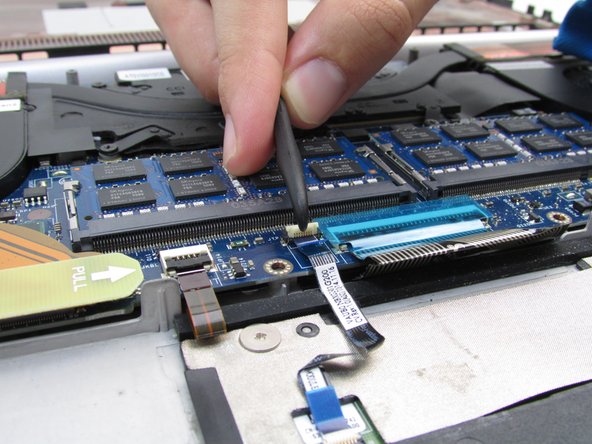
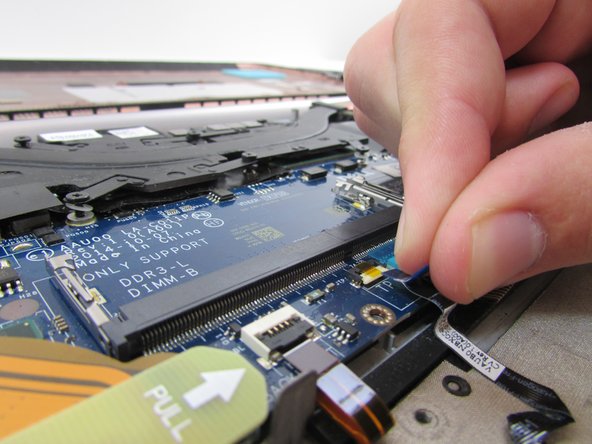
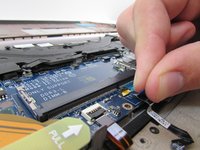
Use uma espátula (Spudger 3) e puxe a aba de tração para desconectar e remover com segurança o cabo que liga o touch pad à placa-mãe.
-
-
-
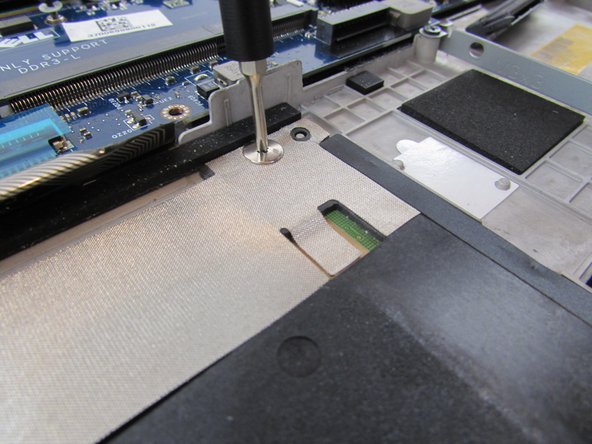
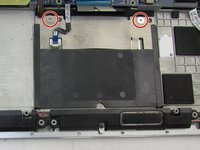
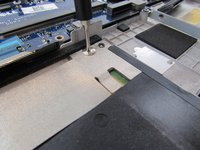
Use uma chave Phillips #00 para remover os dois parafusos prateados de 2 mm.
-
-
-
Remova o touch pad do notebook. Se necessário, use uma ferramenta de alavanca para remover o touch pad.
-
-




Para a remontagem de seu dispositivo, siga estas instruções na ordem inversa.
Cancelar: não concluí este guia.
Uma outra pessoa concluiu este guia.

Equipe

Embry-Riddle Aeronautical University, Team S12-G2, Lamothe Fall 2019 Membro de Embry-Riddle Aeronautical University, Team S12-G2, Lamothe Fall 2019
ERAU-LAMOTHE-F19S12G2
4 Membros
Autoria de 53 guias
