Ir para o conteúdo principal
Participe da comunidade de reparos - Criar conta

Dell Inspiron B130 Screen Replacement

O que você precisa

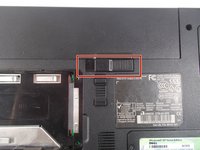
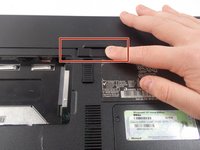
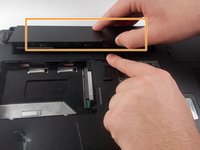
  1. Dell Inspiron B130 Screen Replacement, Battery: passo 1, imagem 1 %32 Dell Inspiron B130 Screen Replacement, Battery: passo 1, imagem 2 %32 Dell Inspiron B130 Screen Replacement, Battery: passo 1, imagem 3 %32
    • First, make sure your computer is turned off.

    • Remove the battery by flipping the two switches under the battery and pulling it out

  2. Dell Inspiron B130 Screen Replacement: passo 2, imagem 1 %32 Dell Inspiron B130 Screen Replacement: passo 2, imagem 2 %32 Dell Inspiron B130 Screen Replacement: passo 2, imagem 3 %32
    • Push the tab from the battery, downwards to unlock the battery.

    • The tab should be in the position next to the unlocked indicator.

  3. Dell Inspiron B130 Screen Replacement: passo 3, imagem 1 %32 Dell Inspiron B130 Screen Replacement: passo 3, imagem 2 %32 Dell Inspiron B130 Screen Replacement: passo 3, imagem 3 %32
    • Now, push the other tab (the one right under the battery) from right to left.

    • Now the battery will be loose; lift the battery up and out of the computer.

  4. Dell Inspiron B130 Screen Replacement, Keyboard: passo 4, imagem 1 %32
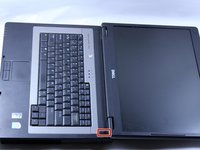
    • Put down the computer and open up the screen.

    • There is a long piece of plastic underneath the screen that you will have to remove.

  5. Dell Inspiron B130 Screen Replacement: passo 5, imagem 1 %32 Dell Inspiron B130 Screen Replacement: passo 5, imagem 2 %32 Dell Inspiron B130 Screen Replacement: passo 5, imagem 3 %32
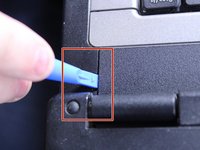
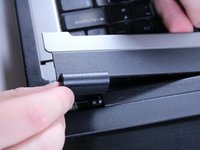
    • When you pry the plastic plate off, be careful and pry gently so you do not crack the plastic.

    • Insert the plastic opening tool into the little slot.

    • Lift up gently and remove the plastic cover.

  6. Dell Inspiron B130 Screen Replacement: passo 6, imagem 1 %32
    • Remove the two 4mm screws at the top of the keyboard.

    • The keyboard is now loose but don't pull it out just yet. It is still connected underneath. Be gentle when lifting keyboard so you do not damage this connection.

  7. Dell Inspiron B130 Screen Replacement: passo 7, imagem 1 %32 Dell Inspiron B130 Screen Replacement: passo 7, imagem 2 %32
    • Lift keyboard up slightly and you will see the keyboard connection.

    • This black tab has to be lifted up to remove the keyboard.

    • Put your finger underneath the tab and pull back gently as indicated.

    • You can now remove the keyboard.

  8. Dell Inspiron B130 Screen Replacement, Screen: passo 8, imagem 1 %32 Dell Inspiron B130 Screen Replacement, Screen: passo 8, imagem 2 %32
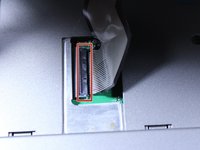
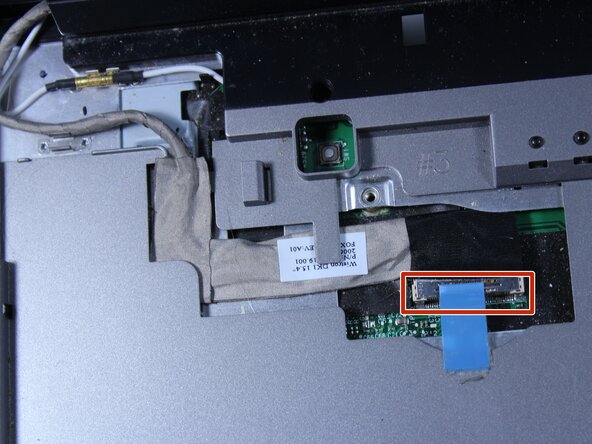
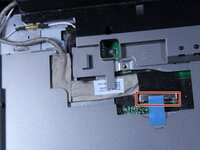
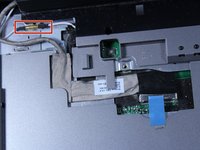
    • Detach the blue display connector.

  9. Dell Inspiron B130 Screen Replacement: passo 9, imagem 1 %32 Dell Inspiron B130 Screen Replacement: passo 9, imagem 2 %32
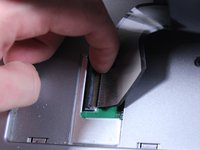
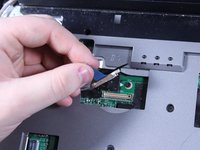
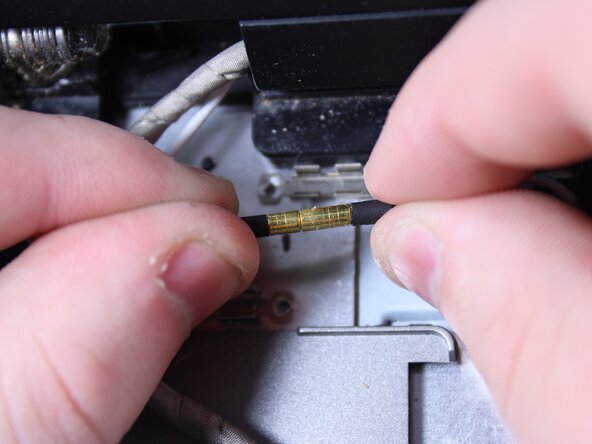
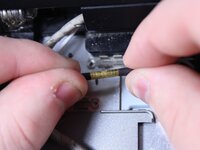
    • Detach the connector by pulling the two ends straight apart.

    • Avoid twisting or pulling at an angle to prevent damage.

  10. Dell Inspiron B130 Screen Replacement: passo 10, imagem 1 %32
    • Use a Phillips #1 screwdriver to remove two 6 mm screws.

  11. Dell Inspiron B130 Screen Replacement: passo 11, imagem 1 %32 Dell Inspiron B130 Screen Replacement: passo 11, imagem 2 %32
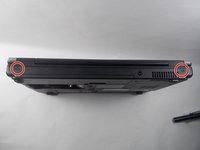
    • Close the computer and flip it over so that the back is facing up.

    • Remove the two 6mm screws that are behind each of the screen's pivot points using a Phillips #1 screwdriver.

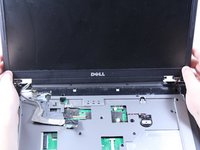
    • Open up the screen and now it can be lifted up and off of the computer.

Conclusão

To reassemble your device, follow these instructions in reverse order.

Patrick McNeil

Membro desde: 10/19/16

955 Reputação

Autoria de 8 guias

Equipe

UMass Dartmouth, Team 1-8, Catania Fall 2016 Membro de UMass Dartmouth, Team 1-8, Catania Fall 2016

UMASSD-CATANIA-F16S1G8

3 Membros

Autoria de 9 guias

0Comentários do guia

Comentar

Visualizações:

Últimas 24 horas: 0

Últimos 7 dias: 4

Últimos 30 dias: 15

Ao todo: 533