Ir para o conteúdo principal
Participe da comunidade de reparos - Criar conta

Dell Chromebook 13-7310 Keyboard Replacement

O que você precisa

    1. Dell Chromebook 13-7310 Keyboard Replacement, Back Cover: passo 1, imagem 1 %32 Dell Chromebook 13-7310 Keyboard Replacement, Back Cover: passo 1, imagem 2 %32
      • Remove the eleven 3mm Phillips #1 screws.

      Pergunte ao FixBot

      Comentar

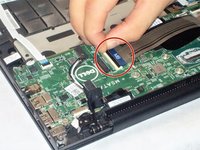
    2. Dell Chromebook 13-7310 Keyboard Replacement: passo 2, imagem 1 %32
      • Use a plastic opening tool to gently remove the back panel.

      • It can be easier to pry open near a corner.

      Pergunte ao FixBot
      Comentar

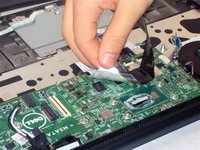
    1. Dell Chromebook 13-7310 Keyboard Replacement, Battery: passo 3, imagem 1 %32
      • Use your fingers to remove the connecting cable to the battery unit. Firmly grab the cord closest to the motherboard connection and pull straight back.

      Pergunte ao FixBot
      Comentar

    2. Dell Chromebook 13-7310 Keyboard Replacement: passo 4, imagem 1 %32
      • Remove the four 2mm screws on the sides of the battery.

      Pergunte ao FixBot

      Comentar

    3. Dell Chromebook 13-7310 Keyboard Replacement: passo 5, imagem 1 %32
      • To remove the battery, lift up on one side to get your fingers underneath and lift away.

      Pergunte ao FixBot

      Comentar

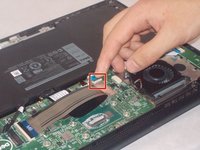
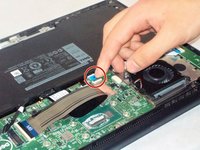
    1. Dell Chromebook 13-7310 Keyboard Replacement, Motherboard: passo 6, imagem 1 %32
      • Gently pull to unplug fan connector.

      Pergunte ao FixBot

      Comentar

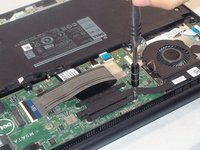
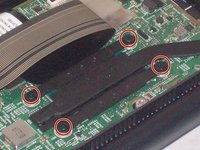
    2. Dell Chromebook 13-7310 Keyboard Replacement: passo 7, imagem 1 %32 Dell Chromebook 13-7310 Keyboard Replacement: passo 7, imagem 2 %32
      • Remove 4 screws securing heat sink.

      Pergunte ao FixBot

      Comentar

    3. Dell Chromebook 13-7310 Keyboard Replacement: passo 8, imagem 1 %32
      • Lift away heat sink.

      Pergunte ao FixBot

      Comentar

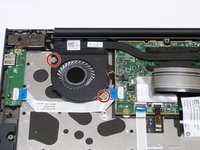
    4. Dell Chromebook 13-7310 Keyboard Replacement: passo 9, imagem 1 %32
      • Remove the eight 2mm screws securing the motherboard in place.

      Pergunte ao FixBot
      Comentar

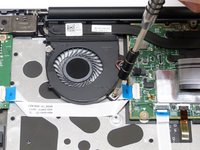
    5. Dell Chromebook 13-7310 Keyboard Replacement: passo 10, imagem 1 %32
      • Release cable for the LED charging indicator by pulling up on connector.

      Pergunte ao FixBot
      Comentar

    6. Dell Chromebook 13-7310 Keyboard Replacement: passo 11, imagem 1 %32
      • Gently remove the cable.

      Pergunte ao FixBot

      Comentar

    7. Dell Chromebook 13-7310 Keyboard Replacement: passo 12, imagem 1 %32
      • Pull up on connector tab to release IO board cable.

      Pergunte ao FixBot

      Comentar

    8. Dell Chromebook 13-7310 Keyboard Replacement: passo 13, imagem 1 %32 Dell Chromebook 13-7310 Keyboard Replacement: passo 13, imagem 2 %32
      • Pull up on connector tab to release touchpad cable.

      Pergunte ao FixBot

      Comentar

    9. Dell Chromebook 13-7310 Keyboard Replacement: passo 14, imagem 1 %32
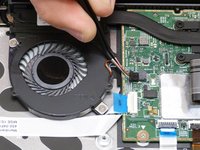
      • Release the keyboard backlight cable.

      Pergunte ao FixBot
      Comentar

    10. Dell Chromebook 13-7310 Keyboard Replacement: passo 15, imagem 1 %32 Dell Chromebook 13-7310 Keyboard Replacement: passo 15, imagem 2 %32
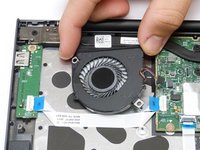
      • Release the keyboard cable.

      • If taped to the motherboard, gently peel it off.

      Pergunte ao FixBot
      Comentar

    11. Dell Chromebook 13-7310 Keyboard Replacement: passo 16, imagem 1 %32
      • Release eDP cable.

      Pergunte ao FixBot

      Comentar

    12. Dell Chromebook 13-7310 Keyboard Replacement: passo 17, imagem 1 %32
      • Release dc-in cable.

      Pergunte ao FixBot

      Comentar

    13. Dell Chromebook 13-7310 Keyboard Replacement: passo 18, imagem 1 %32
      • Gently lift up the motherboard to remove it.

      Pergunte ao FixBot

      Comentar

    1. Dell Chromebook 13-7310 Keyboard Replacement, Cooling Fan: passo 19, imagem 1 %32 Dell Chromebook 13-7310 Keyboard Replacement, Cooling Fan: passo 19, imagem 2 %32
      • Using the #1 Philips screwdriver, remove the two, 2mm screws securing the fan assembly.

      Pergunte ao FixBot

      Comentar

    2. Dell Chromebook 13-7310 Keyboard Replacement: passo 20, imagem 1 %32 Dell Chromebook 13-7310 Keyboard Replacement: passo 20, imagem 2 %32
      Ferramenta utilizada neste passo:
      Tweezers
      $4.99
      • Using your fingernails, pull the cooling fan cables loose from the motherboard.

      • We have the tweezers pictured to allow for a clear view of components. DO NOT use the tweezers to remove the cables, they could be damaged in the process.

      • Finally, lift the fan assembly away from the computer.

      Pergunte ao FixBot

      Comentar

    1. Dell Chromebook 13-7310 Keyboard Replacement, IO Board: passo 21, imagem 1 %32
      • Remove the single 2mm screw securing the IO board to the laptop.

      Pergunte ao FixBot

      Comentar

    2. Dell Chromebook 13-7310 Keyboard Replacement: passo 22, imagem 1 %32
      • Pull up on the connector to release the IO board cable from the motherboard.

      • It may be easier to pull from the blue tab.

      Pergunte ao FixBot

      Comentar

    3. Dell Chromebook 13-7310 Keyboard Replacement: passo 23, imagem 1 %32
      • Remove the IO board.

      Pergunte ao FixBot

      Comentar

    1. Dell Chromebook 13-7310 Keyboard Replacement, Keyboard: passo 24, imagem 1 %32
      • Remove all screws.

      • All screws for the keyboard will have a "K" next to them.

      Pergunte ao FixBot

      Comentar

    2. Dell Chromebook 13-7310 Keyboard Replacement: passo 25, imagem 1 %32
      • Gently lift up the keyboard and remove.

      • This step does not require much force. If you have to use a lot of force to lift the keyboard, check to make sure you didn't miss a screw.

      Pergunte ao FixBot

      Comentar

Conclusão

To reassemble your device, follow these instructions in reverse order.

Cancelar: não concluí este guia.

3 outras pessoas executaram este guia.

Damon

Membro desde: 11/01/18

181 Reputação

Autoria de 2 guias

Equipe

1Comentário do guia

I’ve never pulled apart a computer before, and this guide was perfect! thanks

Owen Thomas - Responder Compartilhar

Comentar

Visualizações:

Últimas 24 horas: 5

Últimos 7 dias: 8

Últimos 30 dias: 19

Ao todo: 1,061