Essa tradução foi gerada por um programa e ainda não foi revisada por uma pessoa. Falas essa língua? Dá uma olhada.
Introdução
Se o cabo USB do seu mouse Corsair Katar não estiver funcionando devido a danos ou fios expostos, este guia mostrará como substituí-lo.
O que você precisa
-
-
-
Vire o mouse para que a parte inferior fique voltada para cima.
 Pergunte ao FixBot
-
-
-
Remova os três pés de suporte na parte inferior do mouse usando as ferramentas de abertura.
-
-
-
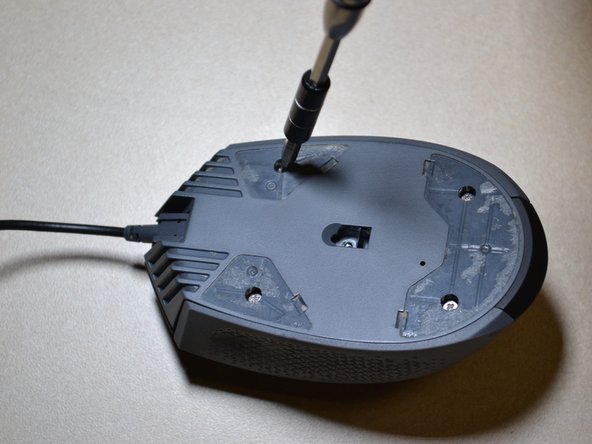
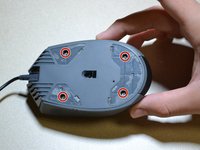
Use a chave (de fenda) JIS 0 para remover os quatro parafusos de 5 mm na parte inferior do mouse.
-
-
-
-
Desencaixe a parte inferior do mouse da carcaça superior.
-
Use a Ferramenta de abertura para desconectar o cabo branco do sensor de DPI da sua porta.
-
-
-
-
-
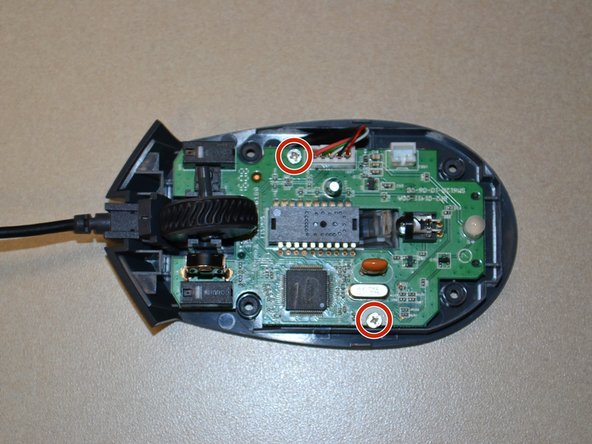
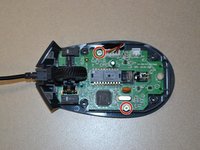
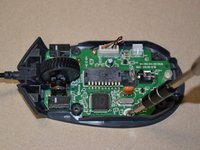
Use a chave JIS 0 para remover os dois parafusos de 5 mm da placa-mãe.
-
-
-
Use a Ferramenta de abertura para destacar o conector de cabo branco da placa-mãe.
-
Levante a placa-mãe para separá-la da base do mouse.
-
-
-
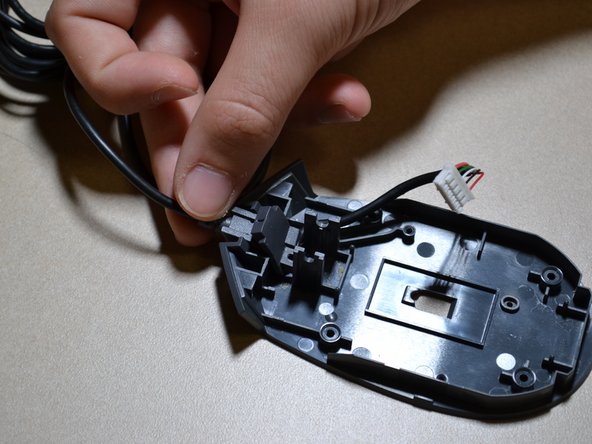
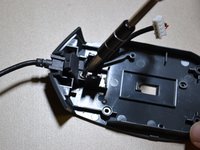
Use a chave JIS 0 para remover o parafuso de 5 mm fixado à carcaça do fio USB.
-
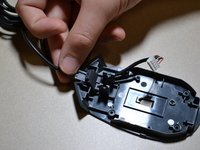
Afaste o fio USB da estrutura do mouse.
-
-






Para a remontagem de seu dispositivo, siga estas instruções na ordem inversa.
Cancelar: não concluí este guia.
Uma outra pessoa concluiu este guia.

Equipe

UW Tacoma, Team S1-G3, Cardinal Summer 2018 Membro de UW Tacoma, Team S1-G3, Cardinal Summer 2018
UWT-CARDINAL-SU18S1G3
3 Membros
Autoria de 49 guias
