Ir para o conteúdo principal
Participe da comunidade de reparos - Criar conta

Corsair Katar Optical Sensor Replacement

O que você precisa

  1. Corsair Katar Optical Sensor Replacement, Corsair Katar Disassembly: passo 1, imagem 1 %32 Corsair Katar Optical Sensor Replacement, Corsair Katar Disassembly: passo 1, imagem 2 %32
    • Unplug your mouse before starting.

    • Flip the mouse over so the bottom is facing up.

    Pergunte ao FixBot
  2. Corsair Katar Optical Sensor Replacement: passo 2, imagem 1 %32
    • Remove the three skates on the bottom of the mouse using the plastic opening tools.

    • Skates will be very sticky.

    Pergunte ao FixBot
  3. Corsair Katar Optical Sensor Replacement: passo 3, imagem 1 %32 Corsair Katar Optical Sensor Replacement: passo 3, imagem 2 %32
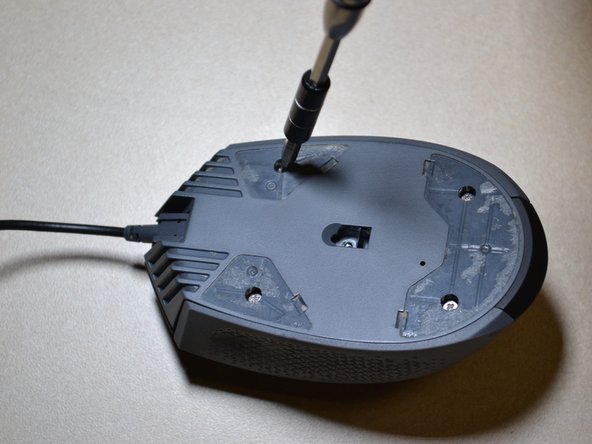
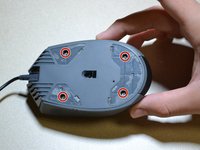
    • Use the JIS 0 screwdriver to remove the four 5 mm screws on the bottom of the mouse.

    Pergunte ao FixBot
  4. Corsair Katar Optical Sensor Replacement: passo 4, imagem 1 %32
    • Detach the bottom of the mouse from the upper shell.

    • Remove the shell slowly so as not to damage the white DPI cable inside the mouse.

    • Use the plastic opening tool to detach the white DPI sensor cable from its port.

    • Alternatively, you can use your hand to remove the DPI sensor cable by wiggling it out of the port.

    Pergunte ao FixBot
  5. Corsair Katar Optical Sensor Replacement, Scroll Wheel: passo 5, imagem 1 %32 Corsair Katar Optical Sensor Replacement, Scroll Wheel: passo 5, imagem 2 %32
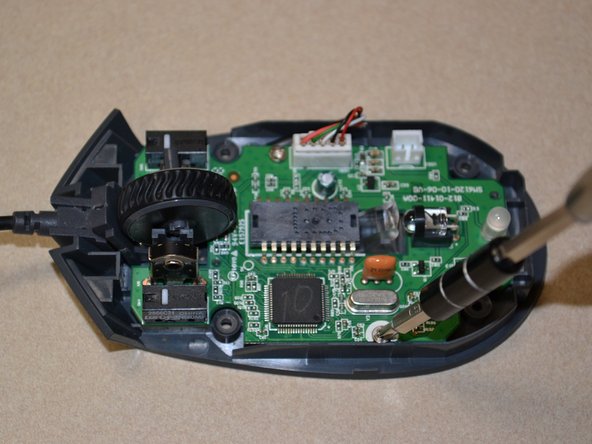
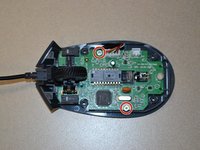
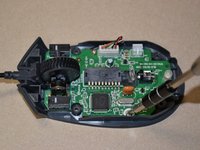
    • Use the JIS 0 screwdriver to remove the two 5mm screws on the motherboard.

    Pergunte ao FixBot
  6. Corsair Katar Optical Sensor Replacement: passo 6, imagem 1 %32
    • Use the plastic opening tool to pry the white cable jack away from the motherboard.

    • Lift the motherboard away from the bottom of the mouse.

    Pergunte ao FixBot
  7. Corsair Katar Optical Sensor Replacement: passo 7, imagem 1 %32
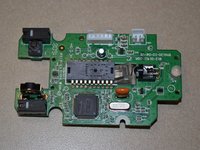
    • Push the scroll wheel to the right side of the motherboard as shown, then pull it away from the board to remove.

    Pergunte ao FixBot
  8. Corsair Katar Optical Sensor Replacement, Optical Sensor: passo 8, imagem 1 %32 Corsair Katar Optical Sensor Replacement, Optical Sensor: passo 8, imagem 2 %32
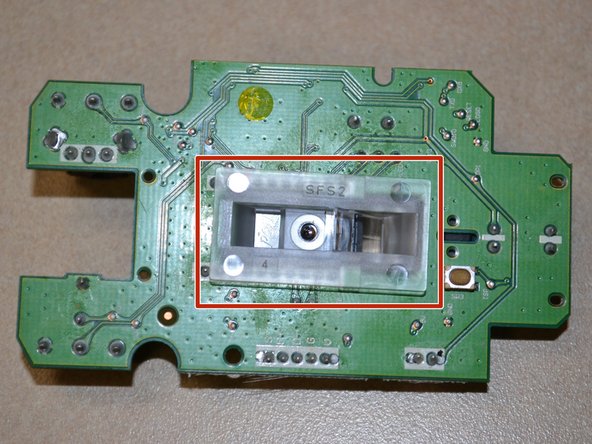
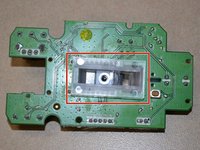
    • Flip the motherboard over and remove the clear plastic cover from the bottom of the board.

    Pergunte ao FixBot
  9. Corsair Katar Optical Sensor Replacement: passo 9, imagem 1 %32 Corsair Katar Optical Sensor Replacement: passo 9, imagem 2 %32
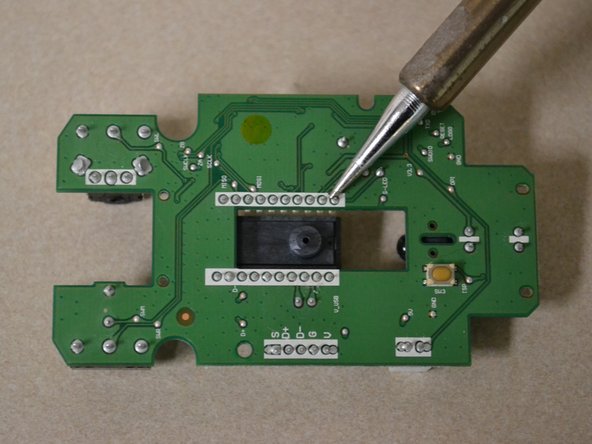
    • Desolder the 20 connecting pins to remove the optical sensor.

    Pergunte ao FixBot
Conclusão

To reassemble your device, follow these instructions in reverse order.

Equipe

UW Tacoma, Team S1-G3, Cardinal Summer 2018 Membro de UW Tacoma, Team S1-G3, Cardinal Summer 2018

UWT-CARDINAL-SU18S1G3

3 Membros

Autoria de 13 guias

0Comentários do guia

Comentar

Visualizações:

Últimas 24 horas: 0

Últimos 7 dias: 4

Últimos 30 dias: 52

Ao todo: 1,460