Ir para o conteúdo principal
Participe da comunidade de reparos - Criar conta

Canon PowerShot A540 LCD Screen Replacement

O que você precisa

  1. Canon PowerShot A540 LCD Screen Replacement, Back Cover: passo 1, imagem 1 %32 Canon PowerShot A540 LCD Screen Replacement, Back Cover: passo 1, imagem 2 %32
    • Turn off the camera.

    • Turn the camera upside-down and press the tab to release the battery cover. Remove the batteries.

    Pergunte ao FixBot
  2. Canon PowerShot A540 LCD Screen Replacement: passo 2, imagem 1 %32
    • Turn the camera upside down to view the "Card/Batt. Open" Cover.

    • Use a Phillips head #000 screwdriver to remove the three (3) 4.0 mm screws.

    Pergunte ao FixBot
  3. Canon PowerShot A540 LCD Screen Replacement: passo 3, imagem 1 %32
    • Open "Card/Batt. Open" Cover.

    • Remove the one (1) 5.0 mm screw with the Phillips head #000 screwdriver.

    Pergunte ao FixBot
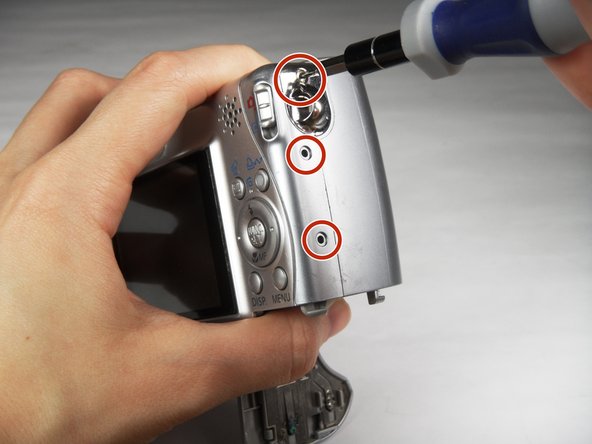
  4. Canon PowerShot A540 LCD Screen Replacement: passo 4, imagem 1 %32
    • Turn the camera to the right side of the LCD screen.

    • Remove the three (3) 4.0 mm screws with the Phillips head #000 screwdriver.

    Pergunte ao FixBot
  5. Canon PowerShot A540 LCD Screen Replacement: passo 5, imagem 1 %32 Canon PowerShot A540 LCD Screen Replacement: passo 5, imagem 2 %32 Canon PowerShot A540 LCD Screen Replacement: passo 5, imagem 3 %32
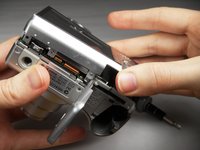
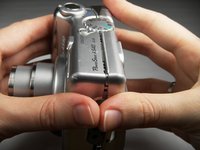
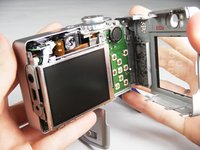
    • Gently remove the back cover.

    • Start at the bottom at the corner of the "Card/Batt. Open" Cover.

    • Then move onto the other edges and the top.

    • It may be tight at the top!

    Pergunte ao FixBot
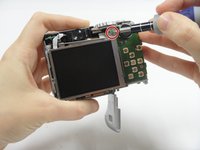
  6. Canon PowerShot A540 LCD Screen Replacement, LCD Screen: passo 6, imagem 1 %32 Canon PowerShot A540 LCD Screen Replacement, LCD Screen: passo 6, imagem 2 %32
    • Turn the camera to view the back.

    • Remove the one (1) 3.0 mm screw on the top right corner of the screen.

    • There is a small metal bar that rests on this frame. Keep it with the screws that have been removed from the camera.

    Pergunte ao FixBot
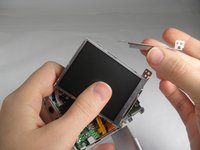
  7. Canon PowerShot A540 LCD Screen Replacement: passo 7, imagem 1 %32 Canon PowerShot A540 LCD Screen Replacement: passo 7, imagem 2 %32
    Ferramenta utilizada neste passo:
    Tweezers
    $4.99
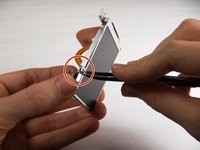
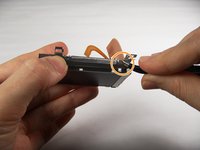
    • Lift the LCD Screen off of the back to view the attached ribbon cables.

    • Use tweezers to flip the black bar up.

    Pergunte ao FixBot
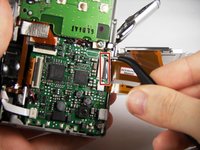
  8. Canon PowerShot A540 LCD Screen Replacement: passo 8, imagem 1 %32 Canon PowerShot A540 LCD Screen Replacement: passo 8, imagem 2 %32 Canon PowerShot A540 LCD Screen Replacement: passo 8, imagem 3 %32
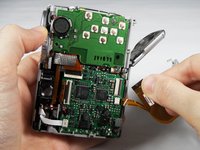
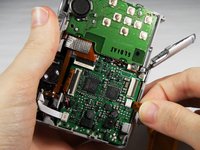
    • Gently pull the big ribbon out.

    • Gently pull the small ribbon out.

    • The small ribbon does not have a bar like the big ribbon.

    Pergunte ao FixBot
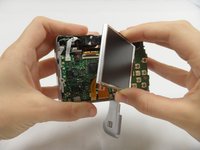
  9. Canon PowerShot A540 LCD Screen Replacement: passo 9, imagem 1 %32 Canon PowerShot A540 LCD Screen Replacement: passo 9, imagem 2 %32
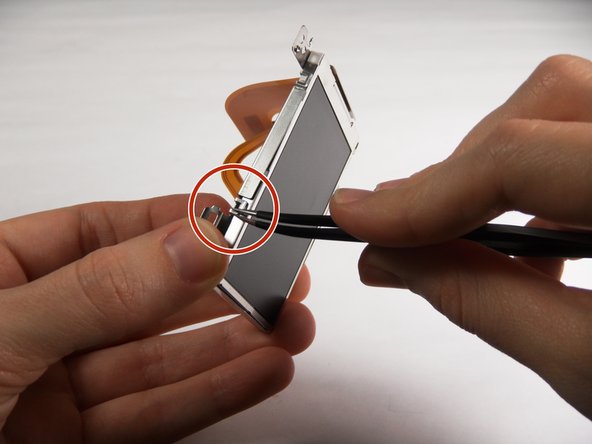
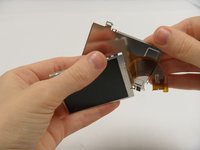
    • Use tweezers at the top left of the LCD Screen to wedge the top left of the Outer Frame loose.

    • Use your thumb to hold the Outer Frame open.

    • Use the tweezers at the top right of the LCD Screen to wedge the top right of the Outer Frame loose.

    Pergunte ao FixBot
  10. Canon PowerShot A540 LCD Screen Replacement: passo 10, imagem 1 %32 Canon PowerShot A540 LCD Screen Replacement: passo 10, imagem 2 %32
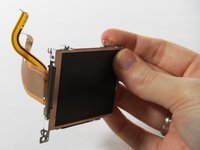
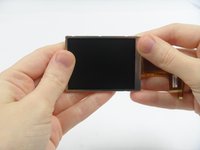
    • Slide the LCD Screen out from the Outer Frame.

    Pergunte ao FixBot
Conclusão

To reassemble your device, follow these instructions in reverse order.

2 outras pessoas executaram este guia.

Carley Fuller

Membro desde: 03/23/15

434 Reputação

Autoria de 3 guias

Equipe

Baylor, Team 7-12, Williams Spring 2015 Membro de Baylor, Team 7-12, Williams Spring 2015

BU-WILLIAMS-S15S7G12

3 Membros

Autoria de 20 guias

1Comentário do guia

I wish to purchase a new screen. Where? I feel capable of repair per these instructions and a u tube video.

Geo Schou - Responder Compartilhar

Comentar

Visualizações:

Últimas 24 horas: 0

Últimos 7 dias: 9

Últimos 30 dias: 67

Ao todo: 1,483